You set the Enrollment Status Page to block. You picked a sixty minute timeout because your image ships fourteen required applications and some of them are big. You handed the laptop to a new starter, watched the spinner, and it cleared in four minutes flat. Then the new starter asked where the VPN client was.
Nothing failed. No error appeared. The Enrollment Status Page did exactly what Microsoft documents it to do. The gap is between what you assigned and what the ESP agreed to wait for, and those are two different lists. This post is about that second list: how Windows builds it, which of your apps never make it in, and how to read the answer off a real device instead of guessing.
Watch on YouTube · Subscribe at @EndpointWeekly
The ESP does not wait for every app you assigned. It waits for a tracked set that Windows computes once per phase, and membership depends on the assignment intent, the assignment target, the app type and the install context. Required device-targeted Win32, WinGet, per-machine LOB MSI and device-context store apps are tracked during Device Setup; user-targeted apps are only tracked during Account Setup, which many tenants have switched off. Everything assigned as Available, everything left out of a Selected blocking list, and every blocking list defined on a user-targeted ESP profile is invisible to the ESP. You can prove which apps it actually waited on from two registry hives and the Intune Management Extension logs.
ESP (Enrollment Status Page) - the setup screen a new device shows while Intune installs its apps and policies.
CSP (Configuration Service Provider) - a Windows-side component that a management tool like Intune talks to. There is a separate CSP for tracking apps and one for the DM client settings; neither one reads your Intune assignment list directly.
IME (Intune Management Extension) - the agent installed on the device that actually runs Win32 app installs and reports their status back. It shows up in logs under the name Sidecar.
Required vs. Available - two ways to assign an app. Required means Intune installs it without asking. Available means it shows up in Company Portal for someone to install themselves. Only Required apps can ever be waited on by the ESP.
Device Setup vs. Account Setup - the two phases of the ESP that install apps. Device Setup runs for every device. Account Setup runs for the signing-in user, and a lot of tenants have switched it off without realising what that switches off with it.
The problem: a blocking ESP that blocks on nothing
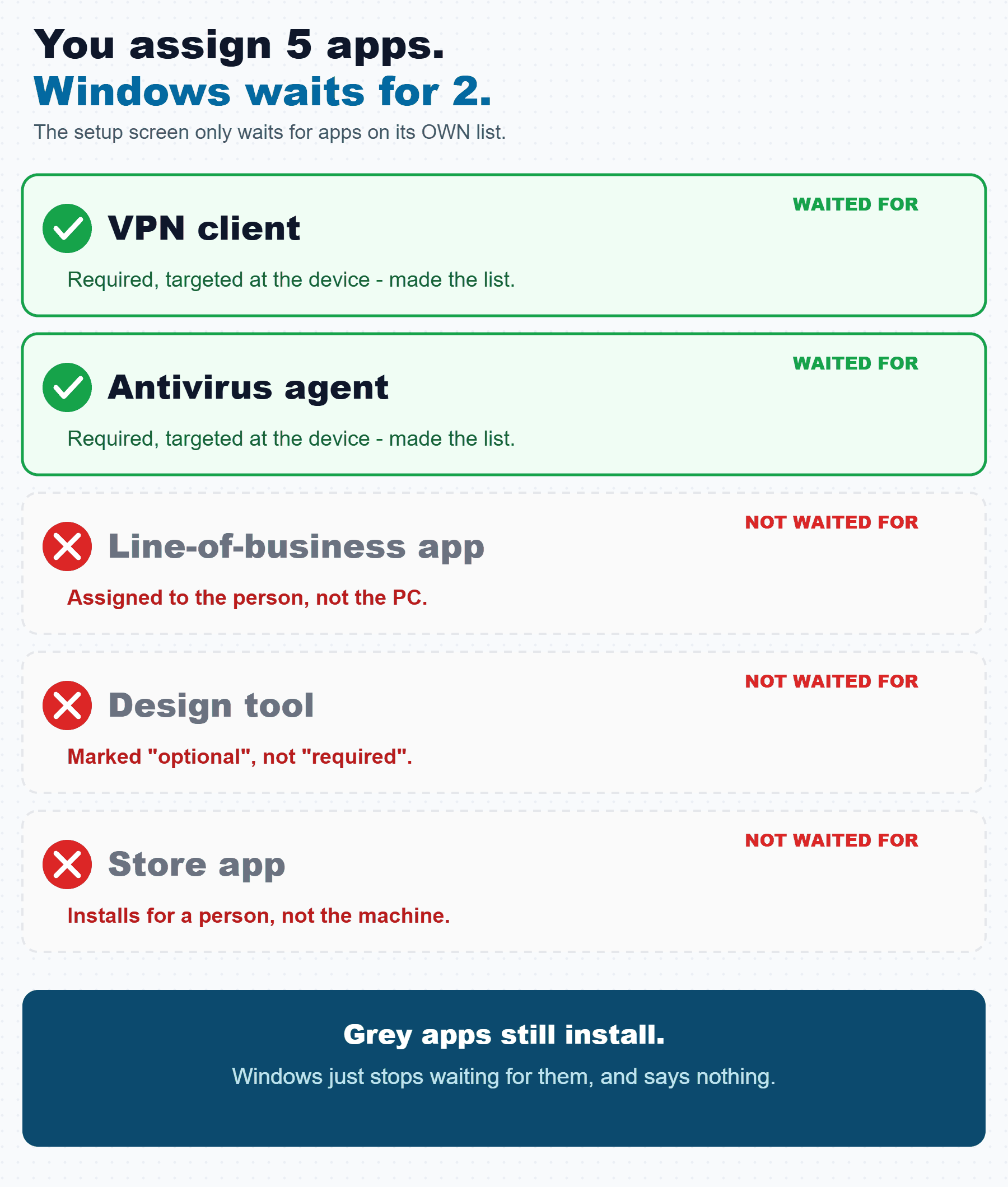
The setting is called Block device use until all apps and profiles are installed. The name is the source of the confusion. Read literally it promises that no user reaches a desktop until every assigned application has landed. That is not what it means.
Underneath it sits a second setting: Block device use until these required apps are installed if they are assigned to the user/device, with the options All and Selected. Notice the conditional in that sentence. It says "if they are assigned to the user/device". It does not say "everything you assigned". Microsoft's own wording is doing careful work there, and the whole failure mode lives inside it.
Here is what the fast-pass looks like from a support engineer's chair. The device provisioned. The ESP reported success. Company Portal later shows most apps installed and a couple still pending. The user was productive on day one for everything except the two applications that mattered.
That output is the whole story in four values. BlockInStatusPage is non-zero, so the ESP genuinely was configured to block. SkipDeviceStatusPage is 0, so the Device Setup phase ran. And SkipUserStatusPage is 0xffffffff, so the Account Setup phase was skipped outright. Every app targeted at the user was therefore never a candidate for tracking on this device. The ESP blocked on the device-targeted list only, that list was short, and it finished in four minutes.
Why it happens: the tracked set is not your assignment list
Two configuration service providers share the job. The EnrollmentStatusTracking CSP tracks Win32 app installations. The DMClient CSP tracks MSI and Universal Windows Platform app installations through its FirstSyncStatus/ExpectedMSIAppPackages and FirstSyncStatus/ExpectedModernAppPackages nodes. Neither of them reads your Intune assignment list directly. An agent has to register itself as a policy provider and then declare which apps it intends to install.
For Win32 apps that agent is the Intune Management Extension, which appears in the CSP under the provider name Sidecar. Before installation begins, the device creates a tracking policy and calculates all apps and policies that need to be tracked. While that calculation runs, the ESP shows its subtasks in an Identifying state. When the calculation finishes, the provider sets TrackingPoliciesCreated to true and the ESP starts displaying counts.
That is the critical mechanic. The tracked set is a snapshot, taken once per phase, of what the agent believed it had to install at that moment. Anything that was not in scope when the snapshot was taken is not in the set, and nothing adds to the set later. During ESP, Sidecar tracks only Win32 apps and no PowerShell scripts at all.
Which app types each phase tracks
Microsoft publishes the tracked types per phase, and they are not the same list. This is the table to keep on a sticky note.
| App type | Device setup phase | Account setup phase |
|---|---|---|
| Win32 app (Intune Win32 / IME) | Tracked when targeted to the device | Tracked when assigned to the user, Windows 10 1903 and later |
| WinGet app | Tracked | Not listed as tracked |
| Per-machine LOB MSI | Tracked | Tracked |
| Per-user LOB MSI | Not listed as tracked | Tracked |
| LOB store app | Tracked only where installation context = device | Tracked, along with online and offline store apps |
| PowerShell script or remediation | Never tracked | Never tracked |
| Security policy, for example device restrictions | Not tracked, installs in background | Not tracked, installs in background |
| Microsoft Edge, Assigned Access, Kiosk Browser policy | Tracked | Tracked |
Read the WinGet row and the per-user MSI row together and the asymmetry becomes obvious. The two phases were built at different times for different agents, and they do not mirror each other. A WinGet app assigned to a user group is in nobody's tracked set.
Six reasons your blocking app did not block
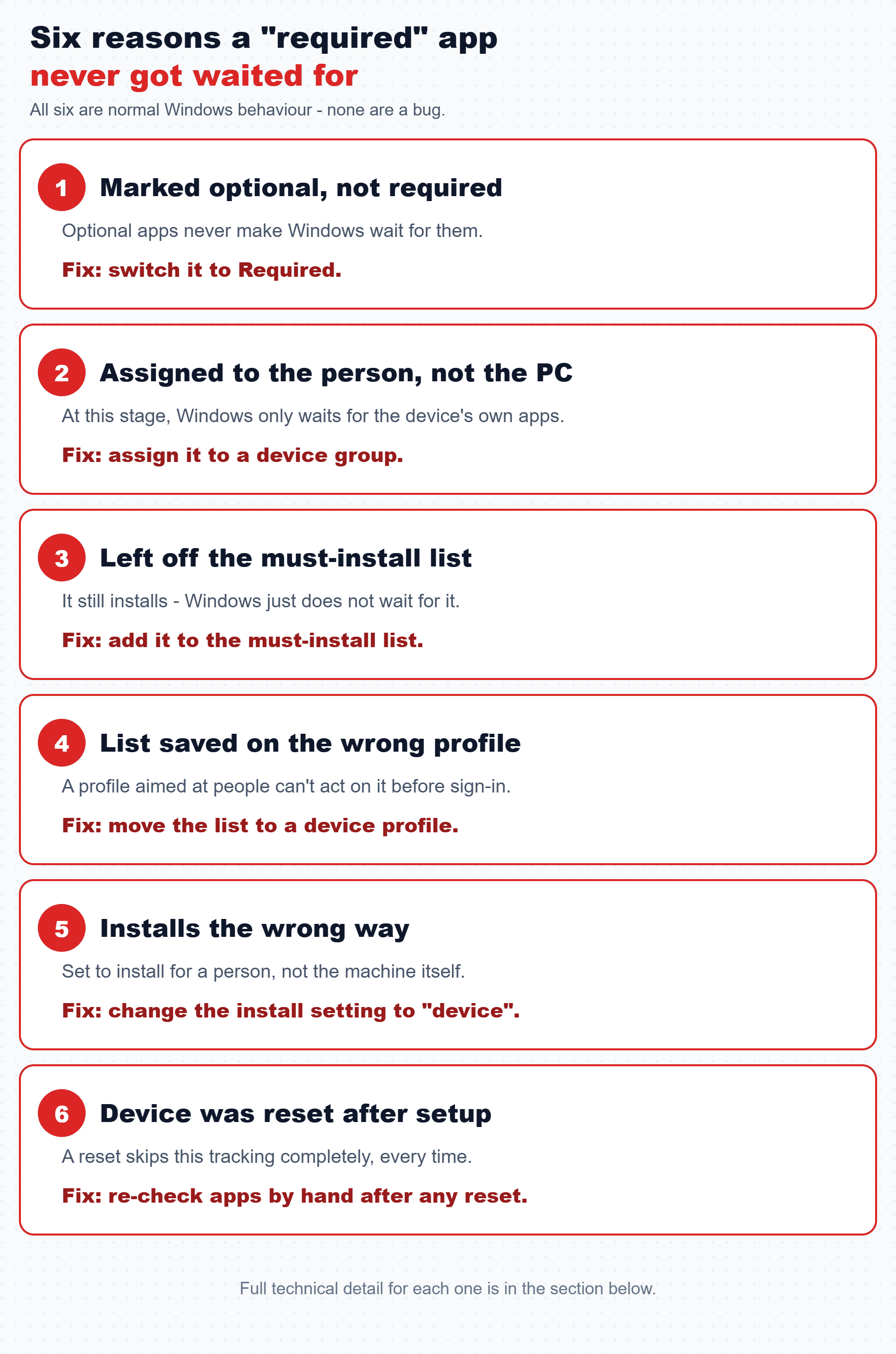
Each of these is documented behaviour, not a bug you can escalate.
1. It was assigned as Available, not Required. Microsoft's troubleshooting guidance is explicit: to guarantee that applications are installed and tracked by the ESP, the apps must be assigned to a group containing the device or the user by using a required assignment. Available assignments never enter a tracked set. Worth knowing that for almost all app types, Available assignments are only valid against user groups anyway, with Win32 apps as the notable exception since they can be Available to device groups too. So a Win32 app sitting Available on a device group looks device-targeted in the console and is still invisible to the ESP.
2. It was targeted at the user while only the device phase was blocking. Device-targeted apps are tracked during the device setup phase and user-targeted apps during the user setup phase. If Account Setup is skipped, or if the user reaches the desktop before it matters, user-targeted apps were never going to hold the door.
3. It was not on your Selected list. This is the one that catches careful admins, because the list does not mean what its position in the UI implies.
Adding an app to the Selected list does nothing to make it install. Removing one does not stop it installing. The list only decides which of the already-assigned apps are allowed to block. You can select up to 100 apps.
4. Your blocking list is on a user-targeted ESP profile. Microsoft records this as a known issue: blocking apps specified in a user-targeted Enrollment Status Page profile are ignored during device ESP, because the services that decide which apps should be blocking cannot determine the correct profile without knowing the user identity. The documented guidance is to target the ESP profile to device groups, or to put the blocking list on the default profile which targets all users and all devices.
5. The install context does not match the phase. The device setup phase tracks apps deployed in a device context. Microsoft's checklist adds a second condition that is easy to miss: the apps install in device context and they have no user-context applicability rules. For Microsoft Store app (new) deployments the install behaviour is an explicit choice of System or User, and for Store Win32 apps the installer definition in the store decides which contexts are even available. A Store app that only supports User context cannot be tracked in Device Setup, no matter which group you assign it to. On Microsoft Entra hybrid joined devices there is a further documented carve-out: Win32 and UWP apps assigned to the device with user installation context are not tracked during provisioning at all.
6. The device was Autopilot Reset. Another documented known issue: when a Windows Autopilot Reset happens, the required apps are not installed on the ESP before the user reaches the desktop. The apps are not tracked on the ESP, though they do install once the user signs in.
Device preparation
Waits for every registered policy provider to report InstallationState 2 (NotRequired) or 3 (Completed). This is where the IME itself gets installed. Default provider timeout is 15 minutes when none is specified.
Device setup
Tracked set computed from device-targeted required apps. Locked under the Apps key records whether device use is actually blocked until this phase finishes.
Account setup
A separate tracked set under the signing-in user's SID. Microsoft notes this subkey is not created at all if the device setup phase fails.
The mixing hazard that turns a slow ESP into a failed one
Another installation is in progress, please try again later and the ESP fails with it. The same collision is documented for the Teams Machine-Wide Installer MSI bundled inside the Microsoft 365 Click-to-Run app type, which the ESP does not track and therefore cannot serialise. If you need to mix the two, Microsoft's recommendation is Windows Autopilot device preparation, which does not use the ESP at all and therefore supports mixing.On timing, and what is not documented
A popular piece of folklore says an app must be assigned some fixed number of minutes before enrolment or the ESP will not see it. Microsoft documents the mechanism but not a number. What is published is that after enrolment the device calculates the policies and apps required to track in the next phase, and that the ESP shows subtasks as Identifying while that calculation runs. So the snapshot is real and its timing matters. The propagation window between saving an assignment in Intune and that assignment appearing in the device's calculation is not a documented value, and I am not going to invent one. Treat "assign it well before you provision" as sound operational hygiene rather than a spec.
How to verify: read the tracked set off the device
All ESP settings and tracking information are logged in the device registry, which means you can answer "which apps did the ESP actually wait for" without guessing. There are two hives, and they are not near each other.
Hive one: the ESP profile the device received
Shared parent key, one per MDM enrolment GUID:
SOFTWARE\Microsoft\Enrollments, not SOFTWARE\Microsoft\Windows\CurrentVersion\Enrollments. The second path gets quoted constantly and does not exist. If a script of yours reads it and returns nothing, you will conclude the ESP was not configured when in fact you looked in the wrong place.| Value | Type and meaning | What to read from it |
|---|---|---|
| BlockInStatusPage | Integer flag set. 0x0 lets the user exit before provisioning completes. 0x1 shows Reset PC on failure, 0x2 shows Try Again, 0x4 shows Continue Anyway. | Zero means nothing ever blocked. Non-zero means it did, so an instant pass points at an empty tracked set. |
| SkipDeviceStatusPage | Boolean. Skips the device progress page. | 0xffffffff here means the whole device phase, and its app list, was bypassed. |
| SkipUserStatusPage | Boolean. Skips the user progress page. | 0xffffffff means every user-targeted app is untracked by design. |
| AllowCollectLogsButton | Boolean. Controls the Collect logs button on the ESP. | Confirms whether the end user could have captured diagnostics. |
| TimeOutUntilSyncFailure | Integer, 1 to 1440 minutes, default 60. | The documented timeout node. Compare against how long the ESP actually took. |
| IsSyncDone | Boolean set when first syncs are done and the device is fully provisioned. | 1 with a short elapsed time is the fingerprint of this whole problem. |
| ExpectedMSIAppPackages | Delimited string of EnterpriseDesktopAppManagement LocURIs, each followed by a semicolon and a count. | The MSI apps the service declared. Empty means no MSI was ever expected. |
| ExpectedModernAppPackages | Delimited string of EnterpriseModernAppManagement LocURIs with counts. | The UWP and store apps the service declared. |
Hive two: the per-phase tracked app list
This hive is created by the EnrollmentStatusTracking CSP, which arrived in Windows 10 version 1903. It holds a Device subkey, an ESPTrackingInfo subkey, and one subkey per logged-in user security identifier. That SID subkey is created during the account setup phase and is not created if the device setup phase fails, so its absence is itself a finding.
| Node under the parent key | Value | Documented meaning |
|---|---|---|
| Device\DevicePreparation\PolicyProviders\{Provider} | InstallationState | 1 NotInstalled, 2 NotRequired, 3 Completed, 4 Error. The ESP holds in device preparation until every provider reaches 2 or 3. |
| Device\DevicePreparation\PolicyProviders\{Provider} | LastError | Optional HRESULT the provider sets, read by the ESP only when InstallationState is 4. |
| Device\DevicePreparation\PolicyProviders\{Provider} | Timeout | Minutes the provider may run. Default 15 when unspecified. |
| Device\DevicePreparation\PolicyProviders\{Provider}\TrackedResourceTypes | Apps | Boolean. Only providers registered for apps contribute app counts to the ESP message. |
| Device\Setup\Apps | Locked | Whether device usage is blocked until this stage completes. |
| Device\Setup\Apps\PolicyProviders\{Provider} | TrackingPoliciesCreated | Whether the provider finished creating tracking policies. A device stuck on Identifying is stuck here. |
| Device\Setup\Apps\Tracking\{Provider}\{AppName} | InstallationState | 1 NotInstalled, 2 InProgress, 3 Completed, 4 Error. Any app at 4 stops the ESP installing further applications. |
| Device\Setup\Apps\Tracking\{Provider}\{AppName} | RebootRequired | 1 NotRequired, 2 SoftReboot, 3 HardReboot. If the provider never sets it, the ESP will not reboot for that app. |
| Device\Setup\HasProvisioningCompleted | (boolean) | Set by the ESP when it finishes, so providers can tell whether the ESP is still displayed. |
| {User_SID}\Setup\Apps\Tracking\{Provider}\{AppName} | InstallationState | The same structure for the account setup phase, per signing-in user. |
| ESPTrackingInfo\Diagnostics\ExpectedMSIAppPackages | timestamped subkeys | One subkey per logging timestamp recording each LOB MSI app's status. |
| ESPTrackingInfo\Diagnostics\ExpectedModernAppPackages | timestamped subkeys | Store app status per timestamp, 0 not installed and 1 installed. Under a {User_SID} subkey when deployed in user context. |
| ESPTrackingInfo\Diagnostics\ExpectedNetworkProfiles | timestamped subkeys | Wi-Fi profile installation status. |
| ESPTrackingInfo\Diagnostics\ExpectedCertificateProfiles | timestamped subkeys | SCEP certificate profile installation status. |
| ESPTrackingInfo\Diagnostics\ExpectedPolicies | EntDMID | Because the ESP does not track security policies, only this placeholder policy appears. |
Sidecar. On a co-managed device you will see ConfigMgr registered as the policy provider instead. Enumerate whatever provider subkeys exist rather than hard-coding a name, or your script will report zero tracked apps on exactly the fleet where the answer matters most.The log trail for Win32 apps
Intune Management Extension logs live at C:\ProgramData\Microsoft\IntuneManagementExtension\Logs and are best read in CMTrace. IntuneManagementExtension.log is the main log holding check-ins, policy requests and policy processing. AppWorkload.log is the one that carries Win32 app deployment activity, and it is where the ESP phase decisions surface.
Two things to take from that. The EspPhase: tells you whether the IME believed it was inside the ESP at all, and NotInEsp means anything it installed at that moment was never blocking. The detection lines give you the policy GUID of every Win32 app the IME evaluated. Diff those GUIDs against the Win32App_{id} subkeys in the tracking hive and the apps that appear in the log but not in the hive are precisely the ones the ESP ignored.
Collecting the evidence in one shot
From OOBE press Shift+F10 on a non-S-mode device and run the documented collection command. The resulting cab contains MDMDiagReport_RegistryDump.Reg, which holds every MDM enrolment registry key including the ESP settings and the apps being installed.
The Autopilot event log surface
Windows Autopilot logs to Event Viewer under Applications and Services Logs › Microsoft › Windows › ModernDeployment-Diagnostics-Provider › Autopilot. These events cover profile acquisition and the OOBE flow rather than per-app tracking, so use them to rule the profile in or out before you go hunting for apps.
| Event ID | Type | Documented meaning |
|---|---|---|
| 100 | Warning | Autopilot policy not found. Usually temporary while the device waits for a profile download. |
| 101 | Info | AutopilotGetPolicyDwordByName succeeded. Numeric OOBE setting retrieved. |
| 103 | Info | AutopilotGetPolicyStringByName succeeded. String OOBE setting such as the tenant name. |
| 109 | Info | AutopilotGetOobeSettingsOverride succeeded. State-related OOBE setting. |
| 111 | Info | AutopilotRetrieveSettings succeeded. Profile settings controlling OOBE behaviour were retrieved. |
| 153 | Info | State change reported, normally ProfileState_Unknown to ProfileState_Available. |
| 160 | Info | AutopilotRetrieveSettings beginning acquisition. |
| 161 | Info | AutopilotManager retrieve settings succeeded. Profile downloaded. |
| 163 | Info | Download not required, device already provisioned. Sysprep /Generalize normally clears this. |
| 164 | Info | Internet determined available for policy download. |
| 171 | Error | Failed to set TPM identity confirmed. TPM attestation problem. |
| 172 | Error | Failed to set Autopilot profile as available. Typically follows 171. |
| 807 | Error | ZtdDeviceIsNotRegistered. Check the hardware hash upload and profile assignment. |
| 809 | Error | ZtdDeviceHasNoAssignedProfile. The assigned profile was deleted without cleanup. |
| 815 | Error | ZtdDeviceHasNoAssignedProfile. No profile assigned and no default profile in the tenant. |
| 908 | Error | SerialNumberMismatch or ProductKeyIdMismatch between the Autopilot record and the hardware. |
One more event worth knowing lives on a different channel. Unexpected reboots during the ESP can be traced through the RebootRequiredURI event on MDM_DIAGNOSTICS_ADMIN_CHANNEL, which names the exact CSP URI that triggered the reboot.
The fix: make the apps you care about trackable
The fix is not a setting. It is making your assignments match the shape the ESP can see.
Step one: build or correct the ESP profile
- Sign in to the Microsoft Intune admin center.
- Select Devices, expand Device onboarding, then select Enrollment.
- On the Windows tab, under Windows Autopilot, select Enrollment Status Page.
- Select Create, name the profile, then select Next.
- Set Show app and profile configuration progress to Yes. Nothing below this appears until you do.
- Set Show an error when installation takes longer than specified number of minutes. The default is 60. Raise it if you are tracking large apps.
- Set Turn on log collection and diagnostics page for end users to Yes. On Windows 11 this also enables the Autopilot diagnostics page, reachable with CTRL+SHIFT+D.
- Set Block device use until all apps and profiles are installed to Yes.
- For Block device use until these required apps are installed if they are assigned to the user/device, choose All or Selected. If Selected, choose Select apps and pick up to 100.
- Select Next, then on Assignments assign to device groups. Only a limited set of assignment filters is available here because of operating system restrictions: the picker shows only filters with rules on
model,manufacturer,osVersion,operatingSystemSKU,deviceOwnershipandenrollmentProfileName. - Optionally set scope tags, then Review + create.
If you assign more than one profile, the highest priority wins, with 1 being highest. Intune applies the highest-priority device-targeted profile first, falls back to the highest-priority user-targeted profile only where a user exists, and uses the default profile when nothing is assigned. You can hold a maximum of 51 profiles in a tenant, the default plus 50.
./Vendor/MSFT/DMClient/Provider/MS DM Server/FirstSyncStatus/SkipUserStatusPage as a Boolean, which is the documented way to disable the user portion of the ESP once policy is already on a device. Note also that the ESP does not apply to a Windows device that was enrolled with Group Policy.Step two: fix the assignments themselves
- Move every must-have app to Required. Available is invisible to the ESP. If it has to be there on day one, it is Required.
- Target must-have apps at device groups, in device or system install context. That puts them in the Device Setup tracked set, which is the phase that runs in every Autopilot scenario including self-deploying and pre-provisioning.
- Remove user-context applicability rules from anything you expect the device phase to track. Microsoft's checklist requires device context and no user-context applicability rules.
- Check the install behaviour on Store apps. In Apps › All Apps, open each Microsoft Store app (new) and confirm Install behavior is System. Where the option is greyed out, that app only supports the shown context and cannot be moved.
- Put the blocking list on a device-targeted profile, or on the default profile, so the documented user-targeted-profile issue cannot bite.
- Standardise on the Win32 app type. Microsoft recommends using the Win32 app type exclusively for Windows desktop apps, particularly multi-file installers, and specifically recommends deploying Microsoft 365 Apps as Win32 rather than the Microsoft 365 Apps type to stop the ESP hanging during installation.
- For pre-provisioning, decide what a non-blocking failure means. The setting Only fail selected blocking apps in technician phase appears once blocking apps are added. Set to Yes, all required apps are attempted, only blocking apps can fail the deployment, and non-blocking failures are retried at first user sign-in. Set to No, only blocking apps are attempted in the technician phase and non-blocking apps wait for the end user.
- Then verify on a real device rather than trusting the console. That is what the companion script is for.
Proof it worked: a tracked set that matches intent
The companion script reads both documented registry hives, enumerates the tracked set per phase, decodes every state value against the CSP documentation, then parses the IME logs and cross-references the Win32 policy GUIDs it finds against the tracked set. It is strictly read-only, refuses to report a clean result after a failed read, and runs on both Windows PowerShell 5.1 and PowerShell 7.
That is the failure, quantified: eleven Win32 apps handled, three of them blocking, eight shipped on trust. After moving the must-have apps to Required on a device group, targeting the ESP profile at devices, and re-provisioning, the same script should read very differently.
The number to watch is the second one in section 6. When the count of Win32 policy GUIDs in the logs equals the count in the tracked set, your assignment list and the ESP's list have converged, and "the ESP passed" finally means what you wanted it to mean. Run the script against one device from every deployment profile you own. Fleets tend to have exactly one ESP profile and four different assignment habits.
TimeOutUntilSyncFailure and against the tracked count. Three tracked apps completing in four minutes is fine if three apps are genuinely all you require. The alarm is a tracked count that is smaller than your must-have list, and only reading the device tells you that.References
Microsoft official
- Set up the Enrollment Status Page in the admin center - every ESP setting, the Selected blocking-app filter semantics, and the per-phase list of tracked app types.
- Troubleshoot the Enrollment Status Page (ESP) - the FirstSync and EnrollmentStatusTracking registry surfaces, the InstallationState values, and the "why were my applications not installed and tracked" checklist.
- EnrollmentStatusTracking CSP - node tree, DevicePreparation providers, TrackingPoliciesCreated, InstallationState and RebootRequired values.
- DMClient CSP - the FirstSyncStatus nodes including BlockInStatusPage flags, ExpectedMSIAppPackages, ExpectedModernAppPackages and TimeOutUntilSyncFailure.
- Windows Autopilot known issues - user-targeted ESP profile blocking apps ignored during device ESP, and required apps untracked after an Autopilot Reset.
- Windows Autopilot troubleshooting FAQ - the Autopilot event log channel and event ID catalog, plus the LOB and Win32 TrustedInstaller collision.
- Understand Microsoft Intune Management Extension - IME log locations and the per-file breakdown including AppWorkload.log.
- Assign apps to groups in Microsoft Intune - Available assignments are only valid against user groups for almost all app types, Win32 excepted.
- Add Microsoft Store apps to Microsoft Intune - System versus User install behaviour and which contexts a Store Win32 app supports.
Community deep-dives
| Author | Article | Why it is worth reading |
|---|---|---|
| Michael Niehaus | Blocking for app installation using Enrollment Status Page | The original announcement of the All versus Selected blocking-app choice, from the engineer who shipped it. |
| Peter van der Woude | Block access to a device until specific apps are installed | Walks the blocking-app configuration and the end-user experience, and is explicit about which app categories can be selected. |
| Rudy Ooms | Autopilot stuck on Identifying Apps | Traces a stuck Identifying phase to an untracked PowerShell script, and shows the tracking hive being written only after that script times out. |
| Rudy Ooms | Autopilot, Only fail selected blocking apps | Pulls apart the best-effort behaviour behind the technician-phase setting, including how the IME reports non-blocking apps. |
Companion script
Get-EspTrackedAppReport.ps1 reports which apps the ESP actually tracked on a device, cross-referenced against the Intune Management Extension logs. Read-only, no Graph write scopes, and it aborts rather than showing you a clean report built on a failed read.
Download it from Imran76Awan/Windows-Autopilot-Scripts — no sign-in required. It is read-only: it reports and never changes a device or anything in Intune. Validate it in your own environment before relying on the output.