Windows Autopilot for pre-provisioned deployment is the only Autopilot scenario where two different people share one deployment. A technician in a warehouse runs the first half. The end user at a desk runs the second half. Most administrators understand that split as a concept. Far fewer can say precisely where the boundary sits, what crosses it, or how to look at a device and tell which side of the boundary that device is on. That gap is where half-provisioned laptops come from, and the reseal step is where the gap usually opens.
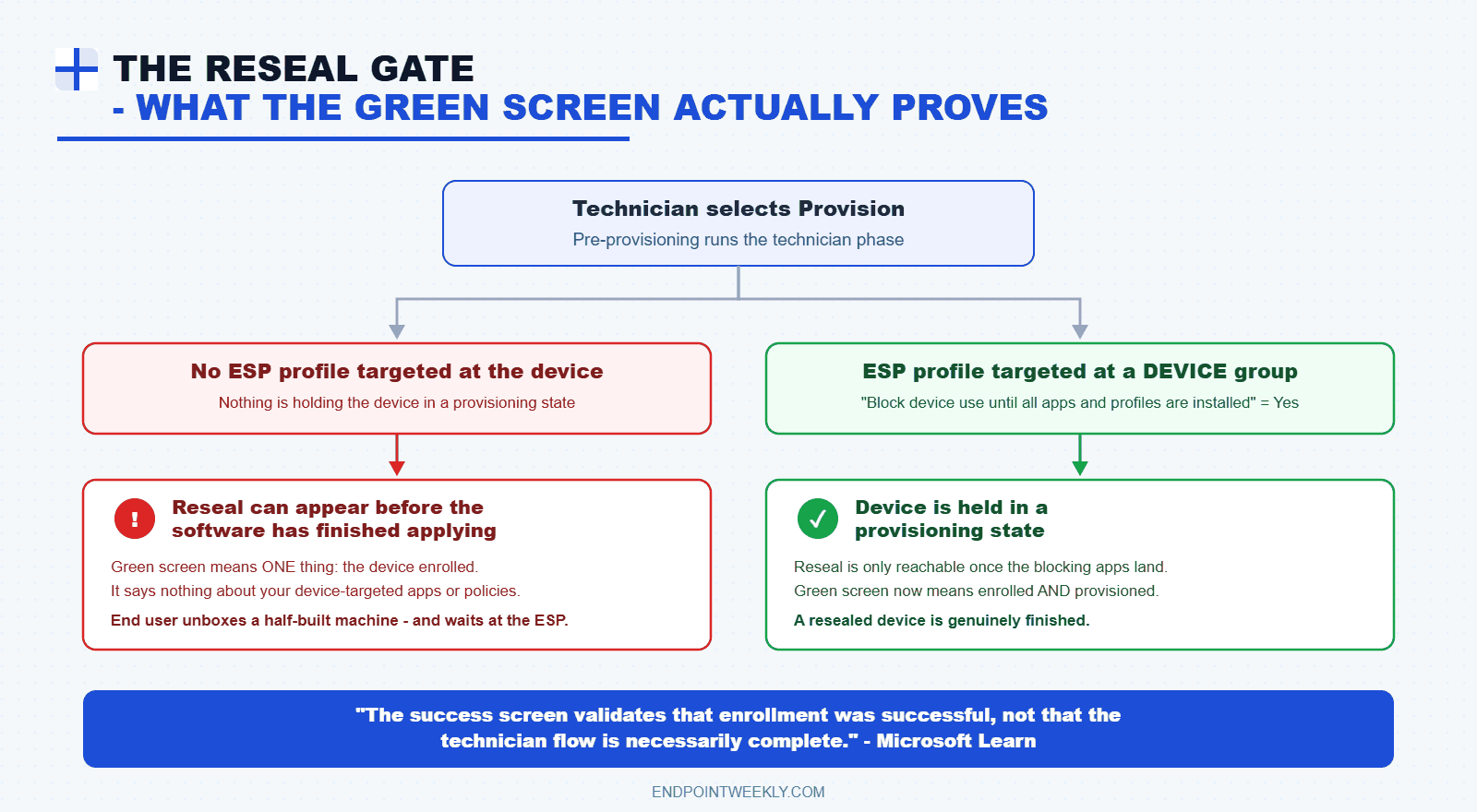
Pre-provisioning splits provisioning into a technician flow, which runs only the two device Enrollment Status Page (ESP) phases, and a user flow, which runs the account setup phase later. Microsoft states plainly that the success screen "validates that enrollment was successful, not that the technician flow is necessarily complete", and that with the ESP disabled the Reseal button can appear before apps and configuration have finished applying. That is the failure mode: a device resealed before it was ready reaches the user still needing the work the warehouse was supposed to absorb. You can tell which phase a device actually finished by reading the documented ESP tracking registry, because the logged-on user's SID subkey is only created during account setup.
The problem: a resealed device that was never actually finished
The ticket always reads the same way. A pre-provisioned laptop is couriered to a new starter. The starter powers it on, picks a language, signs in, and then sits watching the Enrollment Status Page for forty minutes. Half the line-of-business apps are missing. Sometimes the machine never offers a work sign-in at all. Instead it asks the user to accept a licence agreement and create a local account, which is exactly the shape of a device that is still mid-provisioning.
The technician is adamant that the screen went green. They are usually telling the truth. The green screen and a finished device are not the same thing.
Microsoft is unusually direct about this in the technician flow tutorial. The technician flow inherits its behaviour from self-deploying mode, and self-deploying mode uses the ESP to hold the device in a provisioning state. Microsoft writes that "if Enrollment Status Page is disabled, the reseal button can appear before software and configuration is done applying", and that "The success screen validates that enrollment was successful, not that the technician flow is necessarily complete."
Before going further, it helps to see what the device itself records while this is happening. The Autopilot event channel is where the provisioning narrative lives.
Event 171 is the one to memorise. Microsoft documents it as an issue performing TPM attestation, which is needed to complete the self-deploying mode process. Because pre-provisioning is built on self-deploying capabilities, that single error can stop a technician flow before it really starts.
Why it happens: reseal ends a phase, it does not verify one
To understand the failure you have to stop thinking of pre-provisioning as two screens. Think of it instead as a state machine with a documented boundary.
The three ESP phases, and which ones the technician runs
The Enrollment Status Page tracks three phases. Device preparation and device setup belong to the device ESP. Account setup belongs to the user ESP. Microsoft's technician flow tutorial is explicit: "For technician flow of the Windows Autopilot for pre-provisioned deployment, only the first two Device ESP phases of Device preparation and Device setup run."
That is the phase boundary. Everything that follows is a consequence of it.
| Phase | Runs during | What it covers |
|---|---|---|
| Device preparation (device ESP) | Technician flow | Secure your hardware (TPM key attestation), join your organization's network (Microsoft Entra join), and register your device for mobile management (Intune enrollment). Installs the Intune Management Extension and creates the SideCar tracking policy. |
| Device setup (device ESP) | Technician flow, and again during the user flow | Device-targeted security policies, SCEP certificate profiles targeted at devices, VPN and Wi-Fi profiles targeted at devices, and device-context apps: per-machine LOB MSI, LOB store apps set to device context, Win32, and WinGet apps. |
| Account setup (user ESP) | User flow only | User-targeted policies, certificates, Wi-Fi profiles and apps. Per-user and per-machine LOB MSI apps, LOB store apps, and Win32 apps assigned to the signing-in user. |
Two details in that table catch people out. First, Microsoft states that "the device ESP reruns during the user flow so that both device and user ESP run when the user logs in". Device setup is not a one-shot event. That is by design, because it lets the ESP install policies assigned to the device after the technician phase finished.
Second, the technician phase reaches further than "device-targeted" implies. The pre-provisioning article notes that the technician phase installs all device-targeted apps and any user-targeted, device-context apps aimed at the assigned user. If no user is assigned to the Autopilot device object, only the device-targeted apps install. Assigning the user before the technician flow therefore moves real work into the warehouse.
*.microsoftaik.azure.net, plus a vendor endpoint for firmware TPMs from Intel, AMD or Qualcomm.Why the Reseal button can lie
The ESP is the mechanism that holds the device in a provisioning state. Remove it and nothing gates the success screen. There are three realistic ways an enterprise ends up with no effective ESP during the technician flow, and only the first is obvious.
- The ESP profile is set to Show app and profile configuration progress: No, or the default profile is disabled and no other profile applies.
- The ESP profile is assigned to a user group. Microsoft documents that "in pre-provisioning and self-deploying scenarios, Intune only applies profiles targeted at devices". A user-targeted profile is never consulted, so the device falls back to the default ESP profile.
- The blocking app list lives in a user-targeted ESP profile. This is a published known issue: blocking apps specified in a user-targeted Enrollment Status Profile are ignored during device ESP, because the services deciding the blocking list do not know the user identity yet.
In all three cases the technician sees a green screen quickly, presses Reseal, and ships a device that has done little more than enroll.
0x80180014.The setting that decides what is allowed to fail in the warehouse
One ESP setting exists purely for this scenario, and it is the most useful control in the whole feature. It is called Only fail selected blocking apps in technician phase, and it appears only when blocking apps are configured. Microsoft documents that it applies only to devices going through pre-provisioning, and that Yes is the default for pre-provisioned deployments.
| Value | Technician phase behaviour | User flow behaviour |
|---|---|---|
| No | Only the blocking apps are attempted. Deployment fails if a blocking app fails. Non-blocking apps are not attempted at all. | The ESP attempts the non-blocking apps when the user first signs in. |
| Yes (default for pre-provisioning) | All required apps are attempted. Deployment fails only if a blocking app fails. A failed non-blocking device app is ignored and provisioning continues. | The ESP reattempts the apps it could not install during the technician flow. |
This explains a whole category of confused tickets. A device can pass the technician phase with a green screen while a non-blocking app quietly failed, entirely by design. Microsoft's own tip on this setting warns that provisioning time increases during the technician flow as you add apps. It recommends raising the ESP timeout so the deployment does not fail on a time limit. The default ESP timeout is 60 minutes.
Things that legitimately never happen in the technician phase
Some absences are not faults. Knowing them stops you chasing ghosts.
- Windows quality updates. Microsoft states that monthly security update releases are not installed during the technician flow portion of a pre-provisioned deployment. The Install Windows quality updates setting is honoured during the user flow instead.
- Windows LAPS policy. A published known issue confirms that during the technician flow, a Local Administrator Password Solution policy targeted at the device or the user is not applied until the user phase begins.
- Any other user-targeted policy. The pre-provisioning article is blunt: other user-targeted policies are not applied until the user signs in to the device.
- Domain controller contact, for Microsoft Entra hybrid join. Rebooting is postponed and the device is resealed before connectivity to a domain controller is expected. The domain network is contacted when the end user unboxes the device on premises.
How to verify: read the phase the device really completed
Here is the honest starting position. Microsoft does not publish a registry value that reads "this device was pre-provisioned". Anyone who tells you otherwise is guessing. What Microsoft does publish is the structure of the ESP tracking registry, and that structure is enough to infer the phase boundary reliably.
The key sentence sits in the ESP troubleshooting article, describing the subkeys under the ESP tracking root. One of them is the security identifier (SID) of the logged-in user, and Microsoft writes: "This subkey is created in the account setup phase. It won't be created if the device setup phase fails."
So the presence or absence of a user SID subkey is the tell. A device with device-phase state and no user SID subkey has evidence of the device ESP phases only. That is exactly the shape a correctly resealed, never-signed-in pre-provisioned device should have.
The ESP tracking registry
Every value below sits under this single parent key.
| Relative path | Value | What it tells you |
|---|---|---|
Device | subkey | Device preparation and device setup state exists. Present after any device ESP run, including a technician flow. |
ESPTrackingInfo\Diagnostics | subkeys | Timestamped snapshots per tracked resource: ExpectedMSIAppPackages, ExpectedModernAppPackages, ExpectedNetworkProfiles, ExpectedCertificateProfiles and ExpectedPolicies. |
{User_SID} | subkey | The phase tell. Created during account setup. Absent means account setup never ran, so no user has signed in. |
Device\DevicePreparation\PolicyProviders\{Provider} | InstallationState | 1 NotInstalled, 2 NotRequired, 3 Completed, 4 Error. The Intune Management Extension registers as SideCar. |
Device\DevicePreparation\PolicyProviders\{Provider} | LastError, Timeout | LastError is read only when state is 4. Timeout is in minutes, and the CSP default is 15 minutes when unset. |
Device\Setup\Apps | Locked | Whether device usage is blocked until this stage completes. This is the ESP actually gating the device. |
Device\Setup\Apps\PolicyProviders\{Provider} | TrackingPoliciesCreated | Whether the provider created its tracking policies for the device setup phase. |
Device\Setup\Apps\Tracking\{Provider}\{App} | InstallationState | 1 NotInstalled, 2 InProgress, 3 Completed, 4 Error. A 4 stops the ESP installing further applications. |
Device\Setup\Apps\Tracking\{Provider}\{App} | RebootRequired | 1 NotRequired, 2 SoftReboot, 3 HardReboot. |
Device\Setup | HasProvisioningCompleted | Set by the ESP when it completes. Providers read it to know whether the ESP is still showing. |
The Autopilot profile cache
The second registry surface tells you whether the device got the right profile at all. It sits under a different parent key.
| Value | Type | Meaning |
|---|---|---|
CloudAssignedTenantDomain | string | The Entra tenant the device is registered with. Blank if the device is not registered with Autopilot. |
CloudAssignedTenantId | GUID | Tenant GUID matching the domain above. Blank if the device is not Autopilot registered. |
AadTenantId | GUID | The tenant the user signed into. A mismatch against the assigned tenant produces an error for the user. |
TenantMatched | DWORD | 1 if the user tenant matches the registered tenant. 0 shows the user an error and forces a restart. |
IsAutopilotDisabled | DWORD | 1 means the device is not Autopilot registered, or the profile could not be downloaded because of firewall, connectivity or timeout problems. |
CloudAssignedOobeConfig | DWORD bitmap | Which OOBE settings were configured: SkipCortanaOptIn 1, OobeUserNotLocalAdmin 2, SkipExpressSettings 4, SkipOemRegistration 8, SkipEula 16. |
The event catalog
Every event below is written to one channel, reachable in Event Viewer under Applications and Services Logs.
| ID | Level | Meaning |
|---|---|---|
| 100 | Warning | Autopilot policy not found. Usually temporary, while the device waits for a profile download. |
| 101 | Info | AutopilotGetPolicyDwordByName succeeded. Numeric OOBE settings being processed. |
| 103 | Info | AutopilotGetPolicyStringByName succeeded. String OOBE settings, such as the Entra tenant name. |
| 109 | Info | AutopilotGetOobeSettingsOverride succeeded. State-related OOBE settings. |
| 111 | Info | AutopilotRetrieveSettings succeeded. Profile settings controlling OOBE behaviour were retrieved. |
| 153 | Info | State changed, normally ProfileState_Unknown to ProfileState_Available. A profile was downloaded and the device is ready to deploy. |
| 160 | Info | AutopilotRetrieveSettings beginning acquisition. |
| 161 | Info | Retrieve settings succeeded. The profile downloaded. |
| 163 | Info | Download not required, the device is already provisioned. Clean or reset the device to change this. Relevant when a resealed device gets booted again. |
| 164 | Info | Internet is available to attempt policy download. |
| 171 | Error | Failed to set TPM identity confirmed. A TPM attestation problem, which blocks the technician flow. |
| 172 | Error | Failed to set the Autopilot profile as available. Typically follows event 171. |
| 807 | Error | ZtdDeviceIsNotRegistered. Check the hardware hash upload and the profile assignment. |
| 809 | Error | ZtdDeviceHasNoAssignedProfile, assigned profile does not exist. The profile was deleted without cleanup. |
| 815 | Error | ZtdDeviceHasNoAssignedProfile, no profile assigned and no tenant default found. |
| 908 | Error | SerialNumberMismatch or ProductKeyIdMismatch. Recorded hardware does not match the physical device. |
Collecting logs at the bench
If the technician flow fails, gather diagnostics before resetting anything. On Windows 10 the failure screen offers View diagnostics. On Windows 11 press CTRL+SHIFT+D and choose Export Logs. From a command prompt during OOBE, press Shift+F10 and use the pre-provisioning variant of the tool, which includes the TPM area.
Get-AutopilotDiagnostics script on the PowerShell Gallery, which parses the cab and prints a readable timeline of policies and apps. Pair it with the registry read below and you can triage a bench failure in about two minutes.A read-only phase check you can run on the device
The companion script for this post reads only the documented locations above. It reports which phases a device shows evidence of completing. It writes nothing, needs no modules, and contacts no service.
The script insists on an elevated session. That is deliberate. A non-elevated read of these keys can return nothing, and a script that reports "no provisioning history" because it could not read the registry is worse than no script at all.
The fix: make the technician phase provably complete before reseal
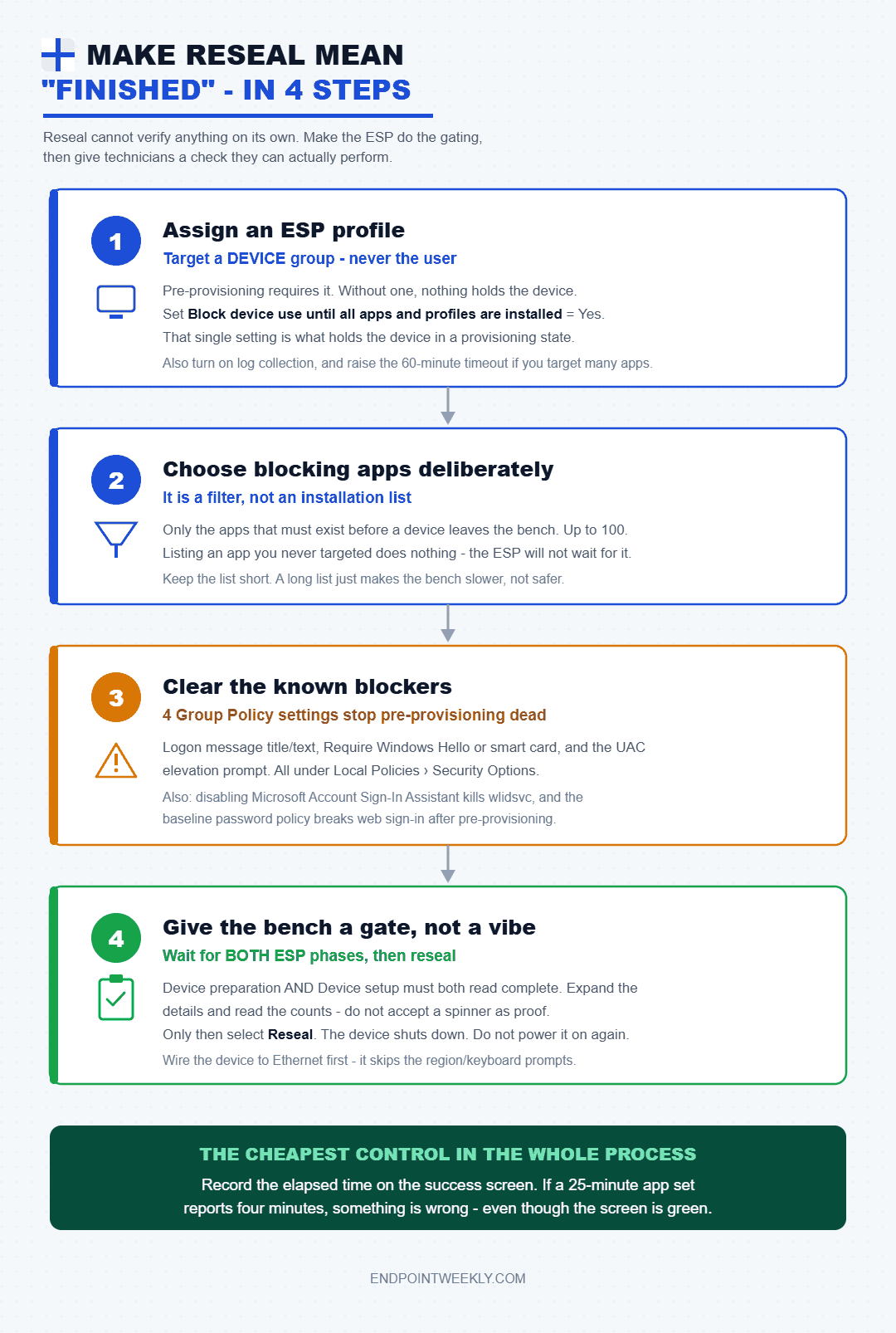
The exact console steps for each of those four are below.
Step 1: assign an ESP profile to a device group
- Sign in to the Microsoft Intune admin center.
- Select Devices, expand Device onboarding, then select Enrollment.
- On the Windows tab, under Windows Autopilot, select Enrollment Status Page.
- Select Create, name the profile, then select Next.
- Set Show app and profile configuration progress to Yes.
- Set Block device use until all apps and profiles are installed to Yes. This is the setting that holds the device.
- Set Turn on log collection and diagnostics page for end users to Yes, so a technician can export logs from a failure screen.
- Raise Show an error when installation takes longer than specified number of minutes above the 60-minute default if you target many apps.
- On Assignments, select the device group holding your Autopilot devices. Then finish with Review + create.
EnrollmentStatusTracking and DMClient configuration service providers. It is MDM-only, so there is no ADMX-backed equivalent and no local policy to set. The nearest manual override is the custom OMA-URI ./Vendor/MSFT/DMClient/Provider/MS DM Server/FirstSyncStatus/SkipUserStatusPage, which disables the user portion of the ESP. Note that a device which received an ESP policy keeps it even if you later disable the profile.Step 2: choose your blocking apps deliberately
- Open the ESP profile and select Settings.
- Confirm Show app and profile installation progress is Yes.
- Confirm Block device use until all apps and profiles are installed is Yes.
- Set Block device use until these required apps are installed if they are assigned to the user/device to Selected.
- Choose Select apps, pick the apps that must exist before a device leaves the bench, then choose Select and Save. You can pick up to 100.
- Review Only fail selected blocking apps in technician phase. Leave it at Yes to get maximum work done in the warehouse, accepting that a non-blocking app can fail silently. Set it to No if a green screen must mean every attempted app succeeded.
Microsoft notes that if you list App 1, App 2 and App 3 but only target App 3 and App 4, the ESP tracks App 3 alone. App 4 still installs during pre-provisioning flows, but the ESP will not wait for it.
Step 3: clear the policies known to break pre-provisioning
These four live in one place - and unlike the ESP itself, this is real Group Policy:
- Interactive logon: Message title for users attempting to log on.
- Interactive logon: Message text for users attempting to log on.
- Interactive logon: Require Windows Hello for Business or smart card.
- User Account Control: Behavior of the elevation prompt for administrators in Admin Approval Mode, set to prompt for credentials on the secure desktop.
Two Intune-side settings deserve the same treatment. Setting Microsoft Account sign-in assistant to disabled turns off the wlidsvc service, which Autopilot needs in order to get its profile. If that service is disabled during the technician flow, the Entra sign-in option may not appear during the user flow at all. The user is asked to accept a licence agreement and create a local account instead. That is the closest thing to a device arriving "still in technician mode", and it is a policy problem rather than a reseal problem.
Separately, the device password policies in the security baseline are documented as causing the web sign-in option to go missing after pre-provisioning completes. Set those password settings to Not configured, or assign the baseline to a user group so it lands during the user flow instead.
Step 4: give the bench a check, not a vibe
Hand the bench this, verbatim:
- Connect the device to wired Ethernet before powering on. It avoids the region and keyboard prompts and speeds up the profile download.
- At the Microsoft Entra sign-in page, do not sign in. Press the Windows key five times to open the What would you like to do? screen.
- On Windows 11, select Pre-provision with Windows Autopilot and then Next. On Windows 10, select Windows Autopilot provisioning and then Continue.
- Check the organization name, the profile name and the assigned user on the configuration screen. Use Refresh if you changed anything in Intune, so the updated profile details are downloaded.
- Select Provision on Windows 10, or Next on Windows 11.
- Wait for the ESP to show Device preparation and Device setup both complete. Expand the details to see counts, not just spinners.
- Only then select Reseal. The device shuts down. Do not power it on again.
- Record the elapsed time shown on the success screen.
Proof it worked: what a correctly resealed device looks like
The output below is illustrative rather than a capture from a customer device. It shows the shape of a healthy technician-phase device: device state present, one SideCar provider completed, tracked device apps completed, and zero user SID subkeys.
Three signals in that output matter together. Locked is 1, which means the ESP really was gating the device rather than waving it through. The SideCar provider reached state 3, so the Intune Management Extension finished its device-preparation work. And the user SID count is zero, which is what you want on a device that has been resealed but not yet handed over.
Compare that with the two failure shapes. A device whose Locked value is absent, with no tracked apps and no ESPTrackingInfo subkey, almost certainly ran a technician flow with no effective ESP. A device that already has a user SID subkey has had someone sign in on it, which on warehouse stock means the user flow was started before shipping.
Finish by cross-checking the tenant view. The Windows Autopilot deployment report in the Intune admin center is the authoritative record of the deployment attempt, and the device-side registry is your corroboration.
One caveat on that report. Microsoft documents that its deployment duration covers the time between enrollment and completion of the account setup phase. On a pre-provisioned device those two events can be separated by weeks, so treat the duration figure with care and read the per-phase detail instead.
References
- Windows Autopilot for pre-provisioned deployment - requirements, technician flow, user flow, the 90-minute and six-month timers, and the reseal caveat.
- Technician flow, step 8 of 9 (Microsoft Entra join) - the exact bench steps, the Windows key five times trigger, and the success screen wording.
- Troubleshoot the Enrollment Status Page (ESP) - the ESP tracking registry, the user SID subkey behaviour, and the mdmdiagnosticstool areas.
- EnrollmentStatusTracking CSP - the node tree, the InstallationState and RebootRequired values, and the 15-minute provider timeout default.
- Set up the Enrollment Status Page - every ESP setting, the technician-phase blocking app control, and phase-by-phase tracking detail.
- Windows Autopilot troubleshooting FAQ - the Autopilot event ID table, the profile registry values, and the conflicting policy list.
- Windows Autopilot known issues - TPM attestation error codes, the LAPS technician-flow issue, and the device reuse requirement.
- Windows Autopilot requirements, networking - the TPM attestation URLs for self-deploying mode and pre-provisioning.
One community deep-dive is worth reading alongside the official docs.
| Author | Article | Why it is worth reading |
|---|---|---|
| Rudy Ooms (MVP) | Autopilot White Glove Pre-Provisioned Deployment Flow | Walks the device-preparation stages in order and is emphatic about not touching the device once the green screen appears. Useful field context on why rebooting after the success screen causes trouble at user sign-in. |
The companion read-only script for this post is Get-AutopilotPreProvisioningState.ps1. It reads only the documented Autopilot and ESP registry locations listed above, prints its confidence caveats, and aborts rather than reporting a misleading clean result if a registry read fails.
Download it from Imran76Awan/Windows-Autopilot-Scripts — no sign-in required. It is read-only: it reports and never changes a device or anything in Intune. Validate it in your own environment before relying on the output.