Your Conditional Access policy requires a compliant device before it hands out a token. Your Intune dashboard shows the device as compliant. Everything looks like Zero Trust is working. But neither of those screens tells you the one thing that actually matters: when was that compliance check last true?
"Require device to be marked as compliant" does not ask the device anything at sign-in. It reads a flag that Intune wrote to the device's record in Entra ID the last time the device checked in and passed evaluation. If that check-in happened eight hours ago, the flag is fresh. If it happened three weeks ago because the device has been asleep, offline, or quietly failing to sync, the flag is still sitting there saying "compliant" — and Conditional Access will still trust it.
Watch on YouTube · Subscribe at @EndpointWeekly
Conditional Access's "require compliant device" control does not re-check a device live — it reads the isCompliant flag Intune already wrote to the device's Entra ID object, set at the device's last successful compliance evaluation. Intune's own tenant-wide "compliance status validity period" defaults to 30 days before a silent device is finally marked noncompliant. In that window, a device can go dark, drift out of policy in the real world, and still pass every Conditional Access check on paper. This post shows you how to cross-reference the Entra ID device object against the matching Intune managed device record with Microsoft Graph, flag devices whose compliance signal is older than a threshold you choose, and includes a read-only PowerShell script that does it for your whole tenant.
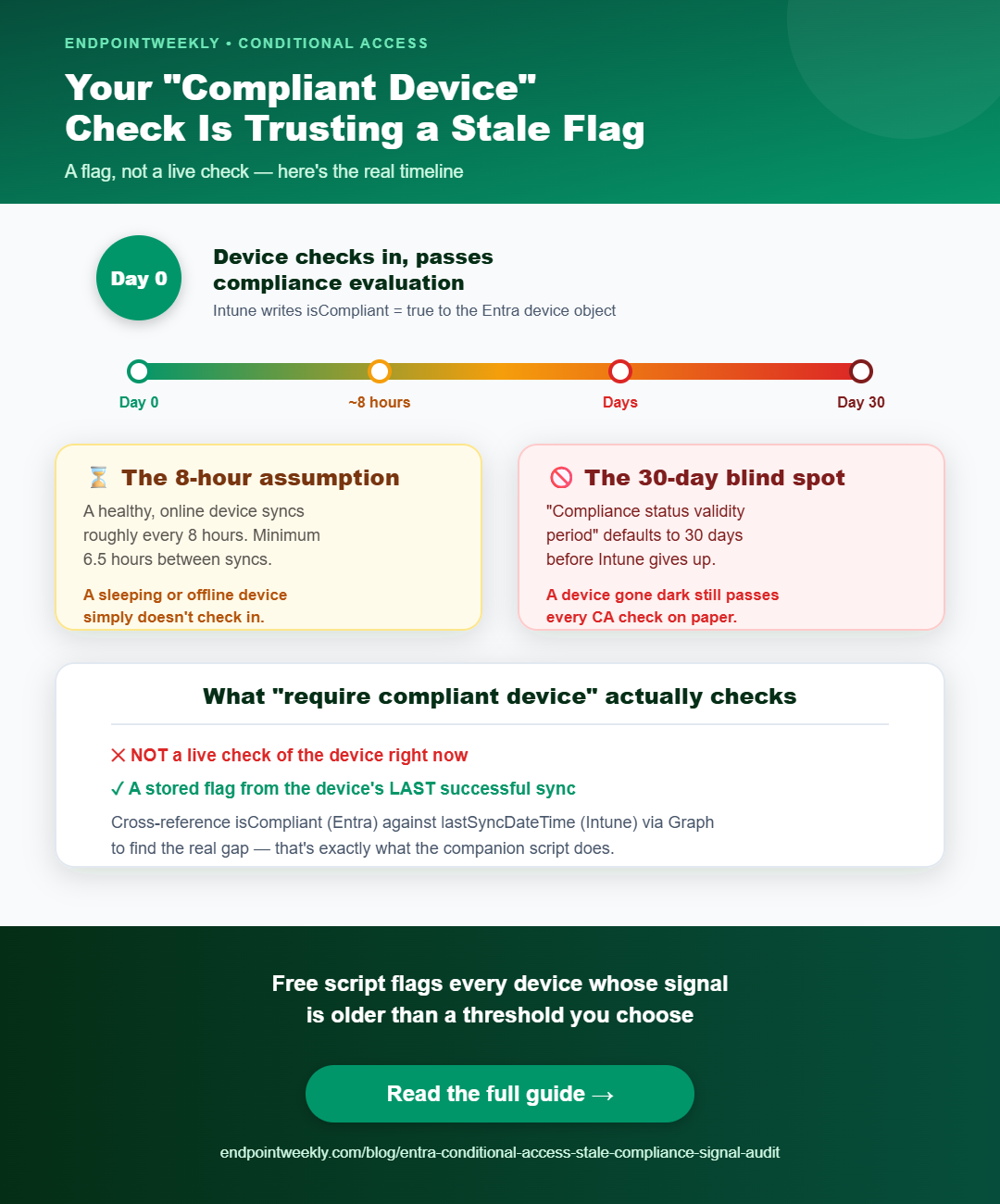
The problem: your CA policy checks a flag, not a device
Zero Trust's core promise is "never trust, always verify." Most write-ups stop at the "never trust" half — segment the network, require MFA, require a managed device. Fewer people look hard at the "always verify" half, because verification isn't a single event. It's a signal with an age, and that age matters.
When you build a Conditional Access policy with the Require device to be marked as compliant grant control, Microsoft's own documentation is specific about the mechanism: Intune evaluates the device, then sends the compliance result to Microsoft Entra ID, and Conditional Access uses whatever that result currently says. It does not trigger a fresh evaluation as part of the sign-in. It reads a stored value.
This is not a bug. It's an unavoidable consequence of how device management works: a cloud service cannot know a laptop's current disk encryption state, firewall state, or OS patch level unless the laptop tells it. The problem is that most admins never measure how old that "told it" moment actually is for the devices sitting behind their most sensitive Conditional Access policies.
Why it happens: compliance is only as fresh as the last check-in
Two separate mechanisms combine to create the staleness window, and both are fully documented — they're just easy to miss because they live in different parts of the Intune and Entra ID docs.
First, devices don't check in continuously. Microsoft documents Intune's policy and profile refresh intervals: outside of newly enrolled devices (which sync every few minutes for the first couple of hours), the steady-state "maintenance sync" schedule for an established Windows device is roughly every 8 hours, and a device is only allowed one maintenance sync every 6.5 hours at minimum. A healthy device that's powered on and online is never far behind. A device that's asleep, off the corporate network, or has a broken enrollment can go far longer without anyone noticing — the policy stays assigned and the last-known compliance result stays in place until the device syncs again.
Second, Intune gives silent devices a long runway before it gives up on them. Under Intune's tenant-wide compliance policy settings, the Compliance status validity period defaults to 30 days, configurable from 1 to 120. This is the window in which a device must successfully report status on all its assigned compliance policies. Only after a device fails to report for the entire validity period does Intune mark it noncompliant for having gone silent. Until then, whatever the device last reported — compliant or not — is what stands.
Put the two together: a device can go up to roughly 30 days without checking in and Conditional Access will keep granting it access the entire time, because nothing forces re-verification and nothing shortens the grace window automatically. That's a real gap between "the portal says compliant" and "the device is currently compliant."
How to verify: cross-reference isCompliant against lastSyncDateTime
The fix starts with measurement, and the measurement needs two Microsoft Graph objects that live in two different services and don't naturally get compared to each other.
The Entra ID device object (/devices) carries the flag Conditional Access actually reads: isCompliant, a read-only boolean. Alongside it sits complianceExpirationDateTime, described in Microsoft's own schema as "the timestamp when the device is no longer deemed compliant" — useful context, but it doesn't tell you when the signal was last confirmed true, only when it will eventually be treated as false.
The Intune managed device record (/deviceManagement/managedDevices) carries the property that actually answers the freshness question: lastSyncDateTime, documented as "the date and time that the device last completed a successful sync with Intune." Match this record to the Entra device object by azureADDeviceId / deviceId, and you have exactly what you need: is this device currently trusted as compliant, and how long ago did it last prove it?
# Compliant devices as Entra ID currently sees them - this is what CA trusts
Invoke-MgGraphRequest -Method GET -Uri "https://graph.microsoft.com/v1.0/devices?`$filter=isCompliant eq true&`$select=deviceId,displayName,isCompliant,complianceExpirationDateTime" -Headers @{ ConsistencyLevel = "eventual" }

deviceId              : {aaaaaaaa-0b0b-1c1c-2d2d-333333333333}
displayName           : FIN-LAPTOP-0042
isCompliant           : True
complianceExpirationDateTime : 2026-09-11T00:00:00Z
# Same device, this time from the Intune side
Invoke-MgGraphRequest -Method GET -Uri "https://graph.microsoft.com/v1.0/deviceManagement/managedDevices?`$filter=azureADDeviceId eq 'aaaaaaaa-0b0b-1c1c-2d2d-333333333333'&`$select=deviceName,complianceState,lastSyncDateTime"

deviceName        : FIN-LAPTOP-0042
complianceState   : compliant
lastSyncDateTime  : 2026-07-19T08:14:02Z

# It is 2026-08-16 today. This device last proved anything 28 days ago.
# Entra ID still says isCompliant: True. Conditional Access will still let it in.
Run this comparison across every device Conditional Access currently trusts, and you get a list ranked by staleness — not by whether the device is compliant, but by how long ago that compliance claim was actually true. The companion script below at the bottom of this post automates exactly this, matching every compliant Entra device to its Intune record and flagging anything past a threshold you set.
The fix: set a staleness threshold and act on it
You can't shrink the underlying mechanism — Conditional Access reading a stored flag instead of live-checking a device is by design, and the 8-hour check-in cadence is a platform constant, not a per-tenant setting. What you can do is stop treating "compliant" as binary and start treating it as "compliant, as of a timestamp you should be watching."
Three concrete moves, in order of effort:
1. Tighten the compliance status validity period if 30 days is too generous for your risk tolerance. Under Intune admin center > Devices > Compliance > Compliance policy settings, this value can go as low as 1 day. Lowering it shortens the maximum window a silent device can keep a stale "compliant" result, at the cost of marking legitimately offline devices (leave, storage, shipping) noncompliant sooner. There's no universally correct number — pick one that matches how long a device in your fleet is realistically allowed to go dark before you want it re-verified.
2. Run the staleness audit on a schedule and treat the output as an operational report, not a one-off. A device that's stale today because someone is on a two-week trip is a false positive. A device that's stale every week when you run this is either broken (dead network stack, expired MDM certificate, stuck enrollment) or it's a device nobody is using anymore that should probably be retired. Running the comparison weekly turns a static gap into a trend you can act on.
3. When you find a device that's stale for the wrong reasons, fix the sync, not just the flag. A device stuck at a fixed lastSyncDateTime for weeks almost always has a local enrollment or connectivity problem, not a policy problem. The table below lists the Event Viewer entries most useful for confirming that a device's MDM enrollment itself is the reason it stopped talking to Intune, drawn from Microsoft's own enrollment diagnostics documentation.
| Event ID | Level / Log | Meaning |
|---|---|---|
75 | Information | Auto MDM enrollment succeeded. Absence of this event alongside a stale sync suggests the device was never properly (re-)enrolled after some local change. |
76 | Error | Auto MDM enrollment failed, with a Win32 error code in the message. The error code identifies why the device can't talk to Intune at all. |
107 | Information (Task Scheduler > Operational) | The scheduled enrollment/sync task was triggered. Confirms the client-side trigger fired even if the sync itself later failed. |
102 | Information (Task Scheduler > Operational) | The scheduled task completed. Logged whether or not the underlying enrollment or sync succeeded — use it only to confirm the task ran, not that it worked. |
7016 | Error (Task Scheduler > Operational) | Task failed to start, commonly paired with error 2149056522 when stale enrollment registry entries under HKLM\SOFTWARE\Microsoft\Enrollments block a new enrollment task from running. |
Proof it worked: a shrinking stale-signal list
The audit succeeds when the "trusted but stale" list gets smaller and stays small, not when it hits zero once. A single clean run just means you looked on a good day.
Track two numbers over time: the count of devices flagged past your staleness threshold, and the median age of the lastSyncDateTime across every compliant device — not just the outliers. A fleet that's healthy will show a tight, low median (well inside the ~8-hour check-in cadence) with occasional individual outliers you can chase down one by one. A fleet with a real problem shows the median itself creeping upward, which usually means a broader connectivity, certificate, or Autopilot enrollment issue affecting many devices at once, not a handful of unlucky laptops.
# First run - baseline
.\Find-StaleCompliantDevices.ps1 -TenantId "contoso.onmicrosoft.com" -ClientId "{aaaaaaaa-0b0b-1c1c-2d2d-333333333333}" -CertificateThumbprint "A1B2C3D4E5F6..." -StalenessThresholdDays 3

17 device(s) are trusted as compliant by Conditional Access despite a stale or missing sync signal:
DisplayName          DaysSinceLastSync  Reason
FIN-LAPTOP-0042      28.0               Intune last sync is 28.0 days old but Entra still reports compliant
SALES-TAB-0117       19.4               Intune last sync is 19.4 days old but Entra still reports compliant

# Two weeks later, after fixing broken enrollments and retiring unused devices
.\Find-StaleCompliantDevices.ps1 -TenantId "contoso.onmicrosoft.com" -ClientId "{aaaaaaaa-0b0b-1c1c-2d2d-333333333333}" -CertificateThumbprint "A1B2C3D4E5F6..." -StalenessThresholdDays 3

2 device(s) are trusted as compliant by Conditional Access despite a stale or missing sync signal:
DisplayName          DaysSinceLastSync  Reason
OPS-LAPTOP-0203      4.1                Intune last sync is 4.1 days old but Entra still reports compliant
A shrinking, mostly-explained list is a healthier outcome than a report that claims 100% compliance and never gets questioned. The number Intune's dashboard shows you was always about whether devices were compliant. The number that actually matters for Zero Trust is how long ago that was true.
Download Find-StaleCompliantDevices.ps1 from Imran76Awan/Daily-Tasks on GitHub — no sign-in required. Read-only (report-only, Graph GET calls only) — validate in your own environment before relying on it.
References
- Conditional Access grant controls — Require device to be marked as compliant
- Device compliance policies in Microsoft Intune — compliance policy settings and validity period
- Policy and profile refresh intervals in Microsoft Intune
- device resource type — Microsoft Graph (isCompliant, complianceExpirationDateTime)
- managedDevice resource type — Microsoft Graph (lastSyncDateTime, complianceState)
- Diagnose MDM enrollment failures — Windows client management
Microsoft MVP community deep-dives
| Author | Post | What it adds |
|---|---|---|
| Rudy Ooms (MVP) | Device Based Conditional Access and Faking Compliance | Digs into the same trust boundary from a different angle — shows concretely why Conditional Access reading a stored isCompliant value (rather than checking the device live) is the mechanism worth scrutinizing, and how Microsoft has since locked down direct manipulation of that flag. |