In the Intune admin center, Run remediation works on one Windows device at a time, and it is not one of the Windows bulk device actions. Bulk actions stop at 100 devices selected on a Devices page, and Microsoft's page does not describe choosing a group. The supported way to reach a whole group is to assign the remediation with a Once, Hourly or Daily schedule. When you need it to run now, Microsoft Graph has the same action for each device, and this post gives you a dry-run-first PowerShell script that loops over an Entra ID group safely.
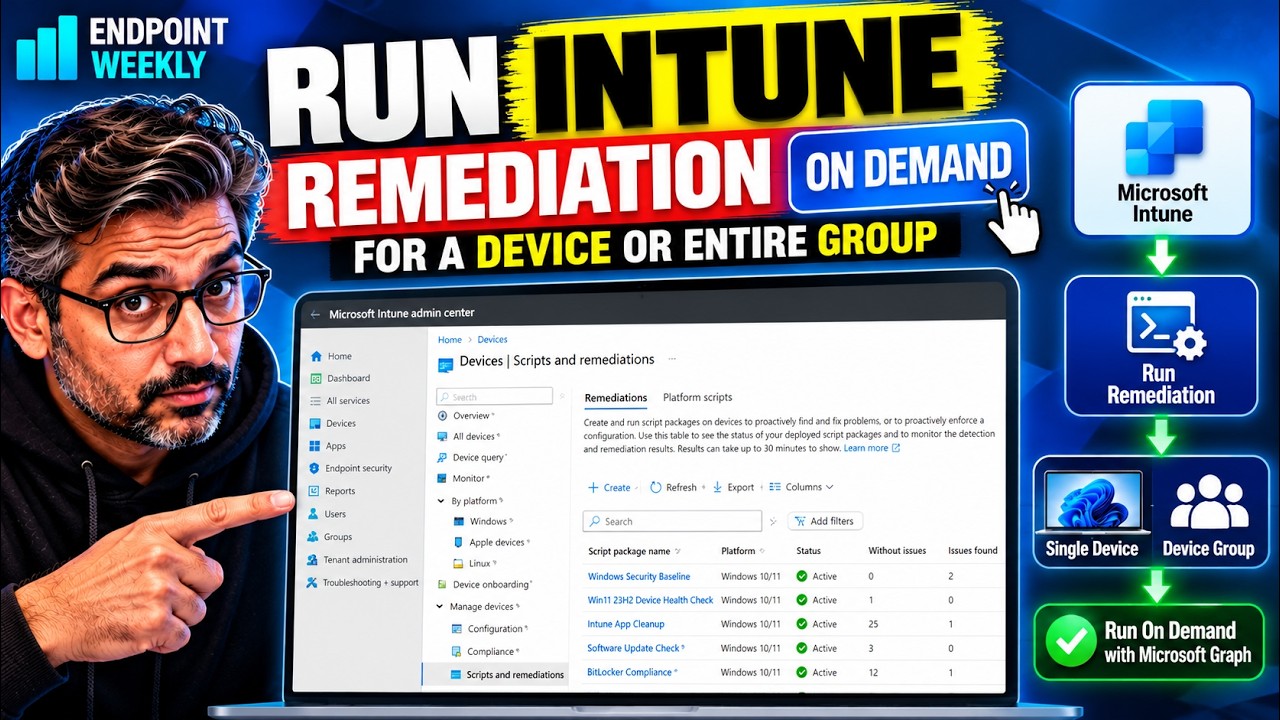
You have a remediation that fixes a real problem. You want it to run now on a pilot group of a few hundred laptops, not whenever the next schedule fires.
In the portal, Run remediation sits on a single device's page. There is no group option. This post checks that against Microsoft's documentation, shows what is supported today, and gives you a safe way to close the gap.
The problem: Run remediation reaches one device at a time
A remediation is a script package: a detection script, and a remediation script that only runs if the detection script exits with code 1. There are three ways to run one. Only one of them is immediate, and it is single-device.
| Way to run it | Who it reaches | When it runs |
|---|---|---|
| Assign the remediation to a group, with a schedule | Every device in the group | On the schedule (Once, Hourly or Daily). The device picks up policy after a restart, after a user signs in, and every 8 hours |
| Run remediation device action (preview) | One Windows device at a time | Now, if the device is online |
| Bulk device actions | Up to 100 devices, selected on the Devices page | Run remediation is not in the Windows list |
Microsoft's list of Windows bulk device actions is: Autopilot reset, Collect diagnostics, Delete, Rename, Restart, Retire, Sync and Wipe. Run remediation appears only in the list of single-device actions.
The documented bulk flow is: select Devices > All devices > Bulk device actions, choose an OS and an action, then "select up to the maximum number of devices that the action supports". Choosing a group is not mentioned.
Why it happens: it is a command, not a policy
An assignment is a policy. The device collects it when it next checks for remediation policy. Run remediation is different: it is a command sent to one device, and that device has to be reachable right now.
Microsoft's Graph reference documents the action on single-device paths only. The main one is POST /deviceManagement/managedDevices/{managedDeviceId}/initiateOnDemandProactiveRemediation. The body has one property, scriptPolicyId, and success is 204 No Content. No batch or group version is documented, so a script has to call it once per device.
Here is what Microsoft documents about the on-demand action. Each rule shapes the script below.
| Rule | What Microsoft says | Source |
|---|---|---|
| Platform | Windows. The action is labelled preview | Run remediation page |
| Reachability | The device must be online and able to reach Intune and the Windows Push Notification Service (WNS). An offline device does not receive the action | Remediations page |
| One at a time | Only one Run remediation action can be issued at a time for the same device. Several in a short time can overwrite each other | Remediations page |
| Prerequisites | The Intune Management Extension must be installed. The remediation must already exist, but need not be assigned | Remediations page |
| Who can run it | Help Desk Operator, or a custom role with Remote tasks/Run Remediation. During the preview, Organization: Read is also needed | Run remediation and Remediations pages |
How to verify: confirm the gap in your own tenant
Microsoft's pages change, and this feature is in preview. Spend five minutes confirming the gap still exists before you build anything.
- Open the page above. On Basics, set the OS to Windows and open the Device action list. Microsoft's list has no Run remediation. If yours does, Microsoft has added it and you do not need the script.
- Go back to Devices > All devices, select one Windows device, and look along the action icons at the top. Run remediation should be there, for one device.
- Check the prerequisites. Remediations need Microsoft Entra joined or hybrid joined Windows devices, and a licence such as Windows Enterprise E3 or E5 (included in Microsoft 365 F3, E3 or E5). Under Devices > Manage devices > Scripts and remediations, confirm your remediation exists.
- Run the script in its default dry-run mode. It only reads: it resolves your group, your remediation and the devices, and prints what it would do.
.\Invoke-RemediationOnGroup.ps1 -GroupName "Win11 Pilot Laptops" -RemediationName "Reset stale update cache"
This is what a dry run looks like. The output below comes from the script running against a test harness with a mocked Graph and fictional devices, not from a real tenant.
Connecting to Microsoft Graph (delegated). Scopes: Group.Read.All, GroupMember.Read.All,
DeviceManagementManagedDevices.Read.All, DeviceManagementScripts.Read.All
Connected. Account/app: admin@example.test
Looking up group: Pilot Laptops
Group id: 00000000-0000-4000-8000-000000000001
Group has 6 device member(s) out of 8 member(s) (members).
Looking up remediation: Reset stale update cache
Remediation id: 00000000-0000-4000-8000-000000000011
[1/6] Resolving PC-001
[2/6] Resolving PC-002
[3/6] Resolving PC-003
[4/6] Resolving PC-004
[5/6] Resolving MAC-001
[6/6] Resolving PC-006

================ SUMMARY ================
Group              : Pilot Laptops
Device members     : 6
Remediation        : Reset stale update cache
Will target        : 4 device(s)
Skipped            : 2
  - MAC-001 : not Windows (macOS); Run remediation supports Windows only
  - PC-006 : no Intune managed device record
=========================================

DRY RUN. No -Execute switch was passed, so nothing was triggered. Devices that WOULD be targeted:
  - PC-001   (last check-in 2026-10-26 11:24)
  - PC-002   (last check-in 2026-09-27 12:24)
  - PC-003   (last check-in 2026-10-25 11:24)
  - PC-004   (last check-in 2026-10-26 11:24)

Next: re-run with -Execute -Limit 5 as a test batch, check Device status in the admin center, then run the full group.
Read it from the bottom. Four devices would be targeted. Two were skipped, each with a reason: one is not Windows, and one has no Intune record. Nothing was sent.
The fix: schedule it, or script it safely
Pick the first option when you can wait. Pick the second when you need it now.
Option 1: assign it to the group with a schedule (no script)
This is the fully supported way to reach a whole group. Microsoft documents these steps in its section on deploying a built-in script package. They show where a package's assignment and schedule live.
- In the Intune admin center, go to Devices > Manage devices > Scripts and remediations and select your script package.
- Select Properties, then next to Assignments, select Edit.
- Choose the groups to assign to, and any excluded groups.
- To set the schedule, select the ellipsis and choose Edit. The options are Once (one time, at a date and time you set), Hourly (every n hours, less than 24) and Daily.
- Select Apply, then Review + save.
Option 2: trigger it now with the script
The script calls the Graph action once per device. It signs in as you (or as an app), finds the devices in an Entra ID group, and sends the action to each Windows device that has an Intune record.
These are the permissions it requests. The first four are read-only. The last one is only requested when you use -Execute, so a dry run never holds it.
| Graph permission | Used for | When |
|---|---|---|
Group.Read.All | Find the group by name | Always |
GroupMember.Read.All | List the group's members and their device IDs | Always |
DeviceManagementManagedDevices.Read.All | Match each member to its Intune record | Always |
DeviceManagementScripts.Read.All | Find the remediation by name | Always |
DeviceManagementManagedDevices.PrivilegedOperations.All | Send the action | Only with -Execute |
Group.Read.All and GroupMember.Read.All for reading groups. I use the broader ones because the script needs each device's deviceId, and I have not verified that the narrower scopes return it. Try them if you want the tightest scope.These are the rules built into the script. Each one exists because of a way this could go wrong.
- Dry run by default. Nothing is sent unless you pass
-Execute, and then you must still typeYESin capitals, at a prompt that states the device count. - Ambiguity stops the run. Group and remediation names are not guaranteed to be unique. If two match, the script lists both IDs and exits, instead of quietly using the first.
- Windows only. Devices that are not Windows, or have no Intune record, are skipped and listed with the reason.
- Honest results. The CSV says
AcceptedorFailed. Accepted means Graph returned 204, not that the script ran. The exit code is 2 if any device failed, so a partial failure never looks clean. - Gentle on the service. It sends about three requests a second and retries throttled calls with a back-off. Microsoft's Intune devices limit for writes is 200 requests per 20 seconds per app, per tenant.
Here is how to run it, in order.
- Install the one module it needs, if you do not have it.
Install-Module Microsoft.Graph.Authentication -Scope CurrentUser
- Run the dry run from the previous section and read the list of devices.
- Send to a small test batch. You will be asked to type
YES.
.\Invoke-RemediationOnGroup.ps1 -GroupName "Win11 Pilot Laptops" -RemediationName "Reset stale update cache" -Execute -Limit 5
- Check the result in the admin center before going further (see the next section).
- Run the full group.
-MaxDaysSinceSync 7skips devices that have not checked in for a week, because they are the most likely to be unreachable.
.\Invoke-RemediationOnGroup.ps1 -GroupName "Win11 Pilot Laptops" -RemediationName "Reset stale update cache" -Execute -MaxDaysSinceSync 7
If two groups share a name, the script prints their IDs. Use the ones you mean:
# Two groups share a name? Use the IDs the script printed:
.\Invoke-RemediationOnGroup.ps1 -GroupId <group-object-id> -RemediationId <remediation-id> -Execute
For unattended use, sign in as an app with a certificate instead. The setup is Microsoft's, so follow app-only authentication with the Microsoft Graph PowerShell SDK, and grant the application permissions from the table above.
.\Invoke-RemediationOnGroup.ps1 -GroupName "Win11 Pilot Laptops" -RemediationName "Reset stale update cache" `
-TenantId <tenant-id> -ClientId <app-id> -CertificateThumbprint <thumbprint>-Execute, the remediation script really runs on every device the script lists. If your remediation deletes a registry key or a folder, it does that fleet-wide. Test the remediation on one device first, then use -Limit 5, then the full group. Remember that the remediation part only runs when the detection part exits with code 1.Proof it worked: what the output and the portal should show
There are two places to look. The script's own output tells you what was sent. The portal tells you what ran.
First, the script. This is a test batch of two devices from the same harness as before.
About to trigger 'Reset stale update cache' on 2 device(s). The remediation script will run on each one.
[1/2] Sending to PC-001...
  accepted by Graph (204)
[2/2] Sending to PC-002...
  accepted by Graph (204)

DONE. Accepted by Graph: 2. Failed: 0. Results: C:\Reports\RemediationRun-20261027-101530.csv
Accepted is NOT proof the script ran. Offline devices do not receive the action. Check Devices > Scripts and
remediations > 'Reset stale update cache' > Device status.
The results file records one row per device. This is what good looks like.
"Hostname","ManagedDeviceId","LastSyncDateTime","Status","Detail","SentUtc"
"PC-001","00000000-0000-4000-8000-000000000201","10/26/2026 11:20:26 AM","Accepted","","2026-10-27T11:20:27Z"
"PC-002","00000000-0000-4000-8000-000000000202","9/27/2026 12:20:26 PM","Accepted","","2026-10-27T11:20:27Z"
Now the part that matters. Accepted is not proof. Graph has taken the request. Whether the device received it is a separate question, because an offline device does not receive the action. So go to the portal.
Open your remediation and look at Device status for each device you targeted. Microsoft also lets you export the output to a CSV. Microsoft does not say how quickly an on-demand run shows up there, so give it time and refresh. For scripts set to run once, Microsoft says results are reported after the script runs.
Here is the failure path. In this run, one device returned a 403 and another was throttled once and then accepted.
About to trigger 'Reset stale update cache' on 4 device(s). The remediation script will run on each one.
[1/4] Sending to PC-001...
  accepted by Graph (204)
[2/4] Sending to PC-002...
  accepted by Graph (204)
[3/4] Sending to PC-003...
  FAILED: Response status code does not indicate success: 403 (Forbidden).
[4/4] Sending to PC-004...
  Graph is throttling or busy (attempt 1 of 4). Waiting 4 s, then retrying.
  accepted by Graph (204)

DONE. Accepted by Graph: 3. Failed: 1. Results: C:\Reports\RemediationRun-20261027-101530.csv
Accepted is NOT proof the script ran. Offline devices do not receive the action. Check Devices > Scripts and
remediations > 'Reset stale update cache' > Device status.
The 403 device is recorded as Failed, with the error text, and the run exits with code 2. The throttled device was retried after a short wait and then accepted. A failure was not retried, because retrying a "forbidden" would not help.
References
- Device action: run remediation (preview) - platform, roles and the single-device steps.
- Use Remediations to detect and fix support issues - assignments, schedules, the on-demand rules, prerequisites, licensing and policy retrieval timing.
- Device actions in Microsoft Intune - the list of bulk device actions and the 100-device limit.
- Microsoft Intune Government Service overview - Remediations is listed as not available in GCC High and DoD.
- initiateOnDemandProactiveRemediation action - the Microsoft Graph beta reference.
- List deviceHealthScripts - how the script finds a remediation by name.
- List group members - direct members only, with a page size of up to 999.
- Microsoft Graph service-specific throttling limits - the Intune devices limits.
- App-only authentication with the Microsoft Graph PowerShell SDK - for unattended runs.
- Intune On-Demand Proactive Remediation API Reliability for Large-Scale Usage - the Microsoft Q&A thread behind the caution above (a customer report, not guidance).
Download Invoke-RemediationOnGroup.ps1 from the Imran76Awan/Daily-Tasks repository on GitHub - no sign-in required. It is a dry run unless you pass -Execute, and even then it asks you to type YES, but always validate any script in your own environment before you rely on it.