Every Intune deployment decision eventually comes down to the same question: Win32 or Store? Get it right and apps deploy silently, update automatically, and never appear in your remediation backlog. Get it wrong and you are spending Friday afternoon hunting a failed IME extension, chasing a detection rule that never fires, or explaining why a business-critical app didn't install during Autopilot. This guide covers both methods completely — what they are, when to use each, and how to operate them at scale.
The Core Distinction — Control vs Convenience
Before diving into specifics, understand the fundamental trade-off. Win32 app deployment routes everything through the Intune Management Extension (IME) — an agent that runs on the device and executes your installer with whatever switches, scripts, and detection rules you define. You have complete control. You also carry complete responsibility.
Store app deployment bypasses the local agent entirely. Intune sends a policy to Windows, Windows talks directly to the Microsoft Store (or Windows Package Manager), and the app installs and updates through that cloud channel. You give up fine-grained control. In return, you get automatic updates, no packaging overhead, and no IME dependency chain to debug.
Win32 App Deployment — The Control Engine
Supported types: .msi, .exe, PowerShell-wrapped installers, complex multi-file packages, and anything that runs as a standard Windows executable. If it has a setup.exe, you can deploy it as Win32.
Packaging requirement: Every Win32 app must be converted to the .intunewin format using the Microsoft Win32 Content Prep Tool (IntuneWinAppUtil.exe) before upload. This tool compresses and encrypts the source folder into a single package file that Intune can distribute securely.
# Download Win32 Content Prep Tool from GitHub releases
# https://github.com/microsoft/Microsoft-Win32-Content-Prep-Tool

$sourcePath  = "C:\AppPackages\7zip"         # Folder containing setup files
$setupFile   = "7z2301-x64.msi"            # Primary installer filename
$outputPath  = "C:\IntunePackages"         # Where .intunewin will be saved
$prepTool    = "C:\Tools\IntuneWinAppUtil.exe"

& $prepTool -c $sourcePath -s $setupFile -o $outputPath -q

Write-Host "Package created: $outputPath\$($setupFile -replace '\.\w+$','.intunewin')"
Deployment mechanism: The IME agent (Microsoft.Management.Services.IntuneWindowsAgent.exe) polls Intune every 8 hours by default. When a Win32 app assignment is detected, IME downloads the .intunewin package from Azure CDN, decrypts it, and executes the installer silently in the SYSTEM context.
Detection rules: Intune will not mark a Win32 app as installed until the detection rule passes. You can use file/folder detection, registry key detection, MSI product code detection, or a custom PowerShell detection script. Missing or incorrect detection rules are the most common cause of Win32 apps showing as "Failed" even though the software installed successfully.
# Custom detection script — exits 0 (detected) or 1 (not found)
$appPath = "C:\Program Files\7-Zip\7z.exe"
$minVersion = [version]"23.01.0.0"

if (Test-Path $appPath) {
    $fileVer = [version](Get-Item $appPath).VersionInfo.FileVersion
    if ($fileVer -ge $minVersion) {
        Write-Output "Detected: $fileVer"
        exit 0
    }
}
exit 1
Store App Deployment — The Cloud-Native Route
Supported types: MSIX, Appx, and UWP applications published in the Microsoft Store. These are modern, sandboxed Windows application packages that install, update, and uninstall cleanly without registry sprawl.
Packaging requirement: None. You add a Store app in the Intune portal using either a Direct Store Link (the app's Store URL) or an App URI (e.g., ms-windows-store://pdp/?ProductId=9NBLGGH4NNS1). No file preparation, no upload, no CDN.
Deployment mechanism: Intune sends a WinGet/Windows Package Manager policy to the device. Windows manages the download directly from the Microsoft Store cloud CDN and installs it natively. The Microsoft Store background sync service handles subsequent version updates automatically — no IME involvement, no detection rule required.
Head-to-Head Comparison
| Dimension | Win32 | Store (MSIX/UWP) | Win32 Wins? |
|---|---|---|---|
| Supported formats | MSI, EXE, PowerShell | MSIX, Appx, UWP | — |
| Packaging required | Yes — .intunewin format | No — Direct Store Link or App URI | ✕ |
| Delivery agent | Intune Management Extension (IME) | Windows Store + WinGet | — |
| Update control | Full admin control | Automatic via Store | ✓ |
| Custom install switches | Yes — full command-line control | No | ✓ |
| Pre/post-install scripts | Yes | No | ✓ |
| Complex dependencies | Yes — dependency chaining | Limited | ✓ |
| Detection rules | Required (file, reg, MSI, script) | Automatic (Store-managed) | ✕ |
| Automatic updates | Manual (new version required) | Automatic | ✕ |
| Troubleshooting complexity | High — IME logs, event viewer | Low — Store handles errors | ✕ |
| Offline deployment | Yes — package cached on Azure CDN | No — requires internet to Store | ✓ |
Win32 Deployment Lifecycle — Step by Step
- Package: Run
IntuneWinAppUtil.exeagainst your source folder to produce the .intunewin file. - Upload: Add the Win32 app in the Intune portal (Apps → Windows → Add → Windows app (Win32)). Configure install command, uninstall command, and detection rule.
- Assign: Target a user or device group with Required, Available, or Uninstall intent.
- IME check-in: On the target device, IME polls for new assignments. Trigger manually: restart the IntuneManagementExtension service.
- Download and decrypt: IME downloads the .intunewin from the Azure CDN URL and decrypts it using the embedded key.
- Execute: IME runs the install command in the SYSTEM context, capturing stdout/stderr.
- Detect: IME runs the detection rule. If it passes, the app is marked Installed. If it fails, the app is marked Failed regardless of exit code.
- Maintain: For updates, upload a new .intunewin version and supersede the old assignment.
Store App Deployment Lifecycle
- Direct Store link: Find the app in the Microsoft Store, copy its URI or product ID.
- Add in Intune: Apps → Windows → Add → Microsoft Store app (new). Search or paste the Store link.
- Assign: Target user or device groups. Set install context (user or device).
- MDM sync: At next MDM check-in, Windows receives the Store app policy.
- Direct cloud install: Windows contacts the Microsoft Store CDN directly and streams the package. No IME involved.
- Automatic updates: The Store background sync service checks for new app versions and applies them silently.
Deployment Choice Tree — Which Method to Use
| Scenario | Recommended | Reason |
|---|---|---|
| Legacy LOB app (.exe, complex MSI) | Win32 | No Store version; needs custom switches |
| App available in Microsoft Store | Store | Zero packaging overhead, auto-updates |
| App with pre-install dependency (e.g. .NET) | Win32 | Win32 dependency chaining handles ordering |
| Microsoft 365 Apps (Office) | Win32 (ODT) | Office Deployment Tool gives full channel control |
| Consumer/productivity app (VLC, 7-Zip) | Store (WinGet) | Available in Store; updates handled automatically |
| App requiring post-install registry writes | Win32 | Post-install PowerShell script via Win32 wrapper |
| App needing strict version pinning | Win32 | Store auto-updates break version pinning requirements |
Autopilot & App Ingestion Order
When a new device goes through Autopilot provisioning, applications are not installed simultaneously. Intune follows a strict precedence order determined by app type and assignment. Understanding this prevents the most common Autopilot failure: a user reaching the desktop before critical apps finish installing.
| Phase | What happens | App types installed |
|---|---|---|
| 1. Physical Hardware | Factory reset, OOBE begins | None |
| 2. Azure AD / Entra Join | Device registers in Entra ID, MDM enrollment begins | None |
| 3. ESP — Device phase | Intune policies and device-targeted apps deploy. IME installs. Win32 Required apps deploy here. | Win32 (device), Store (device), LOB MSI |
| 4. ESP — Account phase | User signs in. User-targeted Required apps deploy. | Win32 (user), Store (user) |
| 5. Desktop unlocked | Device Readiness complete. User can work. | Available apps install on-demand |
Checking Deployment Status via PowerShell
# Get Win32 app deployment status for all devices via Graph API
Connect-MgGraph -Scopes "DeviceManagementApps.Read.All"

$win32Apps = Get-MgDeviceAppManagementMobileApp -Filter "isOf('microsoft.graph.win32LobApp')"

foreach ($app in $win32Apps) {
    Write-Host "`n=== $($app.DisplayName) ===" -ForegroundColor Cyan
    $states = Get-MgDeviceAppManagementMobileAppDeviceStatuses -MobileAppId $app.Id
    $states | Select-Object DeviceName, InstallState, LastSyncDateTime |
        Sort-Object InstallState | Format-Table -AutoSize
}# Force IME to re-evaluate app assignments on local device (requires local admin)
# Method 1: Restart the IME service
Restart-Service -Name "IntuneManagementExtension" -Force
# Method 2: Trigger the IME scheduled task
Get-ScheduledTask | Where-Object { $_.TaskName -like "*Intune*" } |
Start-ScheduledTask
# Method 3: Check IME logs for recent activity
$logPath = "$env:ProgramData\Microsoft\IntuneManagementExtension\Logs\IntuneManagementExtension.log"
Get-Content $logPath -Tail 50 | Select-String "Win32App|Install|Error|Failed"IME Log — Reading Win32 App Failures
When a Win32 app reports Failed, the IME log at C:\ProgramData\Microsoft\IntuneManagementExtension\Logs\IntuneManagementExtension.log is your primary diagnostic source.
| Log pattern | Meaning | Fix |
|---|---|---|
| ExitCode: 1603 | Fatal error during installation | Check for pending reboot; run installer manually as SYSTEM |
| Detection failed | Installer succeeded but detection rule returned no match | Verify detection path/registry key exists on device |
| ContentPrepProvider | Download or decryption issue | Check proxy/firewall for *.manage.microsoft.com |
| Dependency failed | A dependency app did not install first | Check dependency app is assigned and not failing separately |
| ExitCode: 3010 | Install succeeded, reboot required | Add 3010 as "Success + reboot" in return codes |
Community Perspective
C:\ProgramData\Microsoft\IntuneManagementExtension\DB to track app state. If this database becomes corrupted after a botched upgrade or rollback, apps permanently report incorrect state. Fix: stop the IME service, delete the DB file, restart the service. IME re-syncs from the Intune portal within minutes.
From Detection to Fleet-Wide Triage — Three More Scripts for This Guide
Everything above tells you how Win32 and Store deployment work. These three scripts, added after publishing based on reader feedback, answer a different question: across your whole app catalog, which apps are actually failing, and why? The Intune portal can only show you this one app at a time — click into every app individually and note the numbers by hand. These scripts do it for the whole fleet in one run.
Get-MgDeviceManagementReportDeviceAppInstallationStatusReport, not the older deviceStatuses navigation property some guides still reference — Microsoft deprecated that property's usefulness in May 2023 without updating the docs, and it no longer returns useful data for most tenants.Script 5 — Rank every app by failure rate, with day-over-day trend
05-Win32AppFleetHealthSummary.ps1 pulls install-state counts for every Win32 app, ranks them worst-to-best by failure rate, and — because it saves a timestamped CSV snapshot every run — automatically diffs against your last run to show which apps got worse or better. None of that exists in the Intune portal; it only ever shows you the current moment for one app.
=== Ranked by Failure Rate (worst first) ===

DisplayName                            TotalDevices OutcomeTotal Installed Failed FailRatePct
-----------                            ------------ ------------ --------- ------ -----------
Adobe Acrobat DC (64-bit) 24.002.20857        16849        16849     16276    330  2
Adobe Acrobat DC (64-bit) 25.001.21223        13581        13581     13374    207  1.5
1E Client Uninstaller 1.0                      3482         3482      3473      9  0.3

No apps at or above the 5% failure threshold (with at least 10 devices).-MinDevices 10) and puts it in a separate "small sample, not flagged" list instead of your real problem list.Script 6 — Decode WHY installs are failing, with a real fix per error code
06-Win32AppFailureAnalysisReport.ps1 pulls per-device install records for one app (or your whole catalog), decodes every failure's error code through three layers — the documented Windows Installer (MSI) codes, Microsoft's official Intune app-install error reference, and .NET's own Windows system-error table — and outputs a self-contained HTML report with a donut chart and a ranked "top failure reasons" table. Each reason comes with an actual fix, not just a diagnosis.
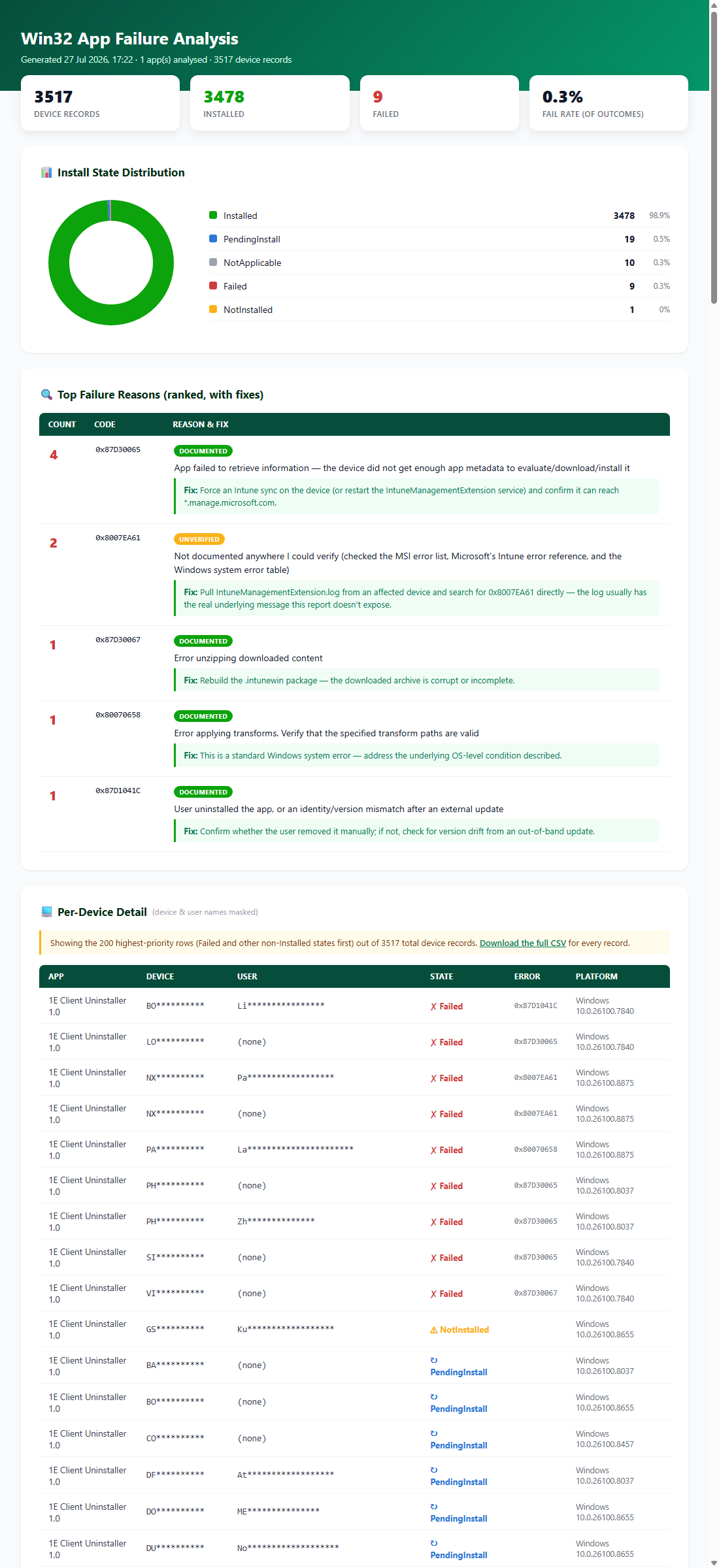
06-Win32AppFailureAnalysisReport.ps1 against a real tenant — 3,517 device records for 1E Client Uninstaller 1.0. Stat tiles, donut chart, ranked failure reasons with fixes, and a per-device table with masked names, all in one self-contained file.IntuneManagementExtension.log from an affected device and search for that exact code — a wrong diagnosis for your #1 failure cause is worse than an honest "I don't know."Script 7 — Chain them together: rank first, then auto-drill into the ones that matter
07-Win32AppFleetTriage.ps1 runs the cheap fleet-wide ranking pass first, then automatically pulls the full failure breakdown for every app in the ranking — not just the ones that cross your threshold — and combines it into one HTML page. Click any app name in the ranking table and it jumps straight to that app's donut chart, decoded failure reasons, and a full per-device table (device, user, state, error code, platform, and how many days since that record last changed) with names masked by default.
Every non-Installed state also gets a plain-English explanation baked into the report — NotInstalled, PendingInstall, NotApplicable and Unknown aren't errors, so there's no error code to decode, but an engineer still needs to know what each one means and what (if anything) to check.
-select. Assuming column order matched request order silently scrambled InstallState values into meaningless numbers. Fixed by reading the report's own Schema field and mapping column name to index every time, rather than trusting positional order.Official Resources
- Win32 app management in Microsoft Intune
- Prepare Win32 app content for upload
- Add Microsoft Store apps to Microsoft Intune
- Add apps to Microsoft Intune
- Set up the Enrollment Status Page
- Troubleshoot Win32 app installations with Intune
- Microsoft Win32 Content Prep Tool (GitHub)
All 7 scripts for this guide are in Daily-Tasks.