Your users are still logging in with passwords. That means they are vulnerable to phishing, credential stuffing, and breach replay attacks. Passkeys fix all three — and Microsoft Authenticator now supports passkeys natively, making deployment straightforward directly from Entra ID and Intune.
This post covers exactly how to enable passkeys in your tenant, configure the Authentication Methods policy, verify adoption with PowerShell, and what the end user experience looks like from registration to daily sign-in.
Passkeys in Microsoft Authenticator give your users phishing-resistant authentication without hardware keys. Here is how to enable them in Entra ID, deploy via Intune, and verify adoption with PowerShell.
What passkeys actually are — and why they matter
A passkey is a FIDO2 credential based on asymmetric cryptography. When a user registers a passkey, two keys are generated: a private key that never leaves the device (stored in the iOS Secure Enclave or Android Keystore), and a public key stored on the server — in this case, Entra ID. Authentication works by the server issuing a challenge that only the private key can sign, and the user unlocks that private key with biometrics or their device PIN.
Three things that make this fundamentally better than passwords:
- Nothing transferable is stored on the server. A database breach cannot expose the credential because the private key was never there.
- Phishing is cryptographically impossible. The passkey is bound to the exact origin domain. A fake Microsoft login page cannot trigger a valid passkey authentication for login.microsoft.com.
- No password reuse. Each passkey is unique per site and per device. There is no shared secret to reuse across breaches.
Microsoft Authenticator passkeys vs FIDO2 hardware keys
| Feature | Microsoft Authenticator passkey | FIDO2 hardware key (YubiKey etc.) |
|---|---|---|
| Additional hardware required | No — uses the user's existing phone | Yes — physical key, £25–£60 per user |
| Phishing resistant | Yes | Yes |
| Biometric unlock | Face ID or fingerprint on phone | Depends on key model |
| Works without network on the device | Yes (Bluetooth pairing for desktop sign-in) | Yes (USB/NFC) |
| Lost device recovery | Re-enrol via Temporary Access Pass | Provision replacement key |
| Deployment at scale | Policy in Entra ID + app config in Intune | Physical distribution required |
Step 1 — Enable passkeys in the Authentication Methods policy
- Select Passkey (FIDO2) from the authentication method list
- Set Enable to Yes
- Under Target, select Select users and groups — start with a pilot Entra group, not All users
- Expand Configure and set:
- Allow self-service set up: Yes
- Enforce attestation: No (unless your compliance framework requires hardware attestation)
- Key restrictions: Leave unrestricted to allow any FIDO2 authenticator, or add specific AAGUIDs to allow only Authenticator
- Microsoft Authenticator: Toggle on
- Click Save
Configuring a passkey profile for Microsoft Authenticator
Before you can assign the Authenticator-specific profile to a group, you need to create it on the Configure tab. This profile restricts the authenticator types allowed to Microsoft Authenticator only, using its AAGUID, and enforces attestation so only genuine Authenticator installations can register.
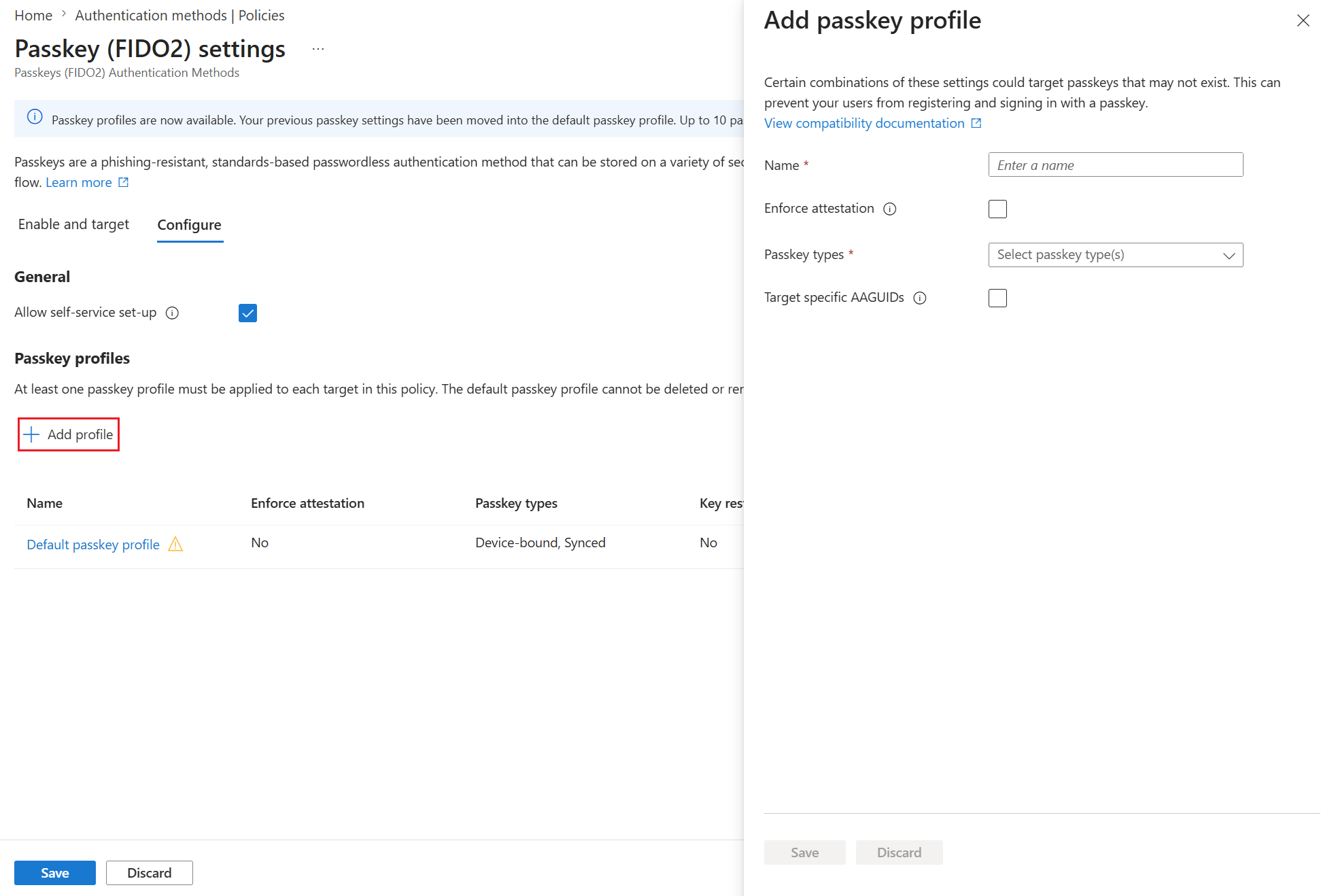
Passkey FIDO2 settings — Configure tab. The Default passkey profile is already present. Click Add profile to create an Authenticator-specific profile.
Click Add profile and fill in the panel:
- Name: Authenticator passkey
- Enforce attestation: Checked — ensures only genuine Authenticator hardware is allowed
- Passkey types: Device-bound
- Target specific AAGUIDs: Checked
- Behaviour: Allow
- Select Microsoft Authenticator from the AAGUID list
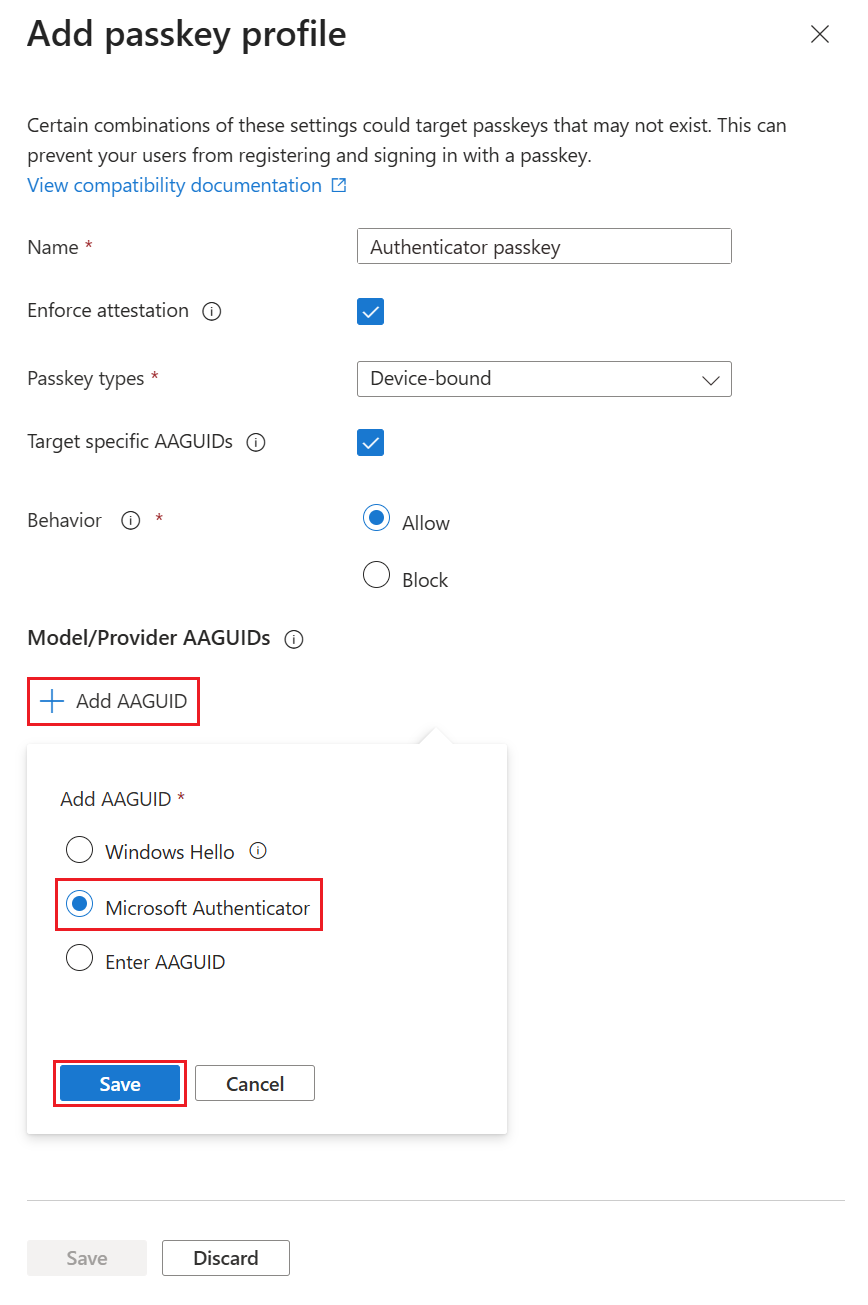
Add passkey profile panel — Microsoft Authenticator AAGUID selected. The AAGUID ties the profile to genuine Authenticator installations on iOS and Android.
Assigning the passkey profile to groups
With the profile created, go to the Enable and target tab to assign it to the right groups. This is where you control which users get which passkey experience — for example, all users get the default profile, while a finance or privileged admin group gets the stricter Authenticator-only profile.
Microsoft’s documented steps for this configuration:
- Sign in to the Microsoft Entra admin centre as at least an Authentication Policy Administrator
- Browse to Entra ID › Authentication methods
- On the Authentication methods | Policies page, select Passkey FIDO2 › Enable and target
- On the Enable and Target tab, make sure Enable is On
- Select Add target, and choose All users or Select targets to choose specific groups
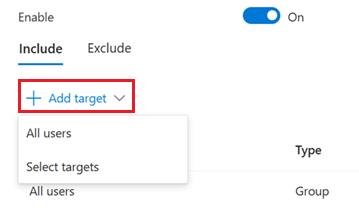
The Add target dropdown. Choose Select targets to assign the Authenticator passkey profile to a specific group without changing the default profile for all other users.
- In the Passkey profiles column next to the group, select the profile for passkeys in Authenticator
- Click Save
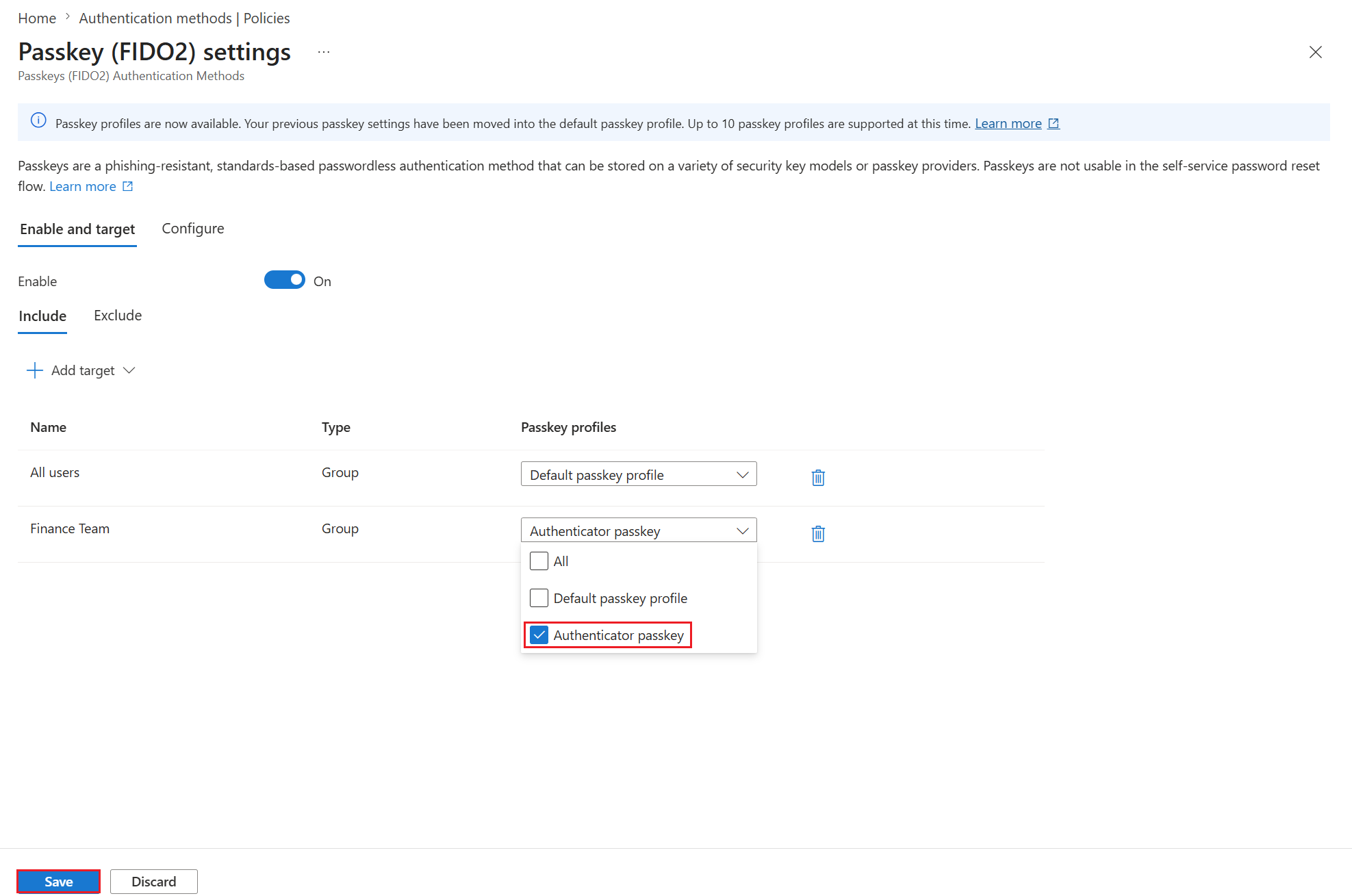
Completed group assignment — All users inherit the Default passkey profile while the Finance Team group is specifically assigned the Authenticator passkey profile.
Step 2 — Enable Temporary Access Pass before go-live
- Set Enable to Yes
- Minimum lifetime: 60 minutes
- Maximum lifetime: 480 minutes (8 hours for helpdesk working hours)
- Set One-time use to Yes — the TAP is burned after first use
- Target the same pilot group for now, then expand when passkeys are fully rolled out
Step 3 — Deploy Microsoft Authenticator app config via Intune
Use an Intune app configuration policy to ensure Authenticator is configured correctly on managed devices:
- Platform: iOS/iPadOS (repeat for Android Enterprise)
- Target app: Microsoft Authenticator
- Configuration settings format: Configuration designer
Add the following key-value pair to ensure passkey registration is not disabled by the user:
# iOS managed app configuration key-value pairs
Key:   PasskeyEnabled
Type:  String
Value: true

Key:   FaceIDEnabled
Type:  String
Value: true
Step 4 — Verify passkey registrations with PowerShell
After the pilot group has had time to register (give it 48–72 hours with a user communication email), check how many have enrolled:
# Connect with required delegated scope
Connect-MgGraph -Scopes "UserAuthenticationMethod.Read.All" -NoWelcome

# Report: users with FIDO2 passkey registrations
$users = Get-MgUser -All -Select "Id,DisplayName,UserPrincipalName"

$report = foreach ($user in $users) {
    $methods = Get-MgUserAuthenticationFido2Method `
        -UserId $user.Id -ErrorAction SilentlyContinue
    if ($methods) {
        [PSCustomObject]@{
            DisplayName  = $user.DisplayName
            UPN          = $user.UserPrincipalName
            PasskeyCount = $methods.Count
            Registered   = ($methods | Sort-Object CreatedDateTime | Select -Last 1).CreatedDateTime
        }
    }
}

$report | Format-Table -AutoSize
$report | Export-Csv "C:\Logs\Intune\PasskeyReport-$(Get-Date -Format 'yyyyMMdd').csv" -NoTypeInformation
Write-Host "Total users with passkeys: $($report.Count)" -ForegroundColor Cyan
DisplayName     UPN                          PasskeyCount Registered
-----------     ---                          ------------ ----------
Jane Smith      j.smith@contoso.com          1            09/07/2026 08:23:14
Robert Chen     r.chen@contoso.com           2            10/07/2026 09:07:52
Sarah Williams  s.williams@contoso.com       1            10/07/2026 14:11:03

Total users with passkeys: 3
CSP and Group Policy coverage
Windows Hello for Business — Intune OMA-URI (CSP)
Passkey registration is controlled at the Entra ID tenant level (Authentication Methods policy). On the device side, the relevant CSP is Windows Hello for Business, which controls whether the device can act as an authenticator:
| OMA-URI | Type | Value |
|---|---|---|
./Device/Vendor/MSFT/PassportForWork/Enabled | Boolean | True |
./Device/Vendor/MSFT/PassportForWork/RequireSecurityDevice | Boolean | True (TPM required) |
./Device/Vendor/MSFT/PassportForWork/Biometrics/UseBiometrics | Boolean | True |
Group Policy equivalent
| Setting | Path |
|---|---|
| Use Windows Hello for Business | Computer Configuration › Administrative Templates › Windows Components › Windows Hello for Business › Use Windows Hello for Business |
| Use a hardware security device | Computer Configuration › Administrative Templates › Windows Components › Windows Hello for Business › Use a hardware security device |
What the user sees at registration
Users visit aka.ms/mysecurityinfo to register. After clicking Add method › Passkey (FIDO2), they are prompted to use Microsoft Authenticator. The flow: Authenticator opens on their phone → they approve via biometric → passkey is registered in under 60 seconds. Next sign-in to Microsoft 365, instead of entering a password, they tap a notification on their phone and authenticate with Face ID or fingerprint.
Monitoring adoption
Track registration progress in the Entra ID usage and insights report:
Filter by method type FIDO2 to see daily registration counts, active use rates per method, and which users are still signing in with passwords or SMS OTP — your migration target list.
I'll help you plan and deploy a phishing-resistant passwordless rollout across your tenant — policy design, Intune configuration, and a rollout plan that doesn't overwhelm your helpdesk.
References
- Enable passkeys in Microsoft Authenticator for Entra ID — Microsoft Learn
- Microsoft Authenticator authentication method overview — Microsoft Learn
- Configure Temporary Access Pass in Entra ID — Microsoft Learn
- Manage authentication methods policy in Entra ID — Microsoft Learn
- Windows Hello for Business overview — Microsoft Learn