For about twenty years, the standard answer to "I need the printer on the third floor" was "double-click the queue and Windows will sort it out." That answer stopped working in August 2021, and a lot of environments have never fully recovered. The user double-clicks the shared queue, Windows asks whether they trust the printer, asks for administrator credentials, and then does nothing useful. Nobody changed a setting. Microsoft changed a default.
This post explains what the vulnerability class behind that change actually was, in plain English, then walks every hardening control Microsoft documents, exactly what each one blocks, and the supported ways to hand users their printers back without undoing the fix. There is a read-only PowerShell script at the end that reports your own device's posture.
Point and Print let a client download and load a print driver from a print server, and the print spooler runs as LocalSystem, so an arbitrary driver install was an arbitrary code execution primitive. Microsoft's fix was RestrictDriverInstallationToAdministrators, which defaults to enabled on updates released 10 August 2021 or later and requires administrator privilege for every Point and Print driver install. Microsoft states plainly that no combination of the older Point and Print Restrictions settings is equivalent to that value being 1, so turning it off to make printing work again is not a workaround, it is a rollback. The supported fixes are to stop making users install drivers at all: deploy the connection in device context, pre-stage the driver, move to package-aware v4 or IPP class drivers, or turn on Windows protected print mode.
The problem: the printer that will not install
The ticket always reads the same way. A user maps a shared queue from the print server. Windows shows a dialog asking whether they trust the printer. They click Install driver. Windows then asks for administrator credentials, which the user does not have, and the connection never completes.
Nothing is broken. This is Windows doing exactly what it was told. The behaviour is driven by a small set of registry values under one policy key, and by one of those values whose default Microsoft flipped in a security update.
Before we go anywhere near the settings, two terms need spelling out, because the rest of the post leans on them.
Point and Print is the feature where a Windows client connects to a shared print queue on a print server, discovers which driver that queue uses, and downloads and installs that driver from the server. The user does not go and find a driver. The server hands one over.
The print spooler is the Windows service that accepts print jobs, queues them, and talks to drivers and ports. Its short service name is Spooler and its display name is Print Spooler. Microsoft's own service reference describes it as the service that "spools print jobs and handles interaction with the printer", and notes that if you turn it off "you can't print or see your printers".
Context: why any of this is a security problem at all. The spooler service runs as LocalSystem. A print driver is not a data file, it is code: DLLs that the spooler loads into its own process, plus rendering and configuration modules. So "install a print driver" and "load code of my choosing into a SYSTEM process" are, mechanically, close to the same sentence. Point and Print made that sentence reachable from a printer share.
Here is the failure surface you will actually be looking at, before we explain any of it:
Microsoft documents both of those event IDs, in that channel, as events "commonly associated with a Windows machine's inability to download a driver from a print server", and names Point and Print Restrictions as the cause. If you are seeing 215 and 808 after a user tried to add a printer, you are not chasing a driver bug. You are looking at a policy decision.
Why it happens: what PrintNightmare actually was
Four CVE numbers get thrown around together, and they are not the same bug. Spelling out the acronym first: a CVE is a Common Vulnerabilities and Exposures identifier, the industry's unique number for one specific flaw.
CVE-2021-1675 and CVE-2021-34527 are the two that the name "PrintNightmare" attached itself to. Both are spooler flaws that let an attacker get code running with the spooler's privileges. CVE-2021-34481 is the Point and Print driver installation issue, and it is the one whose fix changed the default that broke your printing. CVE-2021-1678 is a different animal: a spoofing and relay flaw in the spooler's remote procedure call interface, fixed by raising the required authentication level.
You do not need the exploit details. You need the shape of the class, and the shape is this.
The chain, from double-click to loaded DLL
Microsoft's driver documentation names every component in the path, so this is not guesswork. In order:
- An application calls into
winspool.drv. That is "the client interface into the spooler", exporting the spooler's Win32 API and providing the remote procedure call stubs for reaching the server. winspool.drvcalls the spooler's API server,spoolsv.exe. That is the process you see in Task Manager, and it is the binary registered as theSpoolerservice.spoolsv.exepasses most calls to the router,spoolss.dll, which "determines which print provider to call, based on a printer name or handle supplied with each function call".- The router hands off to a print provider.
localspl.dllis the local print provider, handling jobs for locally managed printers.win32spl.dllis the Windows network print provider, and it is the module that pulls a driver down from a remote print server. - Where driver isolation is in play, the driver's modules can be hosted in
PrintIsolationHost.exeinstead of in the spooler process, so a driver crash takes down the host rather than the whole spooler.
Every one of those components runs in user mode, and all of them except the isolation host run inside a service whose identity is LocalSystem. Step 4 is the interesting one: win32spl.dll fetching a driver from a machine you do not control, so that the spooler can load it.
Gotcha: the driver install and the driver load are two separate trust decisions. Restricting who may install a driver does not change what happens once one is installed. That is why Microsoft ships a second, separate control for driver signature validation, and a third for an explicit driver exclusion list. Hardening the install path and leaving signature validation at its default of "allow all validly signed drivers" is a common half-done configuration.
The one value that actually stopped it
The control that changed the world is RestrictDriverInstallationToAdministrators. Microsoft's guidance article for CVE-2021-34481 documents it under the Point and Print policy key, with two states:
- 1, or the value not present at all - administrator privilege is required to install any printer driver when using Point and Print.
- 0 - non-administrators can install signed and unsigned drivers, and Microsoft notes this "does not override" the Point and Print Group Policy settings.
The default moved twice. Updates released 6 July 2021 or later defaulted it to 0. Updates released 10 August 2021 or later default it to 1. That August flip is the date your printing broke.
Do not set this to 0 to make printing work. Microsoft's own words in the CVE-2021-34481 guidance are that "there is no combination of mitigations that is equivalent to setting RestrictDriverInstallationToAdministrators to 1." Every blog and forum answer that tells you to write a 0 there is telling you to remove the fix, not to work around it. Setting it to 0 puts driver installation back in the hands of any user who can reach a print share, which is precisely the primitive the CVE describes. Use the supported alternatives in the next section instead.
Why the older Point and Print Restrictions settings are not enough
Point and Print Restrictions is the older policy, and it predates PrintNightmare by more than a decade. It controls whether a warning and an elevation prompt appear, and optionally restricts which servers a client will accept drivers from. Its two prompt settings write two registry values that Microsoft names explicitly in its restriction guidance: NoWarningNoElevationOnInstall and UpdatePromptSettings.
Both should be 0 or not defined. Microsoft's article on restricting new printer driver installation says exactly that, and warns that non-zero values leave devices vulnerable after the CVE-2021-34527 updates. Its recommendation is to set both "When installing drivers for a new connection" and "When updating drivers for an existing connection" to Show warning and elevation prompt.
The important interaction, and the one that trips people up: a prompt is not a gate. NoWarningNoElevationOnInstall = 1 removes the prompt. RestrictDriverInstallationToAdministrators = 1 removes the ability. If the second value is enforced, suppressing the prompt does not grant the user anything, it just changes what they see before they fail. Conversely, if someone sets the first value to 1 and the second to 0, the device installs arbitrary drivers silently for standard users. That combination is the worst posture available and it is exactly what several 2021-era "fix printing" scripts produced.
v3, v4, and package-aware drivers
One more distinction matters for the fix. Windows has two print driver models. The v3 model is the old one, where driver files are copied into the spooler's driver directories. The v4 model is newer and, per Microsoft's driver documentation, "is run directly from the Driver Store, which eliminates the possibility of file collisions and improves installation performance."
Separately, a driver can be package-aware. Microsoft defines these as drivers with "entries in their INF files that support point and print with packages", which lets Point and Print carry a driver's dependencies on other files. Package point and print is the mode where the client checks the driver signature of everything it downloads. That is the mode you want, and it is the one the supported fixes steer you toward.
How to verify: read the whole surface first
Read before you write. Every control below has a default, and on a domain-joined or Intune-managed device the value you find may have been written by a policy you have forgotten about. Here is the full documented surface.
Registry
Almost everything lives under one parent key. Stated once, so the tables stay readable:
| Subkey and value | Documented default | What it does |
|---|---|---|
PointAndPrint\RestrictDriverInstallationToAdministrators | 1 from the 10 Aug 2021 updates onward | Requires administrator privilege for any Point and Print driver install. The gate. |
PointAndPrint\NoWarningNoElevationOnInstall | 0 or not defined | 0 shows the warning and elevation prompt on a new connection. 1 suppresses it, which Microsoft names as vulnerable. |
PointAndPrint\UpdatePromptSettings | 0 or not defined | 0 shows the warning and elevation prompt when an existing connection's driver is updated. Non-zero suppresses it. |
PointAndPrint\Restricted | not defined when Not Configured | The Point and Print Restrictions policy's own switch, per the Printers Policy CSP. |
PackagePointAndPrint\ (subkey) | absent | Holds the package point and print policy state. Microsoft documents the policy names, not the value names. |
Driver\ConfigureDriverValidationLevel | 4, allow all validly signed drivers | Which signature types a print driver must carry to install. 0 is inbox-only. |
WPP\WindowsProtectedPrintGroupPolicyState | not enabled | Windows protected print mode state. |
RegisterSpoolerRemoteRpcEndPoint | not defined | Whether the spooler accepts client connections at all. Unconfigured means it always does. |
One control lives elsewhere, under a different parent key:
| Value | Documented default | What it does |
|---|---|---|
RpcAuthnLevelPrivacyEnabled (REG_DWORD) | 1 from the 14 Sep 2021 updates onward; 0 before | 1 enables Enforcement mode for the increased authorisation level on the printer IRemoteWinspool RPC interface, addressing CVE-2021-1678. 0 disables it, which Microsoft does not recommend. |
Gotcha: Microsoft does not publish the numeric encoding for RegisterSpoolerRemoteRpcEndPoint. The archived registry reference says only that it "stores configuration data for the policy setting Allow Print Spooler to accept client connections". Community write-ups circulate a value of 2 for the refusing state. Treat that number as observed-and-undocumented: it may be right on today's builds, but Microsoft has not committed to it, so configure this through the policy and read it back through gpresult rather than hand-writing a DWORD and building detection logic on it.
If you have never opened this key, here is what a fully configured Point and Print policy looks like in regedit. Note that on a device sitting at the defaults, this key does not exist at all, and that is the enforced state, not an unconfigured one.
Now read them. This block reads every documented Point and Print value and reports whether it is present, which is the distinction that matters, because absent and zero mean different things for different values here.
Read the RPC privacy value and the spooler's own state next. The first tells you whether the CVE-2021-1678 enforcement is in place. The second tells you whether the service is even running, which is the difference between "the hardening blocked this" and "there is no spooler".
Event Viewer
Two channels matter. Stated once:
| Event ID and channel | Source | What it tells you |
|---|---|---|
| 215 - PrintService/Admin | Microsoft-Windows-PrintService | "Installing printer driver <name> failed, error code ..., HRESULT ...". The driver-install-blocked event. Microsoft lists it as commonly caused by Point and Print Restrictions. |
| 808 - PrintService/Admin | Microsoft-Windows-PrintService | "The print spooler failed to load a plug-in module <DLL>, error code 0x7e." A driver's module could not be loaded, so the connection fails even if the install partly succeeded. |
| 307 - PrintService/Operational | Microsoft-Windows-PrintService | Job-level printing detail. Useful for proving printing resumed. Microsoft documents an "Allow job name in event logs" policy that makes the document name appear. |
| 1 - System log | Microsoft-Windows-SpoolerWin32SPL | "The print spooler failed to import the printer driver that was downloaded from <server> into the driver store". The network provider stage failing. |
| 23 - System log | "Printer <name> failed to initialize because a suitable <driver> driver could not be found." | |
| 1111 - System log | Microsoft-Windows-TerminalServices-Printers | Redirected-session printer whose driver is unknown. The same root cause reached through a remote session. |
| 4098 / 8192 - Application log | Group Policy Printers | A Group Policy printer preference failed with 0x80070bcb, "the specified printer driver was not found on the system and needs to be downloaded". |
Gotcha: the Operational channel is off by default. On the Windows 11 device used for this post, Microsoft-Windows-PrintService/Admin was enabled with records present, and Microsoft-Windows-PrintService/Operational was reported as enabled : False with zero records. It does not backfill. If you turn it on during an incident you get nothing about the incident. Turn it on across the fleet before you need it.
The panel below is what a genuine blocked install looks like in the Admin channel, taken from the device used for this post with identifiers replaced.
Note the second one. Event ID 318 in the PrintService/Admin channel carries the same message text that Microsoft documents for event ID 22 from Microsoft-Windows-PrintSpooler in the System log. The 318 identifier in this channel is observed on a live device but is not in the Microsoft event list for Point and Print restrictions. Treat it as observed-and-undocumented and do not build alerting on the number, because an undocumented ID can change in any update. Alert on 215 and 808, which Microsoft does document.
System files and DLLs
All of these sit in C:\Windows\System32 and every one was verified present on the test device.
| Binary | Role in the flow |
|---|---|
winspool.drv | The client interface into the spooler. Exports the spooler's Win32 API and the remote procedure call stubs for reaching a server. |
spoolsv.exe | The spooler's API server, started as a service at boot. This is the image path of the Spooler service. |
spoolss.dll | The router. Picks the print provider based on the printer name or handle in each call. |
localspl.dll | The local print provider. Handles jobs for printers managed on this machine. |
win32spl.dll | The Windows network print provider. The module that fetches a driver from a remote print server. |
PrintIsolationHost.exe | Hosts isolated driver modules so a driver fault kills the host and not the whole spooler. |
Two directory trees matter as well. Driver payloads land in the driver store under C:\Windows\System32\DriverStore\FileRepository, which is where the InfPath reported by Get-PrinterDriver points. The spooler's own driver directories are C:\Windows\System32\spool\drivers\x64\3 for v3 drivers and ...\x64\4 for v4. On the test device the 3 directory existed with 151 entries and the 4 directory did not exist at all, which is normal: v4 drivers run from the driver store rather than being copied here.
Log files
There is no text log file for the print spooler. This is worth saying out loud because people go looking for one. Microsoft publishes no spooler trace file under C:\Windows\Logs; the PrintService event channels above are the log. The only files the spooler writes that you can inspect directly are the queued jobs themselves, in C:\Windows\System32\spool\PRINTERS, as paired shadow and spool files. Those tell you whether jobs are queuing, not whether a driver install was refused. For driver refusals, use event ID 215.
Services and scheduled tasks
| Item | Expected state | Notes |
|---|---|---|
Spooler / Print Spooler | Running, Automatic on a client that prints | Microsoft's server service guidance: "OK to disable if not a print server or a DC". |
PrintNotify / Printer Extensions and Notifications | Manual | Opens custom printer dialogs and handles notifications. "OK to disable if not a print server." |
Dependencies of Spooler | RPCSS and http Running | Verified via sc.exe qc Spooler on the test device. Load order group SpoolerGroup, running as LocalSystem. |
On scheduled tasks: there is no scheduled task under \Microsoft\Windows\... that drives Point and Print driver installation. The spooler is a persistently running service, not a task-triggered component, so this surface is genuinely not applicable to this feature. If you find a task in your environment that pokes at printers, it is something your organisation added, not a Windows component.
The fix: printers back without the hole
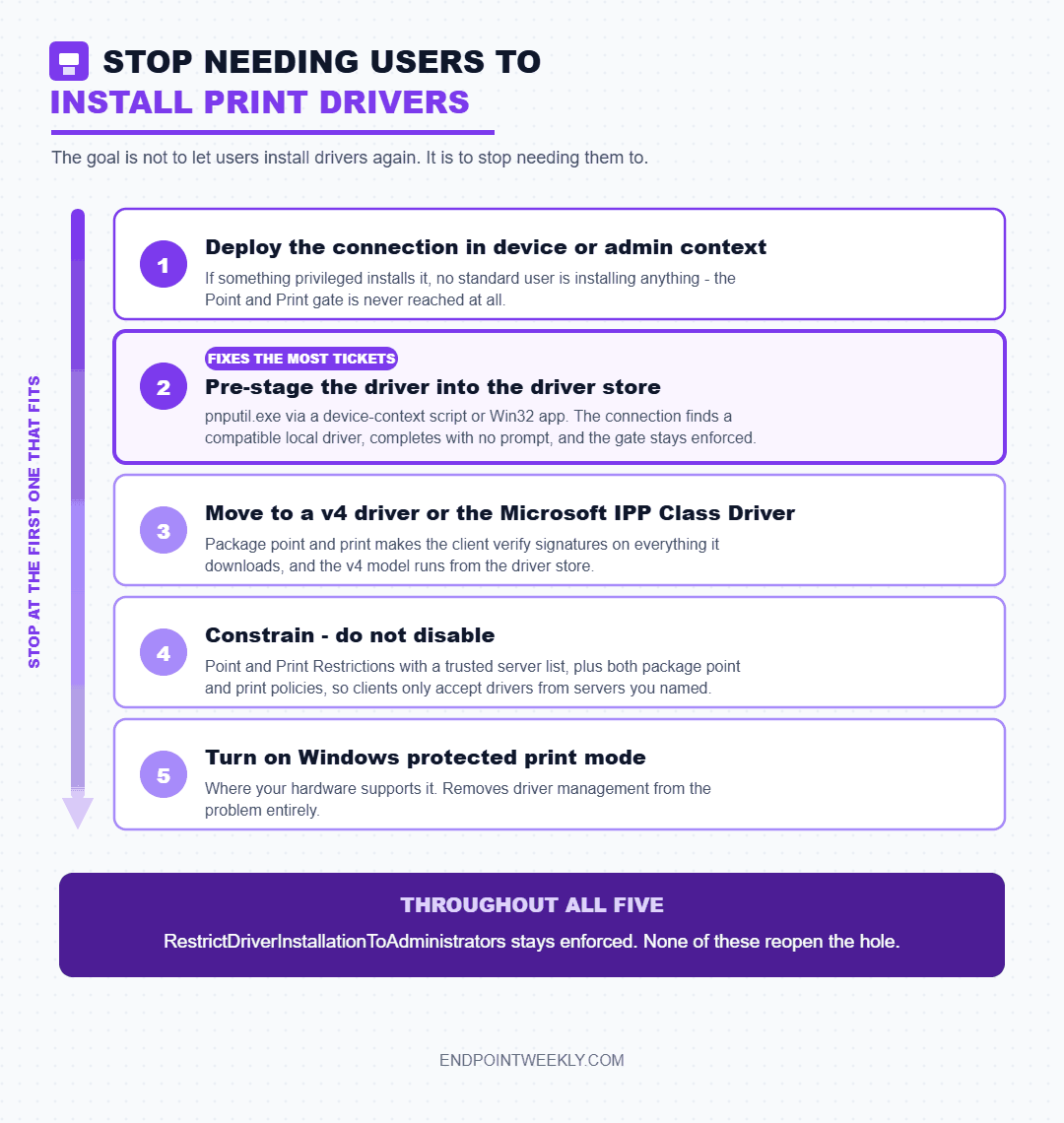
- Deploy the printer connection in device or administrative context. If the connection and its driver are installed by something running with administrative privilege, the Point and Print gate is never reached, because no standard user is installing anything. Group Policy printer deployment and Intune device-context deployment both qualify.
- Pre-stage the driver into the driver store. If the driver is already present locally, connecting to the shared queue does not need to download one. Microsoft's own note in the Point and Print Restrictions policy text is that if a compatible driver is available on the client, the connection is made.
- Move the queue to a package-aware v4 driver, or to the Microsoft IPP Class Driver. Package point and print makes the client verify signatures on everything it downloads, and the v4 model runs from the driver store.
- Constrain, do not disable. Enable Point and Print Restrictions with a trusted server list, and enable both package point and print policies, so clients only ever accept drivers from servers you named.
- Turn on Windows protected print mode where your hardware supports it, which removes driver management from the problem entirely.
Tip: option 2 is the one that quietly fixes the most tickets. Pre-staging the driver into the driver store with pnputil.exe, delivered as a device-context Intune script or Win32 app, means the user's connection attempt finds a compatible local driver and completes with no prompt and no elevation. You keep RestrictDriverInstallationToAdministrators enforced, and the user never knows the gate was there. It also means one driver version across the fleet instead of whatever each print server happens to be serving.
Group Policy: the Computer Configuration path
- Open the Group Policy Management Console. Type
GPMC.MSCand press Enter. - In the console tree, expand the forest, then Domains, then your domain.
- Right-click the organisational unit holding the computer accounts you want to change, then select Create a GPO in this domain, and Link it here. Give it a name and click OK.
- Right-click the new GPO and select Edit.
- Expand Computer Configuration, then Policies, then Administrative Templates, then Printers.
- Open Limits print driver installation to Administrators. Set it to Enabled. Microsoft's Printers Policy CSP documents this policy as writing
RestrictDriverInstallationToAdministratorsunder the PointAndPrint key. Leaving it Not Configured also gives you the enforced default, but setting it explicitly meansgpresultcan prove intent. - Open Point and Print Restrictions. Set it to Enabled.
- Tick Users can only point and print to these servers and enter the fully qualified names of your print servers, separated by semicolons.
- Set When installing drivers for a new connection to Show warning and elevation prompt.
- Set When updating drivers for an existing connection to Show warning and elevation prompt. Those two selections are Microsoft's stated recommendation, and they keep
NoWarningNoElevationOnInstallandUpdatePromptSettingsat 0. - Click OK.
- In the same Printers node, open Only use Package Point and print and set it to Enabled. This restricts clients to printers that use package-aware drivers.
- Open Package Point and print - Approved servers, set it to Enabled, and list the same servers. Microsoft notes that a client which fails a package connection will then attempt a non-package connection, so you generally need both this and Point and Print Restrictions to fully constrain a server.
- Open Configure RPC packet level privacy setting for incoming connections and leave it Enabled or Not Configured. Both mean packet level privacy is on, which is the CVE-2021-1678 posture.
Gotcha: Microsoft's own docs disagree about where the package settings sit. The Point and Print troubleshooting articles put the Printers node directly under Computer Configuration > Administrative Templates > Printers, and the Printers Policy CSP lists every Printing.admx policy with a Computer Configuration path of simply Printers. The older printer Group Policy reference article describes the Windows Server 2008 R2-era additions, including the two package point and print settings, under Computer Configuration > Policies > Administrative Templates > Control Panel > Printers. If a setting is not where you expect, check both nodes before concluding your ADMX files are stale.
Group Policy: the User Configuration path, which is different and still exists
There genuinely are two Point and Print Restrictions policies, in two different places, and this is the single most common source of "my GPO is being ignored" tickets on this topic.
- In the same GPO, expand User Configuration, then Administrative Templates, then Control Panel, then Printers.
- Open Point and Print Restrictions. This is the older, user-scoped copy of the policy.
- Configure it to match your Computer Configuration setting.
- Click OK.
Microsoft's troubleshooting article on the subject is direct about the history: the policies "were previously implemented" at the User Configuration path and "now" live under Computer Configuration, and Windows "ignore the Point and Print Restrictions policies when the policies are implemented in the user policy context". Its guidance is nonetheless to set the policy in both locations if you are dealing with mixed-level clients, because it is still available for backwards compatibility. The Printers Policy CSP confirms both exist as distinct settings, PointAndPrintRestrictions in device scope and PointAndPrintRestrictions_User in user scope, writing to the same registry key name.
Do not use the User Configuration copy as your control. Setting it alone and expecting standard users to gain driver install rights is the classic failure. It will not gate anything on a modern client, and worse, if you have used it to set Do not show warning or elevation prompt, you have written a value whose only effect on a supported build is to make failures quieter. Configure device scope, mirror it in user scope for legacy clients only, and never treat user scope as the enforcement point.
Intune: the Settings Catalog path
- Sign in to the Microsoft Intune admin center at
intune.microsoft.com. - Select Devices, then Configuration.
- Select Create, then New Policy.
- For Platform choose Windows 10 and later. For Profile type choose Settings catalog. Select Create.
- Give the profile a name such as
WIN - Print hardening - Point and Print, then select Next. - On the Configuration settings tab select Add settings.
- In the settings picker, browse or search the Printers category.
- Select Limits print driver installation to Administrators and set it to Enabled. This is the
RestrictDriverInstallationToAdministratorspolicy in the Printers Policy CSP, device scope, Windows 11 22H2 and later. - Select Point and Print Restrictions and configure the two prompt drop-downs to show the warning and elevation prompt, plus your trusted server list.
- Optionally add Configure RPC packet level privacy setting for incoming connections (Windows 11 24H2 and later) and Manage Print Driver signature validation.
- Select Next through Scope tags, assign the profile to your device group, then Create.
Gotcha: the two package point and print policies are not in the Printers Policy CSP. Walk the CSP reference and you find PointAndPrintRestrictions, PointAndPrintRestrictions_User, RestrictDriverInstallationToAdministrators, ConfigureWindowsProtectedPrint, ConfigureRpcAuthnLevelPrivacyEnabled, ConfigureDriverValidationLevel, ManageDriverExclusionList and the RPC listener and connection policies. You do not find "Only use Package Point and print" or "Package Point and print - Approved servers". Those two are documented as Group Policy settings only. If you need them on Intune-managed devices with no on-premises Group Policy, you are looking at ADMX ingestion or a custom OMA-URI, not the Settings Catalog. Verify against the CSP reference for your target build before you promise a delivery mechanism.
For Windows protected print mode, Microsoft publishes the custom profile values directly. The OMA-URI is ./Device/Vendor/MSFT/Policy/Config/Printers/ConfigureWindowsProtectedPrint, data type String, value <enabled/>. The equivalent Group Policy is Configure Windows protected print in the same Printers node, and the policy writes WindowsProtectedPrintGroupPolicyState under the Printers\WPP key.
Defender and security policy: what applies and what does not
This is worth stating precisely, because it is easy to assume otherwise. No attack surface reduction rule targets the print spooler. Walking the full ASR rules reference, there is no rule mentioning print, printer, spooler or spoolsv.exe. The closest-sounding rule, Block abuse of exploited vulnerable signed drivers (GUID 56a863a9-875e-4185-98a7-b882c64b5ce5), prevents apps from saving vulnerable signed drivers to disk and does not prevent loading drivers already present. It is not a print driver control. If a vendor or checklist tells you an ASR rule mitigates PrintNightmare, ask which GUID, then check it against the reference.
What does exist on the security-product side is a Microsoft Defender for Identity posture assessment, Disable Print spooler service on domain controllers. Its reasoning is specific and worth understanding: any authenticated user can remotely connect to a domain controller's spooler and request an update on new print jobs, and can direct the notification at a system with unconstrained delegation, which exposes the domain controller computer account credential because the spooler is owned by SYSTEM. Microsoft's recommendation is that domain controllers and Active Directory admin systems have the Print spooler service disabled, and that the way to do it is a Group Policy Object.
Disabling the spooler is the last resort, and it is scoped. Microsoft documents disabling it for domain controllers, Active Directory admin systems, and any server that does not require it. It is not the answer for a user's laptop: turn it off and that device cannot print or even see printers. There is also a real trade-off on domain controllers, which Microsoft names explicitly. The domain controller role adds a thread to the spooler that performs print pruning, removing stale print queue objects from Active Directory. If the spooler is not running on at least one DC in each site, Active Directory cannot clean up queues that no longer exist. Plan periodic pruning before you disable it everywhere.
Two Windows-native controls sit closer to Defender territory than to Point and Print, and both are worth adding. Manage Print Driver signature validation raises the bar from its default of "allow all validly signed drivers" to inbox-only, or inbox plus a dedicated PrintDrivers certificate store you populate yourself. Manage Print Driver exclusion list lets you name specific drivers by SHA256 hash of the INF or main driver DLL, and Microsoft states this check "outranks the signature check", so it will block a driver that would otherwise pass validation.
The modern alternative, referenced rather than explained
Windows protected print mode is where this is all heading. It prevents installation of third-party drivers and prints via the Internet Printing Protocol stack to Mopria certified printers, and Microsoft states it "mitigates over half of past reported security issues for Windows print". It is documented for Windows 11 version 24H2 and later, is off by default, and when enabled removes driver management from the picture rather than gating it. Microsoft has also published an end-of-servicing plan for third-party v3 and v4 printer drivers. If your fleet's printers are Mopria certified, evaluate protected print mode instead of tuning Point and Print forever. That deserves its own post and is not the subject of this one.
Proof it worked: a real run on a real device
The companion script reports every documented control above, the spooler state, the driver inventory split by model version, and the recent driver events. It is strictly read-only. There is no Set, New, Remove, Start, Stop or Enable call against any service, registry value, driver or log anywhere in it.
The second half of the same run covers the service, the driver split and the event channels. This is where the actual operational answer lives: how many of your drivers are still on the model the hardening is guarding.
Read that output as a posture statement, not a pass mark. This device is at Microsoft's enforced defaults for every documented value, which is good. It is also carrying six v3 drivers, has Windows protected print mode off, has the Operational channel disabled, and has no trusted server list, which together describe an environment that is safe today and undiagnosable tomorrow.
What "it worked" looks like after you apply the fix: RestrictDriverInstallationToAdministrators still enforced, the Point and Print prompt values still 0 or absent, event ID 215 no longer appearing when users connect to queues, and event ID 307 in the Operational channel showing jobs completing. If you got printing working by writing a 0 anywhere in this post, you did not fix it.
Script path and parse results: the script is Get-PrintSpoolerHardening.ps1, verified with zero parse errors on both Windows PowerShell 5.1 and PowerShell 7, zero non-ASCII bytes, and no null-conditional operator, which on 5.1 silently yields nothing instead of erroring.
References
- KB5005652 - Manage new Point and Print default driver installation behavior (CVE-2021-34481) - the
RestrictDriverInstallationToAdministratorsvalue, its two states, and the 6 July and 10 August 2021 default changes. - KB5005010 - Restricting installation of new printer drivers after applying the July 6, 2021 updates -
NoWarningNoElevationOnInstallandUpdatePromptSettings, and the "Show warning and elevation prompt" recommendation. - KB4599464 - Managing deployment of Printer RPC binding changes for CVE-2021-1678 -
RpcAuthnLevelPrivacyEnabled, its values, and the January and September 2021 phases. - Printers Policy CSP - every printer policy with its Group Policy friendly name, scope, registry key and value name. The authoritative list of what Intune can and cannot reach.
- Event IDs with point and print restrictions - events 215 and 808 in PrintService/Admin, plus the System and Application log events, and both Group Policy paths.
- Point and Print Restrictions policies are ignored in Windows - why the User Configuration copy is ignored, and the recommendation to set both for mixed clients.
- Use Group Policy settings to control printers - the documented wording for "Only use Package Point and print" and "Package Point and print - Approved servers".
- Introduction to Spooler Components -
winspool.drv,spoolsv.exe,spoolss.dlland the provider model. - Introduction to Print Providers -
localspl.dllandwin32spl.dll. - Package-Aware Print Drivers and V4 Printer Driver - the model distinction the fixes depend on.
- Security guidelines for system services in Windows Server - the
SpoolerandPrintNotifyentries, and the print pruning trade-off. - Defender for Identity - Disable Print spooler service on domain controllers - the credential exposure reasoning and the GPO recommendation.
- Attack surface reduction rules reference - checked in full; no rule targets the print spooler.
- Windows protected print mode for enterprises - the Group Policy steps and the Intune OMA-URI.
- End of servicing plan for third-party printer drivers on Windows - where v3 and v4 third-party drivers are going.
Community deep-dives, each fetched and confirmed on topic
| Author | Post | Why it is useful here |
|---|---|---|
| Rudy Ooms | Birds of Printer Nightmares | Walks the Intune side of letting non-administrators install printer drivers while keeping the PrintNightmare mitigations, across Administrative Templates and the Settings Catalog. |
| Martin Bengtsson | Windows Protected Print: Securing Printing on Windows 11 with Microsoft Intune | Deployment and troubleshooting of Windows protected print mode through the Policy CSP, including how to back it out safely. |
Download it from Imran76Awan/Windows-11-Scripts — no sign-in required. It is read-only: it reports and never changes a device or anything in Intune. Validate it in your own environment before relying on the output.