Remote Desktop Protocol (RDP) is the most attacked remote surface on Windows. Turning it on takes one toggle in Settings. Hardening it takes about a dozen settings spread across three completely separate surfaces. Most of the guidance you will find online stops at "enable Network Level Authentication" and never explains what that actually does, or which of the other settings genuinely change your exposure. This post walks the whole feature area from first principles, names every registry value and event ID involved, and gives you a read-only script that tells you what is really in force on a device.
Network Level Authentication (NLA) forces a caller to prove who they are before the RD Session Host allocates a session, which removes the entire pre-authentication code path from the internet. It is one registry value, UserAuthentication, and it runs over the Credential Security Support Provider (CredSSP). Separately, SecurityLayer decides whether the server is authenticated to the client, and MinEncryptionLevel only matters when you are still on native RDP encryption. Enabling RDP does not configure any of them, does not set a session timeout, and opens four firewall rules across every profile, so verify all three surfaces on the device rather than trusting the toggle.
The problem: one toggle on, a dozen settings undecided
Open Settings > System > Remote Desktop on a Windows 11 Pro, Enterprise or Education device and flip Enable Remote Desktop to On. Microsoft documents that click path, and it works. What it does not tell you is exactly what changed.
Three things changed. A registry value flipped. Four firewall rules turned on. A service moved from stopped to running. That is the whole of it.
Nothing in that toggle decided whether a caller has to authenticate before a session is built for them. Nothing decided whether the server proves its own identity. Nothing decided how long an abandoned session survives, or whether the four firewall rules now allowing inbound TCP 3389 apply on the corporate network only or on the coffee shop Wi-Fi too. Those are separate settings on separate surfaces, and their defaults are not the same thing as a decision.
Here is the awkward part. Windows Home editions cannot host RDP at all, so a lot of teams assume RDP is not their problem. But every Pro, Enterprise and Education device in your fleet ships with the listener configuration already sitting in the registry, ready to be used the instant somebody flips the toggle or an installer flips it for them. The settings that decide how dangerous that is are configured, or not configured, right now.
Terminology, spelled out once. RDP is the Remote Desktop Protocol. RD Session Host, or RDSH, is Microsoft's name for the machine accepting the connection, even when it is a single-user Windows 11 laptop rather than a multi-session server. NLA is Network Level Authentication. CredSSP is the Credential Security Support Provider, the security package NLA authenticates over. TLS is Transport Layer Security. GPO is a Group Policy Object. CSP is a Configuration Service Provider, the MDM equivalent of a policy. Every one of those appears below.
Why it happens: pre-auth versus post-auth attack surface
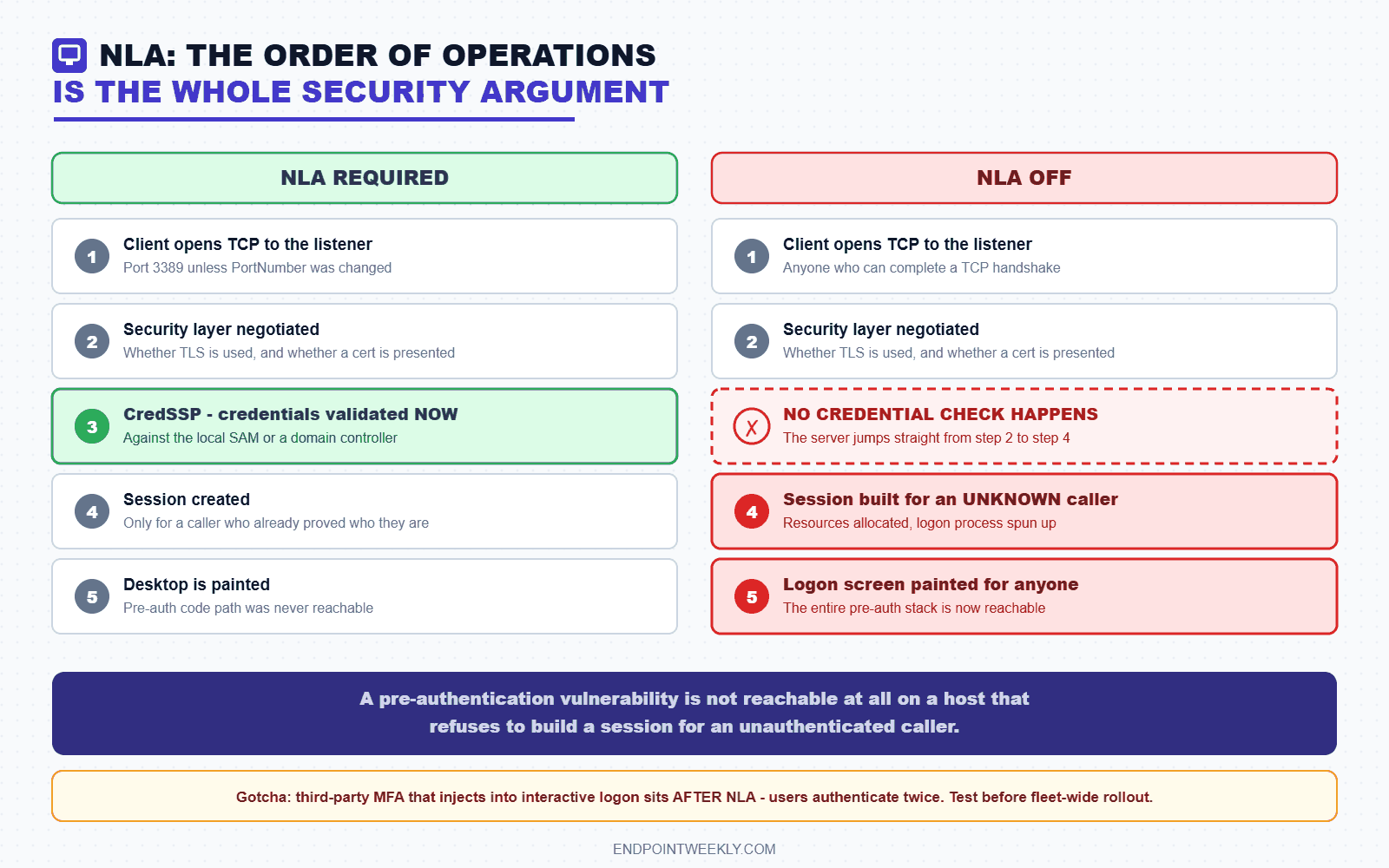
Now remove step 3. Without NLA, the server jumps straight from step 2 to step 4. It allocates session resources, spins up the logon process, and paints a logon screen for a caller it knows nothing about. That is the pre-authentication code path, and it is reachable by anyone who can complete a TCP handshake.
Microsoft's own description of the benefit is blunt. NLA "completes user authentication before you establish a remote desktop connection and the logon screen appears", it "requires fewer remote computer resources initially", and it "can help provide better security by reducing the risk of denial-of-service attacks". The security value follows directly from that ordering: a vulnerability that lives in the pre-authentication part of the stack is not reachable at all on a host that refuses to build a session for an unauthenticated caller. That is the whole argument for NLA, and it is why it is the first thing to turn on rather than the last.
The price is a client requirement. Microsoft documents that NLA needs a client running at least Remote Desktop Connection 6.0, on an operating system that supports CredSSP. Every currently supported Windows client meets that. Thin clients, appliance-based KVM-over-IP consoles, and some third-party RDP clients may not.
Gotcha: NLA and third-party multi-factor authentication. Because NLA validates credentials before the session exists, an MFA product that injects its prompt into the interactive logon sequence sits after NLA has already collected and checked a password. The visible symptom is a double logon: the user authenticates to NLA, then authenticates again inside the session. That is not a bug you can configure away. It is the ordering above. Test your MFA product against an NLA-required host before you roll the policy out fleet-wide.
SecurityLayer decides who authenticates whom
NLA answers "did the caller prove who they are". SecurityLayer answers a different question: "did the server prove who it is". They are separate settings and people conflate them constantly.
Microsoft's Unattend reference documents three values, and the shipped TerminalServer.admx on any Windows 11 device confirms the same three:
- 0 (RDP) uses native RDP encryption. Microsoft's own policy text says that with this setting "the RD Session Host server is not authenticated". Anyone who can get in the network path can present themselves as your server and collect credentials.
- 1 (Negotiate) uses TLS if the client supports it, and falls back to native RDP if not. Microsoft documents this as the default value. The fallback is the problem: a deliberately old client forces the downgrade.
- 2 (TLS) requires TLS for server authentication and for encrypting everything in the session. Microsoft's policy text notes that native RDP encryption "as opposed to SSL encryption, is not recommended", which is as close as documentation gets to telling you to pick 2.
Gotcha: the WMI class documents different numbers than the registry. The Win32_TSGeneralSetting WMI class enumerates its SecurityLayer property as 1 = RDP Security Layer, 2 = Negotiate, 3 = SSL. The registry value, the Unattend setting and the ADMX policy all use 0 = RDP, 1 = Negotiate, 2 = SSL, and the class's own SetSecurityLayer method is documented with 0, 1 and 2. If you script against WMI, read the WMI numbering. If you script against the registry, read the registry numbering. Mixing them silently sets the wrong thing.
MinEncryptionLevel is narrower than it looks
MinEncryptionLevel is the value behind the Set client connection encryption level policy. Microsoft documents four levels: 1 = Low, 2 = Client Compatible, 3 = High, 4 = FIPS Compliant. Low is the one to know about, because Microsoft states plainly that at Low, "data sent from the server to the client is not encrypted".
Two important pieces of nuance that most guides skip.
First, the policy's own description says it "only applies when you are using native RDP encryption" and "doesn't apply to SSL encryption". Once you set SecurityLayer to TLS, TLS supplies the encryption and this value stops deciding anything on that listener. It is still worth setting, because it is your floor if somebody later loosens the security layer.
Second, the ADMX policy only offers three of the four values. The enumeration in TerminalServer.admx contains Low (1), Client Compatible (2) and High (3). There is no FIPS option in that dropdown. Microsoft's guidance is that FIPS compliance is configured through System cryptography: Use FIPS compliant algorithms for encryption, hashing, and signing under Computer Configuration > Windows Settings > Security Settings > Local Policies > Security Options, not through this policy.
Do not combine TLS with Low encryption. Microsoft documents that a SecurityLayer value of SSL "is not compatible with a MinEncryptionLevel value of 1". If you push both, you are configuring a combination Microsoft says does not work, and the failure mode is that clients cannot connect at all. On a remotely managed device with no other access path, that locks you out of your own machine. Change the security layer and the encryption level in that order, and confirm a connection still works before you widen the assignment.
Three surfaces, and which one wins
The same three value names exist in two places, and this catches people out constantly.
The local settings live under the listener's own WinStation key. The policy settings live under a Policies key written by Group Policy or Intune. Microsoft's guidance on NLA is explicit that "the Group Policy setting will take precedence over the setting configured in Remote Desktop Session Host Configuration or on the Remote tab". If the Policies value is present, that is the effective value, and the checkbox in the UI greys out.
The third surface is Windows Firewall. A device can have NLA required, TLS enforced and RDP enabled, and still be completely unreachable because every rule in the Remote Desktop group is disabled. Conversely it can have flawless authentication settings and an inbound allow rule scoped to the Public profile, which is how a laptop ends up accepting connection attempts from a hotel network.
How to verify: registry, services, firewall, event log
Verify before you change anything. On a managed fleet, half of these values are already set by a baseline you inherited and forgot about.
The registry reference
The listener's own configuration lives under this key. It has one subkey per listener, and RDP-Tcp is the one that matters on a client:
| Value name | Documented values | What it decides |
|---|---|---|
UserAuthentication | 0 = NLA not required, 1 = NLA required | Whether the caller must authenticate over CredSSP before a session is created. |
SecurityLayer | 0 = RDP, 1 = Negotiate, 2 = TLS | Whether the server authenticates itself to the client, and with what. |
MinEncryptionLevel | 1 = Low, 2 = Client Compatible, 3 = High, 4 = FIPS | Encryption floor, but only for native RDP encryption. |
PortNumber | 3389 by default | The listener port. Microsoft documents changing it but does not recommend it. |
MaxIdleTime | Milliseconds, 0 = never | How long an active session may sit with no user input before it is disconnected. |
MaxDisconnectionTime | Milliseconds, 0 = never | How long a disconnected session stays alive on the host. |
MaxConnectionTime | Milliseconds, 0 = never | Hard ceiling on total session length regardless of activity. |
fResetBroken | 0 or 1 | Whether a session that hits a time limit is ended rather than merely disconnected. |
Whether RDP is on at all is one value on the parent key, not on the listener key:
fDenyTSConnections (REG_DWORD) 0 = RDP enabled, 1 = RDP disabled
Microsoft's troubleshooting guide states it exactly that way: "If the value of the fDenyTSConnections key is 0, then RDP is enabled. If the value of the fDenyTSConnections key is 1, then RDP is disabled." Note that the polarity is inverted from what you would guess, because the value is a deny flag.
The policy copies of all of the above live under a different hive. Anything present here was pushed by Group Policy or by Intune, and it beats the WinStation value:
| Value name | Written by which policy | Notes |
|---|---|---|
UserAuthentication | Require user authentication for remote connections by using Network Level Authentication | Enabled writes 1, Disabled writes 0. |
SecurityLayer | Require use of specific security layer for remote (RDP) connections | Dropdown values RDP, Negotiate, SSL map to 0, 1, 2. |
MinEncryptionLevel | Set client connection encryption level | Dropdown offers Low, Client Compatible, High only. |
fDenyTSConnections | Allow users to connect remotely by using Remote Desktop Services | Enabled writes 0, Disabled writes 1. Inverted, again. |
fPromptForPassword | Always prompt for password upon connection | Stops a saved credential in an .rdp file logging straight in. |
fEncryptRPCTraffic | Require secure RPC communication | Applies to the RPC interface used to administer RDS, not the session. |
MaxIdleTime / MaxDisconnectionTime / MaxConnectionTime | The three Session Time Limits policies | Values are milliseconds. 0 means Never. |
fResetBroken | End session when time limits are reached | Turns a disconnect into a real logoff. |
Here is what those keys look like in Registry Editor on a device where a policy has already been applied. Notice the same two value names appearing under both hives, and that the policy hive is the one holding the decision:
Reading all three surfaces from PowerShell
This block reads the listener key, the policy key and the service state in one pass. Run it elevated. It changes nothing.
Services and scheduled tasks
Microsoft's troubleshooting guide names exactly two services that must be running on both ends of an RDP connection: Remote Desktop Services (TermService) and Remote Desktop Services UserMode Port Redirector (UmRdpService). A third, Remote Desktop Configuration (SessionEnv), handles the listener and certificate configuration. All three are Manual start by default on Windows 11, which is why a device with RDP disabled shows them stopped.
There is no scheduled task under \Microsoft\Windows\... that drives Remote Desktop Services. I checked a Windows 11 24H2 device: the only remote-access task in that tree is \Microsoft\Windows\RemoteAssistance\RemoteAssistanceTask, which belongs to Remote Assistance, a different feature with a different attack surface. If you are auditing RDP, the scheduled task surface is genuinely not part of the story, and you should not waste a detection rule on it.
System files and DLLs in the flow
Knowing the binaries matters when you are reading a crash, a Defender detection, or an application control block. These are the ones in the path, verified present on a Windows 11 24H2 device.
| Binary | Where it lives | What it does in the flow |
|---|---|---|
termsrv.dll | C:\Windows\System32\ | The TermService service DLL itself. It is what the svchost.exe process for TermService loads. |
rdpcorets.dll | C:\Windows\System32\ | The core server-side RDP stack. Owns the connection and channel handling, and is the source behind the RdpCoreTS event channel. |
umrdp.dll | C:\Windows\System32\ | The service DLL for UmRdpService, the user-mode port redirector. |
sessenv.dll | C:\Windows\System32\ | The service DLL for SessionEnv, which configures the listener and its certificate. |
TSCfgWmi.dll | C:\Windows\System32\ | Backs the Win32_TSGeneralSetting WMI class in the Root\CIMv2\TerminalServices namespace. |
mstsc.exe | C:\Windows\System32\ | The client. Remote Desktop Connection. |
mstscax.dll | C:\Windows\System32\ | The client-side ActiveX control that does the actual protocol work for mstsc.exe. |
rdpclip.exe | C:\Windows\System32\ | Runs inside the session to service clipboard redirection. |
rdpdr.sys, rdpbus.sys, tsusbhub.sys | C:\Windows\System32\drivers\ | Device redirection: drives and printers, the RDP device bus, and USB hub redirection. |
One detail worth internalising. TermService does not run in its own process. Its ImagePath is svchost.exe -k NetworkService, and the built-in firewall rule for RDP is scoped to that host process plus the service name. The rule string Microsoft publishes for RemoteDesktop-UserMode-In-TCP includes App=%SystemRoot%\system32\svchost.exe|Svc=termservice|LPort=3389. That is why "block svchost" is never a viable mitigation and why the firewall rule is the right lever.
Log files: there are no text logs, and that is fine
RDP does not write a plain-text log you can grep. The log files are the event channel files, and they live in the standard location:
%SystemRoot%\System32\Winevt\Logs\Microsoft-Windows-TerminalServices-RemoteConnectionManager%4Operational.evtx
%SystemRoot%\System32\Winevt\Logs\Microsoft-Windows-RemoteDesktopServices-RdpCoreTS%4Operational.evtx
%SystemRoot%\System32\Winevt\Logs\Security.evtx
The %4 in those filenames is an escaped forward slash, which is how Windows encodes the Channel/Operational separator on disk. You can copy those files off a device for offline analysis, and Get-WinEvent -Path will read them without the originating machine.
Event Viewer: the catalog that actually matters
Four channels tell the RDP story, and each answers a different question. The event IDs and message texts below come from the provider manifests that ship in Windows, which you can read yourself with Get-WinEvent -ListProvider.
| ID | Message | Why you care |
|---|---|---|
| 21 | Remote Desktop Services: Session logon succeeded (User, Session ID, Source Network Address) | The single most useful RDP event. It carries the source address of a successful session. |
| 22 | Remote Desktop Services: Shell start notification received | The desktop actually loaded. A 21 without a 22 means the session died during shell start. |
| 23 | Remote Desktop Services: Session logoff succeeded | A clean logoff, as opposed to a disconnect. |
| 24 | Remote Desktop Services: Session has been disconnected | Session still exists on the host. This is what your disconnected-session timeout acts on. |
| 25 | Remote Desktop Services: Session reconnection succeeded | Somebody picked a disconnected session back up. Pair it with 24 to measure real exposure windows. |
| 39 | Session %1 has been disconnected by session %2 | One session kicked another. On a client that is unusual and worth reading. |
| 40 | Session %1 has been disconnected, reason code %2 | Carries the reason code. Useful when sessions drop and nobody can say why. |
| ID | Message | Why you care |
|---|---|---|
| 1149 | Remote Desktop Services: User authentication succeeded (User, Domain, Source Network Address) | The authentication step passing, with the source address. On an NLA host this fires before any session exists. |
| 1158 | Remote Desktop Services accepted a connection from IP address %1 | Raw connection acceptance. Even attempts that never authenticate show up here. |
| 1150 | Remote Desktop Services: User config data have been merged | Confirms the user's RDS configuration, including their per-user session limits, was applied. |
| 1146 / 1147 / 1148 | Remote control session initiated / connection succeeded / connection failed | Session shadowing. If you did not deploy shadowing, any of these is worth a look. |
| ID | Message | Why you care |
|---|---|---|
| 131 | The server accepted a new %1 connection from client %2 | Shows the transport, TCP or UDP, alongside the client address. |
| 140 | A connection from the client computer with an IP address of %1 failed because the user name or password is not correct | This is your brute-force detector. It fires on the pre-authentication failure, with a source address. |
| 132 / 148 | A channel %1 has been connected / closed between the server and the client using transport tunnel %2 | Virtual channel lifecycle. Useful when redirection features misbehave. |
| ID | Meaning | The RDP filter |
|---|---|---|
| 4624 | An account was successfully logged on | Filter on LogonType 10, which Microsoft documents as RemoteInteractive: "A user logged on to this computer remotely using Terminal Services or Remote Desktop." |
| 4625 | An account failed to log on | Same LogonType 10 filter. Watch the Status and Sub Status codes, notably 0xC000006A for a bad password and 0xC0000234 for an account already locked out. |
Gotcha: NLA changes which log records the failure. Because NLA validates credentials over the network before a RemoteInteractive session exists, a rejected attempt on an NLA-required host does not reliably land as a 4625 with LogonType 10. It often shows as a network logon instead, and the reliable source-attributed record is RdpCoreTS event 140. If your SIEM rule only counts 4625 LogonType 10, enabling NLA can make your brute-force alerting go quiet while the attacks continue. Add event 140 and RemoteConnectionManager 1158 to the rule before you turn NLA on, not after.
Here is what a genuine brute force looks like in Event Viewer once you know where to look. This example is illustrative, with the source address replaced by an RFC 5737 documentation address:
Firewall: what actually exposes the listener
Windows ships four inbound rules across two display groups for this. On a Windows 11 24H2 device they are RemoteDesktop-UserMode-In-TCP and RemoteDesktop-UserMode-In-UDP on port 3389, RemoteDesktop-Shadow-In-TCP for session shadowing, and RemoteDesktop-In-TCP-WSS in a separate Remote Desktop (WebSocket) group. All four are scoped to every profile out of the box.
That last detail is the one people miss. A rule with Profile = Any applies on Domain, Private and Public. A laptop that joins hotel Wi-Fi is offering the same listener it offers on your corporate LAN.
Tip: scope, do not just disable. On a fleet where some devices legitimately need RDP, the highest-value change is usually not turning rules off. It is narrowing the built-in rules to the Domain profile and adding a remote-address scope for your admin subnets. That keeps your support workflow working while removing the device from every untrusted network it ever touches. In Intune this is an Endpoint security > Firewall policy with the Firewall rules profile, where each rule takes its own profile list and remote address ranges.
The fix: Group Policy and Intune, setting by setting
Everything below is a real click path. Do the Group Policy version first on a test device so you can see the values land in the registry, then reproduce it in Intune for the fleet.
Group Policy: the Security node
- Press Win+R, type
gpedit.mscand press Enter. On a domain-joined device do this in the Group Policy Management Console against a test OU instead, so you are not fighting a local setting later. - Navigate the path in the breadcrumb above.
- Double-click Require user authentication for remote connections by using Network Level Authentication. Set it to Enabled and click OK. This writes
UserAuthentication = 1to the policy hive. - Double-click Require use of specific security layer for remote (RDP) connections. Set it to Enabled, then choose SSL from the Security Layer dropdown. Click OK. This writes
SecurityLayer = 2. - Double-click Set client connection encryption level. Set it to Enabled and choose High Level. Click OK. This writes
MinEncryptionLevel = 3as your floor for any listener not on TLS. - Double-click Always prompt for password upon connection and set it to Enabled. This writes
fPromptForPassword = 1, so a credential saved in an .rdp file cannot log straight in. - Double-click Require secure RPC communication and set it to Enabled. This writes
fEncryptRPCTraffic = 1and hardens the RPC interface used to administer RDS. - Open an elevated command prompt and run
gpupdate /force. - Re-run the first PowerShell block above. The policy hive should now show your values, and the checkbox in Settings > System > Remote Desktop for NLA should be greyed out, which is Windows telling you policy has taken over.
Group Policy: the Session Time Limits node
- Navigate to the Session Time Limits node in the breadcrumb above.
- Double-click Set time limit for active but idle Remote Desktop Services sessions. Set Enabled and pick a value from the Idle session limit dropdown, for example 15 minutes. This writes
MaxIdleTime = 900000, because the values are milliseconds. - Double-click Set time limit for disconnected sessions. Set Enabled and pick, for example, 1 hour. This writes
MaxDisconnectionTime = 3600000. - Double-click Set time limit for active Remote Desktop Services sessions if you want a hard ceiling regardless of activity. This writes
MaxConnectionTime. - Double-click End session when time limits are reached and set it to Enabled. This writes
fResetBroken = 1. Without it, a session that hits a limit is only disconnected, and it keeps running. - Run
gpupdate /forceand confirm the values in the policy hive.
Gotcha: every Session Time Limits policy exists twice. Windows ships each of these as a pair, one under Computer Configuration and one under User Configuration, both writing the same value name. In TerminalServer.admx they are literally the same display name with a _1 and _2 suffix on the internal policy name, one class User and one class Machine. If you configure the computer version and somebody else configured the user version with a different number, you now have two sources for one value and a support ticket that makes no sense. Pick one scope per organisation and document it. Also note that Microsoft's own policy text says idle and disconnected limits "do not apply" to a console session, so testing at the physical keyboard proves nothing.
Intune: Settings catalog
Intune does not expose these as a dedicated Remote Desktop profile. They arrive through the ADMX-backed Administrative Templates that are built into the settings catalog, and Microsoft states that "the Windows settings in Intune correlate to the on-premises group policy path you see in Local Group Policy Editor". So the tree you navigate is identical to the GPO tree above.
- Sign in to the Microsoft Intune admin center.
- Go to Devices > Manage devices > Configuration, then select Create > New policy.
- Set Platform to Windows 10 and later and Profile type to Settings catalog. Select Create.
- Name the policy something a future colleague will understand, for example
Win11 - RDP hardening - NLA and TLS. Add a description. Select Next. - Select Add settings to open the settings picker, and expand Administrative Templates.
- Expand Windows Components > Remote Desktop Services > Remote Desktop Session Host > Security.
- Tick Require user authentication for remote connections by using Network Level Authentication, Require use of specific security layer for remote (RDP) connections, Set client connection encryption level and Always prompt for password upon connection.
- Still in the picker, expand Session Time Limits and tick the idle, disconnected and end-session settings you decided on above. Watch for the
(User)suffix: Microsoft documents that a setting showing(User)applies to users at sign-in, and one without it applies to the device. That suffix is how you tell the_1and_2policy pair apart in the catalog. - Close the picker. Each setting now appears in the policy with its own toggle and dropdown. Set the security layer to SSL, the encryption level to High Level, and the time limits to your chosen values.
- Select Next through scope tags, then assign the policy. Assign it to a small pilot group first.
- Select Next, review, and select Create.
- After the next device check-in, confirm the values landed under
HKLM\SOFTWARE\Policies\Microsoft\Windows NT\Terminal Servicesusing the PowerShell block above.
Do not build this in the old Administrative Templates profile type. Microsoft states that from the December 2412 Intune release, the Templates > Administrative Templates profile type in the admin center is deprecated and read-only. If you have existing RDP settings there they still apply, but you cannot edit them, and a half-migrated estate where some devices get the old profile and some get a settings catalog profile is exactly how you end up with a device whose NLA state nobody can explain. Migrate to a settings catalog profile deliberately, and delete the old one only once you have confirmed the new one is landing.
The setting most RDP guides forget: account lockout
NLA changes where credential guessing happens, not whether it happens. With NLA required, an attacker who reaches the port can still submit username and password pairs, and each one is validated against the local SAM or a domain controller. That is what RdpCoreTS event 140 records.
What makes each guess expensive is Account Lockout Policy, configured under Computer Configuration > Windows Settings > Security Settings > Account Policies > Account Lockout Policy. If the lockout threshold is Never, guessing is unlimited and free, and every other hardening step on this page only slows the attacker down rather than stopping them.
There is a Windows 11 specific wrinkle worth knowing. Historically the built-in Administrator account, relative identifier 500, could not be locked out at all, which made it the obvious target for RDP password spraying. Microsoft added an Allow Administrator account lockout setting to Account Lockout Policy. Its documentation states that "beginning in the October 11, 2022, or later Windows cumulative updates, a local policy will be available to enable built-in local Administrator account lockouts", and that on new Windows 11 22H2 computers "these settings will be set by default at system setup". Critically, it also states that a computer set up first and updated afterwards "will not be secure by default". So on any device that was imaged before October 2022 and patched since, check this setting rather than assuming it.
Tip: measure before you tighten. Before you set a lockout threshold on a fleet, run the companion script with -Days 30 across a sample of devices and look at the failed-logon-by-source table. If you see one internal address generating failures against many accounts, that is usually a stale service account or a misconfigured monitoring probe, and a new lockout policy would have turned it into a helpdesk outage. Find it first, then tighten.
Proof it worked: a real posture report
Reading eight registry values, three services, four firewall rules and four event channels by hand, on every device you care about, is not a plan. The companion script does it in one read-only pass and translates the numbers into English.
It is available at github.com/Imran76Awan/Windows-11-Scripts under the rdp-remote-desktop-hardening-nla folder. It is strictly read-only: it never enables or disables Remote Desktop, never touches a firewall rule, never starts or stops a service, and never writes a registry value. It also fails loud, which matters more than it sounds. If the firewall enumeration fails, it aborts with exit code 1 rather than printing "no rules expose RDP", because that would be the single most dangerous sentence a security script could get wrong.
Below is a genuine run on a Windows 11 24H2 Enterprise device, with the hostname replaced. Nothing here is invented.
Read that output as a checklist, not a score. Four GOOD findings and zero HIGH is what a correctly locked-down client looks like. The interesting detail is the encryption level line: it is set locally rather than by policy, which means it is the one value on this device that a local change could quietly move. That is precisely the kind of gap a table of settings never shows you and a posture report does.
The script exits 0 when every read succeeded and 1 when any read failed or the device was not elevated, so you can wrap it in a Proactive Remediation detection or a scheduled fleet sweep and trust the exit code.
References
Microsoft documentation
- Enable Remote Desktop on your PC — the Settings click path, the edition requirements, and Microsoft's own answer to "why allow connections only with Network Level Authentication".
- General Remote Desktop connection troubleshooting — the source for
fDenyTSConnectionspolarity, theWinStations\RDP-TcpandPortNumberkeys, the TermService and UmRdpService requirement, and theqwinstalistener check. - Win32_TSGeneralSetting class — the documented meanings of the encryption levels 1 to 4, the security layer values, the
PolicySource*properties, and the note that SSL is not compatible with a minimum encryption level of 1. - SecurityLayer (Unattend reference) and UserAuthentication (Unattend reference) — the authoritative 0/1/2 and 0/1 value tables for the registry-side names.
- RemoteDesktopServices Policy CSP and ADMX_TerminalServer Policy CSP — the CSP names, ADMX friendly names, GPO paths and registry value names for every policy used above.
- Configure Network Level Authentication for Remote Desktop Services Connections — the CredSSP and RDC 6.0 client requirements, and the statement that the Group Policy setting takes precedence over the local one.
- 4625(F) An account failed to log on and 4624(S) An account was successfully logged on — the Windows Logon Types table including type 10 RemoteInteractive, and the failure status codes.
- Use ADMX templates on Windows devices in Microsoft Intune — the settings catalog click path, the
(User)suffix meaning, and the deprecation of the Templates > Administrative Templates profile type. - Enable or disable a firewall rule on a guest OS — publishes the full
RemoteDesktop-UserMode-In-TCPrule string, including the svchost and termservice scoping andLPort=3389. - CredSSP encryption oracle remediation — the
AllowEncryptionOraclevalues 0, 1 and 2 and what each one accepts. - KB5020282: Account lockout available for built-in local administrators — the Allow Administrator account lockout setting, which updates deliver it, and why an upgraded device is not secure by default.
Community deep-dives
| Author | Post | Why it is worth reading |
|---|---|---|
| Peter van der Woude | Allow users to connect remotely to this computer via Windows 10 MDM (ADMX-style) | Walks the ADMX-backed OMA-URI for AllowUsersToConnectRemotely, which is the right reference if you need the custom-URI route rather than the settings catalog. |
| Peter van der Woude | Enabling remote access for specific users on Azure AD joined devices | Covers the three pieces people forget on Entra-joined devices: enabling RDP, the firewall rule, and populating the Remote Desktop Users group via the LocalUsersAndGroups CSP. |
Verified on the device, not just in docs
Two sources in this post are the files Windows itself ships, which you can check on any Windows 11 device rather than taking my word for it. The policy-to-registry mappings, the exact enumeration values and the display names came from C:\Windows\PolicyDefinitions\TerminalServer.admx and its en-US\TerminalServer.adml. The event ID message texts came from the provider manifests, readable with Get-WinEvent -ListProvider 'Microsoft-Windows-TerminalServices-LocalSessionManager' and the equivalent for RemoteConnectionManager and RdpCoreTS. If a number in this post disagrees with what you see on your build, trust your build and tell me.
Download it from Imran76Awan/Windows-11-Scripts — no sign-in required. It is read-only: it reports and never changes a device or anything in Intune. Validate it in your own environment before relying on the output.