If you have opened the Intune Secure Boot Status Report recently, you may have seen numbers similar to the example below — 449 devices up to date, 3,052 not up to date, and 1,651 not applicable. Those last two columns represent real security gaps across your fleet — and both have a specific root cause and a specific fix.
Watch on YouTube · Subscribe at @EndpointWeekly
Microsoft's 2011 Secure Boot certificates are being phased out through 2028, and your Intune Secure Boot Status Report likely shows devices in two very different failure states: "Not Up to Date" (Secure Boot is on, but the 2023 certificate hasn't landed yet) and "Not Applicable" (Secure Boot is off in firmware entirely). Each has its own registry-based detection logic and its own fix. Both fixes are read-only-to-detect, opt-in-to-remediate PowerShell scripts you deploy as an Intune Proactive Remediation — download them from the GitHub box near the end of this post rather than copy-pasting from the page.
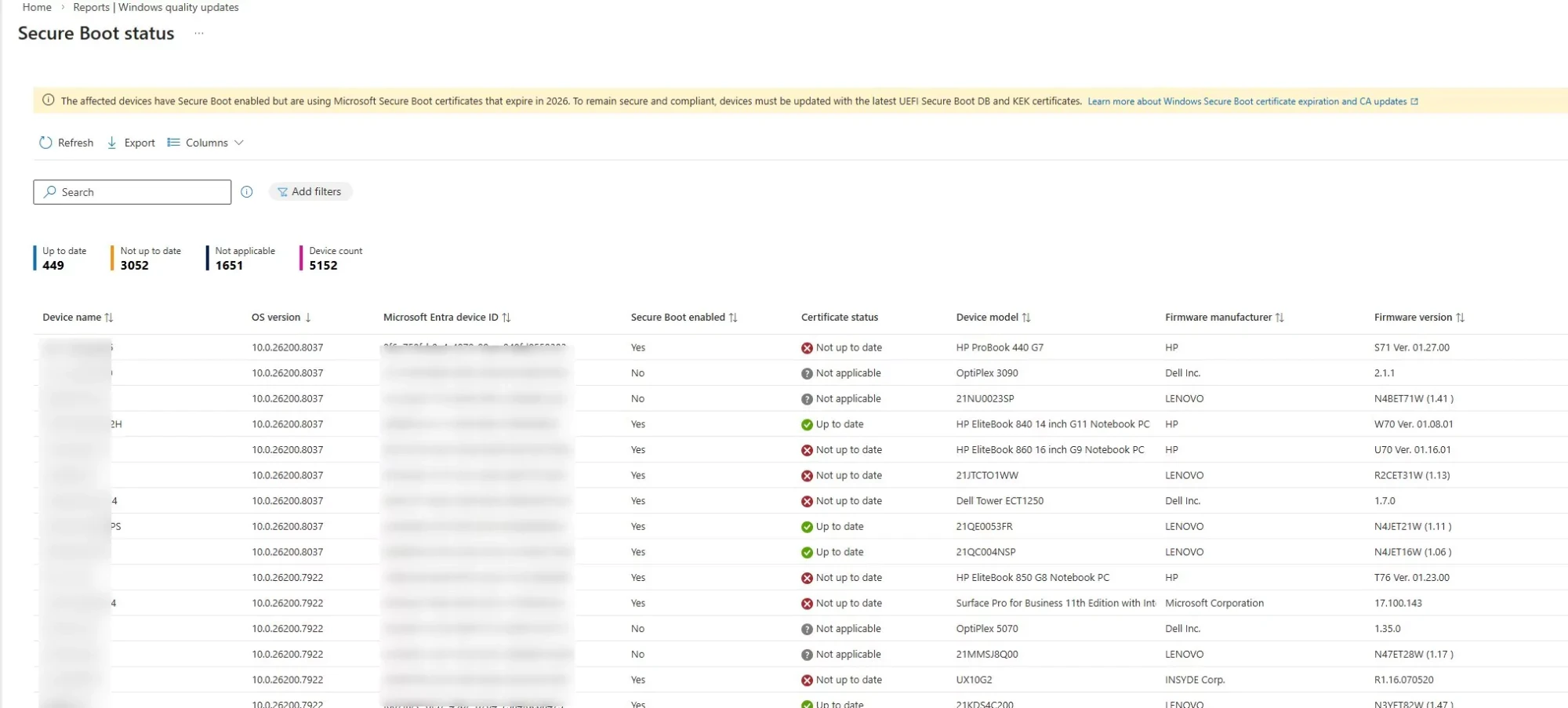
blog/images/sb-status-report.png to display this screenshotWhat is Secure Boot? (Start here if you are new to this)
Imagine your PC as a secure building. Before anyone gets in, a security guard checks every ID at the door. Secure Boot is that security guard — but for your computer's startup process.
When you press the power button on a Windows device, a sequence of software loads before Windows itself even starts. First the UEFI firmware, then the bootloader, then the operating system kernel, then drivers. Any one of these components can be replaced by malware — a category of attack called a bootkit or rootkit — and if that happens, the malware runs before Windows, before your antivirus, before any of your security tools. It can hide from everything.
Secure Boot solves this by enforcing a chain of trust. Before each piece of startup software is allowed to run, UEFI checks its digital signature against a list of trusted certificates. If the signature is valid — trusted — it runs. If not, UEFI refuses to load it. This means a malicious bootloader simply cannot run on a Secure Boot–enabled device, because it will not have a valid signature from a trusted certificate authority.
According to Microsoft Learn, "modern malware and bootkits specifically are capable of starting before Windows, completely bypassing OS security, and remaining hidden." Secure Boot is the foundational control that prevents this class of attack from working.
The certificate stores: DB, DBX, and KEK
Secure Boot relies on three certificate stores maintained in UEFI firmware:
- DB (Signature Database) — the allow-list. Contains certificates for trusted boot components. The Microsoft UEFI CA 2011 certificate that has historically been in this store allows signed operating systems and bootloaders to run. The 2023 update adds the new Microsoft UEFI CA 2023 certificate.
- DBX (Forbidden Signature Database) — the block-list. Contains certificates and hashes for components that are known to be compromised or malicious. Microsoft uses this to revoke bootloaders that have known vulnerabilities (such as the BlackLotus bootkit).
- KEK (Key Exchange Key) — controls who is authorised to update the DB and DBX. Microsoft's KEK certificate is what allows Windows Update to push new revocations into your DBX. Without a valid KEK, Microsoft cannot send you new security revocations.
The 2011 versions of the DB and KEK certificates are expiring. Once expired, Microsoft can no longer issue new revocations through those certificates — meaning newly discovered compromised boot components cannot be blocked on devices that are still using the old certificate chain. This is why the update matters.
The 2026 timeline
| Date | Event | Impact |
|---|---|---|
| April 2026 | DB certificate expiry phase begins | Devices on old DB cannot receive new Secure Boot protections |
| June 2026 | KB5094126 delivers automatic migration for eligible devices | Consumer and unmanaged devices receive certificate update via Windows Update |
| Now | Intune Secure Boot Status Report shows gap | Managed devices require admin-initiated remediation |
| Oct 2028 | Full certificate revocation | Old certificates become fully invalid |
As Microsoft stated in the KB5095093 June 23, 2026 Preview update: "Secure Boot certificates used by most Windows devices are set to expire starting in June 2026." Microsoft is rolling out the new certificates through Windows Update using "additional high confidence device targeting data, increasing coverage of devices eligible to automatically receive new Secure Boot certificates." For managed enterprise devices, that automatic path does not apply — you own the remediation.
Understanding the two failure states in your report
Secure Boot is enabled on this device. However, it is still using the Microsoft UEFI CA 2011 certificates in its DB and KEK stores. The 2023 update has not been applied. The device boots securely today, but cannot receive new revocations or future Secure Boot protections from Microsoft.
Secure Boot is disabled in UEFI firmware on this device. Certificate updates are irrelevant until Secure Boot is turned on. Common on older hardware and on Lenovo devices where the BIOS default ships with Secure Boot off.
Each failure state has a completely different fix. The sections below cover both, with ready-to-deploy Intune Proactive Remediation scripts for each.
Fix 1 — "Not Up to Date": trigger the certificate update
For devices where Secure Boot is already enabled but the 2023 certificate has not been applied, Windows has a built-in mechanism to perform the update. It is triggered via a registry key and a scheduled task. Intune can set this trigger silently across your fleet.
Step 1: Check the Secure Boot Status Report
Navigate to the Secure Boot Status Report to export the list of affected devices:
blog/images/sb-status-report.png to display this screenshotStep 2: Enable the certificate update policy in Intune
Before deploying the remediation script, enable the Secure Boot certificate update setting via Settings Catalog. This is the policy-level permission that allows the update to occur:
- Go to Intune admin centre → Devices → Configuration → Create policy
- Platform: Windows 10 and later / Profile type: Settings catalog
- Search for Secure Boot in the settings picker
- Enable: Enable Secure Boot Certificate Updates
- Assign to your device group for "Not Up to Date" devices
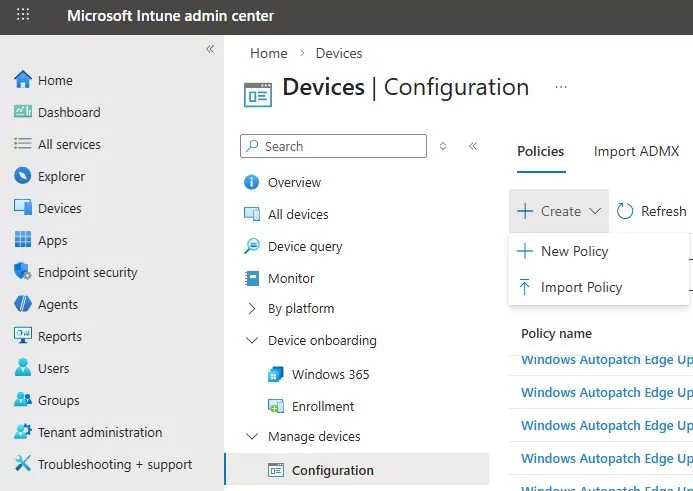
blog/images/intune-config-create.png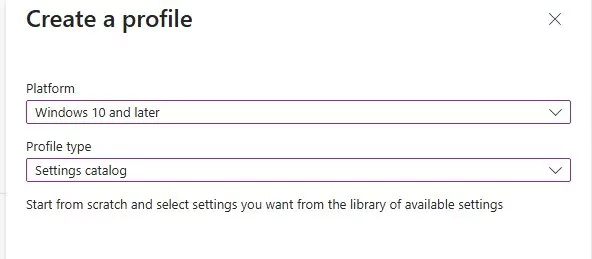
blog/images/create-profile-settings-catalog.png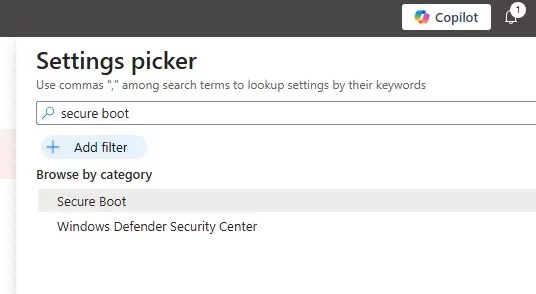
blog/images/settings-picker-search.png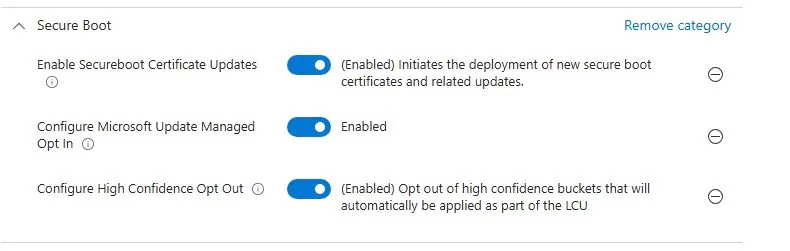
blog/images/secure-boot-3-settings.pngThis policy writes to HKLM:\SYSTEM\CurrentControlSet\Control\SecureBoot\AvailableUpdatePolicy (value 5944). Both the Intune policy and Group Policy write to the same registry location — you only need one.
Step 3: Deploy the detection script
This script reads the UEFICA2023Status registry value and exits 0 (compliant) or 1 (non-compliant). Deploy it as the Detection script in an Intune Proactive Remediation.
The full script is in the GitHub box at the end of this post (Check Secure Boot CA 2023 certificate update_D.ps1) — copy it straight into the Detection script box in Intune.
Step 4: Deploy the remediation script
When the detection script exits 1, Intune runs this remediation. It sets the AvailableUpdates registry trigger to 0x5944 and starts the \Microsoft\Windows\PI\Secure-Boot-Update scheduled task. A reboot is required to complete the update.
The full script is in the GitHub box at the end of this post (Trigger Secure Boot CA 2023 certificate update.ps1) — copy it straight into the Remediation script box in Intune.
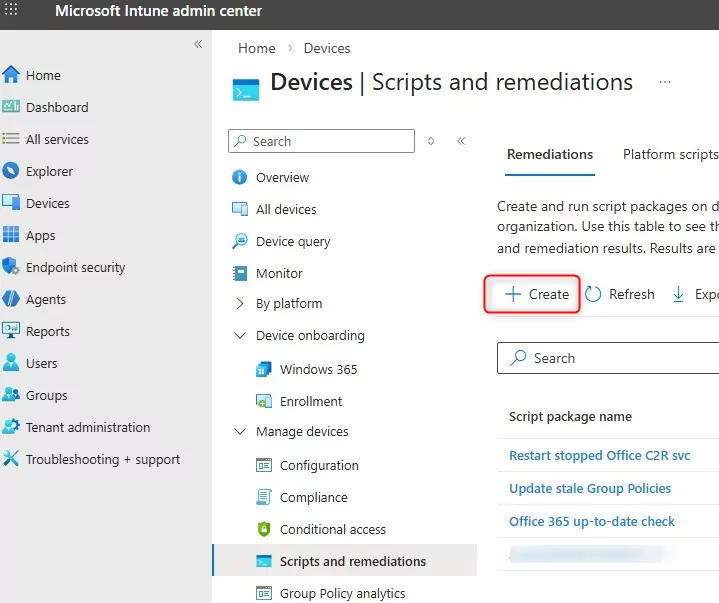
Step 5: Create the Intune Proactive Remediation
- Go to Intune admin centre → Devices → Scripts and remediations → Create
- Name: Secure Boot CA 2023 Certificate Update
- Upload the detection script to Detection script
- Upload the remediation script to Remediation script
- Run as: System (64-bit PowerShell)
- Schedule: daily until compliant
- Assign to: device group containing your "Not Up to Date" devices
blog/images/remediation-main-page.png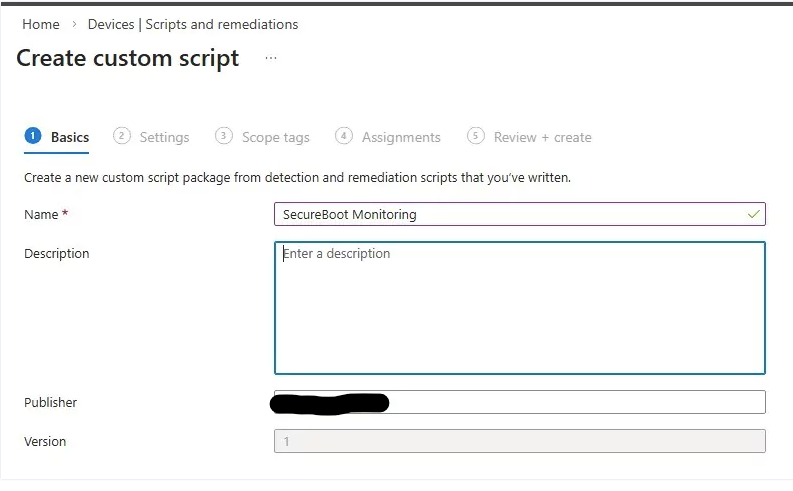
blog/images/remediation-create-basics.png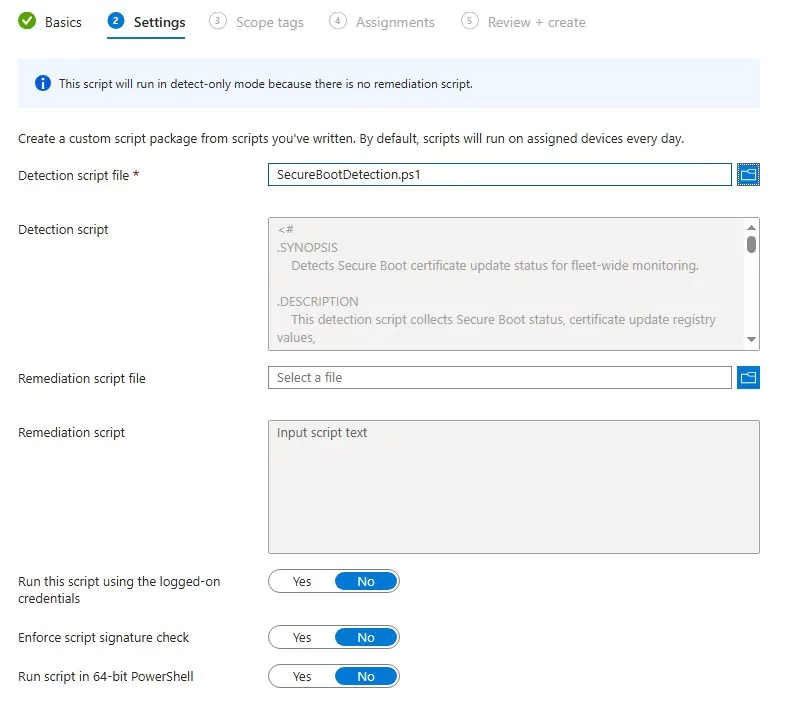
blog/images/remediation-settings-tab.pngAlternative: Group Policy
If you use GPO instead of or alongside Intune, the same update can be enabled via ADMX:
- Download the latest ADMX templates for Windows 11 25H2 from Microsoft and update your Central Store
- Open Group Policy Management → Computer Configuration → Administrative Templates → Windows Components → Secure Boot
- Enable: Enable Secure Boot Certificate Deployment
Both methods write to the same registry path: HKEY_LOCAL_MACHINE\SYSTEM\CurrentControlSet\Control\SecureBoot with AvailableUpdatePolicy set to 5944.
Fix 2 — "Not Applicable": enable Secure Boot on Lenovo devices
"Not Applicable" means Secure Boot is off in UEFI firmware. Certificate updates are impossible until Secure Boot is enabled. These devices are completely unprotected at boot time — no chain of trust, no signature verification, and no ability to receive any Secure Boot protections from Microsoft.
On Lenovo hardware, the BIOS can be configured remotely via WMI without requiring a technician to physically access each device. Lenovo exposes a WMI namespace (root\WMI) with classes including Lenovo_BiosSetting, Lenovo_SetBiosSetting, and Lenovo_SaveBiosSettings. This is the mechanism the remediation script uses.
Detection script — Lenovo Secure Boot status
The full script is in the GitHub box at the end of this post (Detect-LenovoSecureBoot.ps1) — copy it straight into the Detection script box in Intune.
Remediation script — enable Secure Boot via Lenovo WMI
Password_1 and Password_2 in the script with your actual BIOS supervisor passwords. If you only use one password, set both to the same value. Do not deploy with placeholder values.
The full script is in the GitHub box at the end of this post (Remediate-LenovoSecureBoot.ps1) — edit in your real BIOS supervisor passwords first, then copy it into the Remediation script box in Intune.
Intune deployment for Lenovo remediation
- Go to Intune admin centre → Devices → Scripts and remediations → Create
- Name: Lenovo — Enable Secure Boot
- Upload detection script and remediation script
- Run as: System (64-bit)
- Assign to: a device group filtered by Device manufacturer = Lenovo (use a filter in the assignment to avoid running this on Dell/HP)
Rule: (device.deviceManufacturer -eq "LENOVO")
Platform: Windows 10 and later
Monitoring — registry and Event Viewer
After deployment, verify progress by checking these registry values on target devices:
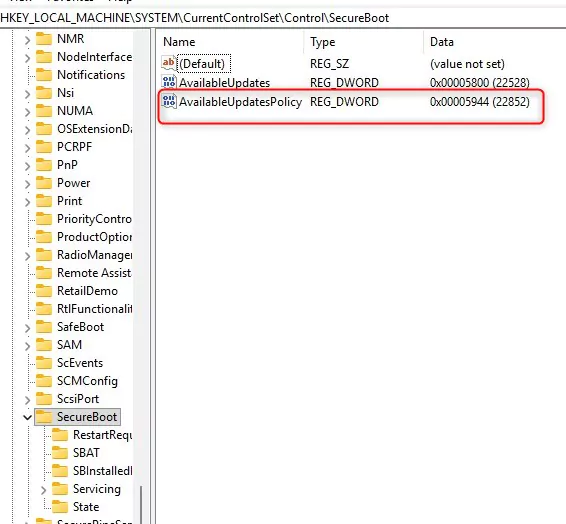
blog/images/registry-secureboot-trigger.png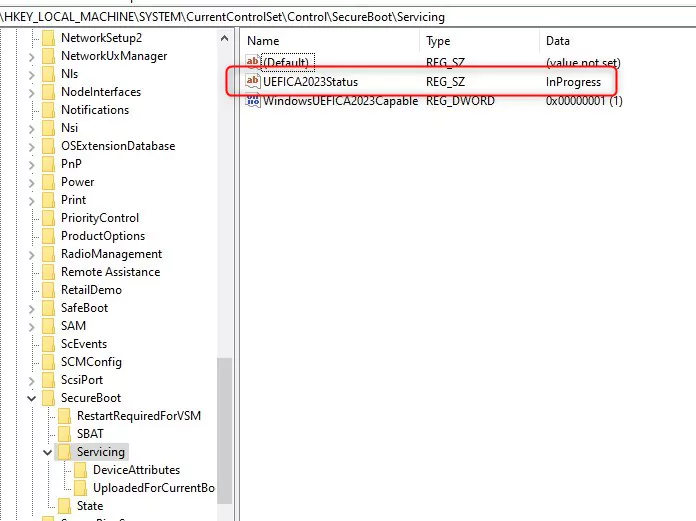
blog/images/registry-servicing-inprogress.png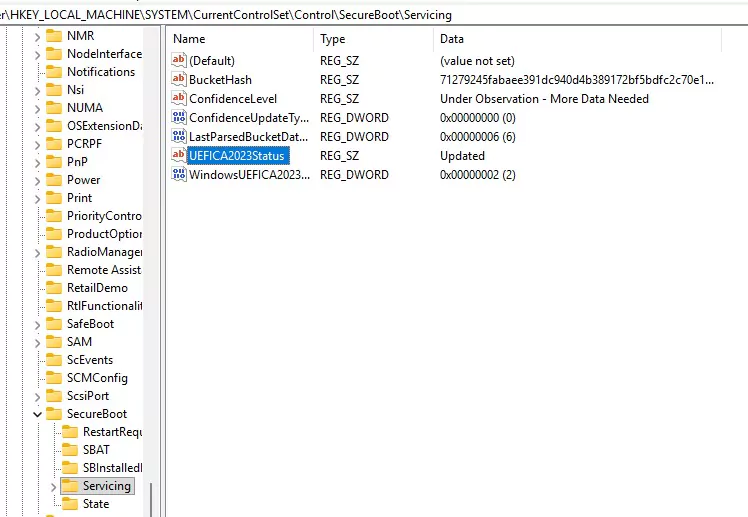
blog/images/registry-servicing-updated.pngFor Event Viewer monitoring, navigate to Windows Logs → System and filter by source TPM or TPM-WMI. These sources report firmware-level issues that may block the certificate update even after the registry trigger is set. If your device manufacturer's firmware is outdated, the certificate update may fail at this layer — a BIOS/UEFI firmware update from the manufacturer is required first.
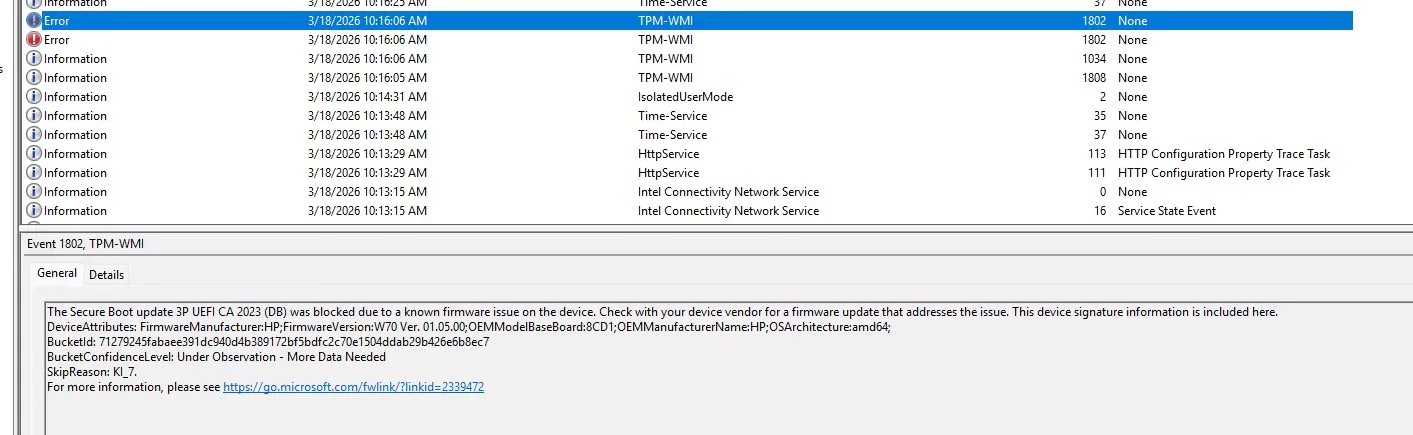
blog/images/eventviewer-tpm-error-1802.png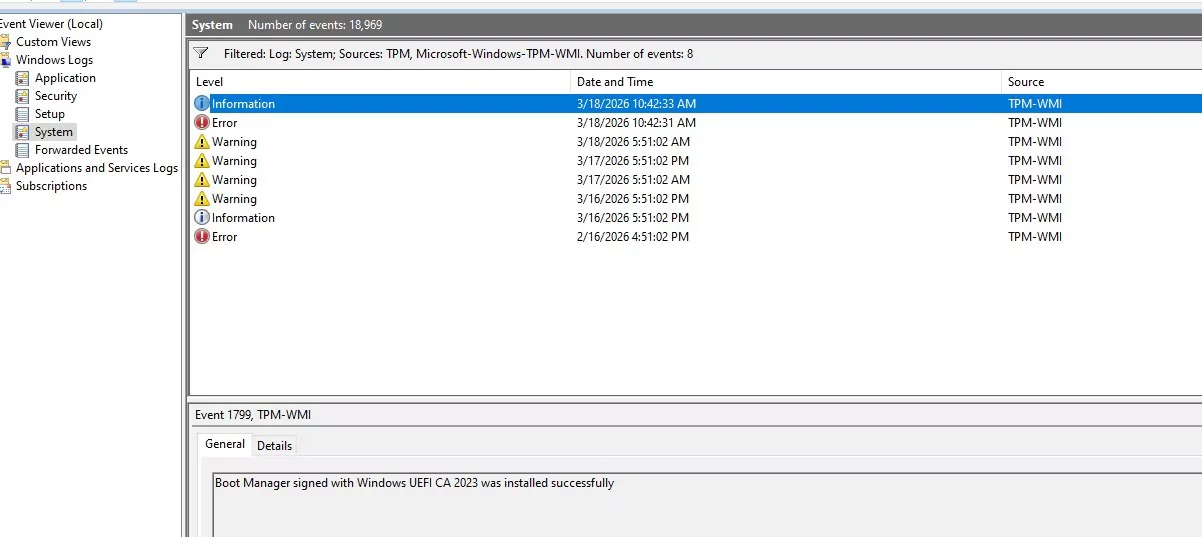
blog/images/eventviewer-tpm-success-1799.pngWhat about non-Lenovo devices with Secure Boot disabled?
For Dell and HP devices with Secure Boot disabled, the manufacturer-specific WMI interfaces differ. Dell uses the Dell Command | PowerShell Provider and HP uses the HP BIOS Configuration Utility (BCU). The approach is the same — query the BIOS setting via WMI or the vendor tool, change it, and save with the BIOS password — but the class names and syntax differ. Contact your Dell or HP account team for the specific WMI classes or BCU command syntax for your device models.
What the community is saying
"Devices that don't receive the Secure Boot certificate before June will boot and function normally from the end-user perspective. However, they become security-degraded since boot-level protection won't function as intended." — Full guide on System Center Dudes
Karl published the Windows Server 2025 Security Baseline v2606 which includes updated Secure Boot recommendations — a useful companion resource if you are also managing Windows Server alongside your endpoints.
Adam flagged that KB5094126 delivered Secure Boot certificate migration alongside the Patch Tuesday update — and that some environments saw BitLocker loops as a side effect when the update combined with an unprepared firmware state. Always suspend BitLocker before triggering the certificate update manually.
Key things to remember
- Devices remain bootable — not updating the certificate does not cause devices to stop booting. The impact is security degradation, not outage.
- Multiple reboots may be required — a device may show compliant in the detection script after the first reboot, but Event Viewer may still show firmware errors. Give it 2–3 reboots.
- Vendor device lists may be incomplete — some devices are affected even if not listed in your manufacturer's advisory. Verify independently with the Secure Boot Status Report.
- Lenovo BIOS passwords are mandatory — the WMI BIOS interface will not accept changes without a supervisor password. If your estate has no BIOS password set, the remediation script still works but you should set a BIOS password as part of your hardening baseline.
- Non-Lenovo "Not Applicable" devices require manual BIOS access or a manufacturer-specific tool — there is no generic WMI interface for Dell and HP BIOS configuration.
References
- Secure the Windows boot process — Microsoft Learn
- KB5095093 June 23, 2026 Preview — Microsoft Support
- Alerts and Remediations in Windows Autopatch — Microsoft Learn
- Proactive Remediations in Intune — Microsoft Learn
- How to Update Secure Boot Certificate Using Intune — System Center Dudes
All four scripts — detection and remediation for both failure states — are available on GitHub alongside a full README covering registry paths, deployment steps, and the BIOS password configuration required for the Lenovo remediation.
All four scripts — detection and remediation for both failure states — are free and open source, with a full README covering registry paths, deployment steps, and the BIOS password configuration required for the Lenovo remediation. All detection scripts are read-only; only the two remediation scripts make changes, and only when explicitly run.
- Check Secure Boot CA 2023 certificate update_D.ps1 — read-only detection. Reads the
UEFICA2023Statusregistry value to report whether the 2023 certificate update has already applied to this device. - Trigger Secure Boot CA 2023 certificate update.ps1 — remediation. Sets the
AvailableUpdatesregistry trigger to0x5944and starts theSecure-Boot-Updatescheduled task to begin the certificate migration. Requires a reboot to complete. - Detect-LenovoSecureBoot.ps1 — read-only detection. Queries the
Lenovo_BiosSettingWMI class to report whether Secure Boot is enabled in firmware. - Remediate-LenovoSecureBoot.ps1 — remediation. Suspends BitLocker for one reboot cycle, then enables Secure Boot through Lenovo's WMI BIOS interface using your supervisor password. Requires you to set your real BIOS password in the script first.