A feature update fails. You get a rollback, a user with a wasted morning, and a five-digit hex code that means nothing on its own. So you do the normal thing: you re-queue the update, you tell the user to undock, and you run Disk Cleanup to free some space "in case that was it".
Meanwhile, on that exact device, Windows has already written down the root cause. In plain English. With a rule name.
Microsoft ships a diagnostic tool called SetupDiag. It reads the Windows Setup logs, matches what it finds against a published set of named failure rules, and reports which one hit. That much is reasonably well known. What almost nobody acts on is the part that makes it genuinely free: Windows Setup runs SetupDiag for you, automatically, when an upgrade fails. The verdict is already on the disk and already in the registry before you open a ticket.
I went looking on my own machine - a Windows 11 25H2 corporate laptop, build 26200.9168 - expecting to find nothing. I found a complete failure record from 14 May 2025. Fifteen months old. Never read, never cleared, sitting in the registry with the matched rule name, the error pair, the target build and the elapsed time. Nobody on this device has ever looked at it.
That is the whole point of this post. Before you touch a driver, a service or a folder, read what the analyser already told you.
Windows Setup carries SetupDiag.exe inside %SystemDrive%\$Windows.~bt\Sources and runs it automatically when an upgrade fails, with four fixed parameters. The output lands in two places: %WinDir%\Logs\SetupDiag\SetupDiagResults.xml and the registry key HKLM\SYSTEM\Setup\SetupDiag\Results. Read the registry key first - on my device it holds 14 values including the matched rule name and the error pair, and it is richer than the XML file beside it. Microsoft publishes 64 named rules with GUIDs, so the rule name maps to a documented cause. The catch: when the Windows.old folder goes, SetupDiag.exe goes with it - so the standard "run Disk Cleanup" reflex destroys the logs, the setup minidump and the tool that reads them, in one click.
The problem: the verdict is already on the device
SetupDiag is a diagnostic tool whose whole job is to answer the question you are about to spend two hours on. Microsoft's description is unambiguous: it "works by examining Windows Setup log files" and "attempts to parse these log files to determine the root cause of a failure to update or upgrade the computer to Windows".
It does this by rule matching. It walks a set of rules held in an XML file, one at a time, and reports which rule the log evidence matches. Each rule has a name, a GUID and a documented description. Microsoft's published rules table currently lists 64 named rules, from BitLockerHardblock through DuplicateUserProfileFailure to the generic FindRollbackFailure.
That matters more than it first appears. A raw error code tells you a number. A matched rule name tells you a class of cause that Microsoft has already written a paragraph about. UnknownDriverMigrationFailure and DuplicateUserProfileFailure both surface as generic rollbacks in your dashboard; the remediation for one is removing a driver package, the remediation for the other is deleting an unused local account. The rule name is the difference.
Microsoft's own upgrade resolution-procedures page pushes you at it directly: "You should also try running the free SetupDiag tool provided by Microsoft, which can automatically find the reason for an upgrade failure."
And on modern Windows it has already run
Here is the bit that turns SetupDiag from "a tool I should download" into "a report I should read". Microsoft documents that SetupDiag is included with Windows Setup in all currently supported versions of Windows, and that during the upgrade process Setup extracts all its source files - SetupDiag.exe included - to %SystemDrive%\$Windows.~bt\Sources. Then: "If there's an issue with the upgrade, SetupDiag automatically runs to determine the cause of the failure."
So the first diagnostic command on a failed-upgrade device is not a command at all. It is a read.
Read that record for a moment and notice how much diagnosis it hands over for free. The rule is FindAbruptDownlevelFailure, so the failure happened in the downlevel phase - inside the old OS, before any reboot. UpgradeElapsedTime is 27 seconds. Every rollback timestamp is 01/01/0001 00:00:00, the .NET zero date, which means no rollback ever ran.
Twenty-seven seconds, downlevel only, no rollback. Whatever went wrong here, nothing was committed and nothing was reverted. This was never a driver problem. It could not have been - Setup never got as far as touching drivers. Anyone who "fixed" this by updating a graphics driver and retrying would have been right by accident.
KB5054156 installed on 4 February 2026 - which is a servicing package handled by the component store, not a Setup-driven upgrade. No Setup, no Panther logs, no SetupDiag record, no WER setup event. A Windows 10 to Windows 11 move, or 23H2 to 24H2, is a full Setup pass and does produce all of it. Establish which mechanism you are dealing with before you go hunting for artefacts that were never created.Nothing ever clears the record
There is no expiry on this key. Setup writes it on failure and it stays until something explicitly overwrites it - which means the next Setup failure, not the next successful update. That cuts both ways.
The good news is that the evidence survives. On my device the registry record outlived the very logs it was generated from, and it survived a 24H2-to-25H2 release change, a servicing stack update, and eighteen months of monthly cumulative updates.
The bad news is that a stale record will happily send you chasing a ghost. If you read ProfileName and act on it without reading DateTime, you will diagnose someone else's problem from last year. On this device that gap is fifteen months wide. DateTime is not a nice-to-have field; it is the field that decides whether the rest of the record is evidence or noise.
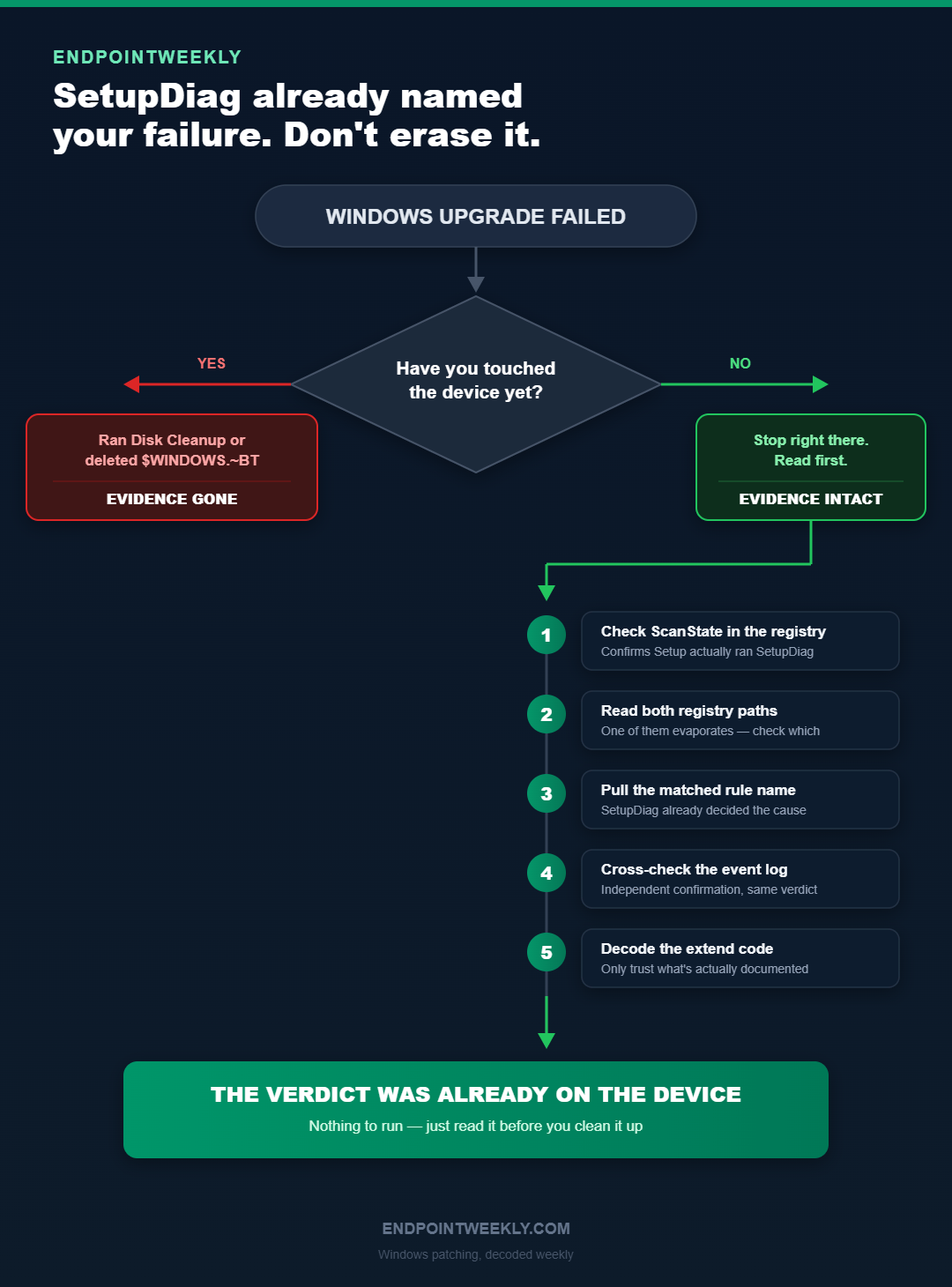
Why it happens: Setup runs the analyser, then buries it
The mechanism is simple and entirely documented. When Setup detects a failure it invokes the copy of SetupDiag.exe it already extracted, with four fixed parameters:
Every one of those four choices has a consequence you should know about.
/ZipLogs:False means Setup does not bundle the logs it just analysed. The analysis is preserved; the raw evidence is not. If you later want to re-run a newer SetupDiag against the same logs, you have to have kept them yourself.
/Format:xml means the on-disk artefact is XML, not the friendly text log you get from a manual run. Do not go looking for SetupDiagResults.log after an automatic run - it will not be there.
/Output: and /RegPath: pin the two destinations. And that /RegPath value is the single most useful piece of trivia in this whole article, because it is not where a manual run writes.
The two registry paths, and why one of them evaporates
Microsoft flags this explicitly: "When Windows Setup runs SetupDiag automatically, the registry path isn't the same as the default registry path when SetupDiag is run manually." Automatic runs go to HKLM\SYSTEM\Setup\SetupDiag\Results. Manual runs, with no /RegPath specified, go to HKLM\SYSTEM\Setup\MoSetup\Volatile\SetupDiag.
Look hard at the word Volatile in that second path. That is not decoration. A volatile registry key exists only in memory and is discarded at shutdown. So if you run SetupDiag manually, do not pass /RegPath, and then reboot the machine before reading the result, the registry copy is gone. You still have the output file, but the registry copy you might have planned to collect remotely no longer exists.
On my device that key is absent, which is exactly right: nobody has ever run SetupDiag manually here, and even if they had, the machine has rebooted many times since.
That comparison is worth stating plainly, because it inverts the advice you would expect. On this device the registry record is richer than the file. The XML holds six elements and no system information. The registry holds fourteen values, including HostOSVersion, TargetOSVersion with its build lab string, and all six timing fields.
So if you were planning to collect SetupDiagResults.xml across the fleet and skip the registry, you would be collecting the smaller half of the evidence. Collect the registry key.
ProfileGuid as the primary key in your reporting. Microsoft's published rules table contains a genuine collision - DeviceInstallHang and DriverPackageMissingFileFailure are both listed with GUID 37BB1C3A-4D79-40E8-A556-FDA126D40BC6. Those are two different failures with two different remediations (a hang during device installation versus a driver package with a missing file), and a GUID-keyed lookup cannot tell them apart. Group and pivot on ProfileName. Keep the GUID as a secondary reference only.The tool deletes itself, and takes the evidence with it
Now the trap. Microsoft states it in one sentence and most people skim past it: "If the upgrade process proceeds normally, the Sources directory including SetupDiag.exe is moved under %SystemDrive%\Windows.Old for cleanup. If the Windows.old directory is deleted later, SetupDiag.exe is also removed."
So the tool is not a permanent part of Windows. It rides along inside the setup payload and it is disposed of with that payload. SetupDiag.exe has never been in System32 and is not there now - I checked on this device and it is absent, exactly as the documentation implies.
Add the two facts Microsoft publishes about Windows.old and the picture gets worse. Disk Cleanup, under "clean up system files", offers to remove the previous Windows installation. And even if nobody clicks it: "Ten days after you upgrade to Windows, your previous version of Windows is automatically deleted from your PC." The warning attached to it is blunt - "If you delete your previous version of Windows, this can't be undone."
You therefore have a ten-day evidence window by default, and a one-click way to close it early.
This is the cleanest possible illustration of the trap. The logs SetupDiag parsed are still sitting in $WINDOWS.~BT\Sources\Panther fifteen months later, perfectly readable. The binary that read them is nowhere on the machine. If I wanted to re-analyse those logs with a newer rule set today, I would have to download the tool again first.
$WINDOWS.~BT or Windows.old, and do not let the user re-attempt the update before you have harvested the evidence. That one action destroys three things simultaneously - the setup logs, the setup minidump (setupmem.dmp, which Microsoft documents lands in $Windows.~bt\Sources\Rollback or %WinDir%\Panther\NewOS\Rollback), and SetupDiag.exe itself. There is exactly one documented exception: for 0xC1900107 / MOSETUP_E_CLEANUP_PENDING, Microsoft's own mitigation is to reboot and then use Disk Cleanup on temporary and system files. That is a specific, named code with a specific instruction. It is not a general licence.How to verify: a five-step read that costs nothing
Here is the order to work in. Every step before step 5 is read-only and takes seconds. Do not skip ahead - the whole value of this sequence is that it stops you from destroying evidence in step 5 that you needed in step 1.
HKLM\SYSTEM\Setup\SetupDiag\Results. Check DateTime before you read anything else. If it does not correspond to the failure you are investigating, you are looking at a historical record - note it and move on rather than acting on it. If it does match, read ProfileName and look that rule up in Microsoft's published table. You may be finished here.%WinDir%\Logs\SetupDiag\SetupDiagResults.xml. Same content, sometimes with a <SystemInfo> block the registry lacks, sometimes with less than the registry has. Cross-check the two. A mismatch means two different Setup failures wrote at different times.WinSetupDiag02. This gives you the result code and extend code as parameters P5 and P6, independently of SetupDiag. If SetupDiag matched no rule, this event may still carry the code pair.The registry reference
Every value below lives under one key. On an automatically-generated record this key held exactly 14 values on my device.
| Value | Meaning | What to look for |
|---|---|---|
ProfileName | The name of the rule SetupDiag matched. | The single most useful field on the device. Look it up in Microsoft's rules table for the documented cause and remediation. Mine reads FindAbruptDownlevelFailure. |
ProfileGuid | The rule's unique identifier. | Use as a cross-reference only, never as a database key - at least two published rules share one GUID. |
SetupDiagVersion | Version of the analyser that wrote the record. | 1.7.0.0 here. The rule set ships in an XML file that is updated with new tool versions, so an older version can report "no match" where a current one would match. Note it before you conclude the failure is unknown. |
DateTime | When SetupDiag ran. | Read this first, always. Nothing clears this key, so the record can be arbitrarily old. Mine is dated 05/14/2025. |
FailureData | The rule's plain-English verdict, plus the actual log line it matched on. | Contains a verbatim setuperr.log entry with its timestamp. That timestamp is your entry point into the raw logs - search for it directly rather than reading from the top. |
FailureDetails | The error pair in a fixed, parseable format. | ErrorCode = 0x800704C7, ExCode = 0x40004. Decode ErrorCode first; it is usually a plain Win32 or HRESULT value. |
HostOSVersion | The OS build the upgrade started from. | Confirms the direction of travel. 10.0.26100 here, so the device was on 24H2 at the time. |
TargetOSVersion | The OS build being installed, with its build lab string. | 10.0.26100.3624 (ge_release_svc_prod3.250321-2034) identifies the exact target payload - useful for spotting a fleet-wide bad target rather than a per-device fault. |
UpgradeStartTime | When Setup began. | Correlate against the user's account of events and against the Panther log timestamps. |
UpgradeEndTime | When Setup stopped. | Compare with DateTime - SetupDiag runs after Setup gives up, so its stamp should be slightly later. |
UpgradeElapsedTime | Total duration. | The cheapest sanity check available. 00:00:27 cannot be a driver migration failure; Setup never got that far. |
RollbackStartTime | When rollback began. | 01/01/0001 00:00:00 is the zero date and means no rollback occurred - nothing was committed to be reverted. |
RollbackEndTime | When rollback finished. | Same zero-date logic. A populated pair here means the device really did go up and come back down. |
RollbackElapsedTime | How long the rollback took. | 00:00:00 alongside zeroed stamps confirms the failure was pre-commit. A long rollback duration points you at the rollback logs instead. |
The event log reference
One channel, one event ID. This is the Application log, source Windows Error Reporting.
| Event ID | Message / event name | What it tells you |
|---|---|---|
| 1001 | Informational WER report, event name WinSetupDiag02 | Microsoft's documented home for the Setup result code and extend code. Ten parameters; P5 is the result code and P6 the extend code. Also carries links to the relevant log files. |
| 1001 | Informational WER report, event name WinSetupDiag01 | The legacy equivalent. Microsoft notes: "For legacy operating systems, the Event Name was WinSetupDiag01." Search for both names if you support a mixed estate. |
The ten parameters are worth memorising, because two of them are the whole reason to open the event and the rest tell you the shape of the attempt.
| Parameter | Meaning | Documented values / example |
|---|---|---|
| P1 | The Setup Scenario | 1 = Media, 5 = WindowsUpdate, 7 = Media Creation Tool |
| P2 | Setup Mode | x = default, 1 = Downlevel, 5 = Rollback |
| P3 | New OS Architecture | x = default, 0 = X86, 9 = AMD64 |
| P4 | Install Result | x = default, 0 = Success, 1 = Failure, 2 = Cancel, 3 = Blocked |
| P5 | Result Error Code | 0xc1900101 |
| P6 | Extend Error Code | 0x20017 |
| P7 | Source OS build | 9600 |
| P8 | Source OS branch | Not typically available |
| P9 | New OS build | 16299 |
| P10 | New OS branch | rs3_release |
P2 and P4 together are a fast triage pair. P2=5 means the event came from the rollback path, so the device got far enough to need reverting. P4=2 means cancel rather than failure - a very different conversation with the user.
Step 3 and step 4, on a real device
My device is a good demonstration of the negative result, and of why the negative result is informative rather than frustrating.
Two conclusions from one absent event. First, the absence is explained, not mysterious - and an explained absence is a finished diagnostic step. Second, the record that does exist in the registry is from a completely different event in May 2025, which is why step 1's instruction to read DateTime first is not pedantry.
ProfileName, FailureDetails, DateTime and SetupDiagVersion - from HKLM\SYSTEM\Setup\SetupDiag\Results. Filter to records whose DateTime falls inside your deployment window, then group by ProfileName. Twenty devices reporting one rule name is a fleet problem with one documented remediation. Twenty devices reporting eleven different rule names is not a single incident, and treating it as one will waste the week. This read needs no agent, no tool deployment and no reboot.The fix: running SetupDiag yourself, online and offline
Everything so far has been reading. Now the tool itself - for when the automatic record is missing, stale, matched no rule, or was written by an older version than the one currently shipping.
Requirements, and one that trips people up
Three documented requirements. The destination version of Windows must be a currently supported version. .NET Framework 4.7.2 or newer must be installed. And SetupDiag.exe must be run from an elevated command prompt "for it to work properly" - Microsoft repeats that warning three separate times on the page, which tells you how often it is the actual problem.
The .NET requirement is the one worth checking before you blame the tool. Microsoft publishes the exact query, and on my device it passes comfortably:
→ Version : 4.8.09221 Release : 533509 satisfies the 4.7.2 minimum
Microsoft's guidance on which build to run is unusually direct: "When SetupDiag is run manually, Microsoft recommends running the latest version of SetupDiag." Because the rules live in an XML file that ships with the binary, an old copy of the tool is an old copy of the rule set. Do not keep a 2019 SetupDiag.exe in your toolkit share and expect it to recognise a 2026 failure mode.
The parameters
| Parameter | What it does | Default / notes |
|---|---|---|
/? | Displays help information. | Running SetupDiag.exe with no parameters at all also just displays help. |
/Output: | Full path and file name for the results log. | Defaults to SetupDiagResults.log in the directory the tool runs from. UNC paths work if the executing context can reach them. Quote the whole path if it contains a space. |
/LogsPath: | Full path to the logs to parse. | Specifying this switches the tool into offline mode automatically. Accepts a flat folder or a tree - it searches all child directories recursively. Defaults to checking the current system. |
/ZipLogs: | True or False - zip the results plus every log parsed. | Defaults to true on a manual run. The automatic run explicitly sets it to False, which is why Setup leaves you no log bundle. |
/Format: | xml or json output. | Text format is used if this is not specified. Use json if you are feeding results into a reporting pipeline. |
/Scenario: | Recovery or Debug. | Recovery processes reset and recovery logs and ignores setup logs. Debug debugs memory dumps, if the debug binaries are installed. |
/Verbose | Writes an extra diagnostic log with debugging detail. | By default SetupDiag only logs major errors about itself. Use this when you are reporting a problem with the tool, not with the upgrade. |
/NoTel | Suppresses diagnostic telemetry to Microsoft. | The one to remember for regulated or air-gapped environments. |
/RegPath | Writes failure information to a registry path you choose. | Must start with HKEY_LOCAL_MACHINE or HKEY_CURRENT_USER and be writable at the current elevation. Without it, results go to the volatile HKLM\SYSTEM\Setup\MoSetup\Volatile\SetupDiag. |
/AddReg | Adds failure information to the registry in offline mode. | By default SetupDiag only writes to the registry in online mode. Needed if you are analysing another machine's logs and want the result recorded locally. |
One deprecation to know: /Mode is gone. It used to pair with /LogsPath to select offline analysis. Now specifying /LogsPath is sufficient and /Mode is unnecessary. If you inherited a script that passes it, that script predates the current tool.
Which folders to copy for an offline run
This is the part to get right on the failing device, because it is the part you cannot redo later. Microsoft names four candidate folders, and says which one matters depends on when the upgrade failed:
\$Windows.~bt\sources\panther- the downlevel phase, and the starting point for any rollback investigation\$Windows.~bt\Sources\Rollback- the rollback itself, plus the supplemental artefacts:setupmem.dmp,setupapi.dev.logand the captured.evtxfiles\Windows\Panther- post-upgrade, after OOBE\Windows\Panther\NewOS
Copy the parent folder and all subfolders and let the tool recurse. Do not hand-pick individual files - the rule set correlates across logs, and DebugSetupMemoryDump, DebugSetupCrash and DebugMemoryDump are offline-only rules that need the dump present to fire at all.
Two things about that sample output are worth internalising. It walks every rule and prints "No match" for each miss, so a long run is normal - Microsoft notes under known issues that "some rules can take a long time to process if the log files involved are large". And it counts matches. When there is more than one, Microsoft's rule is explicit: "When SetupDiag indicates that there were multiple failures, the last failure in the log file is typically the fatal error, not the first one."
SetupDiagVersion in the record, download the current build, and re-run it against the logs you kept. This is the single best argument for keeping the logs even after you have the verdict.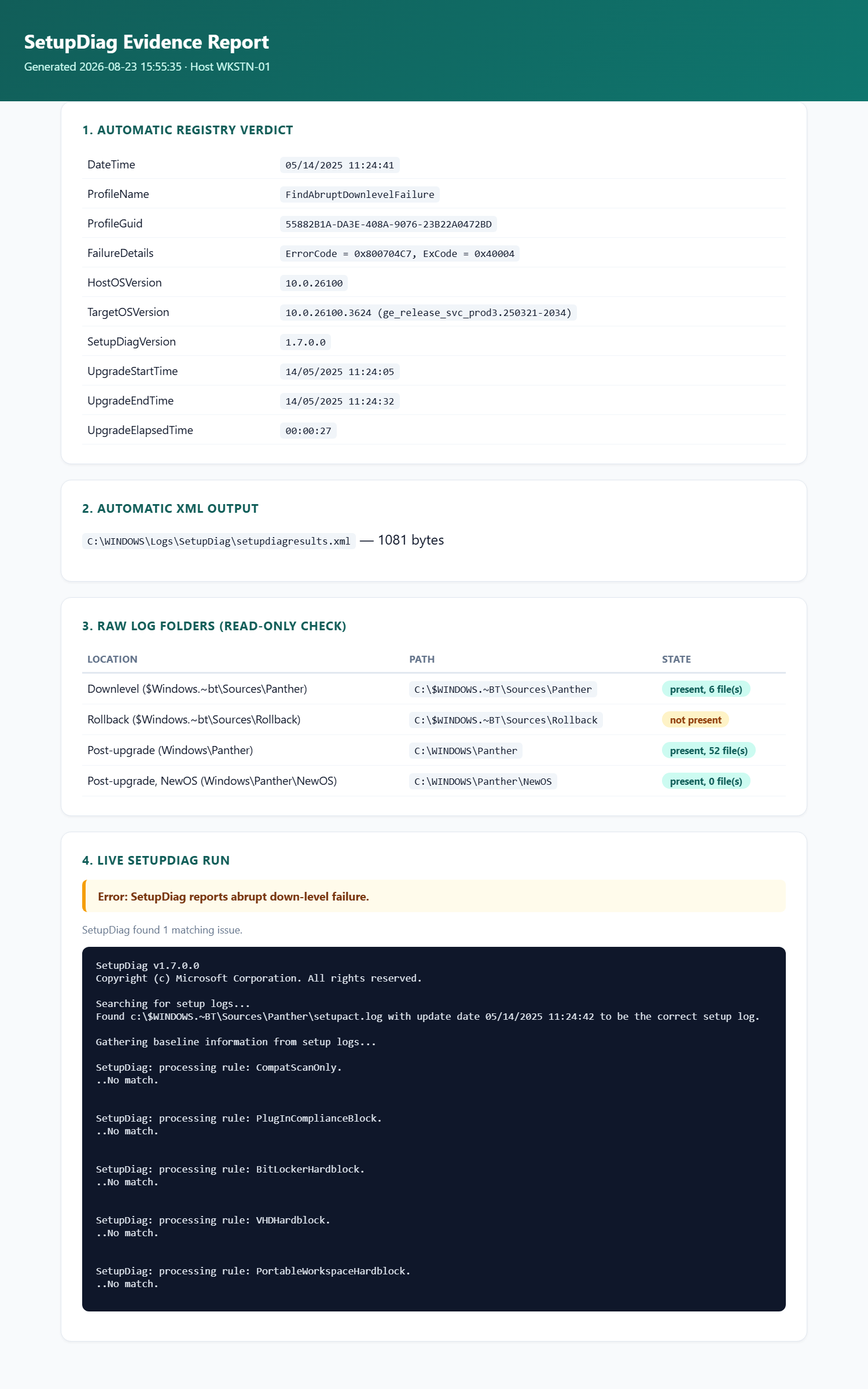
Every registry value, log-folder check and the live SetupDiag re-run in this post, collected by one script and rendered as one report — not four separate manual steps.
Get-SetupDiagEvidence.ps1, is on GitHub at github.com/Imran76Awan/Windows-Patching-Scripts. Registry and log-folder checks are read-only; the live SetupDiag run is opt-in behind -AllowDownload and only ever writes the output file you point it at. Pass -Redact to mask the hostname, and -OutputHtml to get the report shown above.What the file names on disk actually mean
The artefacts SetupDiag reads and writes are not interchangeable, and picking the wrong one wastes real time. Everything in this table is present on my device or documented by Microsoft.
| File | Where it lives | Role, and what it is worth |
|---|---|---|
SetupDiag.exe | %SystemDrive%\$Windows.~bt\Sources during setup; moved under Windows.old afterwards. Never in System32 - verified absent on this device. | The analyser. Requires .NET 4.7.2+ and elevation. Deleted along with Windows.old, so treat it as disposable and keep your own copy from the Microsoft Download Center. |
setupact.log | $Windows.~bt\Sources\Panther (downlevel), ...\UnattendGC (OOBE), ...\Rollback (rollback), Windows\Panther (post-upgrade) | Microsoft calls it "the most important log for diagnosing setup issues". Size is no guide to health - the copy in Windows\Panther on my device is 546.9 MB from a successful install. |
setuperr.log | Same locations as setupact.log | Error lines only. The fast read - 2,666 bytes on this device's failed attempt versus 88,314 for the matching setupact.log. This is the file SetupDiag quotes in LogErrorLine. |
SetupDiagResults.xml | %WinDir%\Logs\SetupDiag | The automatic run's output. Small - 1,081 bytes here - and on this device it carries less than the registry key does. |
setupmem.dmp | %SystemDrive%\$Windows.~bt\Sources\Rollback or %WinDir%\Panther\NewOS\Rollback | The minidump Setup extracts if the OS bug-checks mid-upgrade. Only usable with /LogsPath plus the Windows Debugging Tools. First casualty of a cleanup. |
BlueBox.log | Windows\Logs\Mosetup | Communication between setup.exe and Windows Update. Documented for WSUS and Windows Update downlevel failures and for 0xC1900107. Present on my device at 46,935 bytes, timestamped 11:24:44 - three seconds after the failure record was written. |
diagerr.xml / diagwrn.xml | Alongside the Panther logs | Setup's own error and warning digests. Present in this device's failure folder at 8,978 and 11,646 bytes. Useful cross-checks when setuperr.log is a single repeated stack. |
Proof it worked: decoding a real 15-month-old record
Everything above is procedure. This section is the payoff: an unbroken chain of custody from a real log line on a real device, through SetupDiag's analysis, to a defensible verdict - all of it recovered read-only, fifteen months after the fact, on a machine nobody had ever investigated.
Start with the raw evidence. The setuperr.log that SetupDiag parsed is still on disk. It is 2,666 bytes and 21 lines, and it is a single unwinding call stack:
Now the chain. Six links, each one verifiable against the previous:
setupact.log opens with *************** SetupHost Logging Begin ***************. That matches UpgradeStartTime in the registry exactly.OnCancel fires with 0x800704C7 inside CDlpActionDU::ExecuteDUSetup. This is the deepest frame and the first error in the file.CSetupHost::Execute returns the same code and Setup stops. That matches UpgradeEndTime. Total run: 27 seconds, matching UpgradeElapsedTime.FindAbruptDownlevelFailure, and writes both the XML and the registry key. DateTime confirms the stamp.setupact.log closes with **************** SetupHost Logging End ****************. SetupDiag finished before Setup tore down its own UI - the analysis is genuinely part of the failure path, not a later sweep.BlueBox.log in Windows\Logs\Mosetup gets its last write. An independent artefact, from the same event, corroborating the whole timeline.Four separate artefacts - the registry key, the XML, two Panther logs and a Mosetup log - agree to the second. That is what a solid diagnosis looks like, and it took a read-only registry query to find the thread to pull.
Decoding the codes, and refusing to decode one
0x800704C7 is an HRESULT wrapping a Win32 error: the low word 0x4C7 is 1223 decimal, which Microsoft documents as ERROR_CANCELLED - "The operation was canceled by the user."
0x8007139F wraps 0x139F, 5023 decimal: ERROR_INVALID_STATE - "The group or resource is not in the correct state to perform the requested operation." Which is exactly what you would expect a results-fetch call to return after the operation it was asking about had already been cancelled. It is a consequence, not a cause.
And 0xC1800104 and 0xC180010A? I am not going to tell you what those mean, because Microsoft does not. The published modern-setup error table runs from 0xC1900100 upward; the only 0xC180xxxx code documented anywhere on that page is 0xC1800118, an unrelated WSUS decryption-key problem. These two are not in the list.
That restraint matters. It is very tempting to pattern-match 0xC180010A against 0xC190010a (MOSETUP_E_UNKNOWN_CMD_LINE) because they look similar. Different facility, different meaning, and a confident guess here would send a colleague down a completely fabricated path. The two codes appear on CDlpTask::Cancel lines fifteen seconds after the real error, in the cancellation cleanup. Note them, do not build on them.
The extend code that does not fit - and what to trust instead
One honest loose end. FailureDetails gives ExCode = 0x40004. Microsoft's documented convention for extend codes is that the first digit is the setup phase, which would put this in phase 4. But the matched rule is FindAbruptDownlevelFailure, and the log line that triggered it is CSetupManager::ExecuteDownlevelMode. Downlevel is phase 1.
Those two readings cannot both be right, and I am not going to invent a reconciliation. What I will do is say which one I trust. The rule name and the log line are direct evidence from the artefact; the phase-digit convention is a documented convention for 0xC1900101 pairs, and this is not one - the result code here is 0x800704C7. When a decoding convention disagrees with a matched rule and a verbatim log line, believe the rule and the line. This is the same discipline as refusing to guess at the 0xC180xxxx codes: the value of a diagnostic is destroyed the moment you start filling gaps with plausible inventions.
The verdict
Put it together. On 14 May 2025 this device started a Windows Setup pass from build 26100 toward 10.0.26100.3624. Twelve seconds in, during the Dynamic Update action of the downlevel phase, the operation was cancelled. Setup unwound and exited at 27 seconds. No rollback ran, because there was nothing to roll back - Setup never reached a reboot, never touched a driver, never migrated a profile.
Nothing on this machine was broken. Nothing needed fixing. The correct action was to retry the update, and indeed the device went on to reach 25H2 without incident.
Now compare that against the reflex. Faced with a failed feature update and a hex code, the standard sequence is: reset SoftwareDistribution, run SFC, run DISM /RestoreHealth, run Disk Cleanup, retry. That sequence would have "worked", in the sense that the retry succeeded. It would also have consumed an hour, touched four subsystems that were never implicated, destroyed the Panther logs and the SetupDiag record, and taught the engineer precisely nothing - leaving them equally blind the next time.
The registry read took under a second and produced a defensible answer. That is the entire argument of this series in one worked example: the diagnosis is cheaper than the cargo-cult fix, and it is the only one of the two that leaves you smarter.
That last block is the reason to prefer the rule name over your own log reading. A 9 KB pile of Error lines on a successful install is normal. Grepping for the word "Error" and counting hits produces a number that correlates with nothing. SetupDiag does not count errors - it matches a pattern against a named rule, and reports the rule. That is a qualitatively better answer, it is free, and on a modern device it has usually already been produced.
Check it first.
References
- SetupDiag - the tool's home page: the four parameters Windows Setup uses for the automatic run, both output destinations, the full parameter reference, the requirements, the offline and bug-check procedures, the complete published rules table with GUIDs, and the sentence about
Windows.olddeletion removingSetupDiag.exe. - Resolve Windows upgrade errors - the index for this whole family of articles, with the 100 to 400 difficulty levels. SetupDiag sits at level 300.
- Windows error reporting - Application log event 1001, the
WinSetupDiag02event name, the legacyWinSetupDiag01note, the P1 to P10 parameter table, and the documented PowerShell query. - Log files and resolving upgrade errors - the phase-indexed table of setup log locations, the log entry structure with the component tags (
MOUPG,SP,MIG,CONXand the rest), and the last-occurrence search procedure. - Windows upgrade resolution procedures - the recommendation to run SetupDiag, the full modern setup (
MOSETUP_E_*) code table, and the0xC1900107entry whose documented mitigation really is Disk Cleanup. - System error codes (1000-1299) -
ERROR_CANCELLED, 1223 (0x4C7), the low word of the result code in this device's record. - System error codes (4000-5999) -
ERROR_INVALID_STATE, 5023 (0x139F), the secondary code on the results-fetch frame. - Windows Setup log files and event logs - the manufacturing-side view of where Setup writes, including
setup.etlin%WINDIR%\Pantherand thewevtutilandtracerptcommands for reading it. - Delete your previous version of Windows - the ten-day automatic deletion of the previous installation and the warning that it cannot be undone. This is the clock running on your evidence.