One further correction that changes the whole failure model: 26H2 ships as an enablement package over a servicing branch shared with 24H2 and 25H2. For devices already on 24H2 or 25H2 there is no SAFE_OS phase, no OOBE pass, no Windows.old and no large staging requirement — so the 0xC1900101 driver-rollback and storage framing below applies to 23H2 and older devices taking a full upgrade, not to the shared-branch path.
Windows 11 26H2 reached Release Preview in late August 2026, and across most managed fleets the upgrade installs cleanly. But a subset of devices is hitting upgrade failures, and the error codes they produce are not self-explanatory. A device that returns 0xC1900101 is telling you something completely different from one that returns 0x80070070, and fixing one does nothing for the other. Before you push 26H2 fleet-wide, or before you start troubleshooting devices that already failed, it is worth knowing which root cause each code points to.
This post covers the three failure families you will actually see, what triggers each one, and the specific checks you can run before the upgrade to avoid most of them.
Windows 11 26H2 upgrade failures cluster around three root causes: not enough free disk space (0x80070070 family), an incompatible or misbehaving driver (0xC1900101 family), and a third-party application that blocks the setup process (0xC1900208). Each has a different fix. The most reliable approach for a managed fleet is to validate free space, driver currency, and application compatibility on a pilot group before approving the feature update ring for broad deployment — and to make sure no Windows Update policy is blocking the offer before users report the upgrade simply never appeared.
The three error families and what they mean
When a Windows feature update fails mid-install, Windows rolls back to the previous version and leaves an error code in the update history. Most 26H2 failures fall into three families:
| Error code | Family | Root cause |
|---|---|---|
| 0x80070070–0x50011 0x80070070–0x50012 0x80070070–0x60000 | Storage | Not enough free disk space for the upgrade to stage and run |
| 0xC1900101–0x20004 0xC1900101–0x2000C 0xC1900101–0x20017 0xC1900101–0x30018 0xC1900101–0x3000D 0xC1900101–0x4000D 0xC1900101–0x40017 | Driver | A driver failed to load, timed out, or crashed during setup; the installation rolled back |
| 0xC1900208–0x4000C | Application | An installed application was flagged as incompatible and blocked the upgrade |
Where to find the error code after a failure: Settings › Windows Update › Update history. The failed feature update entry shows the code next to the install date. Write it down before doing anything else — the sub-code (the part after the dash) narrows down which phase of setup failed.
Why each one happens: storage, drivers, and apps
Storage failures (0x80070070)
The Windows 11 26H2 upgrade needs free disk space to download the update files, extract them, and run the setup process. Microsoft's minimum requirement is 64 GB total, but that is the floor for a brand-new install — for an in-place upgrade, the setup needs working room on top of whatever the OS already occupies. Devices with less than around 20 GB free will commonly fail with this code family.
The most common culprit on a managed device is accumulated detritus: temporary files, old Windows installation files from the previous update cycle, downloaded installer packages that were never cleaned up, and large files sitting in Downloads that no one has cleared in months. The second most common is a previous Windows installation in the Windows.old folder, which can be 10–20 GB on its own.
Driver failures (0xC1900101)
Driver failures are the most common category and the hardest to pin down without knowing which driver is responsible. Windows setup loads drivers very early in the process, before the full OS is available, and a driver that crashes or hangs in that environment causes the entire upgrade to roll back.
The most commonly implicated driver categories are:
- Graphics card drivers (especially NVIDIA and AMD — older driver versions interact poorly with the new kernel version)
- Chipset and storage controller drivers (particularly on Intel platforms — NVMe controller drivers from 2022 and earlier are a common culprit)
- Network adapter drivers (especially Realtek and Killer NICs)
- Motherboard-specific drivers (RGB controllers, fan management software, and the drivers they install)
- USB and Bluetooth drivers from peripheral manufacturers (headsets, docks, input devices)
The upgrade failure happens when one of these drivers cannot load during setup's early phases. The device rolls back, returns the 0xC1900101 code, and looks completely normal on the next boot — because the original drivers are still in place.
Application failures (0xC1900208)
This one is the most straightforward: an application installed on the device has been flagged as incompatible with Windows 11 26H2 by Microsoft's compatibility database. Common categories are security tools (endpoint detection agents, DLP software), system utilities with kernel-mode components, and hardware management software (motherboard RGB controllers, OEM system utilities).
The upgrade simply refuses to continue until the flagged application is removed. Unlike driver failures, there is no ambiguity about the cause — Windows will usually name the incompatible application in the setup logs.
How to verify risk before the upgrade runs
Check free disk space (storage risk)
Get-PSDrive C | Select-Object Name,
  @{N='FreeGB';E={[math]::Round($_.Free/1GB,1)}},
  @{N='UsedGB';E={[math]::Round($_.Used/1GB,1)}}

Name  FreeGB  UsedGB
----  ------  ------
C     34.2    89.8
Anything below 20 GB free is a storage risk. At fleet scale, run this as an Intune device query or a ConfigMgr inventory query to identify at-risk devices before the upgrade wave.
Check driver ages (driver risk)
$cutoff = (Get-Date).AddYears(-2)
Get-WmiObject Win32_PnPSignedDriver |
  Where-Object { $_.DriverDate -and
    [datetime]::ParseExact($_.DriverDate.Substring(0,8),'yyyyMMdd',$null) -lt $cutoff } |
  Select-Object DeviceName, DriverVersion,
    @{N='DriverDate';E={$_.DriverDate.Substring(0,8)}} |
  Sort-Object DriverDate |
  Format-Table -AutoSize
Any driver dated before mid-2023 is worth investigating, especially if it matches the graphics, chipset, or NIC categories above. Check the device manufacturer's support page for an updated version before pushing the upgrade.
Check for a metered connection (often-missed blocker)
If a device is connected to a Wi-Fi network marked as metered, Windows Update will not download large feature updates. The device looks like it received the upgrade offer and is not acting on it — which is correct, it just will not tell you why. Verify in Settings › Network & internet › Wi-Fi › [Network name] › Properties — the “Metered connection” toggle must be off.
Check for a safeguard hold (upgrade deliberately blocked by Microsoft)
Before assuming a device has a problem, confirm that Microsoft has not placed a safeguard hold on it. A safeguard hold means Microsoft's compatibility data flagged that device's hardware or software configuration as risky for this update, and it has quietly blocked the upgrade offer until the issue is resolved. Devices on a safeguard hold will not see the 26H2 upgrade in Windows Update.
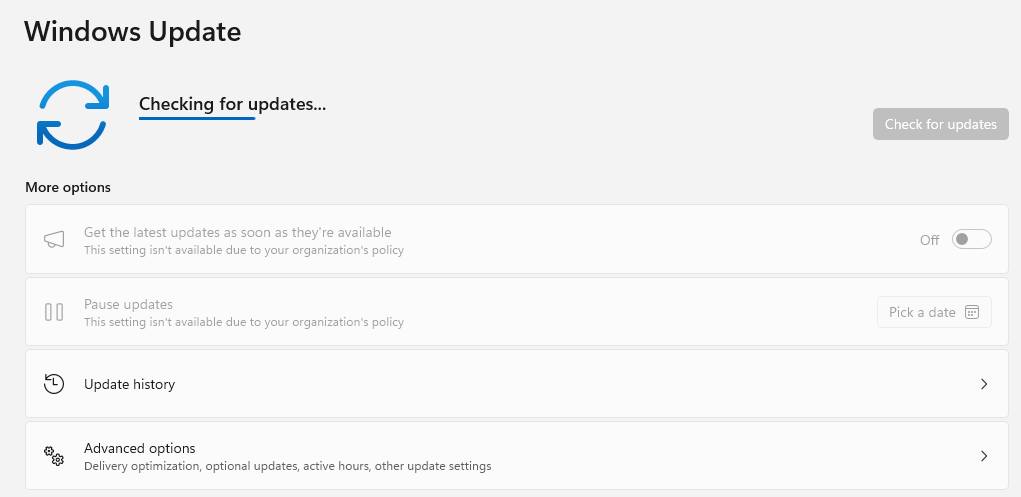
To check whether a device is on a safeguard hold, navigate to Settings › Windows Update. If the device is held, it will not show the 26H2 offer at all, and checking the update will not surface it. In the Intune admin center, the Windows feature update deployment report shows safeguard-held devices separately.
The fix: pre-upgrade checklist for IT admins
Step 1 — Free up disk space
Run the following on affected devices (or deploy as a script to your pilot group) to reclaim space before the upgrade:
# Clear Windows temp folders
Remove-Item "$env:TEMP\*" -Recurse -Force -ErrorAction SilentlyContinue
Remove-Item "C:\Windows\Temp\*" -Recurse -Force -ErrorAction SilentlyContinue

# Disk Cleanup. NOTE: /sagerun:1 only does something if /sageset:1 was
# run first to save that selection set, and it is not silent. On a fresh
# machine this line does nothing at all. Configure the set once with:
#   cleanmgr.exe /sageset:1
# then run it. cleanmgr is also absent on Server installs.
cleanmgr.exe /sagerun:1

# Check remaining free space
(Get-PSDrive C).Free / 1GB
For the Windows.old folder (left from a previous upgrade), run Settings › System › Storage › Cleanup recommendations and accept the “Previous Windows installation(s)” option. This folder can be 10–20 GB and is safe to remove once the previous version's grace period has passed.
Step 2 — Update drivers before the upgrade
For graphics, chipset, and NIC drivers, go to the device manufacturer's support page directly rather than relying on Windows Update to surface them. Windows Update shows drivers Microsoft has tested and approved, but manufacturer sites often carry newer versions. At minimum update:
- GPU driver (NVIDIA GeForce Experience, AMD Software, or Intel Arc Control)
- Chipset driver (from Intel ARK, AMD, or the motherboard manufacturer's support page)
- NIC driver (especially Realtek and Killer/Intel NICs)
After updating, restart the device before attempting the 26H2 upgrade.
Step 3 — Disconnect non-essential USB peripherals
Leave only a monitor, keyboard, mouse, and network connection attached during the upgrade. USB hubs, external drives, docking stations with their own drivers, and Bluetooth adapters are all potential sources of 0xC1900101 failures. Reconnect them after the upgrade completes.
Step 4 — Uninstall flagged applications
If a device has already failed with 0xC1900208, check the setup logs at C:\$WINDOWS.~BT\Sources\Panther\setuperr.log (and %windir%\Panther\setuperr.log after setup completes) for the name of the incompatible application. Uninstall it, attempt the upgrade, and reinstall after completion if the application has been updated for 26H2 compatibility.
Step 5 — Control the upgrade rollout via Intune
In Intune, feature update deployments are managed through Devices › Windows updates › Feature updates for Windows 10 and later. Set the Windows 11 version to 26H2 and target a pilot group first. The Windows feature update deployment report shows per-device status including safeguard holds, errors, and completion state.
To prevent preview/optional updates from being offered alongside the feature update:
- CSP / OMA-URI:
./Device/Vendor/MSFT/Policy/Config/Update/AllowOptionalContent— set to0 - Group Policy path:
Computer Configuration › Administrative Templates › Windows Components › Windows Update › Allow Optional Updates— set to Disabled
To ensure devices are fully patched before the feature update is attempted:
- CSP / OMA-URI:
./Device/Vendor/MSFT/Policy/Config/Update/RequireUpdateApproval - Group Policy path:
Computer Configuration › Administrative Templates › Windows Components › Windows Update › Configure Automatic Updates— ensure monthly quality updates are installing before feature updates are attempted
Proof it worked
A successful 26H2 upgrade shows the new build number in Settings › System › About. Confirm with PowerShell:
(Get-ItemProperty "HKLM:\SOFTWARE\Microsoft\Windows NT\CurrentVersion").DisplayVersion

26H2

# Also check the build number:
(Get-ItemProperty "HKLM:\SOFTWARE\Microsoft\Windows NT\CurrentVersion").CurrentBuildNumber

26300

# NOTE: 26H2 is build 26300. Do not check for 26200 - that is 25H2,
# and 26100 is 24H2. Checking for 26200 would report 25H2 devices
# as successfully upgraded.
In the Intune admin center, the feature update report shows the device progressing to an Installed state once the upgrade completes (“On this update” is not one of the documented states). The report lives at Reports › Windows Updates › Windows Feature Update Report, and safeguard-held devices surface as a SafeguardHold alert under Devices › Monitor › Feature update failures rather than as a per-device error code. Devices that fail will show the specific error code in the report, which maps directly back to the table at the top of this post.
References
- Windows 11, version 26H2 known issues and notifications — Microsoft's release health dashboard for 26H2, the authoritative source for confirmed issues, safeguard holds, and status updates throughout the rollout.
- Windows upgrade error 0xC1900101 — Microsoft's own troubleshooting guide for the driver-failure error family, including how to read the sub-codes and identify the offending driver from setup logs.
- KB5006965: How to check information about safeguard holds affecting your device — how to identify and understand safeguard holds, including how long they typically remain and what triggers their release.
- Configure Windows Update for Business in Intune — the full reference for feature update deployment rings, including how to read the deployment report and interpret per-device status codes.