A laptop goes out for a hardware repair. It comes back, the user turns it on, and instead of your company's branded sign-in screen, they get a plain, generic Windows setup screen — the kind you'd see on a brand-new machine (this first-run screen is called the "out-of-box experience," or OOBE for short). No branding, no automatic enrollment, nothing.
You check Intune. The device is still there, still listed under the right serial number. So it looks fine. But it isn't — the device is orphaned: it exists in your records, but Windows Autopilot (the service that recognizes a device and automatically sets it up for your company) no longer recognizes it as the same machine.
Watch on YouTube · Subscribe at @EndpointWeekly
This happens because of a common misunderstanding about how Autopilot actually identifies a device. Most people assume it works like a serial number: one fixed value that stays the same forever. It doesn't. Autopilot identifies a device using something called the hardware hash — sometimes nicknamed the "4K hash" because of its size (it's a block of text about 4,000 characters long). It's built from several hardware and firmware details combined together, it looks slightly different every single time you read it, and Autopilot doesn't need an exact match to recognize a device — it allows for some difference. Once you understand those three things, repair scenarios stop being confusing and become predictable.
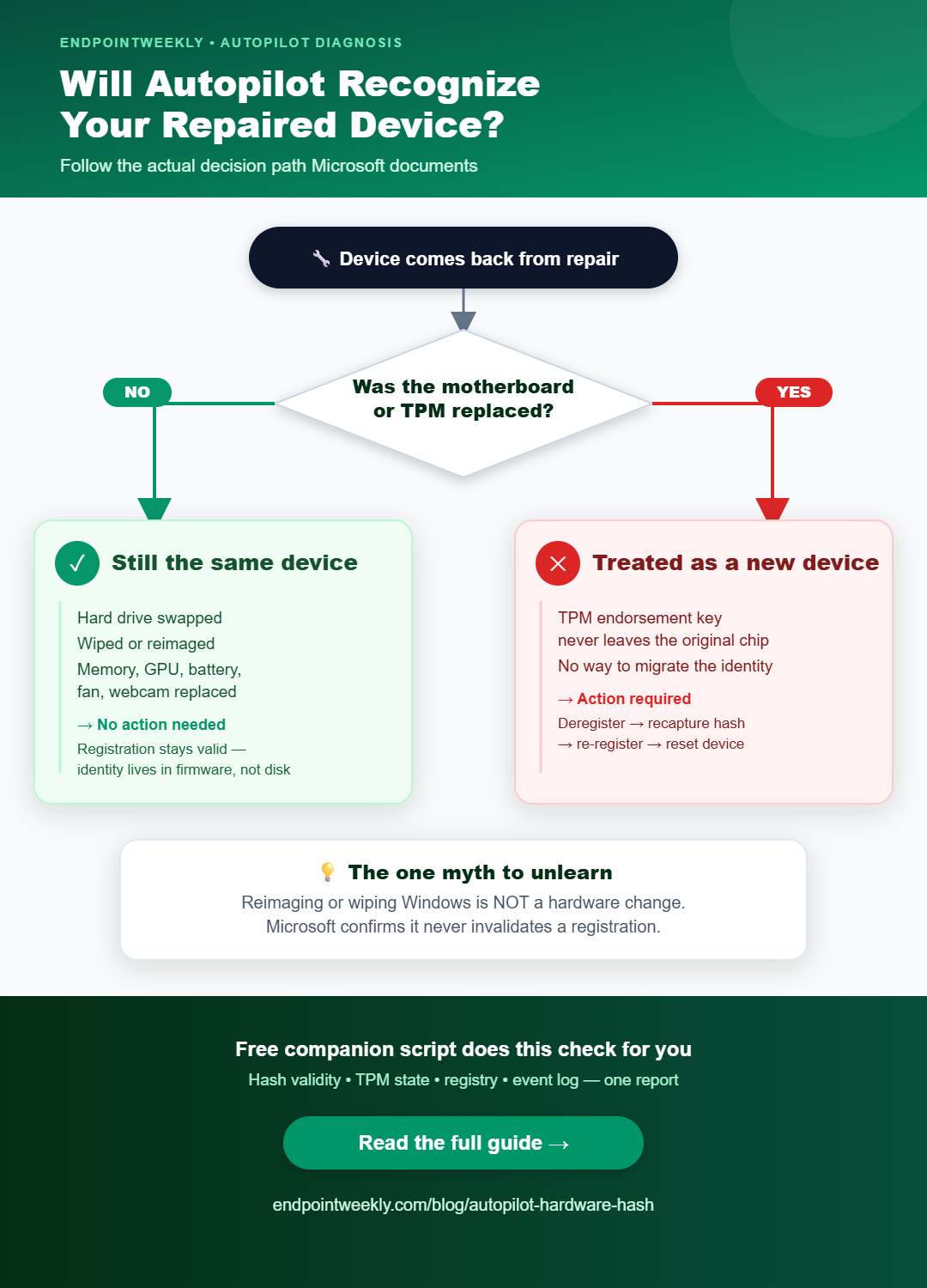
The Autopilot hardware hash is not a serial number — it's a combination of several hardware and firmware identifiers. Microsoft documents which details feed into it, but says clearly that you can't take the hash apart to read those details back out, so treat any "here's what's inside the hash" guide with suspicion. The hash also looks different every time you read it, and Autopilot's matching allows for some tolerance — which is why swapping a hard drive still works, but swapping a motherboard or the security chip (TPM) does not. And contrary to popular belief, wiping or reinstalling Windows on a device does not break its Autopilot registration — so stop removing devices from Autopilot just because you're rebuilding them.
The problem: a repaired device Autopilot no longer recognizes
Here's the pattern, and it's easy to misread if you don't know what to look for. A device goes out for a hardware repair — say, a new motherboard. It comes back, boots up, connects to the network, and shows the generic Windows setup screen instead of your company's branded one. No user is assigned, no company apps install, nothing happens automatically. Meanwhile, if you look the device up in Intune by its serial number, it's still sitting there in your device list — which is exactly what tricks people into assuming everything is fine.
Here's what that actually looks like on the physical machine. Both of these are real captures from a repaired device that lost its Autopilot identity:
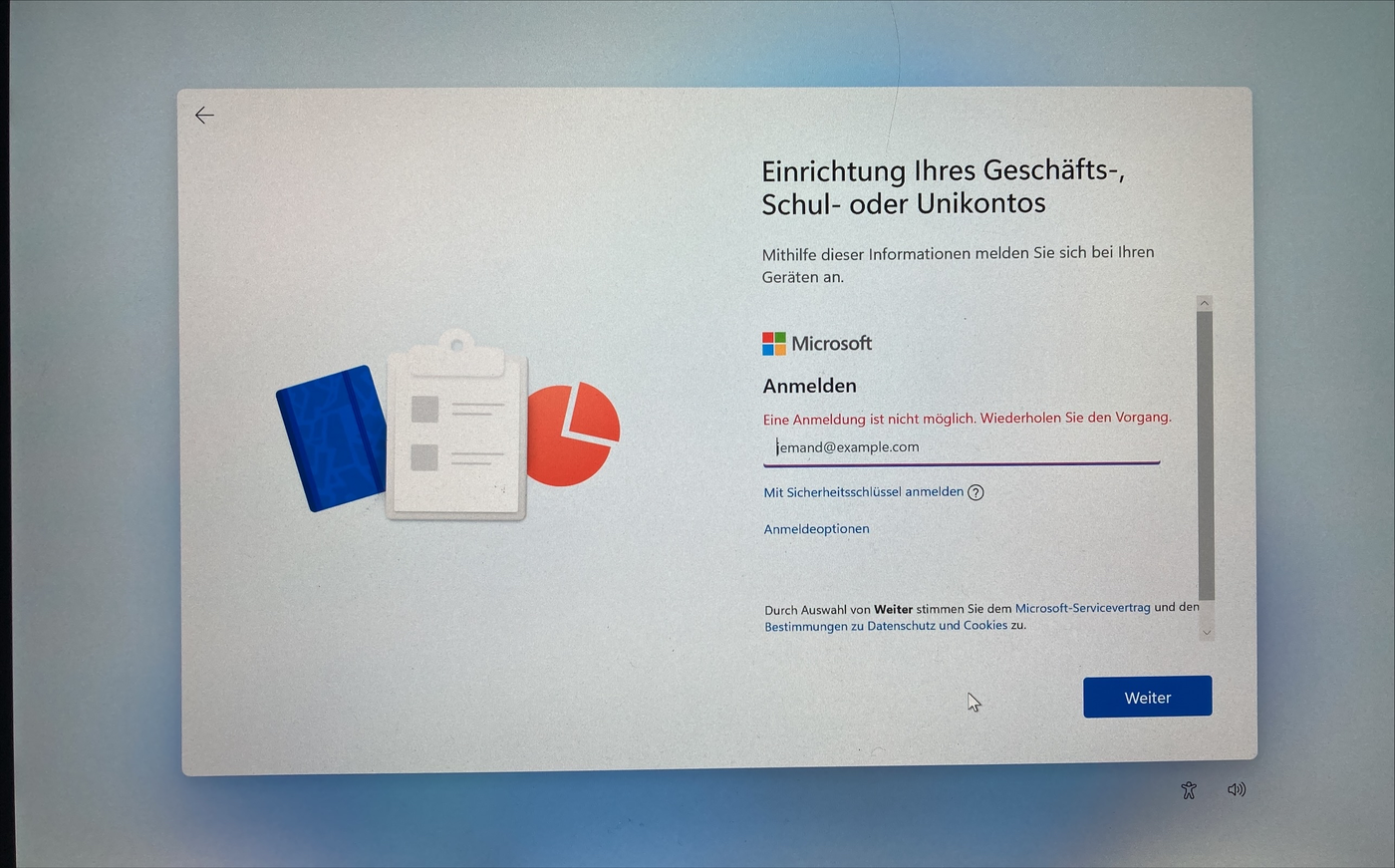
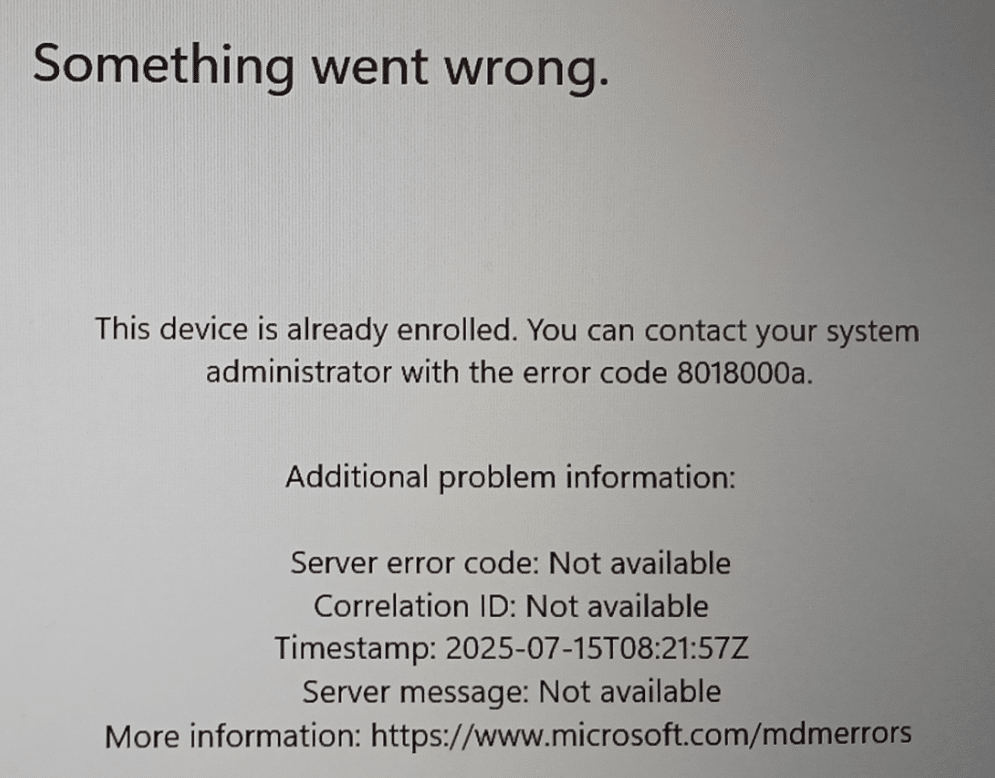
Sometimes Intune gives you a clearer warning. In the Autopilot device list, the Profile status column will show Fix pending or Attention required instead of the normal Assigned. Microsoft's own documentation says both of these messages mean the same thing: a hardware change was detected on the device. If you click the Fix pending link, you'll see this exact message:
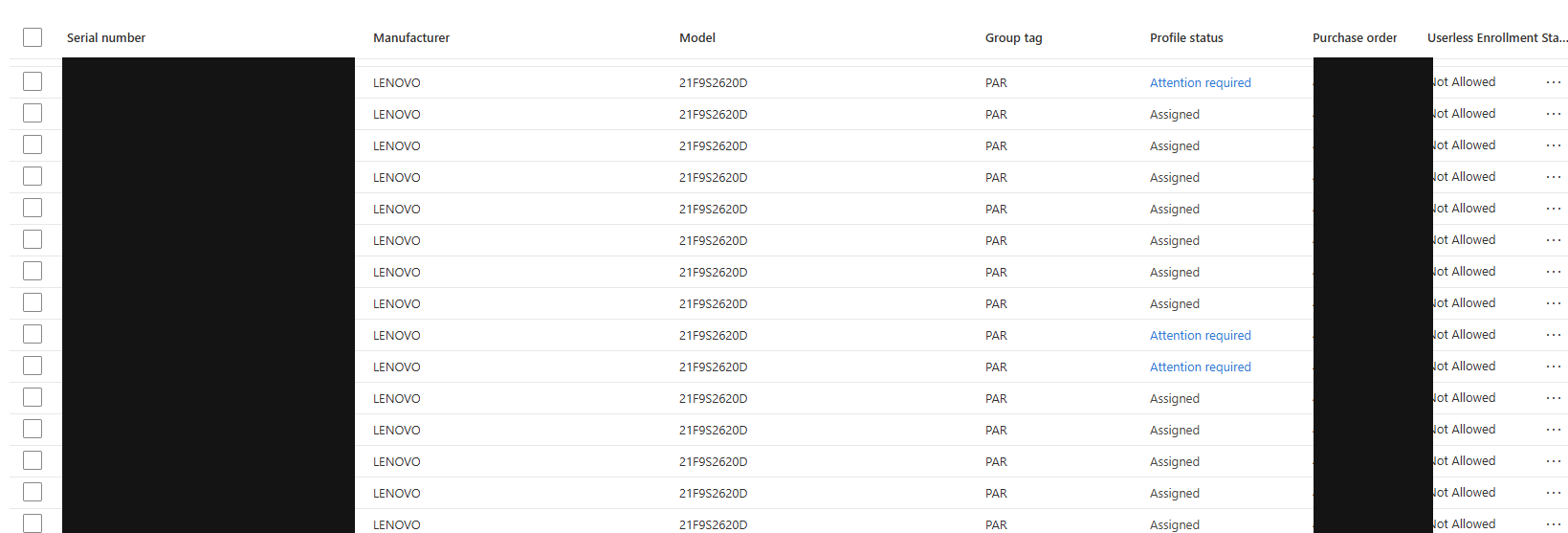
That message sounds reassuring, but in practice it's often wrong. Microsoft's own guidance says that if the status stays on Fix pending for a long time, or changes to Attention required, waiting won't fix it — you have to step in and manually remove and re-add the device (covered in the fix below).
There's a second, trickier version of this problem. Microsoft documents that Autopilot's setup profile won't apply if a hardware change happens and the device gets reimaged with an old version of Windows (older than Windows 11 21H2 with a specific update, or older than Windows 10 22H2). Microsoft says this is expected behavior — not a bug. So if your repair vendor reimages the device using an outdated company image, you can hit this problem even when the hardware repair itself would have been fine on its own.
Why it happens: what the hash actually is, and how matching works
To predict which repairs will break Autopilot and which won't, you need to understand three facts about the hardware hash. All three are documented by Microsoft, and all three go against the common assumption that the hash is basically a fancy serial number.
Fact one: it's built from several different identifiers, not one
Microsoft's own documentation says the hardware hash contains details like the manufacturer, the model, the device's serial number, the hard drive's serial number, information about when the hash was created, and "many other attributes that can be used to uniquely identify the device."
The Autopilot FAQ is more specific about the minimum requirement. Every hardware hash a manufacturer submits must include a unique firmware ID (called the SMBIOS UUID), the network card's MAC address, and a unique disk serial number. The reasoning is simple: there's no single ID that reliably and uniquely identifies every Windows device, so Microsoft combines several fields together as the next best thing.
The same FAQ lists the specific fields a manufacturer's firmware needs to get right for the hash-generation tool to work properly. This table is the closest thing to an official "ingredients list" for the hash that exists:
| Field | What it identifies | Survives a motherboard swap? |
|---|---|---|
SmbiosSystemManufacturer | Manufacturer name, from firmware | Only if the repair centre rewrites it |
SmbiosSystemProductName | Model name, from firmware | Only if rewritten |
SmbiosSystemSerialNumber | Chassis serial number | Only if rewritten |
SmbiosSkuNumber | Manufacturer's internal stock number | Only if rewritten |
SmbiosSystemFamily | Product family name | Only if rewritten |
SmbiosUuid | A unique ID built into the firmware | No — this lives on the motherboard itself |
MacAddress | The built-in network card's permanent address | No, if the network card is part of the motherboard |
DiskSerialNumber | Serial number of the storage drive | Yes, if the same drive is reused |
ProductKeyID | A digital product key stored in firmware | No — a new one gets injected during repair |
TPM and EkPub | The security chip's built-in identity key | No, and it physically cannot be copied to a new chip |
That last row explains most repair outcomes. Microsoft's own motherboard-replacement guidance notes that even if a repair centre copies all the old device details onto a new motherboard, they cannot copy the TPM's identity key — the private half of that key never leaves the original chip. A new motherboard means a new TPM, which means a new identity key. That's why swapping the motherboard (or just the TPM chip) is treated as a brand new device, full stop.
If a device has more than one network card or more than one disk, Microsoft documents that all of them get factored in — but the system disk's serial number carries more weight than any secondary disk, removable network adapters are ignored, and it doesn't matter whether the network connection is wired or wireless.
Fact two: the hash is deliberately impossible to take apart
You'll come across blog posts online claiming to show exactly which part of the hash contains which piece of data — a byte-by-byte map. Treat those claims with real skepticism. Microsoft's own documentation for the technical interface that exposes this hash on a live device says, in plain terms, that it's "a raw blob used to identify a device in the cloud. It's not meant to be human readable by design and you can't parse the content to get any meaningful hardware information."
Fact three: the hash changes every time you read it, and matching allows for that
This is the fact that changes everything else. Microsoft states plainly that "the hardware hash changes each time it's generated because it includes details about when it was generated." In other words, this isn't a fixed ID you can check for an exact match — it's a snapshot that includes a timestamp, so it's different every single time.
Because of that, Autopilot can't just check "does this hash exactly equal that hash." It has to allow for some difference. Microsoft's documentation confirms this directly: the matching process accounts for the fact that the hash changes on every read, and it also tolerates larger changes — like swapping a hard drive — and still finds a match. But a genuinely large change, like a new motherboard, won't match, and a fresh hash has to be captured and uploaded.
You can see this changeability yourself in a few seconds. Reading the exact same value twice in a row, on a completely untouched machine, gives you two different strings of text:
On the test device used for this article, the hash was consistently 4,000 characters long — about 1,714 of those characters were real data, and the rest was padding at the end. Those exact numbers will vary machine to machine; Microsoft doesn't document them as fixed. The one thing that is documented and reproducible is simply that the text changes every time you read it.
Cannot convert the literal '[DEVICEHASH]' to the expected type 'Edm.Binary'.The myth: reinstalling Windows does not break your Autopilot registration
Here's a correction that will save you a lot of unnecessary work. A lot of people believe that wiping or reinstalling Windows on a device breaks its Autopilot registration. Microsoft's documentation says the opposite, in three separate places.
The FAQ directly asks: do you still get the Autopilot experience after wiping a machine and restarting it? The answer is yes, as long as the device is still registered and running a supported version of Windows. It also asks whether Autopilot survives a motherboard replacement or a full reimage, and again answers yes (for the reimage case — motherboard replacement has its own process, covered below).
The reason this works is structural. Your Autopilot registration lives in Microsoft's cloud service. The device's identity lives in its hardware and firmware. Neither of those two things has anything to do with what's installed on the hard drive. In fact, the Autopilot setup profile isn't even stored permanently on the device — Microsoft states it's downloaded fresh during setup, applied, and then thrown away.
Sysprep /Generalize usually clears that cached profile too. So a stuck cached profile is an imaging cleanliness problem, not an Autopilot registration problem.The repair outcomes, at a glance
Microsoft has published a tested table of repair scenarios and what happens to Autopilot in each case. This is worth memorizing:
| What was changed | Does Autopilot still recognize it? | What you need to do |
|---|---|---|
| Memory, power supply, graphics card, card reader, sound card, expansion card, microphone, webcam, fan, heat sink, battery (CMOS) | No effect | Nothing |
| Hard drive replaced, everything else kept | Still matches | Nothing |
| Reimaged or reset, no hardware changed | Still registered | Nothing |
| One built-in network card replaced | Probably still matches | Recapture the hash only if it fails |
| Motherboard replaced | Treated as a new device | Remove and re-add the device |
| Security chip (TPM) replaced | Treated as a new device | Remove and re-add the device |
| Motherboard replaced, and a second network card kept from the old board | Not supported | Avoid this setup entirely |
| A non-manufacturer network card added | Not supported | Use the built-in network card instead |
| Motherboard replaced, but device info wasn't written to the new firmware | Won't be recognized | Repair centre needs to write the correct firmware data |
The second-network-card row is worth a closer look, because the reason behind it is genuinely useful to understand. Microsoft explains that in that specific scenario, the device's identity "won't be stable until after TPM attestation is complete" — and even then, having two possible MAC addresses (one from the old board's leftover card, one from the new board) creates real ambiguity about which one is correct.
How to verify: check the hash, the registry, and the event log
Verification has two parts. First, confirm the device can even produce a valid hash. Second, compare its key identifying details against what Microsoft's service has on record for it.
What if the device won't let you sign in at all?
Everything in this section assumes you can get to an elevated PowerShell prompt. That's easy on a device that's already working — sign in, right-click Start, choose Windows Terminal (Admin). It is not obvious at all on a device stuck on the exact screens earlier in this post: the generic sign-in page, or the "This device is already enrolled" error. There's no desktop, no local admin account you can sign into yet, nothing to right-click.
Windows has a documented way in anyway: press Shift+F10 at that screen. This opens a command prompt running with SYSTEM-level rights, before any user has signed in — higher privilege than a normal administrator session, and more than enough to run every check in this post. From that prompt, type:
There's no browser at this screen, so you can't copy-paste the script from GitHub or reliably reach it over a proxy. The practical fix technicians use: keep the script on a USB drive and run it directly from there, writing the report back to the same drive so you can carry it away with you:
C:\Windows\Setup\Scripts\DisableCMDRequest.TAG. If that file exists, Shift+F10 does nothing at all. This is common on images that started life as a Configuration Manager task sequence. Test whether your own deployment image allows this before you're standing in front of a real failed device and need it — not after.This is genuinely a separate, deeper topic — there are actually three different interactive routes into a device stuck at OOBE (Shift+F10 is only the most capable one), and each is gated by a different, easy-to-miss setting. The full breakdown, including the other two routes and exactly which Intune setting controls them, is covered in Troubleshooting Autopilot from inside OOBE.
Read the hash on a live device
The hash is exposed through a low-level Windows configuration interface, at a location called ./DevDetail/Ext/DeviceHardwareData. This has existed since an early 2017 Windows update. On a running device, you can read it through PowerShell using the exact query Microsoft's own material uses:
Get-CimInstance -Namespace 'root/cimv2/mdm/dmmap' `
>>   -ClassName MDM_DevDetail_Ext01 `
>>   -Filter "InstanceID='Ext' AND ParentID='./DevDetail'" |
>>   Select-Object InstanceID, ParentID,
>>     @{ n='HashLength'; e={ $_.DeviceHardwareData.Length } }

InstanceID  ParentID      HashLength
----------  --------      ----------
Ext         ./DevDetail         4000

# The length stays the same. The content itself does not.
If the hash really is missing, the documented cause is missing firmware information — specifically, both the manufacturer name and serial number need to be present in firmware, or the device simply can't be registered. Here's the exact check Microsoft recommends:

Other ways to collect the hash
Microsoft documents four different ways to collect this hash, and it's worth knowing all of them, because a repair centre often won't have your specific tooling installed. You can use Configuration Manager, which does this automatically for existing devices. You can use the Get-WindowsAutopilotInfo PowerShell script (covered in detail in the fix below). On Windows 11, you can press CTRL + SHIFT + D during the initial setup screen to open a diagnostics page that exports a CSV containing the hash. Or you can export it from within a running copy of Windows:
The exported files land in C:\Users\Public\Documents\MDMDiagnostics. You can jump straight to that settings page by running ms-settings:workplace.
-OutputFile parameter with Get-WindowsAutopilotInfo rather than manually redirecting the output to a file — Microsoft specifically warns that manual redirection breaks the file's formatting. A few other CSV rules that trip people up: no quotation marks, no extra columns, plain text only (not Unicode), headers must match exactly (case-sensitive), and never open and re-save the file in Microsoft Excel — that silently corrupts it.Check the device's own registration record
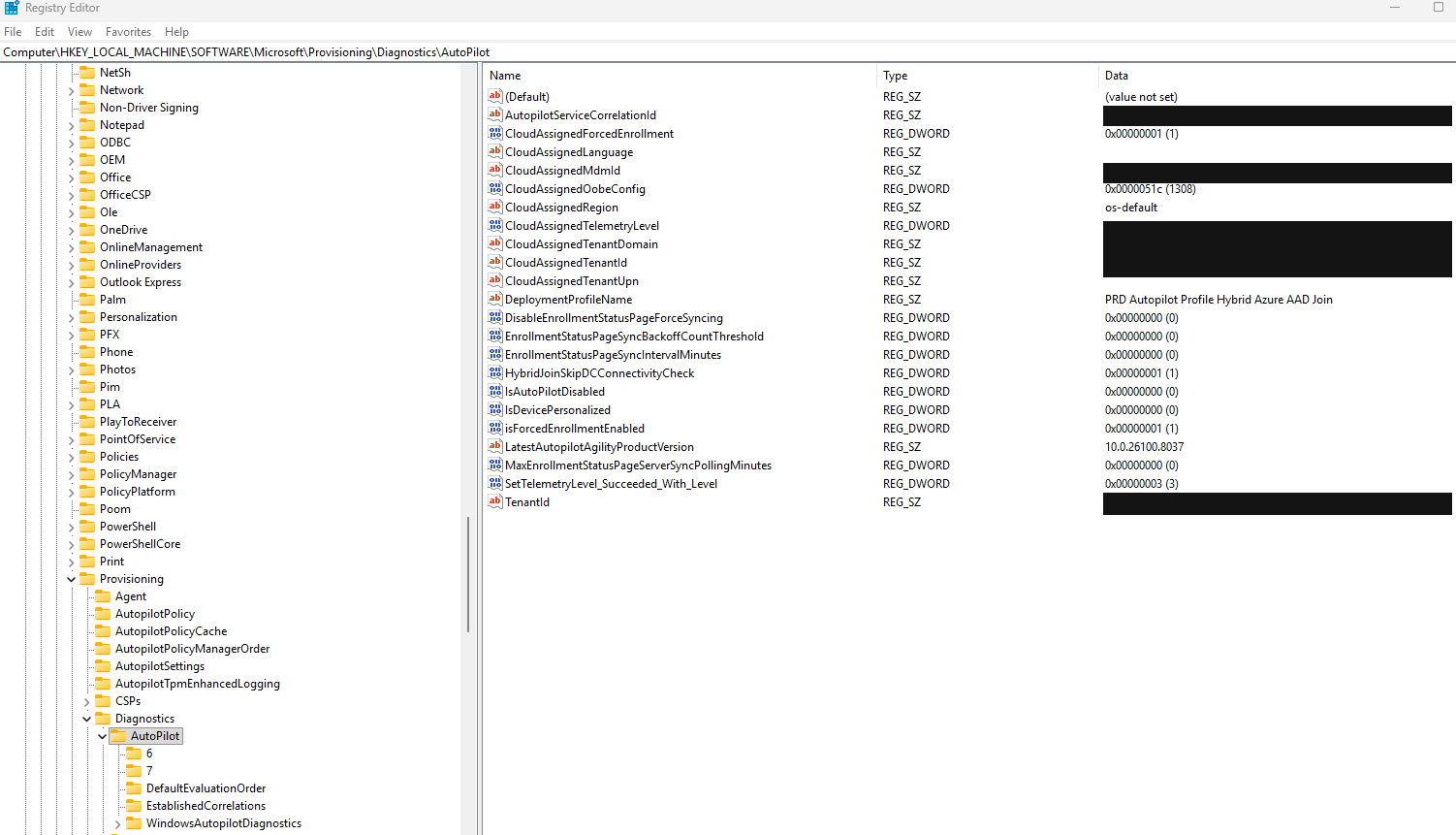
The device keeps a local cached copy of what Autopilot last told it. Microsoft documents these values under a single location in the Windows registry (a settings database built into Windows):
| Value | What it means | What to look for |
|---|---|---|
IsAutopilotDisabled | Set to 1 when the device is not registered with Autopilot | Seeing 1 on a device you believe is registered means the match failed, or the profile couldn't download |
CloudAssignedTenantDomain | The company domain this device is registered under | Blank means this device isn't registered with Autopilot at all |
CloudAssignedTenantId | The unique ID of that company's tenant | Blank means not registered |
AadTenantId | The tenant ID of whoever signed in on this device | If this doesn't match the assigned tenant, the user sees an error |
TenantMatched | Set to 1 when the signed-in user's tenant matches the registered tenant | 0 means the user gets an error and has to start over |
CloudAssignedOobeConfig | A combined code representing which setup options are configured | Documented bit values: skip Cortana sign-up = 1, remove local admin = 2, skip express settings = 4, skip manufacturer registration = 8, skip license agreement = 16 |
Read the event log
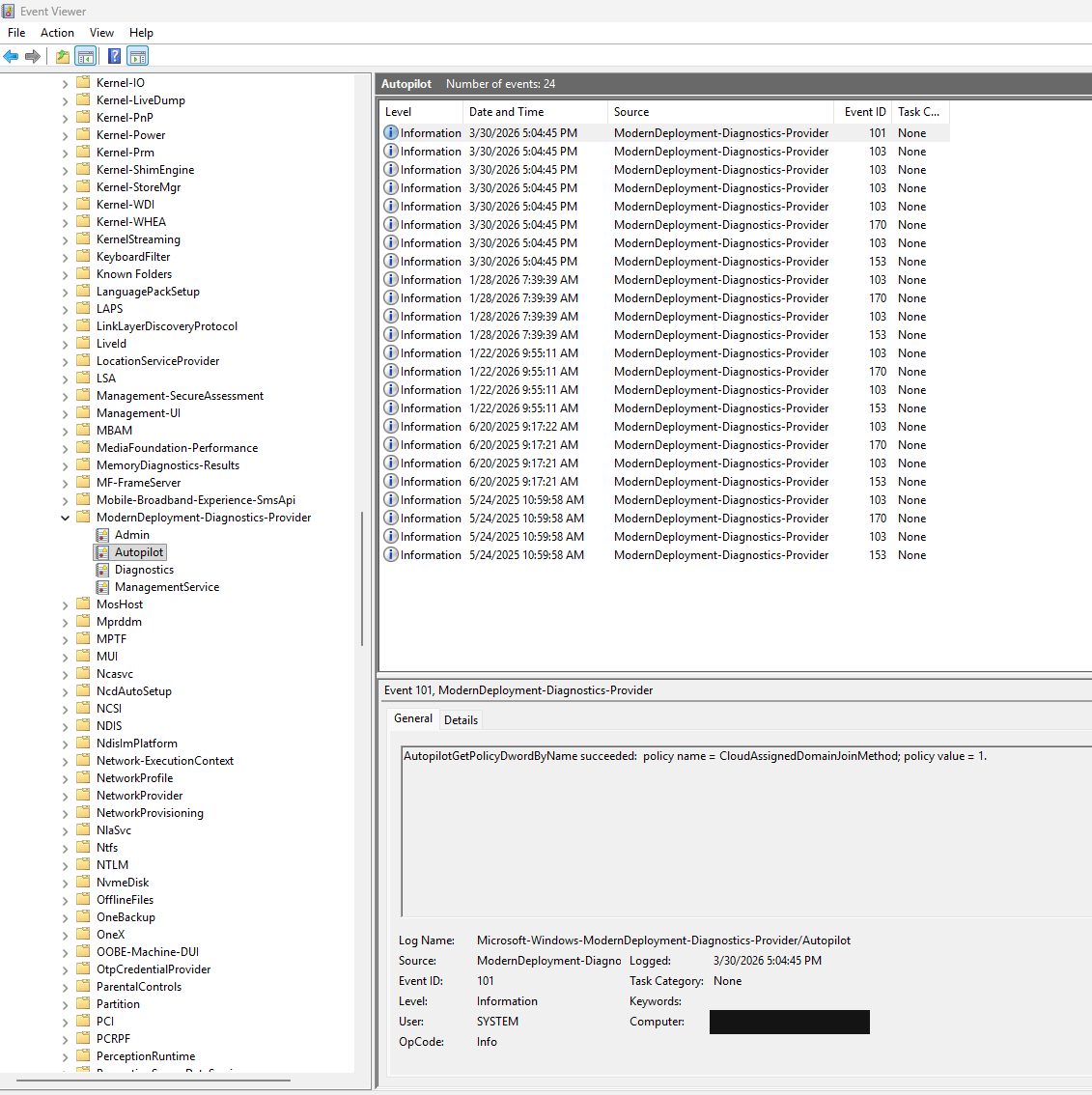
Autopilot writes its own dedicated event log. In Event Viewer, open Applications and Services Logs, then Microsoft, then Windows, then ModernDeployment-Diagnostics-Provider, then Autopilot. If you're reading it via PowerShell, the full channel name is:
| Event ID | What it says | What it tells you |
|---|---|---|
| 100 | Warning: setup policy not found | Usually just a temporary state while waiting for a profile to download |
| 101 | Info: a numeric setting was retrieved successfully | Numeric setup options being processed |
| 103 | Info: a text setting was retrieved successfully | Text setup options, like the company name, being processed |
| 109 | Info: setup override setting retrieved | State-related setup options being processed |
| 111 | Info: settings retrieval succeeded | The setup profile controlling first-run behavior was retrieved |
| 153 | Info: internal state changed | Going from "unknown" to "available" means a profile downloaded and the device is ready |
| 160 | Info: beginning to fetch settings | Profile download starting |
| 161 | Info: settings retrieved successfully | Profile downloaded successfully |
| 163 | Info: download skipped, already set up | A profile is already cached locally — clean or reset the device if you need a fresh one |
| 164 | Info: internet connection available | Confirms the device can reach the internet |
| 171 | Error: couldn't confirm TPM identity | A security-chip (TPM) problem — this is the key error after most repairs |
| 172 | Error: couldn't mark the setup profile as available | Usually shows up right after event 171 |
| 807 | Error: device isn't registered | Microsoft's service has no record matching this device — check the hash was uploaded and a profile assigned |
| 809 | Error: assigned profile no longer exists | The profile was deleted without properly unassigning it first |
| 815 | Error: no profile assigned | No setup profile is assigned to this device, and there's no company-wide default either |
| 908 | Error: serial number or product key mismatch | The record Autopilot has on file doesn't match the physical hardware — this device needs to be re-added |
Event 908 is the clearest signal for the exact problem this article covers: Microsoft's own description says plainly that the serial number or product key on record doesn't match the physical machine, and it's blocking setup. Event 807 is the second one worth watching for, and 171 paired with 172 usually point specifically at a TPM (security chip) problem.
Run the companion script
The companion script for this article pulls all of the above into one read-only report. By default, it hides the hash itself and masks every identifying value, because Microsoft is explicit that the hash and related identifiers count as sensitive information. You can opt in to see the real values with -ShowHash and -ShowIdentifiers when you genuinely need them.
The script also has an -OutputHtml option that renders the same read-only data as a self-contained, styled HTML report instead of a terminal dump — useful if you want to attach it to a ticket or share it with a colleague who doesn't live in PowerShell:
Here's a live example of that report (with masked, illustrative data) rendered directly below:
-OutputHtml option — embedded live above, not a screenshot.The fix: remove, recapture, re-add, reset
Microsoft's recommended process for a motherboard replacement has six steps, and the order genuinely matters — doing them out of order can leave you with a broken or unrecoverable device record.
Step 1: delete the device from Intune
- Sign in to the Microsoft Intune admin center.
- Select Devices in the left menu.
- Under By platform, select Windows.
- Find the device by its name and select it.
- Note down the serial number shown — you'll need it in the next step.
- Select Delete in the toolbar, then confirm with Yes.
Step 2: remove it from Autopilot
- Go to Devices, then By platform, then Windows.
- Under Device onboarding, select Enrollment.
- Under Windows Autopilot, select Devices.
- Find the device using the serial number from step 1.
- Select the checkbox next to it.
- Select the "..." menu at the end of the row. If Unassign user is available, use it and confirm. If it's greyed out, that's fine — move on.
- Select Delete in the toolbar, then confirm with Yes.
- Select Sync to speed things up, then keep hitting Refresh every few minutes until the device disappears from the list.
Step 3: replace the hardware and confirm the firmware is correct
This is the step most repair processes skip, and it's the one that actually determines whether the fix works. Before the device leaves the repair centre, make sure the post-repair firmware correctly reports every field Microsoft lists as required: the disk serial number, the system serial number, manufacturer name, model name, the unique firmware ID, the TPM's identity key, MAC address, product key, and OS type.
Microsoft is upfront that quality here varies a lot between repair vendors. Some replacement motherboards come with a product key already programmed in; some don't. Some repair centres have the right tools to write this firmware data correctly; some don't. If the repair centre doesn't have a tool to write the correct device information onto the new motherboard, Autopilot simply won't recognize the repaired device — even after you capture and upload a brand new hash.
Step 4: capture a fresh hash
The device needs to be fully booted into Windows (or in audit mode) to capture a new hash. If the repair technician doesn't have the user's sign-in details, they'll need to reimage the device first just to get access. From there, either Microsoft's official OA3 tool or this PowerShell script will work:
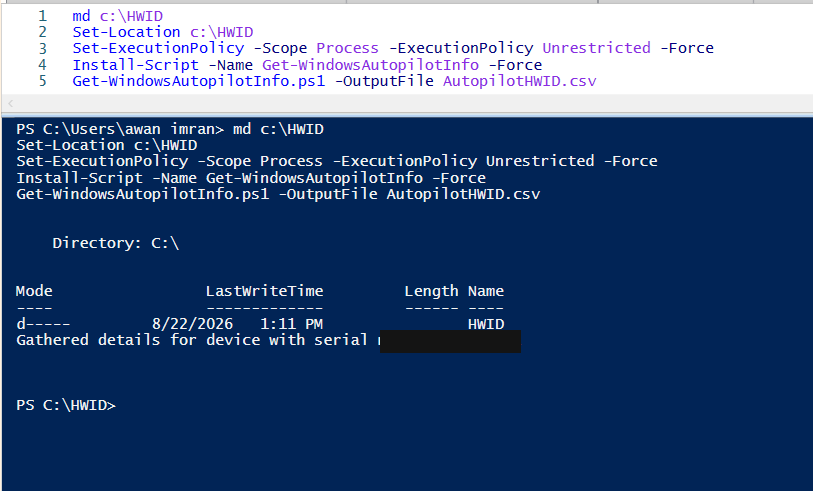
Get-WindowsAutopilotInfo.ps1 says "command not found" right after installing it, check that C:\Program Files\WindowsPowerShell\Scripts is included in your PATH environment variable. If Install-Script fails completely, confirm the default script repository is registered by running Get-PSRepository, and register it with Register-PSRepository -Default -Verbose if it's missing.Step 5: re-add the device using the new hash
- In the Intune admin center, go to Devices, then Device onboarding, then Enrollment, then Windows Autopilot, then Devices.
- Select Import in the toolbar.
- Browse to the CSV file containing the new hash and select Import. This can take several minutes.
- Select Sync, then keep hitting Refresh until the device shows up.
The required CSV format is fixed and must match exactly:
ZtdDeviceNotFound error.Step 6: reset the device back to a fresh, unconfigured state
This step is required, not optional. Capturing the hash meant the device had to be fully booted into Windows, but Microsoft states that a device isn't actually considered "deployed" through Autopilot until it goes through the first-run setup screen again. On Windows 11, the path is Settings › System › Recovery › Reset PC, choosing Remove everything. A repair centre without the user's login can use Windows' imaging tools instead to achieve the same result.
Proof it worked: a clean status and a quiet event log
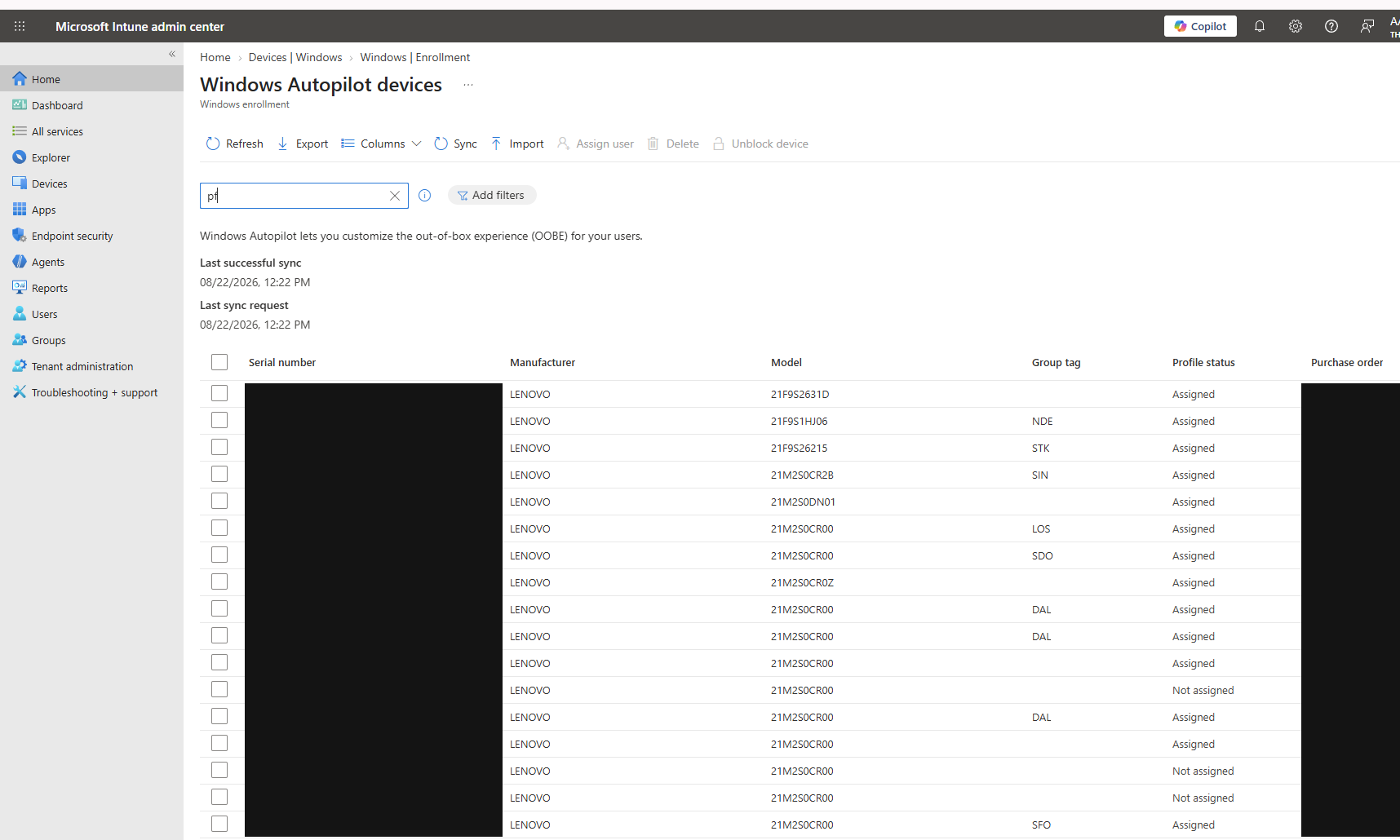
There are three independent ways to confirm the fix actually worked, and you should check all three rather than trusting just one screen.
First, the Autopilot device record should now show Assigned as its profile status, instead of Fix pending or Attention required:
Second, the event log should stop producing identity errors. Events 908 and 807 should no longer appear. Instead, you should see event 153 reporting the state change to "profile available," along with event 161 confirming the profile downloaded successfully.
Third, run the companion script again and compare its output to what you found earlier. The block below is from a real run on the test device used to write this article — every identifying value has been replaced with an obvious placeholder before publishing, on top of the masking the script already applies by default. The structural numbers (the 4,000-character length, 1,714 real payload characters, and the event counts) are genuine measurements, not made up for illustration.
Notice the last line of section 4: no events 908, 807, 171, or 172. That's what a healthy, working device looks like. Also notice the script confirms the hash is present and valid without ever printing the actual value — which is exactly the behavior you want when a ticket attachment might end up sitting in a shared mailbox somewhere.
One more check worth adding to your routine: run the script twice in a row. The "capture fingerprint" will be different both times on the exact same, untouched hardware, because the hash embeds its own creation time. If you ever find a process at your organization that treats this hash as a fixed, unchanging device ID, that single test is enough to prove it's built on a wrong assumption.
Community deep-dives worth reading
| Author | Article | Why it's useful |
|---|---|---|
| Rudy Ooms | Hardware Change | Autopilot | Fix Pending | Traces exactly how a device detects a hardware change and shows the "Fix pending" status, and notes that Microsoft later withdrew an automatic remediation feature — worth treating as a community observation rather than official documentation. |
| Rudy Ooms | Digging into the HardwareHash and the OfflineDeviceID | Digs into a related, TPM-based device identifier that shows up alongside the hash. Good for building intuition, but explicitly undocumented by Microsoft. |
| Mattias Melkersen, Rudy Ooms and Ben Whitmore | Onboarding modern with Autopilot: Magic trick revealed | Walks through the entire setup process once registration succeeds — useful for telling apart identity problems (covered in this article) from later setup problems. |
References
- Windows Autopilot registration overview — what the hash contains, and the documented matching tolerance for disk versus motherboard changes.
- Windows Autopilot FAQ — required hash data, the required firmware fields, hash collection methods, and the hardware-replacement questions.
- Windows Autopilot motherboard replacement — the full six-step repair process and the complete tested repair-scenario table.
- Windows Autopilot troubleshooting FAQ — the full event ID list, the diagnostics registry values, the padding/import fix, and hardware-change behavior.
- DevDetail CSP — the technical interface exposing the hash, and Microsoft's statement that it cannot be parsed.
- Manually register devices with Windows Autopilot — collection methods, CSV format requirements, and registration error codes.
- Windows Autopilot device guidelines — required firmware fields and manufacturer hardware requirements.
- List windowsAutopilotDeviceIdentities — the read-only Graph API endpoint used by the companion script.
Download it from Imran76Awan/Windows-Autopilot-Scripts — no sign-in required. It's read-only: it reports on a device, and never changes anything in Intune or on the machine itself. Validate it in your own environment before relying on the output.