When you sign in to Windows with a work account, Entra ID hands your device a kind of digital pass called a sign-in token. Your apps — Outlook, Teams, SharePoint — show that pass instead of asking you to type your password every five minutes. The problem: a stolen copy of that pass normally works from any computer, not just yours. An attacker who steals it from a compromised laptop can carry it over to their own machine and get into your mailbox without ever knowing your password, and without triggering MFA again.
Token Protection is a Conditional Access setting that closes this gap. It makes the pass only work on the exact device it was issued to — copy it elsewhere, and Entra ID refuses it. This post explains the idea in plain terms, then walks through turning it on safely, entirely through the Entra admin center. No PowerShell, no scripts — everything here is portal clicks and reading log entries.
Microsoft's own documentation on this feature is written for someone who already knows what a Primary Refresh Token is and what "binding" means. If you don't, the deployment guide reads like a wall of settings with no explanation of what problem they solve. This post fills that gap first, with an everyday example, before getting into the actual configuration steps — which are genuinely short once the concept makes sense.
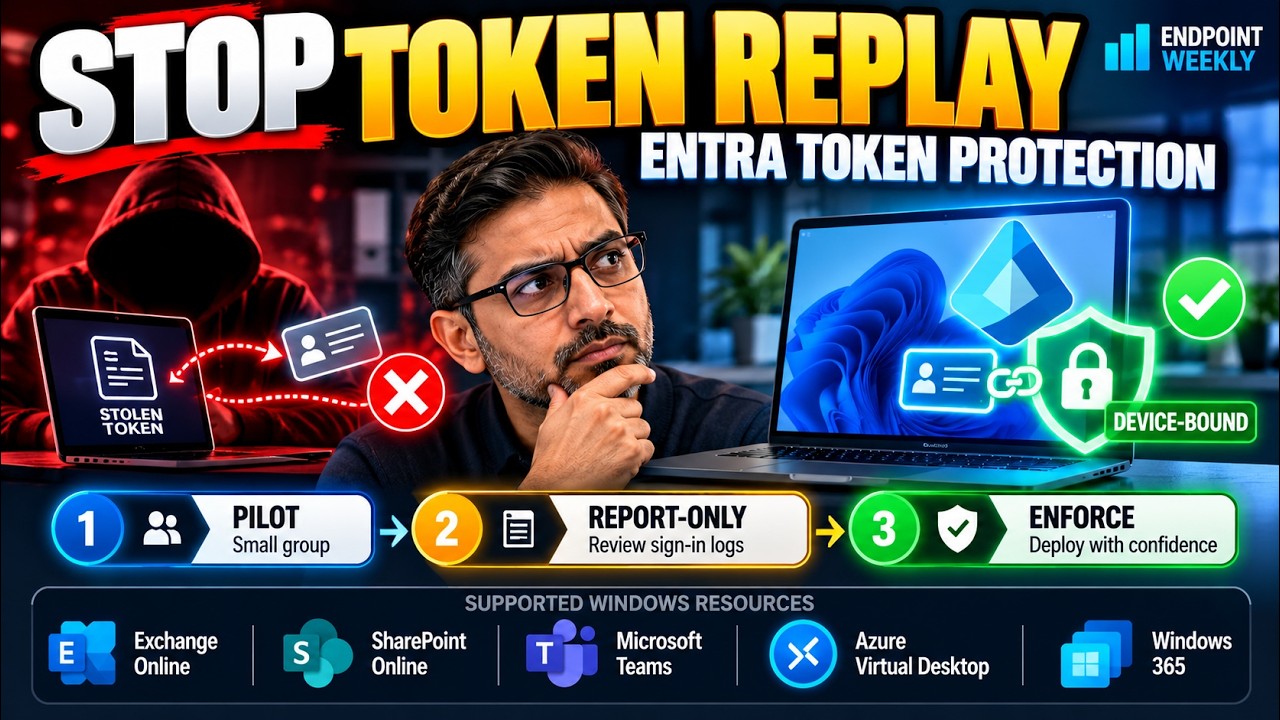
Stolen sign-in tokens are one of the most common ways attackers get into cloud accounts without needing a password or beating MFA — it's called token theft, and antivirus doesn't stop it because nothing malicious is "running", a file is just being copied. Token Protection is a Conditional Access policy that requires Windows to cryptographically tie a sign-in token to the specific device it was issued on, so a copied token is rejected the moment it's used anywhere else. It currently covers Exchange Online, SharePoint Online, Microsoft Teams, Azure Virtual Desktop and Windows 365, on Windows 10 or later devices that are properly registered with Entra ID. You turn it on as a Conditional Access policy, start it in report-only mode to see who it would affect before it blocks anyone, then switch it to enforced. A handful of device types — Autopilot self-deploying devices, bulk-enrolled devices, Entra-joined Cloud PCs and Virtual Desktop session hosts — aren't supported yet and need to be excluded from the policy or their users will be blocked outright.
Who needs to read this
| If you are… | What this means for you |
|---|---|
| Service desk / 1st line | A user may suddenly be asked to "register" their device, or see a blocked sign-in with no obvious cause, after this policy goes live. Section 5 shows you exactly what that looks like and why. |
| Identity / Entra admin | You're the one building the Conditional Access policy. Section 4 is the full numbered walkthrough, in the exact order Microsoft recommends. |
| Security / SOC | This is a direct, free mitigation against one of the most-used post-phishing techniques (adversary-in-the-middle token theft). Worth prioritising even on a small pilot group of privileged accounts. |
| Anyone who manages Autopilot, Cloud PC or AVD | Read the warning in Section 4 before you enforce anything — several of your device types are not supported yet and will be blocked, not just unprotected, unless you exclude them first. |
The problem: a stolen token works anywhere, and MFA doesn't stop it
Start with how signing in normally works, because the attack only makes sense once you see the shortcut it exploits.
The first time you sign in to Windows with your work account, you type your password and complete MFA. Entra ID is satisfied you are who you say you are, and it hands your device something called a Primary Refresh Token, or PRT. Think of the PRT as a wristband you get at a festival after showing ID at the gate — you don't show your ID again every time you walk between stages, you just show the wristband. For the rest of the day, your apps — Outlook, Teams, OneDrive — use that wristband to get into things on your behalf, without bothering you for your password or MFA again.
That's good for convenience. It's also exactly what an attacker wants to steal, because the wristband itself is the proof — nobody checks whether the person wearing it is actually you.
How the theft actually happens
This isn't a theoretical attack. It's one of the most common techniques used right now, usually following an ordinary phishing email:
- A user receives a convincing phishing email and is tricked into signing in on a fake login page — often via what's called an "adversary-in-the-middle" proxy, which sits between the user and the real Microsoft sign-in page and copies everything that passes through, including the final token.
- The attacker now holds a working copy of that user's sign-in token. The user typed their real password and completed real MFA — both succeeded — but the attacker captured the token at the moment it was issued.
- The attacker copies that token onto their own machine, possibly on the other side of the world, and uses it to sign in to Outlook or SharePoint as that user.
- Because the token itself says "this request is already authenticated", Entra ID lets them straight in. No password prompt. No MFA prompt. From Entra ID's point of view, this looks identical to the real user opening their inbox.
And it's invisible to normal endpoint security tools, because nothing about it looks like malware. A token is just a piece of text. Copying a piece of text from one machine to another doesn't trigger antivirus, doesn't write a suspicious file, and doesn't run a suspicious process. The theft itself often happens through a browser extension, an info-stealer, or a man-in-the-middle proxy — and from that point on, the "attack" is just normal-looking sign-in traffic from a token that happens to have been copied.
Why it happens: how sign-in tokens work, and what "binding" fixes
The underlying weakness is simple once you see it: a standard sign-in token doesn't know, or care, which computer is using it. It's "bearer" proof — whoever bears (holds) it gets treated as authenticated, the same way a festival wristband works for whoever is wearing it, not specifically for the person who was issued it.
Imagine instead of a plain wristband, the festival gave you one that was cryptographically stapled to your actual wrist — it physically cannot be cut off and handed to someone else; it just stops working the moment it leaves your skin. That's the idea behind Token Protection. When your device registers with Entra ID, it generates a private cryptographic key that never leaves the device — it's stored in hardware, the same way a Windows Hello PIN is. Every time your device is issued a sign-in token, Entra ID "staples" that token to this device-specific key. The technical word for this is binding, and a token that has been stapled this way is called a bound token.
When an app shows a bound token to Entra ID, Entra ID checks that it's being presented together with proof from the same device's private key. Copy the token file to a different machine, and that proof is missing — the private key never left the original device, so it can never travel with a stolen token. The token Entra ID actually honours cannot be separated from the device it was issued to, which is the entire point.
A concrete before-and-after
Same attack as before, this time with Token Protection switched on:
| Step | Without Token Protection | With Token Protection |
|---|---|---|
| User is phished, token captured | Succeeds — token captured in transit | Succeeds — the capture itself isn't prevented |
| Attacker copies token to their own device | Succeeds | Succeeds — copying a piece of text can't be stopped |
| Attacker tries to use the token to sign in | Works. Entra ID accepts the token, attacker is in Outlook. | Rejected. Entra ID sees the token isn't paired with the right device key and refuses it. |
Notice what Token Protection does not claim to do: it doesn't stop the phishing email, it doesn't stop the token being captured, and it doesn't stop the token being copied. What it stops is the use of that copied token anywhere except the device it came from — which is the one step the attacker actually needs to succeed. Everything up to that point can go exactly as badly as before and the attack still fails at the last hurdle.
Why this isn't switched on for everyone already
Two honest limitations explain why this is a deliberate, careful rollout rather than a flip-the-switch setting.
First, it needs Microsoft Entra ID P1 — it's a Conditional Access feature, and Conditional Access itself requires that licence tier.
Second, and more important operationally: it only works for devices and apps that support it, and the device has to be properly registered with Entra ID in the right way. A device that was deployed using certain automated methods — Autopilot's self-deploying mode is the big one — registers itself in a way that doesn't currently support binding. If you enforce the policy everywhere on day one, every user on one of those device types is simply blocked from Outlook and SharePoint, with no warning, because their device can never satisfy a requirement it structurally can't meet. That's why the recommended rollout (covered in full in the fix section) always starts in a mode that only reports what would happen, never one that blocks anyone immediately.
How to verify: reading the sign-in logs, no scripts required
Before building anything, it helps to see what the logs already tell you — both to understand the feature, and because this is exactly how you'll check your rollout later. Everything here is done by clicking through the Entra admin center; nothing needs PowerShell or a script.
Every sign-in that reaches a protected resource carries a field called Token Protection – Sign In Session, found by opening any individual sign-in event and looking at its Basic info pane. It only has two possible values, and this is the single most useful fact in this entire post for day-to-day triage:
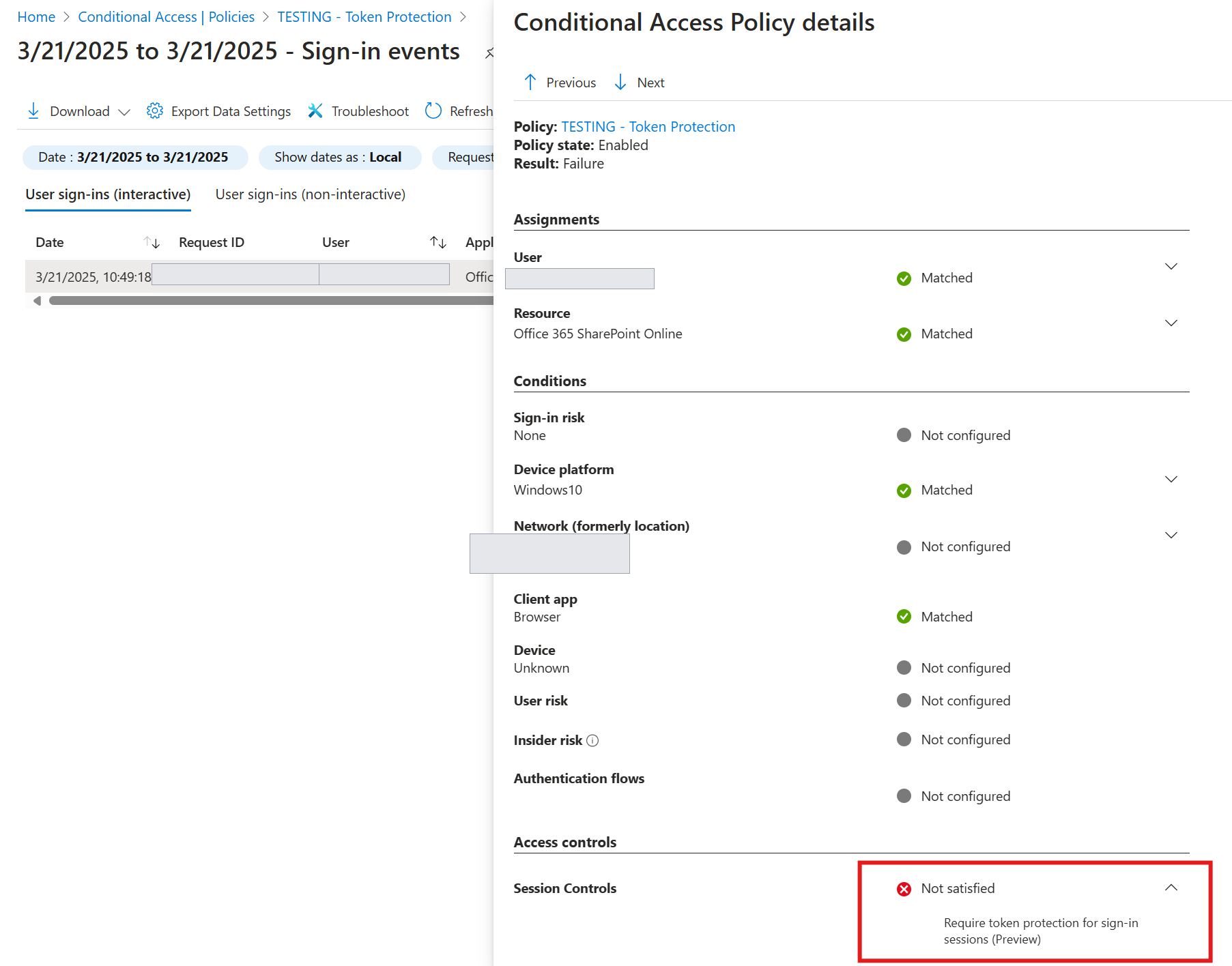
Every Unbound result also carries a short status code explaining why. This is the part worth printing out and keeping next to the service desk, because it turns a vague "I can't open Outlook" ticket into an immediate diagnosis:
| Code | What it means in plain terms |
|---|---|
| 1002 | The device has no registered Entra ID identity at all. In practice: the device was never registered or joined to Entra ID — a personal, unregistered PC, most commonly. |
| 1003 | The device is registered, but not in a way the policy accepts. This is the one you'll meet most often during rollout — it covers the unsupported device types listed in the fix section (Autopilot self-deploying devices, bulk-enrolled devices, Entra-joined Cloud PCs and AVD session hosts), and also devices that were registered without a genuinely fresh sign-in. |
| 1005 | Unbound for some other, unspecified reason. Treat this as "needs a closer look", not a known category. |
| 1006 | The Windows version on the device is too old to support binding. Check Windows is up to date. |
| 1008 | The app isn't using Windows' built-in sign-in broker (Web Account Manager). Usually an older or third-party app build rather than a device problem — check for an update to the app itself. |
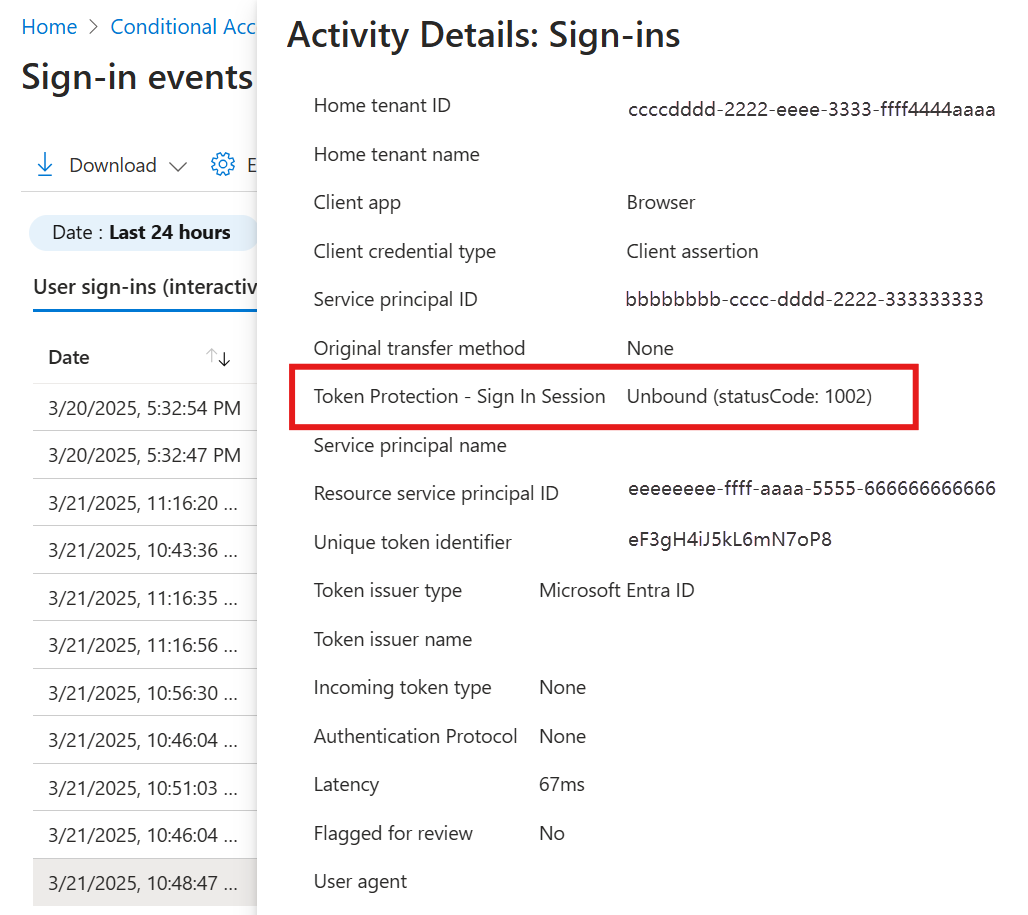
Token Protection – Sign In Session: Unbound (statusCode: 1002) highlighted — code 1002, no Entra ID device registration at all. Tenant and service principal IDs shown here are already placeholder values from the source capture, not a real tenant.Binding, newer ones say SignInTokenProtection. If you're filtering sign-in logs for historical data as well as current data, you may need to account for both names turning up.The fix: turning on Token Protection safely, step by step
This is a Conditional Access policy, configured entirely in the Entra admin center. There's no PowerShell step anywhere in this process — and no Group Policy or Intune equivalent either, because Conditional Access is a cloud-native control with no on-premises counterpart. If you've built a Conditional Access policy before, the overall shape will be familiar; the parts specific to Token Protection are flagged clearly below.
Before you start: check compatibility
Token Protection only works for specific apps, on specific resources, from devices registered the right way. Check your users against this before building anything — the full detail is in the quick reference table further down, but the short version:
- Apps that support it include Outlook, Teams, OneDrive, Word/Excel/PowerPoint, OneNote, Microsoft Copilot, and the Windows App — but only their native desktop versions, never a browser tab. Microsoft Edge is supported only for signing in to your Edge profile, not for general web browsing.
- Resources it can protect: Exchange Online, SharePoint Online, Microsoft Teams, Azure Virtual Desktop, and Windows 365.
- Devices need to be Windows 10 or later, and genuinely registered with Entra ID — joined, hybrid joined, or registered, with a real, fresh sign-in behind that registration.
Step-by-step: creating the policy
- Sign in to the Microsoft Entra admin center with at least the Conditional Access Administrator role.
- Go to Entra ID › Conditional Access › Policies, and select New policy.
- Give it a clear, descriptive name — something your future self will recognise in a list of fifty other policies, e.g. "Require token protection – pilot group".
- Under Assignments › Users, in Include, choose a small pilot group — not everyone. Privileged accounts (global admins, finance, anyone handling sensitive data) are a sensible first target, since they're the accounts an attacker would want most.
- Still under Users, in Exclude, add your organisation's emergency access ("break-glass") accounts. This matters for every Conditional Access policy, not just this one — never let a new policy be able to lock out the account you'd use to fix a mistake.
- Under Target resources › Resources › Include › Select resources, choose exactly: Office 365 Exchange Online, Office 365 SharePoint Online, and Microsoft Teams. If your organisation uses the Windows App for Azure Virtual Desktop or Windows 365, add those too.
- Under Conditions › Device platforms, set Configure to Yes, then under Include, select Windows only.
- Under Conditions › Client apps, set Configure to Yes. Under "Modern authentication clients", select only Mobile apps and desktop clients — leave every other box, including Browser, unchecked.
- Under Access controls › Session, select Require token protection for sign-in sessions, then Select.
- At the bottom, set Enable policy to Report-only. Do not enable it yet — this is the step most worth slowing down for.
- Select Create.
Handling unsupported device types before you enforce
This is the step most worth taking seriously, because getting it wrong doesn't just leave a gap in protection — it actively blocks real users from their mailbox.
A handful of ways to deploy a Windows device register it with Entra ID in a form that cannot satisfy a Token Protection requirement, at least not yet. If you enforce the policy without excluding them, every user on one of these device types is blocked from Exchange, SharePoint and Teams the moment enforcement goes live — not degraded, blocked. The device types are:
| Unsupported device type | Why it matters to you |
|---|---|
| Windows Autopilot devices using self-deploying mode | Common for kiosk, shared, and shop-floor devices provisioned with no user present during setup. |
| Devices deployed using bulk enrollment | Common in large education or frontline-worker rollouts. |
| Cloud PCs from Windows 365 that are Entra joined | If you're a Windows 365 shop, this likely affects every Cloud PC. |
| Azure Virtual Desktop session hosts that are Entra joined | Affects session-host-based AVD deployments specifically. |
| Power Automate hosted machine groups that are Entra joined | A narrower case, but worth checking if you use these. |
| Azure virtual machines enabled for Entra ID authentication | VM-based Windows deployments in Azure, not on-premises servers. |
To find out whether this affects you before switching to enforced, look at the tokenProtectionStatusDetails field in sign-in logs during your report-only period, and watch for status code 1003 from the table above — that's the exact signal that a device's registration type isn't supported.
Moving from report-only to enforced
Once you've reviewed the report-only period and confirmed your pilot group's sign-ins are coming back Bound (or you've excluded the device types that can't yet), go back into the same policy and change Enable policy from Report-only to On. Expand the pilot group gradually from there rather than switching every user over at once.
Proof it worked: what a protected sign-in looks like
Two things to check, and they tell you different parts of the story.
Check one: the sign-in logs show Bound
Open a recent sign-in from a pilot user, on a supported app and device, and look at Basic info › Token Protection – Sign In Session.
Check two: the end-user experience should be invisible
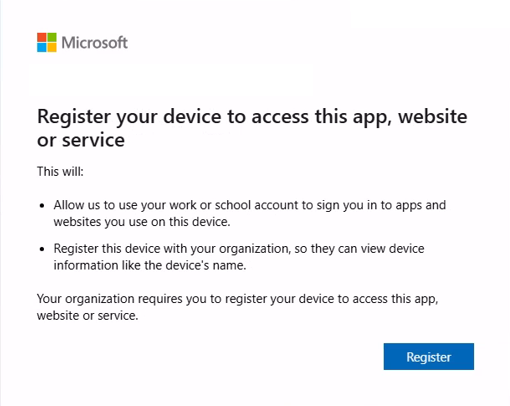
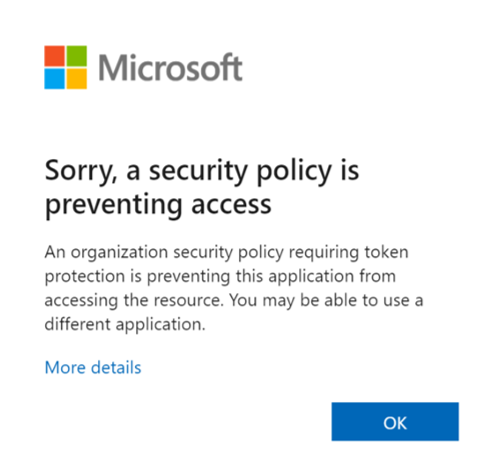
For a correctly registered device and a supported app, nothing changes for the person signing in — there's no extra prompt, no visible difference at all. That's the design goal: the protection happens entirely behind the scenes. The only time a user sees something different is when they're on the wrong side of a gap:
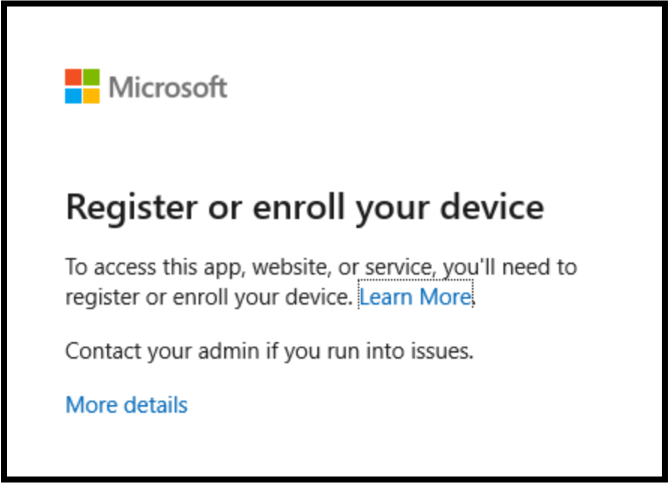
- A user on an unregistered device is prompted to register it — that's the correct, intended nudge, not an error.
- A user on an unsupported application, once the policy is enforced, sees a block screen explaining the app isn't compatible.
Here's what each of those actually looks like on screen, so you recognise them the first time they come up in a ticket:
Quick reference: apps, resources, and every status code
| Supported apps (native desktop only) | Notes |
|---|---|
| Outlook, Word, Excel, PowerPoint, OneNote | Full desktop apps, not the browser-based Office apps |
| Microsoft Teams | Desktop app |
| OneDrive, Microsoft Loop, Microsoft To Do | — |
| Microsoft Copilot | — |
| Windows App | Used for Azure Virtual Desktop and Windows 365 access |
| Microsoft Edge | Sign-in to the Edge profile only — not general web browsing |
| Exchange / Microsoft Graph PowerShell modules | Specific sign-in modes only; see References for exact requirements |
| Visual Studio, Visual Studio Code, Power BI Desktop, PowerQuery for Excel | Each has specific version or sign-in-mode requirements — see References |
| Protectable resources | Notes |
|---|---|
| Exchange Online | — |
| SharePoint Online | — |
| Microsoft Teams | — |
| Azure Virtual Desktop | Via the Windows App |
| Windows 365 | Via the Windows App |
| Status code | Meaning |
|---|---|
| 1002 | No Entra ID device registration at all |
| 1003 | Device is registered, but in an unsupported way (see unsupported device types above) |
| 1005 | Unbound for an unspecified reason |
| 1006 | Windows version too old |
| 1008 | App isn't using the Windows sign-in broker (WAM) |
| Requirement | Value |
|---|---|
| Licence | Microsoft Entra ID P1 or higher |
| Minimum Windows version | Windows 10 or later (devices); Windows Server 2019 or later, hybrid joined (servers) |
| Device registration types supported | Entra joined, Entra hybrid joined, Entra registered |
| Rollout order | Report-only → review sign-in logs & Policy impact → exclude unsupported device types → enforce on pilot → expand |
| Pair with | Block unknown platforms; require compliant/Entra-joined device for other platforms |
Glossary: the five terms this topic depends on
| Term | What it means here |
|---|---|
| Primary Refresh Token (PRT) | The main "you're signed in" pass Entra ID issues to a Windows device after a successful sign-in. Apps use it behind the scenes instead of asking for your password repeatedly — the festival wristband from earlier in this post. |
| Token theft | Stealing a copy of a valid sign-in token (rather than a password) and reusing it from a different device to impersonate the real user, bypassing both the password and MFA checks that already succeeded for the real user. |
| Binding | Cryptographically tying a token to the specific device it was issued to, using a private key that physically never leaves that device. A bound token is useless if copied anywhere else. |
| Report-only mode | A Conditional Access setting that logs what a policy would have done — allow or block — without actually enforcing it yet. The safe way to test any new policy before it can affect real users. |
| Conditional Access | Entra ID's rules engine for sign-ins: "if this user, on this device, doing this thing — then require this." Token Protection is one possible requirement you can attach to such a rule. |
Frequently asked questions
Does this stop phishing emails from reaching users?
No. Token Protection does nothing to prevent a phishing email arriving, or a user clicking it, or even a token being captured in the first place. What it stops is that captured token being used from a different device than the one it was issued to — which is the specific step an attacker needs to actually get into the account.
Does this replace MFA, or Conditional Access device compliance policies?
No — it sits alongside them. MFA proves who you are at the moment you sign in. Device compliance proves your device meets a security bar. Token Protection protects the pass you're given after both of those already succeeded, against being stolen and reused elsewhere. All three address different points in the chain.
Will this break anything for users on day one?
It shouldn't, if you follow the recommended rollout: report-only first, review the logs, exclude any unsupported device types, then enforce gradually. The risk scenario is enforcing immediately across the whole organisation without that review — that's when users on unsupported apps or device types get blocked with no warning.
What about browsers in general — is my web-based Outlook or SharePoint protected?
Not by this. On Windows, Token Protection currently covers native desktop applications only. Browser-based access is a separate, still-in-preview capability limited to specific web apps that access Azure Resource Manager — it is not general browser protection, and Microsoft Edge's support here is specifically for signing in to your Edge profile, not for browsing Outlook on the web or SharePoint in a browser tab.
Is there a Group Policy or registry equivalent for this?
No. Token Protection is configured entirely as a Conditional Access policy in the cloud — there's no on-premises Group Policy object, registry key, or Intune device configuration profile involved. The only place this is managed is the Entra admin center.
What if a user signs in from their personal, unregistered phone or PC?
If the device has never registered with Entra ID at all, the sign-in log shows status code 1002 and, once enforced, the user is prompted to register their device rather than being let straight through. This is working as intended — an unregistered device has no cryptographic key to bind a token to in the first place.
References
- Token Protection deployment guide — Windows — Microsoft Learn. The primary source for this post: the full policy walkthrough, the complete list of unsupported device types with exact device-filter syntax for excluding each one, and the Log Analytics queries for bulk reporting at scale.
- Token Protection in Microsoft Entra Conditional Access — Microsoft Learn. The concept overview: platform availability (Windows, iOS/iPadOS, macOS), and links to the deployment guides for Apple devices and browser-based apps if you need those too.
- What is a Primary Refresh Token? — Microsoft Learn. Background on the PRT itself, if you want the full mechanics behind the "wristband" analogy used in this post.
- Protecting tokens in Microsoft Entra — Microsoft Learn. The wider defence-in-depth picture Token Protection sits inside — what else to pair it with.
Related reading on EndpointWeekly
- The Primary Refresh Token, deep dive — for anyone who wants the full internals of the PRT itself, beyond what this post needs.
- dsregcmd /status, fully explained — the command-line tool for checking a device's own Entra ID registration state, useful background for understanding why some devices fail to register correctly in the first place.