Microsoft's new PRIVILEGED label (preview) finally flags every Entra role, permission, and assignment that can lead to elevation of privilege. Here's how to find them all with PowerShell and Graph, read the escalation chains, and cut your privileged assignments down to size.
Quick question: how many of your Entra role assignments can quietly turn into a Global Administrator? If you can't answer that in under a minute, you're not alone — and Microsoft has just shipped the tool that finally answers it. There's a new PRIVILEGED label (in preview) on Entra roles, permissions, and assignments, backed by a machine-readable isPrivileged property. This post explains exactly what it means, how to find every privileged object in your tenant with PowerShell and Graph, and how to bring the numbers back under control.
isPrivileged property are currently in preview. The property lives in the Microsoft Graph beta endpoint only — it is not in v1.0 yet. Behaviour and the exact set of flagged roles can change before general availability.The problem: privilege sprawl you can't measure
Let's start with what you're actually seeing. You open Roles and administrators in the Entra admin center and there are 100+ built-in roles. Some are obviously dangerous (Global Administrator). Some sound harmless (Helpdesk Administrator). Over the years, people were granted roles for a project, a migration, a "just make it work" moment — and those assignments never got cleaned up.
The hard part has never been listing roles. It's answering the security question underneath: which of these can be used to escalate privilege? A role that can reset another admin's password. A role that can add credentials to an application. A role that can rewrite Conditional Access policy. Those are the ones an attacker wants — and until now there was no authoritative flag that said "this one is dangerous."
That's the gap the PRIVILEGED label fills. Microsoft has gone through every built-in role and every permission and marked the ones that can lead to elevation of privilege. Your job is to find them, count them, and cut the list down.
What "privileged" actually means
Before you go hunting, you need to know precisely what you're hunting for. Microsoft defines a privileged permission as one that can do any of the following:
- Delegate management of directory resources to other users (hand out roles).
- Modify credentials — reset passwords, add application secrets or certificates, invalidate refresh tokens.
- Change authentication or authorization policy — Conditional Access, authentication methods, the authorization policy.
- Access restricted data — read protected properties that a normal user can't see.
Anything that can do one of those can be abused to gain more access than it was meant to. Here is the terminology Microsoft uses, because the rest of this post depends on it:
| Term | What it means |
|---|---|
| action | A single activity a security principal can perform on an object type (sometimes called an operation). |
| permission | A definition of the activity a principal can perform. One permission contains one or more actions. |
| privileged permission | A permission that can delegate management, modify credentials, change auth policy, or access restricted data. |
| privileged role | A built-in or custom role that contains one or more privileged permissions. |
| privileged role assignment | A role assignment that uses a privileged role. This is the object you actually audit. |
| elevation of privilege | When a principal gets more permissions than their role gave them — usually by acting on a higher-privileged principal. |
How to read a permission string
Every Entra permission follows a REST-like schema. Once you can read it, the whole model clicks into place:
The propertySet is where the privilege usually hides. Watch for these three keywords:
| Keyword | Meaning |
|---|---|
allProperties | Every property of the entity, including privileged ones. This is the one to be suspicious of. |
standard | Common properties for read, excluding privileged ones (e.g. read a user's public phone number but not their MFA secondary number). |
basic | Common properties for update, excluding privileged ones. Read and update sets differ, which is why there are two words. |
The special allTasks action keyword means create + read + update + delete, and allEntities means every entity in the namespace. So microsoft.directory/allEntities/allProperties/allTasks is, roughly, "do anything to anything" — that's the Global Administrator permission in a nutshell.
How to verify: find every privileged object in your tenant
There are three ways to surface privileged objects. Start with whichever fits your workflow — but the PowerShell and Graph methods are the ones you can automate and schedule.
Method 1 — the admin center (eyeball check)
Sign in to the Entra admin center as someone who holds a privileged role (a plain user can't see the labels), then follow this path:
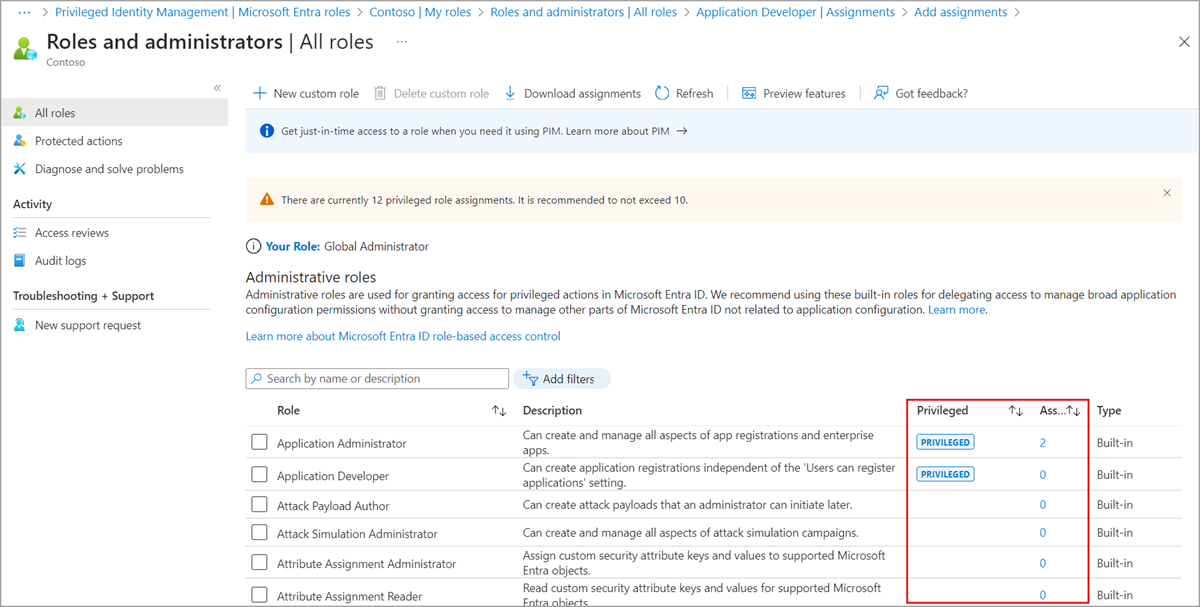
On the Roles and administrators page you'll see a Privileged column and an Assignments column. Filter on Privileged = Yes and sort by assignment count. Here is what that view looks like:
Click into any privileged role and you can see exactly which of its permissions carry the label — this is the same "Application Administrator" role referenced earlier in this post:
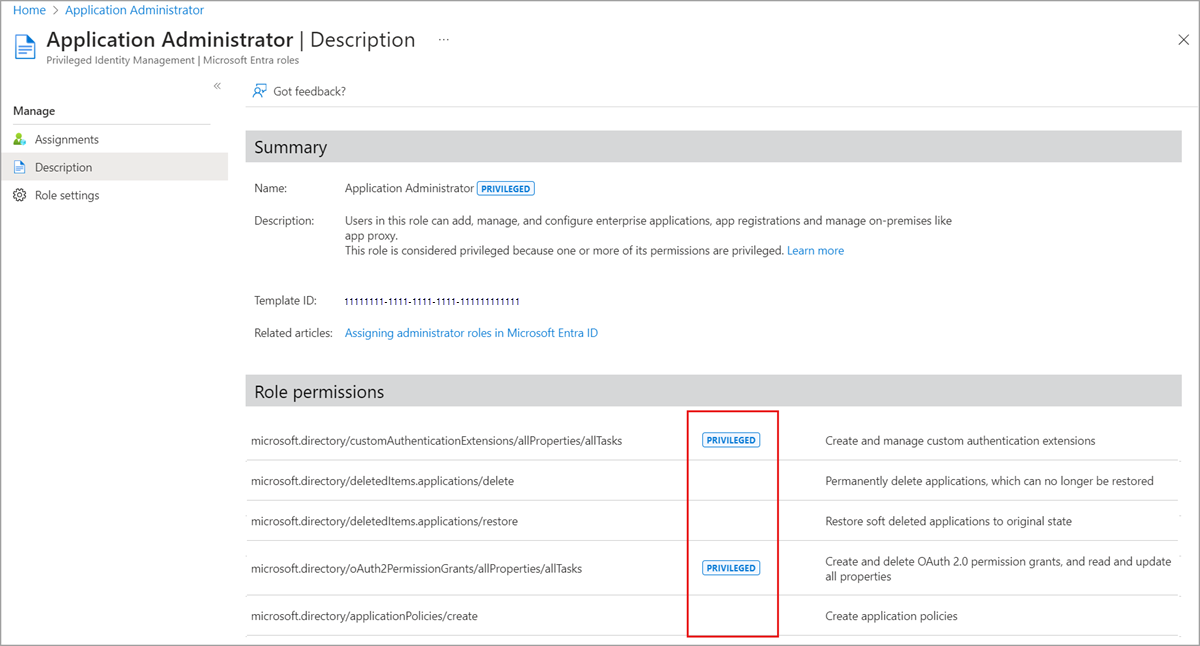
customAuthenticationExtensions/allProperties/allTasks and oAuth2PermissionGrants/allProperties/allTasks are flagged, while deleting/restoring applications is not. Source: Microsoft Learn.The same label appears when you build a custom role — useful for checking your own custom roles before you assign them:
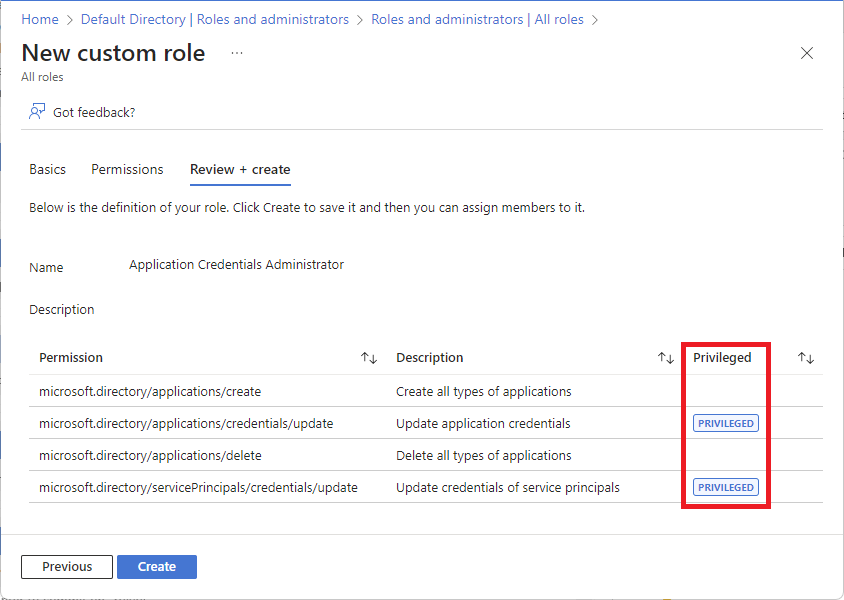
This is fine for a quick look, but you can't diff it week over week, and you can't feed it into a report. For that, drop to the command line.
Method 2 — Microsoft Graph PowerShell (the one you'll automate)
The isPrivileged property is exposed on three things: role definitions, resource actions (permissions), and (by expansion) role assignments. First, connect. Least privilege for this audit is RoleManagement.Read.Directory — you do not need Global Reader or Directory.Read.All just to run it:
Now list every privileged role. The filter does the work server-side — you only get roles where the flag is true:
Here's what good output looks like. Every row you get back is a role that can escalate privilege if misused:
Next, the privileged permissions in the microsoft.directory namespace. This tells you why a role is dangerous — the specific actions that carry the flag:
Finally — and this is the report that matters most — the privileged assignments. Who actually holds a privileged role right now? Note the -ExpandProperty; the filter reaches into the expanded role definition:
PrincipalId to a real user/group/service-principal name, and warns you if you exceed Microsoft's recommended limits. Run it read-only, export to CSV, and diff it week over week.Method 3 — Microsoft Graph API (raw)
If you're scripting outside PowerShell, hit the beta endpoint directly. Same filter, same result:
Why this matters: the elevation-of-privilege chains
Here's the part most admins miss. A role doesn't have to be Global Administrator to become one. The classic escalation path is password reset: if role A can reset the password of an account that holds role B, then role A effectively controls role B. Microsoft publishes exactly who can reset whom. This is the mechanism the PRIVILEGED label is warning you about.
Read this table as: the column role can reset the password of the row role. For example, a Helpdesk Administrator can reset a Directory Reader — but not another admin outside its allowed list.
| Password can be reset for → | Password Admin | Helpdesk Admin | Auth Admin | User Admin | Priv. Auth Admin | Global Admin |
|---|---|---|---|---|---|---|
| User (no admin role) | ✅ | ✅ | ✅ | ✅ | ✅ | ✅ |
| Helpdesk Admin | ✅ | ✅ | ✅ | ✅ | ||
| Auth Admin | ✅ | ✅ | ✅ | |||
| User Admin | ✅ | ✅ | ✅ | |||
| Global Admin | ✅ | ✅* | ||||
| All other built-in / custom roles | ✅ | ✅ |
Two things jump out. First, only Privileged Authentication Administrator and Global Administrator can reset any admin, including each other. Second, resetting a password is not the only sensitive action — the same roles can also disable/enable accounts, change the userPrincipalName, change the onPremisesImmutableId, and update the phone/email fields used for self-service password reset. Change someone's SSPR phone number and you can then reset their password. That's the chain.
The fix: bring the numbers down
Finding privileged objects is step one. Reducing them is the actual win. Work through these in order.
- Run the audit and export it. Use the script below with
-ExportCsv. You now have a dated baseline of every privileged role, permission, and assignment. - Apply least privilege. For each privileged assignment, ask "does this person still need this, at this scope?" Replace broad roles with narrower ones (e.g. a Helpdesk Administrator instead of a User Administrator where possible). Remove anything left over from a finished project.
- Move standing access to just-in-time. Convert permanent (active) privileged assignments to eligible assignments in Privileged Identity Management (PIM) so admins activate the role only when they need it, with approval and time limits.
- Require phishing-resistant MFA on every admin. A privileged role behind SMS is a privileged role behind a SIM swap. Enforce it with Conditional Access.
- Turn on recurring access reviews. Have role owners re-attest privileged assignments on a schedule so access decays instead of accumulating.
- Respect the limits. Microsoft recommends fewer than 5 Global Administrators and fewer than 10 privileged role assignments in total. The audit script flags you in red when you're over.
- Isolate control-plane intermediaries. Anything that can broker privileged access — PAM tools, jump hosts, automation runbooks, service principals holding privileged roles — is a Tier 0 control-plane asset. Administer it only from equally trusted systems, per the Enterprise access model. If a lower-tier box can manage a Tier 0 asset, that's your escalation path.
Proof it worked
After you've cut assignments and moved the rest into PIM, re-run the audit. Success looks like this — counts under the recommended limits and both checks green:
The number of privileged roles and permissions won't change much — those are defined by Microsoft. The number that must come down is assignments. If your "before" run showed 4 Global Admins and 23 privileged assignments, and your "after" run shows 3 and 8, that's the proof. Save both CSVs; the diff is your evidence for the next access review.
Privileged permission vs protected action — at a glance
| Capability | Privileged permission (the label) | Protected action |
|---|---|---|
| Identifies permissions that should be used carefully | ✅ | |
| Enforces extra security (e.g. MFA) when the action runs | ✅ | |
| Current status | Preview | Preview |
Official references
- Privileged roles and permissions in Microsoft Entra ID — Microsoft Learn
- Microsoft Entra built-in roles — the full role/permission reference
- Best practices for Microsoft Entra roles — Microsoft Learn
- What are protected actions in Microsoft Entra ID? — Microsoft Learn
- Privileged Identity Management (PIM) — Microsoft Learn
- Enterprise access model (Tier 0 / control plane) — Microsoft Learn
Read-only Graph scripts for this post are in Windows-Patching-Scripts.