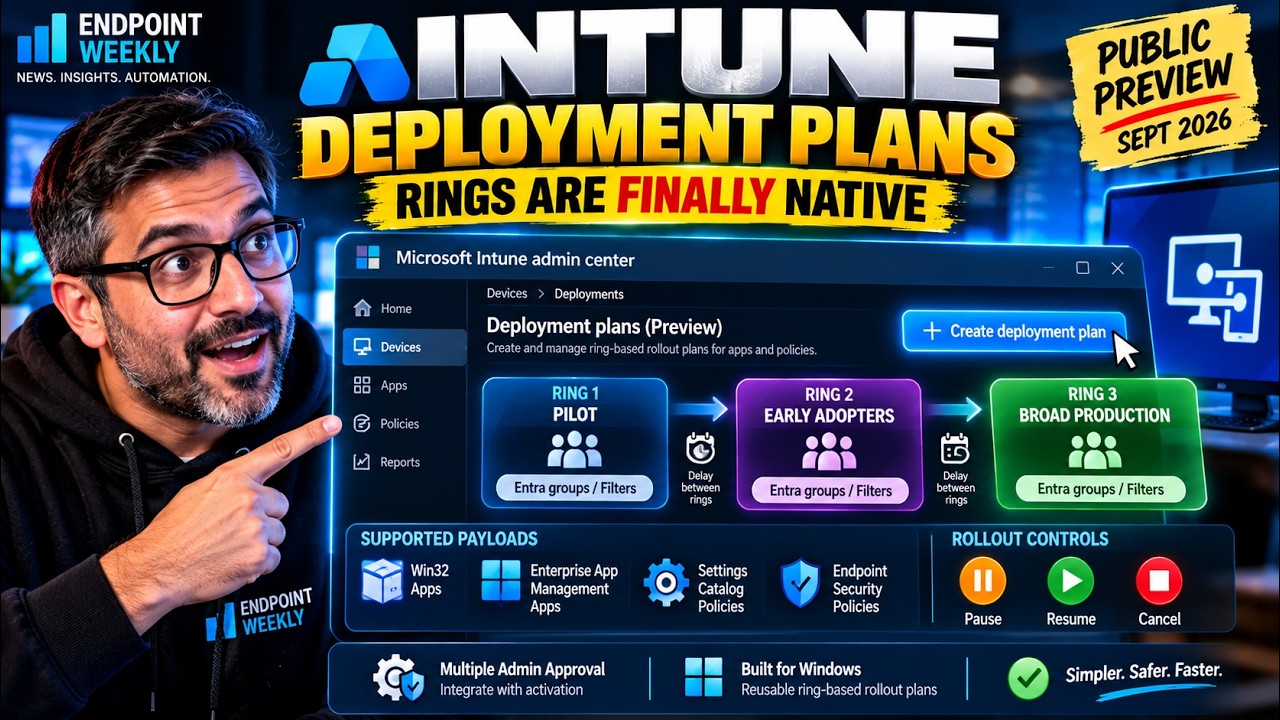
Intune now has native ring-based rollouts in public preview, at Devices › Manage devices › Deployments. There are two separate objects: a deployment plan is a reusable template of rings and wait times that contains no payload, and a deployment executes exactly one payload using a plan or a one-time ring config. Public preview covers Windows only, with Settings catalog and Endpoint security policies plus Win32 and Enterprise App Catalog apps at Required intent only. The two things that will actually bite you: assignments accumulate as rings activate, but an All users or All devices final ring replaces the payload's earlier Required assignments; and once a deployment is created you cannot change its payload, ring names, schedule, groups or scope tags — only its name and description.
The problem: rings simulated by hand
Almost every Intune tenant has deployment rings as a convention rather than a feature. IT pilots first, early adopters next, broad production last. Until now Intune had no native way to enforce that sequence for an app or a policy.
The standard workaround was to keep three or four Entra security groups and add them to a payload's assignments one at a time, manually, days apart, checking error counts in between. Some teams automated the group-add with Graph. Others borrowed Windows Autopatch rings and lived with the fact that Autopatch rings govern updates, not arbitrary payloads.
That approach has four specific failure modes:
- Nothing prevents an admin from adding the broad production group before the pilot has settled. The guard rail is discipline, not software.
- There is no enforced waiting period between stages. "Give it a week" is a calendar reminder at best.
- Pausing means removing an assignment, which is not a pause. For a Required app that triggers an uninstall; for a policy it triggers removal of the settings.
- There is no audit trail linking the pilot assignment to the broad assignment. They look like two unrelated changes in the audit log.
Why it happens: a flat assignment model, and the plan/deployment split
Intune's assignment model is deliberately flat. A policy or app targets one or more groups, and every member of every targeted group is in scope at the same time. There has never been a sequencing layer inside the assignment engine itself.
The new feature adds that layer as a separate control plane, and it introduces two distinct objects. Getting these two straight is most of the learning curve, because they have separate wizards, separate permissions, and different mutability rules.
| Object | What it is | Key rules |
|---|---|---|
| Deployment plan | A reusable template defining a rollout pattern: platform, rings, group assignments, assignment filters, wait time between rings, exclude groups, scope tags. It contains no payload and delivers nothing by itself. | Can be edited after creation. Edits do not affect deployments already created from it. Supports scope tags directly. |
| Deployment | The execution mechanism. Delivers exactly one payload, using either a saved plan or a one-time ring configuration. | Only name and description are editable after creation. Payload, ring names, schedule, groups and scope tags are fixed. Can be paused, resumed or cancelled. |
A useful way to hold it: the plan is the recipe, the deployment is the cook. You can write one recipe and cook it many times, and changing the recipe later does not change a meal already in the oven.
When a ring activates, the deployment writes Required include-group assignments onto the underlying payload on your behalf. The payload itself stays the source of truth — if you edit the payload's assignments directly, those direct changes take precedence over the deployment.
How to verify: the blade, and the exact RBAC you need
This is a public preview, so it arrives per-tenant rather than everywhere at once. Two things to confirm: that the blade is present, and that your role can actually use it.
Step 1 — Sign in to the Microsoft Intune admin center.
Step 2 — Select Devices in the left navigation, then under Manage devices select Deployments. Note that it sits under the Manage devices sub-heading, not at the top level of the Devices blade.
Step 3 — The blade has two lists: Deployments and Deployment plans. The plans list has a Create plan button; the deployments list has Create.
Step 4 — Confirm your permissions. Deployment plans have their own permission category; deployments do not, and instead inherit from the payload you are deploying.
| What you want to do | Required permission | Notes |
|---|---|---|
| Create / edit / delete a deployment plan | Create, Update or Delete on the Deployment plan category | Built-in roles with full CRUD: Application Manager, Endpoint Security Manager, Policy and Profile Manager, School Administrator |
| Read a deployment plan | Read on Deployment plan | Read Only Operator and Help Desk Operator have Read only |
| Create a deployment for a policy | Read and Assign on Device configurations | No dedicated deployment permission exists |
| Create a deployment for an app | Read and Assign on Mobile apps | Same — driven by payload category |
| View a deployment | Read on the payload's category | Device configurations for policy, Mobile apps for apps |
Scope tags behave asymmetrically and it is worth knowing why. You can assign scope tags directly to a deployment plan. You cannot assign a scope tag to a deployment — because apps and policies already support scope tags, the selected payload acts as the visibility control plane for its own deployment. In practice that means an admin only sees deployments whose payload falls inside their scope, and the payload picker only offers payloads inside their scope.
The fix: build a plan, run a deployment, handle what breaks
Two wizards, in order. Build the reusable plan first, then run a deployment from it.
Part 1 — Create the deployment plan
Prerequisite: Create permission on the Deployment plan category, and at least one Entra security group (or a supported virtual group) ready for each ring.
Step 1 — Go to Devices › Manage devices › Deployments, open the Deployment plans page, and select Create plan.
Step 2 — On the Basics page, enter a Name and Description, then select Next. Name it after the pattern, not the payload, since the whole point is reuse: Windows - Pilot-Early-Broad (7d/14d) reads better than BitLocker rollout.
Step 3 — On the Deployment schedule page, select a Platform. This choice determines which assignment filters are offered to you later. Choose All platforms if you want one generic plan reusable across platform and payload combinations, at the cost of configuring filters per deployment instead.
Step 4 — Select Add rings to open Manage rings. Enter a name for the first ring.
You will notice you cannot set Wait time to next ring on the first ring. That is by design: the first ring's start date and time are set later, at the moment you load the plan into an actual deployment. The plan stores relative timing only, which is what makes it reusable.
Step 5 — Select Add ring for each additional ring and set Wait time to next ring in days and hours. Minimum one hour. Then select Save.
Step 6 — Add groups to each ring. Every ring needs at least one group assignment. You can also apply supported assignment filters here, scoped by the platform you chose in Step 3.
Step 7 — Optionally add Exclude groups. These apply to every ring in the plan, not per-ring. This is the right place for a permanent carve-out such as kiosks, lab machines or executive devices.
Step 8 — Select Next, optionally add scope tags, select Next again, then on Review + create select Save.
Part 2 — Create the deployment
Prerequisites: Read and Assign on the payload's category, the payload already exists in Intune, and it is not already selected in another scheduled or active deployment.
Step 1 — On the Deployments page, select Create.
Step 2 — On Basics, enter a Name and Description, then Next.
Step 3 — On Payload selection, choose a Payload type — either Device configuration or App. Select Add payload, pick exactly one payload from the list, then select Select payload and Next.
Step 4 — On Deployment schedule, either reuse a plan or define rings once:
- To reuse a plan: select Load deployment plans. On Select deployment plan, set the first ring's Start date and Start time — this is where the plan's relative timing becomes absolute. Pick the plan and select Select. Once loaded you can optionally adjust its groups and assignment filters for this deployment only.
- To configure a one-time schedule: select Add rings, enter a name plus start date and start time for the first ring, then Add ring for each additional ring with its interval in days and hours. Select Save, add at least one group per ring, and optionally add exclude groups.
Step 5 — Select Next, then on Review + create select Create.
Multi Admin Approval
Deployments honour Multi Admin Approval. When an MAA access policy protects a policy type that deployments support, Intune enforces the approval flow — for example, creating a deployment for a Windows app while an access policy protects the App Windows platform requires a second approver.
Four deployment actions trigger an approval flow: Create, Resume, Cancel and Delete. Two operational consequences worth planning around:
- A deployment pending creation approval does not appear in the Deployments list until approval completes. It has not vanished.
- Because Resume is gated too, recovering from an error-state pause needs an approver available. Build that into your on-call expectations rather than discovering it during an incident.
- An MAA approver needs Read permission on the payload to open the deployment properties link in the approval request.
When a ring activation fails: assignment collisions
This is the failure you are most likely to hit, and it has a specific recovery path.
A collision means the same group appears both in the payload's own assignment properties and in a deployment ring. Intune checks for collisions twice: when you create the deployment, and again as each ring activates.
- Detected at creation time: remove the group from either the payload's assignments or the deployment configuration before selecting Create.
- Detected at ring activation: the deployment enters an error state and pauses itself. Remove the colliding group from the payload's assignments, return to the deployment, and select Resume.
When a group disappears: deleted-group handling
Rings target Entra groups, so a deleted group breaks a rollout. The behaviour differs by deletion type and it determines whether the deployment is recoverable at all.
| Group state | Effect on a deployment | Effect on a plan |
|---|---|---|
| Soft-deleted (within the 30-day window) | Activating ring puts the deployment in an error state; group status shows Soft-deleted. Restore the group and resume. Resume stays unavailable until every soft-deleted group is restored. | A banner appears and the Group status column shows Soft-deleted. Restore or remove the affected groups before saving. |
| Permanently deleted | Deployment enters an error state showing Group deleted from Microsoft Entra ID. Not recoverable — cancel or delete the deployment and create a new one. | Opening the plan shows a Group deleted from Microsoft Entra ID banner. Remove all deleted groups before creating a deployment from the plan or saving it. |
| Both soft- and permanently deleted present | Cancel or delete the deployment. There is no resume path. | Remove the deleted groups, and assign at least one group to any ring left empty. |
Pause, resume and cancel
All three live on the deployment itself at Devices › Manage devices › Deployments. Select the deployment, then the action.
- Pause stops ring progression. Assignments from rings that already activated stay on the payload. Nothing is uninstalled or reverted.
- Resume lets progression continue. If the deployment is in an error state, fix the cause first — Resume will not clear it.
- Cancel stops all future ring progression permanently. Assignments already added by completed rings remain on the payload. To remove them you must edit the payload's own properties.
device.extensionAttribute1 -eq "IntuneRing-Pilot" lets you move a device between rings by changing one attribute rather than editing group membership, and it keeps the plan reusable across rollouts. Layer an assignment filter on top when you need a hardware or OS dimension without creating yet another group — just remember the filters on offer are determined by the Platform you selected on the plan.Public preview scope and limits
| Area | Supported | Not supported |
|---|---|---|
| Platform | Windows 10 and later | macOS, iOS/iPadOS, Android, Linux |
| Policy payloads | Settings catalog; Endpoint security policies | Other device configuration profile types |
| App payloads | Windows app (Win32); Enterprise App Catalog app | Store apps, LOB apps, other platforms |
| App intent | Required only | Available and Uninstall |
| Enterprise App Catalog updates | Update with supersedence | Automatically update is incompatible with deployments |
| Payload reuse | One payload per deployment | A payload already in a scheduled or active deployment cannot be used in another |
| Ring timing | Minimum one hour between rings; no documented maximum | Sub-hour intervals |
| Scope tags | Assigned directly to deployment plans | Cannot be assigned to deployments — the payload governs visibility |
One capability that is worth naming explicitly because teams assume it exists: there is no health or success-rate gate. A deployment will not hold at ring 2 because ring 1 reported a 30% failure rate. The only documented conditions that auto-pause a deployment are an assignment collision and a deleted group in an activating ring. Ring progression is otherwise purely time-based, so monitoring the payload's own install or compliance reporting during each wait window remains your job.
Proof it worked: watching assignments accumulate
The deployment writes to the payload, so the payload is where you verify. Four checks, in order.
Check 1 — ring 1's assignment landed on the payload. Open the Settings catalog policy or app you deployed and go to its Assignments. Alongside any pre-existing assignment you should now see a Required include assignment for the ring 1 group, written there by the deployment.
Check 2 — only ring 1 devices are affected. On the policy, open Device and user check-in status and confirm devices from the ring 1 group are reporting, and that no ring 2 device has received it yet. This is the check that proves sequencing is actually working rather than everything landing at once.
Check 3 — assignments are cumulative after ring 2. Once the wait time elapses and ring 2 activates, the payload's Assignments should show the original assignment, the ring 1 group and the ring 2 group. Earlier rings are not removed. Confirming this is what tells you the rollout is expanding rather than migrating.
Check 4 — the final ring replaces, it does not add. If your last ring targets All devices, then after it activates the payload's Required include assignments should show All devices in place of the individual security groups — the pre-existing group, the pilot group and the broad groups are all replaced. Any exclude assignments survive untouched. Seeing that substitution is the expected outcome, not a bug.
References
- Deployment plans and deployments overview in Microsoft Intune — concepts, cumulative assignment behaviour, supported platforms and payloads
- Create and manage a deployment in Microsoft Intune — the deployment wizard, pause/resume/cancel, collision recovery, deleted-group behaviour
- Create a deployment plan in Microsoft Intune — the plan wizard, platform selection, wait time to next ring
- Permissions, scope tags, and approvals for deployments — RBAC categories, built-in role mapping, scope tag behaviour, Multi Admin Approval
- Public preview in Microsoft Intune — what preview status means for support and change
- Use Multi Admin Approval in Intune — configuring access policies
- Restore a deleted Microsoft 365 group or cloud security group — the 30-day soft-delete recovery window
Verified against Microsoft Learn documentation dated 21 September 2026. This feature is in public preview and its behaviour, UI labels and limits may change before general availability — re-check the linked articles before relying on any specific detail in production.