Every GPO-to-Intune migration starts the same way: someone exports the domain's Group Policy Objects and starts recreating them one by one in Intune. It feels productive. It is also, according to Microsoft's own guidance on the subject, the wrong first move.
Most Active Directory environments are carrying years of Group Policy that nobody fully understands anymore - settings that duplicate each other, settings nobody remembers the reason for, settings that only ever applied to Windows 7. Copy all of that into Intune and you have not modernised your policy management. You have just moved your technical debt to a more expensive apartment.
Watch on YouTube · Subscribe at @EndpointWeekly
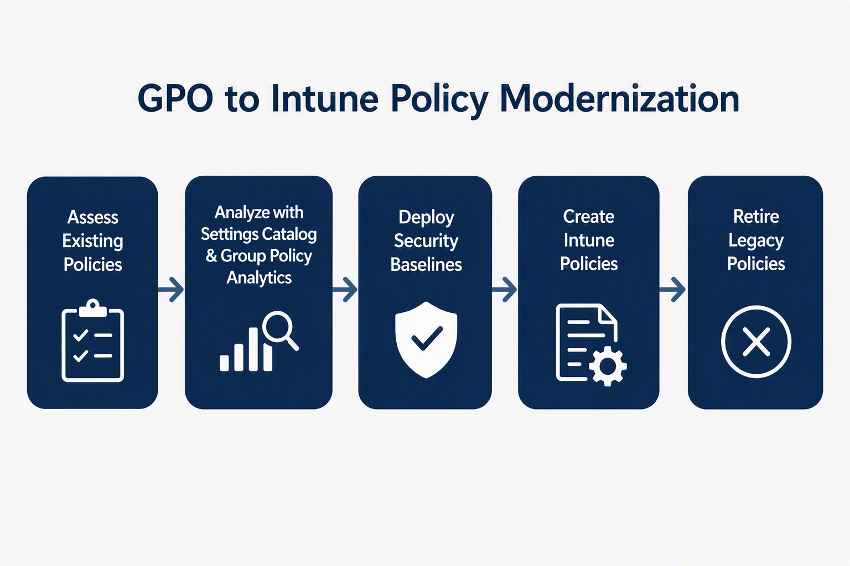
Microsoft Intune has a built-in tool called Group Policy Analytics that imports your real GPO exports and tells you, setting by setting, whether Intune has an equivalent, whether it's deprecated, or whether it simply cannot be replicated in the cloud. The right migration order is: assess first with this tool, decide what's actually worth keeping, and only then build the Intune policy - never copy a GPO across just because it exists.
The lift-and-shift trap
Group Policy has been around since Windows 2000. Most domains that have been running that long have Group Policy Objects nobody has touched in a decade - settings applied to the wrong organisational unit, duplicated across three different GPOs, or targeting an operating system version nobody in the building still runs.
Rebuilding every one of those in Intune, setting for setting, does not modernise anything. It just gives your technical debt a cloud subscription. Worse, some Group Policy settings genuinely cannot be replicated in a cloud-native world at all - they depend on on-premises infrastructure that a modern, internet-connected Windows device simply does not have.
The tool built for exactly this: Group Policy Analytics
Microsoft's own answer to this problem is a feature inside Intune called Group Policy Analytics. In plain terms, it reads your real, exported Group Policy Objects and tells you, setting by setting, one of three things: this has a direct equivalent in Intune and is ready to move, this setting is deprecated and doesn't matter anymore, or this setting has no cloud equivalent at all.
That third category is the important one. It's the difference between "I haven't found the Intune setting yet" and "this setting genuinely cannot exist outside on-premises Active Directory." Group Policy Analytics tells you which is which, for your actual GPOs, rather than making you guess from a generic list.
How to actually use it
The whole process runs in two places - your on-premises domain controller for the export, and the Intune admin center for everything after.
- Export each GPO as XML. On a machine with the Group Policy Management console, open GPMC.msc, expand your domain, expand Group Policy Objects, right-click the one you want to check, and choose Save report. Save it as an XML File, not HTML.
- Sign in to the Microsoft Intune admin center and go to Devices › Manage devices › Group Policy analytics.
- Select Import, choose your saved XML file (you can select several at once), and select Next.
- Choose a scope tag if you use them, or leave it as Default, then select Next › Create. Intune analyses the file automatically.
- The GPO now appears in the list with an MDM Support percentage - how much of that GPO's settings have a matching setting in Intune.
Reading the migration readiness report
Once you've imported a batch of GPOs, the real value is in Reports › Device management › Group policy analytics, specifically the Group policy migration readiness tab. Every setting you imported lands in one of three buckets.
| Status | What it means | What to do |
|---|---|---|
| Ready for migration | Intune has a matching setting - usually through the Settings Catalog | Candidate to actually move, if it's still needed |
| Not supported | No cloud MDM provider, including Intune, has an equivalent | Stays on-premises, or gets re-thought entirely - not a like-for-like move |
| Deprecated | Applied to old Windows/Edge versions or policies nobody uses anymore | Usually safe to drop rather than migrate |
Drilling into any one setting also shows you which underlying CSP handles it, and its OMA-URI mapping - useful if you ever need to build a custom profile rather than use the Settings Catalog directly.
What to actually do with the results
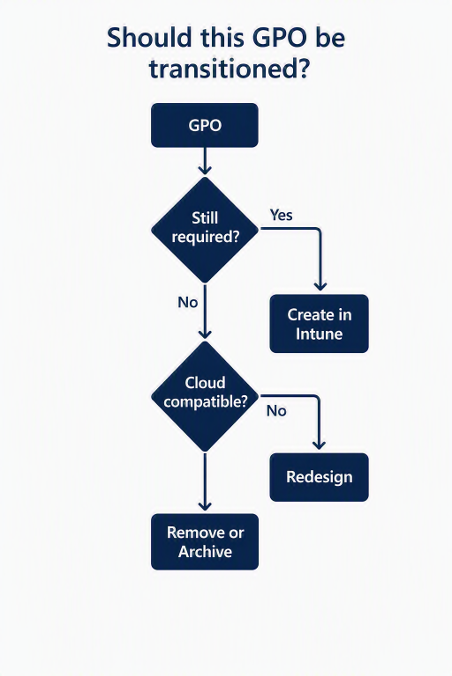
- Export everything, even GPOs you're fairly sure are obsolete. The whole point is to stop guessing.
- Treat "Ready for migration" as a shortlist, not a to-do list. For each one, ask whether it's still genuinely needed before rebuilding it in Intune.
- Don't fight "Not supported" settings. If Intune (or any MDM provider) has no equivalent, that's a sign the setting depends on something a cloud-native device doesn't have - not a gap to work around with a script.
- Drop "Deprecated" settings rather than migrating them. They're not doing anything useful in your current environment anyway.
- Migrate in waves, not all at once. Group Policy Analytics can turn the settings it finds directly into a Settings Catalog policy - do that for one rationalised, cleaned-up group of settings at a time, not your entire GPO estate in one pass.
References
- Use Microsoft Intune to import and analyze group policies - the full walkthrough of exporting, importing, and reading the analysis, including the exact 4 MB export limit and supported CSP list.
- From GPO to Microsoft Intune: A practical guide to cloud-first policy management - Microsoft's own framing of assessment-first migration, which this post is built around.
- Configuration service provider reference - the full list of CSPs, useful once you're looking at the specific CSP behind a "Ready for migration" setting.