In August 2026, Microsoft added unattended control to Remote Help on Windows. A helper can now sign in to a corporate device and fix it without the user present, awake, or even logged on. This guide covers licensing, prerequisites, and the exact setup steps — including the one built-in-role gap that stops most admins on their first try.
Watch on YouTube · Subscribe at @EndpointWeekly
A step-by-step setup guide for unattended Remote Help on Windows: licensing, prerequisites, RBAC permission, and the AVD-based deploy steps Microsoft's own docs split across five pages.
What unattended control actually covers
Attended Remote Help has always needed someone at the keyboard to accept the connection. Unattended control removes that requirement, but only under a specific set of conditions:
| Requirement | Detail |
|---|---|
| Platform | Windows only. Android has a separate unattended permission; this guide doesn't cover it. |
| Device type | Physical, corporate-owned Windows PCs. Windows 365 Cloud PCs and Azure Virtual Desktop VMs are not supported. |
| Ownership | Corporate only. Personal (BYOD) devices are blocked, even if otherwise eligible. |
| Join type | Microsoft Entra joined or Entra hybrid joined. |
| Conditional Access & chat | Neither applies to unattended sessions — both are attended-only features. |
Prerequisites
Before touching permissions, the target device needs four things in place. Skipping any one of them produces the same generic "you don't have permission" message when you try to start a session — so it's worth confirming all four up front rather than assuming the error means the role is wrong.
- Azure Virtual Desktop agent, then the AVD agent bootloader — installed in that order. Unattended sign-in reuses the same connection broker Azure Virtual Desktop uses to start sessions with nobody at the keyboard, which is why a physical PC that will never host a virtual desktop still needs these two components.
- Intune Management Extension — already present on most managed devices, but confirm it's installed and running. It's what orchestrates the unattended session request on the device side.
- Remote Desktop enabled on the target device.
- The device powered on and connected to the internet. A sleeping, hibernating, or shut-down device can't receive an unattended request, and there's no queued retry.
Set up the permission
This is the step that catches almost everyone. Remote Help uses its own permission model inside Intune RBAC, and the permission for unattended control on Windows is not included in any built-in role — not Help Desk Operator, not School Administrator. You have to create a custom role.
- In the Intune admin center, go to Tenant administration › Roles › All roles.
- Select Help Desk Operator › Duplicate. Give the copy a clear name, e.g. "Tier 3 – Unattended Windows Support."
- Under Permissions › Remote Help app, set Windows unattended control remote sign-in to Yes.
- Confirm Remote tasks › Offer remote assistance and Remote assistance connectors › Read are also enabled — both are required alongside the Remote Help permission itself.
- Save, then go to Assignments › Assign. Pick the admin group (your Tier-3 staff) and a device scope group — not All devices, since unattended control is a higher-risk capability worth scoping narrowly.
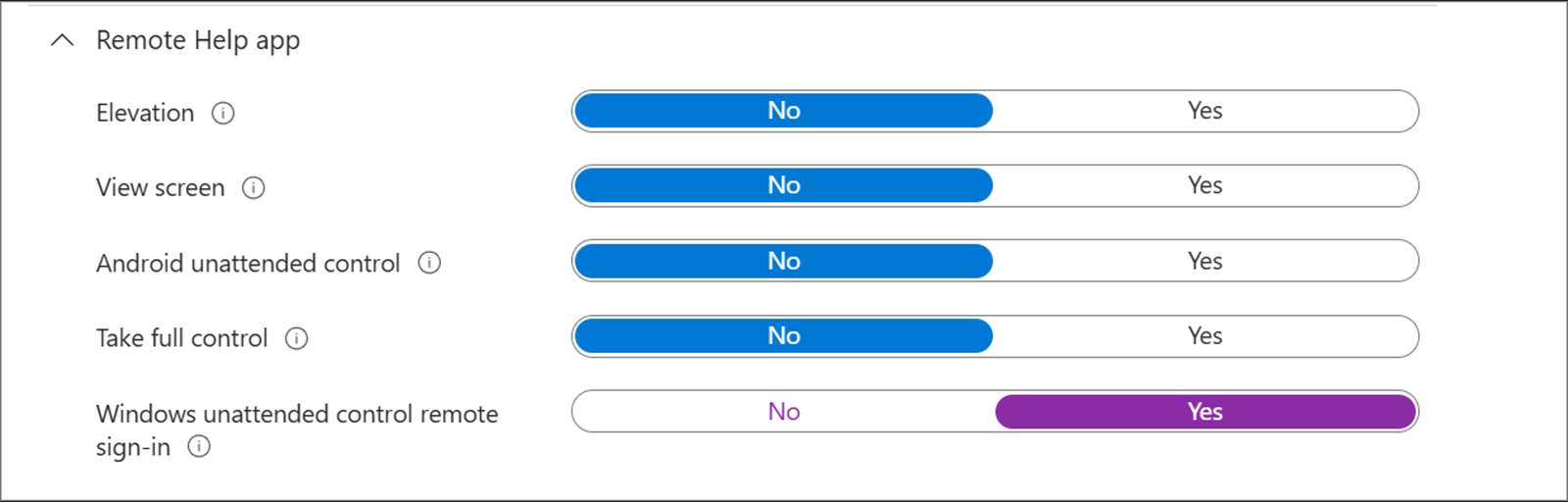
Windows unattended control remote sign-in, set on its own row — separate from the four ordinary Remote Help permissions above it.
Deploy the Azure Virtual Desktop components
- In the Intune admin center, go to Apps › Windows › Add, choose Win32 app, and upload the Azure Virtual Desktop agent installer.
- Repeat for the AVD agent bootloader installer. On its Dependencies page, add the agent package as a required dependency, so the bootloader can never install before the agent.
- Assign both to the device group you'll use for unattended support.
Enable Remote Desktop
- Go to Devices › Configuration › Create › New policy.
- Choose platform Windows 10 and later, profile type Settings catalog.
- Add the Allow Users To Connect Remotely setting under Remote Desktop Services, and set it to Enabled.
- Assign to the same device group.
Start an unattended session
- In the Intune admin center, open the target device and select Remote assistance › Remote Help.
- Choose Initiate unattended control as the session type.
- Select Select to start.
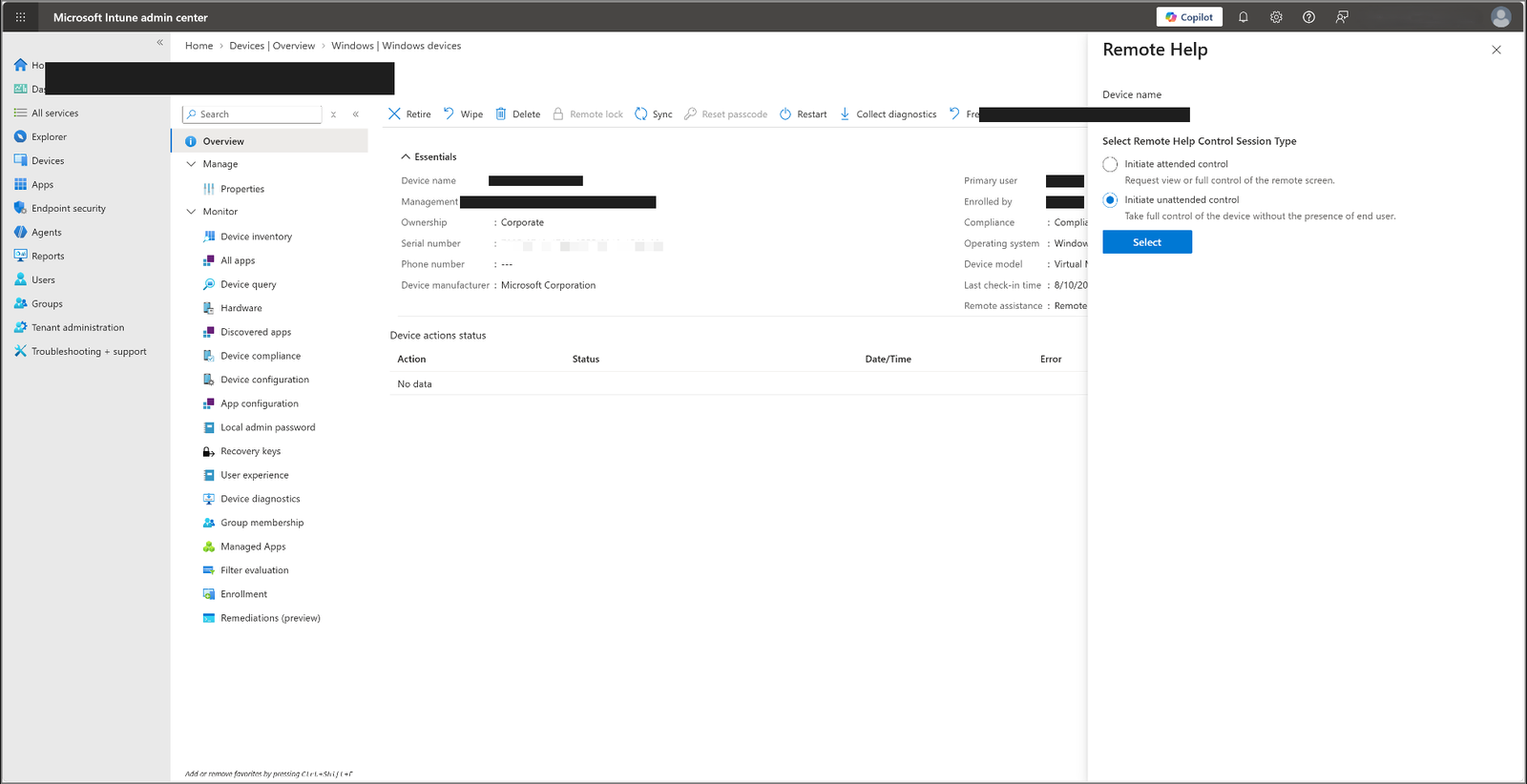
A Corporate-owned device with the permission and prerequisites in place: the option is selectable.
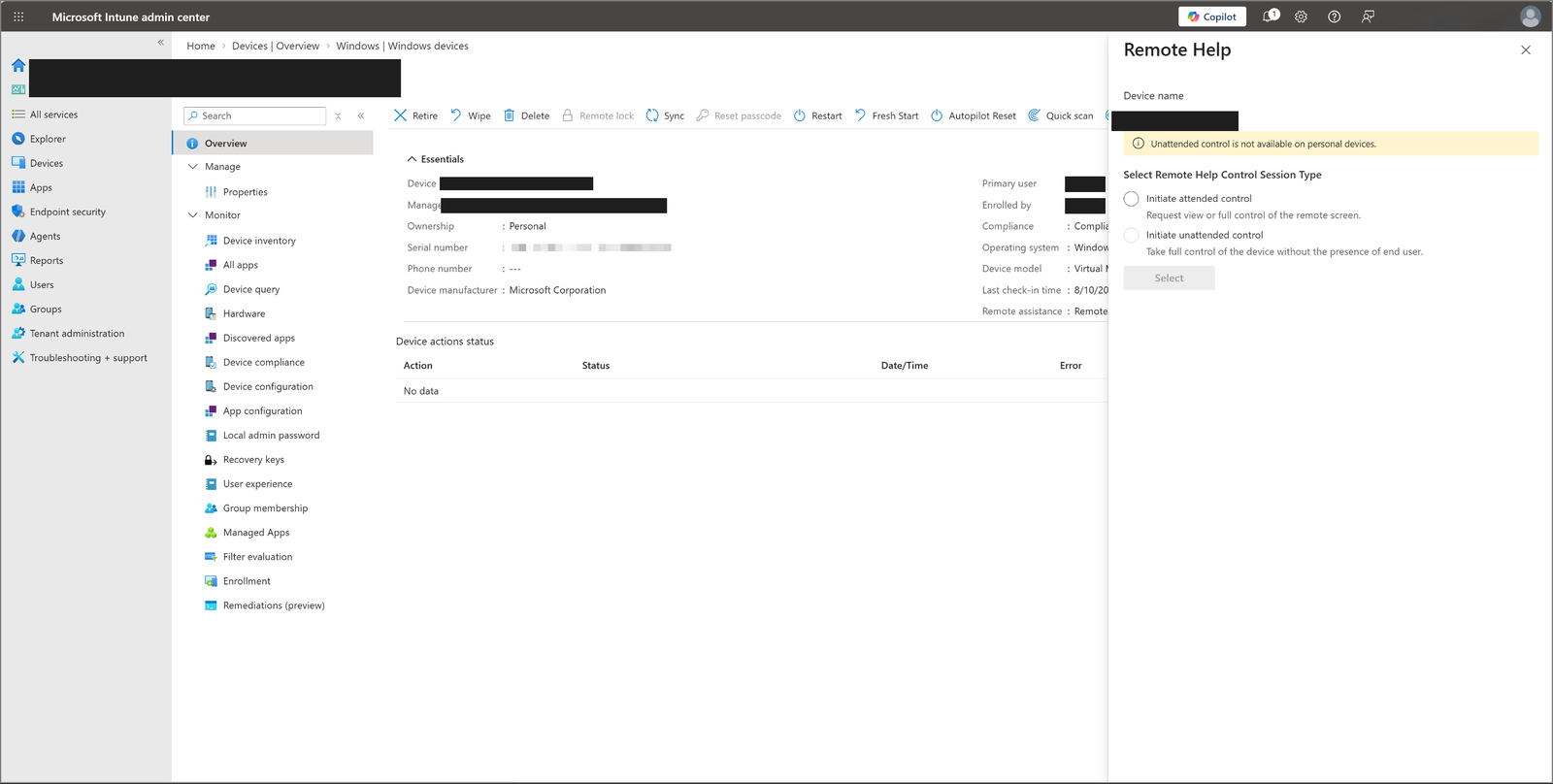
The same dialog on a Personal-owned device: the option is disabled outright, regardless of role or license.
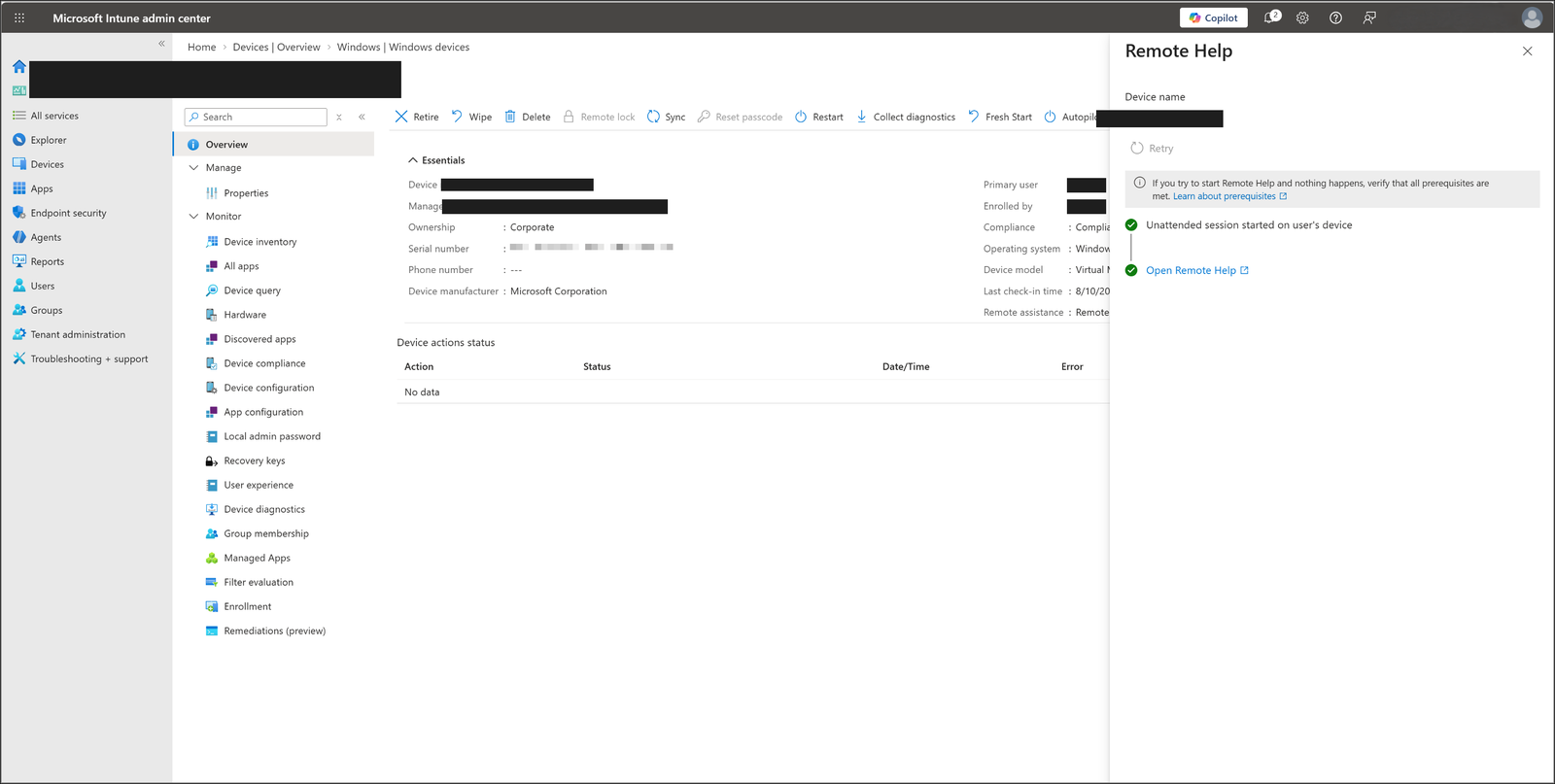
A successful start: “Unattended session started on user’s device,” with a live Open Remote Help link.
What the user sees
The sharer isn't asked to approve the connection, but they are told one is happening. If another account is already signed in on the device, Windows shows a standard sign-in conflict prompt naming the incoming account before switching sessions:
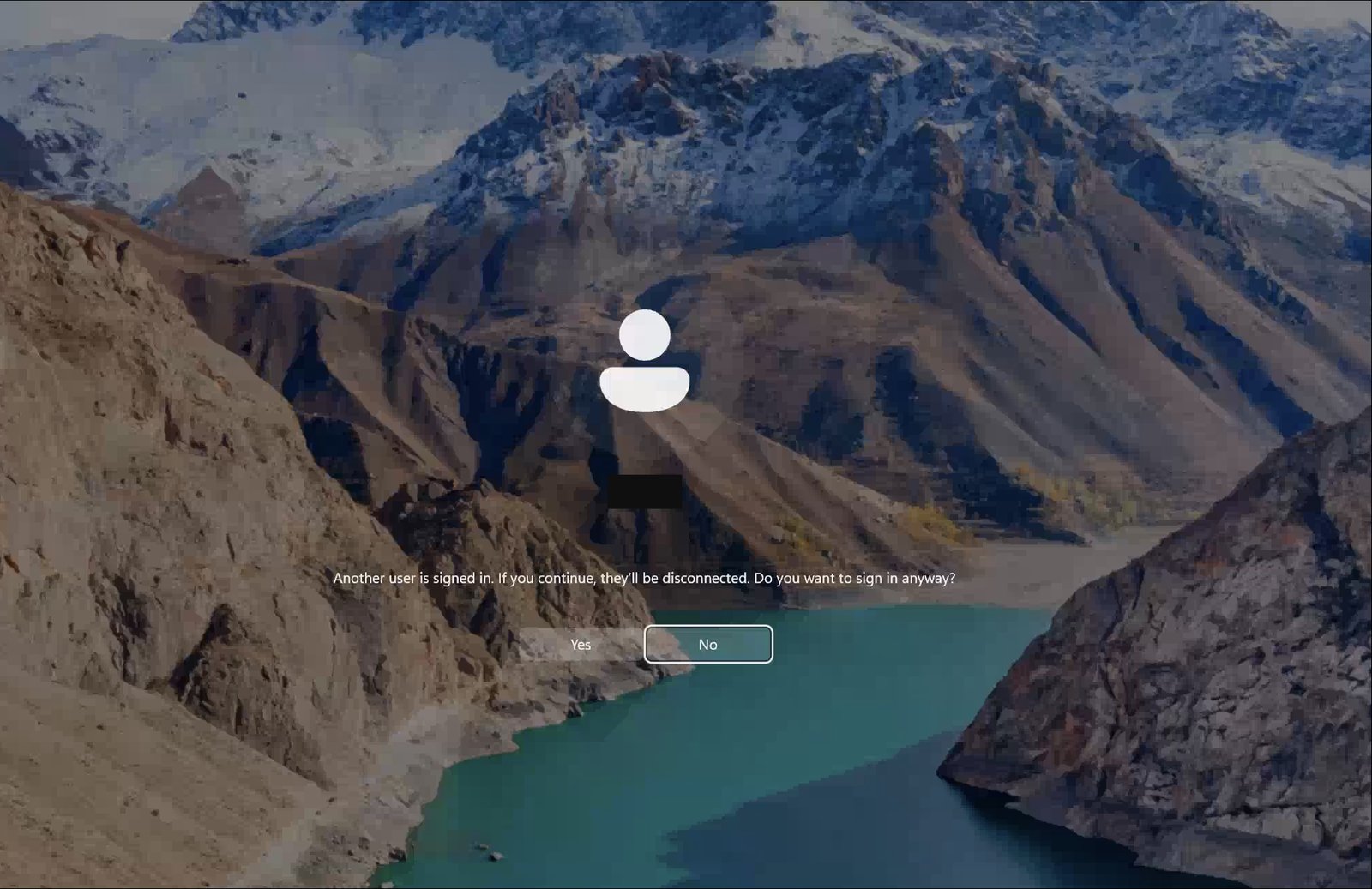
The sharer's device: a named sign-in prompt, not a silent takeover.
Under the hood, this is a real Windows sign-in over RDP — the same connection type Azure Virtual Desktop uses, just brokered to a physical device instead of a virtual one.
Confirm it worked
- Go to Tenant administration › Audit logs.
- Filter for activity type Remote Help.
- Confirm the session appears with the helper's identity, the target device, and start/end time.