The September 9, 2026 Patch Tuesday security update KB5124008 causes File History to stop creating backups on Windows 11 24H2 and 25H2 devices. Users see a false “Reconnect your drive” warning even when the backup drive is fully connected, and FileHistory.exe crashes silently in the background (faulting module: KERNELBASE.dll). Microsoft officially confirmed the issue on 19 September 2026. The September 14 out-of-band update KB5129195 does not fix it — that update addressed the RDS regression only. There is no production fix as of 20 September 2026. This post shows how to confirm whether your devices are affected, pinpoint the crash in Event Viewer, and identify every File History machine in your fleet before backup data goes stale.
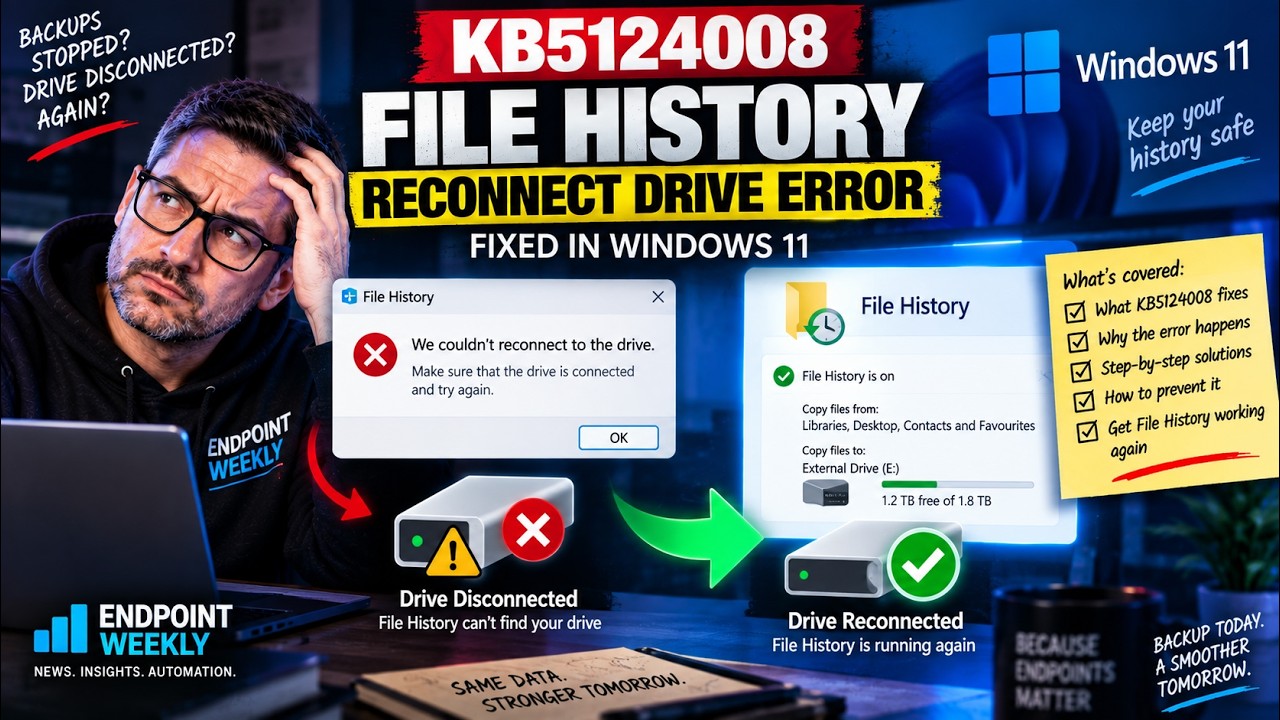
The problem: false “Reconnect your drive” and silent crash
Since the September 9, 2026 Patch Tuesday update, Windows 11 devices running build 26100.x (24H2) and 26200.x (25H2) are exhibiting a specific failure: File History silently stops creating backups and the user sees a “Reconnect your drive” warning in the File History control panel even when the backup drive is physically present and readable by every other application on the machine.
The visible symptoms are consistent across affected devices:
- “Reconnect your drive” shown in Control Panel › System and Security › File History, or Settings › System › Storage › Backup options, even when the backup drive is connected and accessible in File Explorer
- Last Backup timestamp is stale — frozen at the date of the last successful pre-patch backup, typically September 8 for most devices
- Previous Versions tab missing — right-clicking a file and choosing “Restore previous versions” returns no entries for any date after the patch
- FileHistory.exe crashes silently with an Application Error (Event ID 1000) in Windows Logs › Application, faulting module KERNELBASE.dll
- KB5129195 (the September 14 OOB update) does not resolve the issue — applying it leaves the File History crash unaffected
Microsoft added acknowledgement of this issue to the official KB5124008 support article on 19 September 2026. The regression itself has been present since September 9, with users reporting it on community forums since Patch Tuesday. Official confirmation appeared 10 days after the issue began, which is important context for any support tickets your users have already raised.
| Windows version | Build after KB5124008 | Affected? |
|---|---|---|
| Windows 11 24H2 | 26100.x (September 2026 CU) | Yes |
| Windows 11 25H2 | 26200.x (September 2026 CU) | Yes |
| Windows 11 23H2 and earlier | Not in scope for this KB | No |
| Windows 10 (all versions) | Different KB series | No (different KB) |
Why it happens: FileHistory.exe crashes in KERNELBASE.dll
File History runs as a Windows service called fhsvc (Windows File History Service). When a backup is due, fhsvc launches FileHistory.exe as the backup engine. FileHistory.exe handles all the actual work: scanning the protected libraries and folders, comparing changed files against the previous backup snapshot, and copying new or modified files to the backup drive.
After KB5124008, FileHistory.exe crashes during this startup phase before any backup work begins. The crash is not in FileHistory.exe’s own code — it occurs inside KERNELBASE.dll, which is the core Windows kernel API abstraction layer. KERNELBASE.dll provides fundamental process, thread, file, memory, and security APIs that almost every Windows application depends on. A crash at offset inside KERNELBASE.dll during FileHistory.exe’s startup means that KB5124008 changed the behaviour of a Windows API that FileHistory.exe calls early in its execution, and the new implementation is incompatible with FileHistory.exe’s existing calling pattern.
Because the crash happens before the backup engine can reach the drive, File History produces no backup content. The fhsvc service detects that FileHistory.exe terminated unexpectedly and surfaces the generic “Reconnect your drive” error in the Control Panel. That UI string is File History’s catch-all for any startup failure — it does not mean the drive is physically disconnected.
Notice the crash repeats at each scheduled backup interval. File History will keep trying — and keep crashing — on its configured schedule until a fix ships. Each attempt produces a new Event ID 1000 entry. A device with hourly backups running for 11 days since September 9 will show approximately 264 crash events by now.
The strongest evidence that Microsoft is actively working on a fix comes from the Windows Insider channel. On 18 September 2026 — one day before the official KB5124008 acknowledgement — Insider Beta and Experimental builds included a fix described as resolving a File History failure where “No usable drives found” was shown. That wording is the Insider-channel equivalent of the production “Reconnect your drive” error. Both are File History’s UI response to the same underlying condition: FileHistory.exe crashing at startup before it can reach the backup drive. A fix landing in Insider builds on September 18 means the code change exists, is being validated in testing, and will arrive in a production Cumulative Update — but has not yet shipped as of 20 September 2026.
filehistory.exe. It is separate from the Windows Backup app (introduced in Windows 11 22H2) which syncs Desktop, Documents, Pictures, Videos, Music, and Favourites to OneDrive. Windows Backup is not affected by this issue. If your users are backing up via OneDrive, they are unaffected. The regression only affects users who have configured File History with a drive target.How to verify: KB state, crash events, last backup timestamp
Before doing anything, confirm a device is actually affected by the regression rather than experiencing a genuine drive disconnection. There are four checks to run, in order: confirm the build and KB state, check the File History registry configuration, query the Application event log for crashes, and check the last backup timestamp.
Step 1 — Confirm Windows build and KB installation
Open PowerShell as administrator. The first command returns the build number and display version to confirm the device is on 24H2 or 25H2. The second confirms KB5124008 is installed. The third checks whether KB5129195 is also present, which you should note but not treat as a fix.
If Get-HotFix -Id KB5124008 returns nothing, the device has not yet received September Patch Tuesday and is not in scope for this issue. If it returns a result and the build is 26100.x or 26200.x, continue to the next check.
Step 2 — Check File History registry configuration
File History stores its enabled state and target drive path in the current user’s registry hive. Checking this tells you whether File History was actively configured on the device before the patch broke it. Run the following in PowerShell, or navigate to the key manually in Registry Editor (Win+R then regedit).
| Registry value | Expected (healthy) | What it tells you |
|---|---|---|
Enabled (REG_DWORD) | 0x1 | File History is turned on. If absent or 0, File History was never configured and this is not a KB5124008 issue. |
TargetUrl (REG_SZ) | Drive letter or UNC path | The configured backup destination. If this is empty, File History has no target drive set. |
DisabledByGroup (REG_DWORD) | 0x0 | Set to 1 if a Group Policy or Intune configuration has disabled File History. Check this before blaming KB5124008. |
Step 3 — Find the crash in the Application event log
The definitive confirmation is Event ID 1000 in Windows Logs › Application, with FileHistory.exe as the faulting application and KERNELBASE.dll as the faulting module. Run the following to query it from PowerShell without opening Event Viewer manually.
If the first command returns a count greater than zero with timestamps on or after September 9, 2026, the device is confirming the KB5124008 crash pattern. Each crash represents one failed backup attempt. File History keeps retrying at its configured interval and keeps failing — so the crash count accumulates quickly on devices with frequent backup schedules.
Step 4 — Event ID reference table
File History events appear in two locations. The primary location for this investigation is the standard Application log for the crash event. File History also writes to its own dedicated event channels, which are useful for confirming when the last successful backup actually completed.
Step 5 — Run the fleet detection script
The companion script Get-FileHistoryKB5124008Status.ps1 wraps all four checks into a single read-only run. It reports the KB state, File History configuration, last backup timestamp (from the File History XML config at %LOCALAPPDATA%\Microsoft\Windows\FileHistory\Configuration\Config), crash event count, and a plain-English verdict. Deploy it via Intune shell script or run it locally on a representative sample of devices before deploying the Proactive Remediation.
The fix: workarounds while awaiting Microsoft’s patch
There is no production fix as of 20 September 2026. The right approach is to put interim protections in place for users who depend on File History for their only backup, monitor Microsoft’s KB article for a fix update, and avoid the one tempting-but-wrong remediation: removing the security update.
Immediate actions
- Rule out a genuine drive disconnection first. Open File Explorer on the device and verify the backup drive’s letter or UNC path is accessible and files can be opened. If the drive genuinely is not connected, the “Reconnect your drive” message is correct and not the KB5124008 issue. Only after confirming the drive is reachable should you proceed.
-
Check whether DisabledByGroup is set. If the registry value
HKCU:\Software\Microsoft\Windows\CurrentVersion\FileHistory\DisabledByGroupequals 1, a Group Policy or Intune configuration has explicitly disabled File History on this device. That is not the KB5124008 crash — it is a policy-driven state. -
Attempt a service restart as a temporary measure. Restarting the
fhsvcservice occasionally allows one backup cycle to complete before the next crash. This is not a fix — the crash recurs at the next scheduled interval — but it creates a single checkpoint backup to reduce data loss exposure.If the last command returns no results, the service restart succeeded and a backup cycle ran. If Event ID 1000 appears within 3 minutes, the crash is persisting on this device.# Restart the File History service Restart-Service -Name fhsvc -Force Get-Service -Name fhsvc | Select-Object Name, Status # Trigger a manual backup attempt immediately Start-Process -FilePath 'C:\Windows\System32\FileHistory.exe' -ArgumentList '-backup' # Wait 90 seconds then check for new crash events Start-Sleep -Seconds 90 Get-WinEvent -LogName Application -ErrorAction SilentlyContinue | Where-Object { $_.Id -eq 1000 -and $_.Message -like '*FileHistory.exe*' -and $_.TimeCreated -gt (Get-Date).AddMinutes(-3) } | Select-Object TimeCreated, Id -
Direct users to Windows Backup as an interim alternative. If the user’s files are in the standard libraries (Desktop, Documents, Pictures, Videos, Music), Windows Backup syncs those folders to OneDrive and is not affected by this issue. It is a different mechanism from File History and cannot replace File History’s versioned restore capability, but it provides a current copy of all files.
Settings › Accounts › Windows Backup
- Monitor Microsoft’s KB article for the production fix. Microsoft will update the KB5124008 support article when the fix ships, either as a new entry in the Resolved issues section or as a link to the Cumulative Update that contains the fix. Monitor the KB5124008 support article and the Windows 11 release health dashboard daily until the fix is confirmed.
Deploy as an Intune Proactive Remediation
Use the companion Detect and Remediate scripts to surface affected devices in Intune before IT receives individual user tickets. The detection script exits 1 on devices where KB5124008 is installed, File History is enabled, and FileHistory.exe crash events are found in the last 7 days. The remediation script restarts fhsvc — a temporary measure only.
- In the Intune admin center, go to Devices › Scripts and remediations › Proactive remediations and select Create.
- Name the package KB5124008 — File History crash detection.
- On the Settings page, upload
Detect-FileHistoryKB5124008.ps1as the Detection script file. - Upload
Remediate-FileHistoryKB5124008.ps1as the Remediation script file. - Set Run script in 64-bit PowerShell to Yes and Run this script using the logged-on credentials to No (SYSTEM context).
- Assign to your target group. Set schedule to Daily until the production fix ships, then retire the package.
Proof it worked: what healthy File History looks like
Since the production fix has not yet shipped, this section documents what you should verify on a pilot device immediately after Microsoft releases the fix update. Run these checks before rolling the update fleet-wide.
Expected state once the fix is confirmed working on a pilot device:
- Zero Event ID 1000 entries for FileHistory.exe in the Application log after installing the fix
- Last Backup timestamp updating — visible in Control Panel › File History and in the registry
- “File History is on” shown with a green status indicator in the File History control panel
- Previous Versions available — right-clicking a recently modified file shows restore points dated after the fix
- FileHistory-Engine BackupEnd Event 200 appearing in the dedicated event channel, confirming a backup cycle completed successfully
Three scripts are included with this post. Download them from the GitHub link below and deploy as described in the verification and fix sections above. View on GitHub →
Repo: Imran76Awan/Windows-Patching-Scripts — folder: kb5124008-file-history-reconnect-drive-error-windows-11
References
- Microsoft KB5124008 — Windows 11 24H2/25H2 September 2026 Security Update (official acknowledgement of File History known issue)
- Windows 11 24H2 release health dashboard — known issues and fix status (Microsoft Learn)
- Back up and restore your files with File History — Microsoft Support
- Community thread: File History problems after KB5124008 — Microsoft Tech Community (Windows Insider Program)
Last updated: 20 September 2026. This post will be updated with the fix KB number and verified remediation steps as soon as Microsoft ships the production Cumulative Update. Monitor the Windows 11 release health dashboard for live status.