The September 2026 Patch Tuesday cumulative update introduced three regressions that affected production environments immediately: Remote Desktop Services became unstable and started dropping connections, WSL's Plan9/HCS folder sharing broke for Hyper-V-managed VMs, and USB Audio Class 1.0 devices lost multichannel output. Microsoft released KB5129195 on September 14, 2026 as an out-of-band emergency fix for all three, plus protection for CVE-2026-62721. This post covers what broke, what the update fixes, and - critically - how it moves through your Intune, WUfB, and Autopatch policies so you are not waiting for it when your RDS infrastructure is already down.
KB5129195 is an out-of-band emergency update for Windows 11 24H2 and 25H2, released September 14, 2026. It fixes RDS instability and RDP failures, WSL/HCS Plan9 folder sharing, and USB Audio multichannel failure - all regressions from the September 8 Patch Tuesday CU. It also patches CVE-2026-62721 (UMPS EoP). Target builds: 26100.9457 (24H2) and 26200.9457 (25H2). WUfB picks it up automatically as a Security Update. Autopatch quality-update policies may require manual approval for this OOB type - check your policy before assuming auto-deployment.
The problem: three regressions from September Patch Tuesday
The September 8, 2026 Patch Tuesday cumulative update introduced three distinct regressions. Each one is independent - the RDS issue does not require USB audio to be present, and the WSL issue only affects specific VM configurations. All three are fixed by KB5129195.
Regression 1 - Remote Desktop Services instability
After installing the September 2026 monthly security update (KB5124008 covers both 24H2 and 25H2, builds 26100.9445 and 26200.9445; KB5122880 is the Windows 11 22H2/23H2 update at build 22621.7582), Remote Desktop Services becomes unstable on affected servers. The failure mode varies by environment: some see RDP connection failures during session establishment, others see sign-in failures after authentication succeeds, and in the worst cases the entire RDS server becomes unresponsive under load. The underlying service - the Remote Desktop Session Host (RDSH) process - can stop accepting new connections while existing sessions remain live, making it appear healthy in monitoring until users report they cannot connect.
Regression 2 - HCS/Plan9 WSL folder sharing
Applications that use Host Compute Service (HCS)-managed virtual machines lose the ability to share host folders with Linux VMs when the Plan9 protocol is used. In practice this breaks WSL 2's default filesystem bridge: the /mnt/c and other drive mounts that WSL uses to access Windows files go through the Plan9 filesystem protocol via HCS. After the September CU, these mounts fail silently or return I/O errors. Developers and data engineers using WSL 2 on affected builds will see this as files appearing inaccessible or WSL itself failing to mount the Windows filesystem at startup.
Regression 3 - USB Audio Class 1.0 multichannel failure
USB Audio Class 1.0 devices work correctly in stereo (2-channel) mode but fail when multichannel features are used - specifically 8-channel and 3D audio modes. Device Manager shows these devices with a "This device cannot start (Code 10)" error when multichannel is enabled. Standard stereo audio output continues to work. The affected devices include professional audio interfaces, gaming headsets with 3D audio, and conference room hardware that uses USB Audio Class 1.0 with multichannel output.
Security fix - CVE-2026-62721
KB5129195 also adds protection for CVE-2026-62721, a Windows User-Mode Power Service (UMPS) Elevation of Privilege vulnerability. This is a local EoP: a low-privilege user who can run code on the device can escalate to elevated privileges via the power service. It is not remotely exploitable on its own, but it is exactly the kind of EoP that follows initial access in a multi-stage attack chain. CVSS score has not been published at time of writing - treat it as high priority given it is the only CVE in an emergency OOB release, which signals active exploitation concern or imminent disclosure.
Why it happens: OOB updates and how they differ from monthly CUs
Understanding how KB5129195 flows through your environment requires understanding what makes an OOB update different from the standard monthly cumulative update.
A standard monthly CU (like the September 8 Patch Tuesday update) follows a predictable schedule. Autopatch rings it out in waves. WUfB deferral policies stagger it across your fleet. WSUS downloads it automatically based on your configured Products and Classifications. Your entire deployment machinery is calibrated around the "second Tuesday of the month" cadence.
An OOB update lands without warning, outside that cadence. It is still classified as a Security Update in Windows Update terms, which means it does flow through the same WSUS sync and WUfB classification filter. But the key difference is how Windows Autopatch handles it.
Autopatch quality update policies and OOB updates
Windows Autopatch's newer quality update policy model (the model that replaced the older deployment rings approach) separates update types into distinct policy categories. For each policy, you configure not just deferral and deadline but also which update types are in scope.
The critical setting for KB5129195 is how your Autopatch quality update policy handles non-monthly update types. In the current Autopatch model:
- Monthly security updates (Patch Tuesday CUs) flow through Autopatch rings automatically according to your policy's deferral schedule.
- Out-of-band security updates (like KB5129195) are a separate update type. In newer Autopatch quality update policies, this type defaults to manual approval - meaning the update does NOT deploy to your devices automatically. An admin must go into the Autopatch portal and approve it for each ring.
This means that if you use Autopatch and have not explicitly approved KB5129195, your devices may receive it eventually (if your quality update policy is configured to include OOB updates automatically) or may never receive it (if manual approval is required). The only way to confirm is to check the Autopatch release management view.
Windows Update for Business (WUfB) behaviour
WUfB without Autopatch behaves differently. If your WUfB policy includes Classification: Security Updates, KB5129195 will be offered to devices automatically - it is classified as a security update in Windows Update's taxonomy. Your configured quality update deferral period applies: a 7-day deferral means devices receive it 7 days after September 14. A 0-day deferral means immediate offer after the next scheduled WU check-in.
If your WUfB policy uses a target version or update baseline rather than classification-based approvals, OOB updates behave the same as any other security update for the target version - they are offered automatically.
How to verify: confirm your environment is affected and check deployment status
Start by confirming whether your September Patch Tuesday CU landed correctly on affected devices. If a device is on build 26100.9445 (24H2 Patch Tuesday) or 26200.9445 (25H2 Patch Tuesday) and shows any of the three regression symptoms, it needs KB5129195.
# Check current OS build
$Build = Get-ItemProperty 'HKLM:\SOFTWARE\Microsoft\Windows NT\CurrentVersion'
"Current build: $($Build.CurrentBuildNumber).$($Build.UBR)"
# 26100.9445 = September PT, needs OOB fix (24H2)
# 26200.9445 = September PT, needs OOB fix (25H2)
# 26100.9457 = KB5129195 installed (24H2)
# 26200.9457 = KB5129195 installed (25H2)

# Check if KB5129195 is installed
Get-HotFix -Id KB5129195 -ErrorAction SilentlyContinue |
    Select-Object Description, HotFixId, InstalledOn

# Check Windows Update history for KB5129195
$Session  = New-Object -ComObject "Microsoft.Update.Session"
$Searcher = $Session.CreateUpdateSearcher()
$Count    = $Searcher.GetTotalHistoryCount()
$History  = $Searcher.QueryHistory(0, [Math]::Min($Count, 50))
$History | Where-Object { $_.Title -match 'KB5129195' } |
    Select-Object Date, Title, ResultCode
# ResultCode 2 = Succeeded
To check RDS health on an affected server after the September CU, look in the System event log for TermService failures:
For fleet-wide deployment status via Intune, check Windows Update compliance reports in the admin center:
Filter by Update type: Quality update and look for KB5129195. Devices that have not yet installed it will show "Not installed" status. Devices on an older build than 26100.9457 / 26200.9457 that show "Not applicable" may have a classification or deferral issue preventing the offer.
To check your Autopatch approval status:
If KB5129195 appears with a status of Awaiting approval or Paused, your Autopatch quality update policy requires manual approval for OOB update types. Approve it explicitly for each ring to begin deployment.
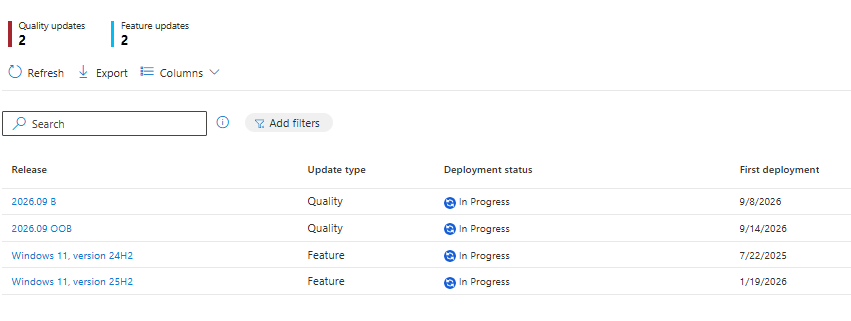
This is what the Release management view looks like when both the September monthly CU and the OOB are actively deploying — note 2026.09 B (Patch Tuesday, Sep 8) and 2026.09 OOB (KB5129195, Sep 14) listed separately, each with their own deployment status:
Windows Update for Business registry state reference
| Value (type) | Meaning | Check for KB5129195 |
|---|---|---|
| DeferQualityUpdatesPeriodInDays (REG_DWORD) | Quality update deferral in days | 0 = immediate; 7 = update offered after Sep 21 |
| PauseQualityUpdates (REG_DWORD) | Quality updates paused (1 = paused) | If 1, KB5129195 will NOT be offered until unpaused |
| QualityUpdatesPauseExpiryTime (REG_SZ) | ISO timestamp when quality update pause expires | If in the past, updates should resume automatically |
| UpdateServiceUrl (REG_SZ) | WSUS server URL, if applicable | Blank = WU/WUfB direct; set = routes through WSUS |
| ExcludeWUDriversInQualityUpdate (REG_DWORD) | Excludes driver updates from quality policy | Does not affect KB5129195 (not a driver update) |
Windows Update event IDs for tracking KB5129195 installation
| Event ID | Level | Meaning for KB5129195 |
|---|---|---|
| 44 | Information | Update download started - KB5129195 MSU download began |
| 17 | Information | Update downloaded successfully - ready to install |
| 43 | Information | Installation started - KB5129195 is being applied |
| 19 | Information | Installation successful - build is now 26100.9457 or 26200.9457 |
| 20 | Error | Installation failure - check the ResultCode in the event detail |
| 26 | Information | Reboot required - KB5129195 installed, restart pending |
| 41 | Error | Update not applicable - device does not need this update (already on higher build or different Windows version) |
The fix: deploy KB5129195 via WUfB, Autopatch, WSUS, and Catalog
The right deployment method depends on how your organisation manages Windows updates. Here is exactly what to do for each channel.
Windows Update for Business (WUfB) - no action required if configured correctly
If your WUfB policy includes Classification: Security Updates and your quality update deferral has elapsed (or is 0 days), KB5129195 will be offered automatically. To confirm:
- Check the device's WUfB policy in Intune: Devices › Windows › Update rings for Windows 10 and later. Confirm Quality update deferral period and Pause quality updates settings.
- If deferral is 0 and updates are not paused, the device will receive KB5129195 on its next Windows Update check-in (typically within 22 hours or on the next forced scan).
- To force an immediate scan without waiting for the scheduled check-in, use the Intune Sync device action on affected devices: Devices › [Device] › Sync.
# Force an immediate Windows Update scan (run as SYSTEM or admin)
# This triggers the WU client to contact Windows Update now rather than wait
# for the next scheduled 22-hour check-in cycle

# Method 1: UsoClient (Windows Update Scan Orchestrator)
& "$env:SystemRoot\System32\UsoClient.exe" StartScan
Write-Host "WU scan triggered via UsoClient."

# Method 2: Windows Update Agent COM object (more reliable for immediate offers)
$Session  = New-Object -ComObject "Microsoft.Update.Session"
$Searcher = $Session.CreateUpdateSearcher()
$Results  = $Searcher.Search("IsInstalled=0 and Type='Software' and IsHidden=0")
Write-Host "Updates available: $($Results.Updates.Count)"
$Results.Updates | ForEach-Object { Write-Host "  - $($_.Title)" }
Windows Autopatch - check OOB approval before assuming deployment
If your organisation uses Windows Autopatch with the newer quality update policy model, KB5129195 may be sitting in an "Awaiting approval" state rather than actively deploying. To approve it:
- Sign in to the Intune admin center.
- Navigate to Windows Autopatch › Release management › Quality updates.
- Look for KB5129195 in the update list. If its status shows Awaiting approval or Not approved, select it.
- Select Approve for each Autopatch ring you want to receive the update (Test, First, Fast, Broad in sequence - or approve all rings simultaneously for an emergency regression fix of this severity).
- Check Release notes and Deployment progress in the same view to monitor ring completion.
WSUS - sync and approve Security Updates classification
For WSUS-managed environments:
- In WSUS console, go to Synchronizations › Synchronize Now to trigger an immediate sync. KB5129195 should appear once sync completes.
- Verify your WSUS is configured to sync Products: Windows 11 and Classifications: Security Updates. KB5129195 will not appear in WSUS if Security Updates is not in scope.
- Approve KB5129195 for your target computer groups. For RDS servers experiencing the regression, prioritise the server group immediately.
- Separate MSU packages are available for x64 and Arm64 architectures - ensure both are approved if your fleet includes Surface Pro / Arm64 devices.
Microsoft Update Catalog - manual deployment for unmanaged devices
For devices not in WUfB or WSUS, download the standalone MSU from the Microsoft Update Catalog by searching for KB5129195. Two packages are available: one for x64 and one for Arm64. To determine the correct architecture:
# Check architecture before choosing the MSU package
[System.Environment]::GetEnvironmentVariable("PROCESSOR_ARCHITECTURE")
# AMD64 = use x64 MSU package
# ARM64 = use Arm64 MSU package

# Install the MSU package (run as admin)
# Replace with the actual downloaded filename
$MsuPath = "C:\Downloads\windows11.0-kb5129195-x64.msu"
Start-Process -FilePath "wusa.exe" -ArgumentList "`"$MsuPath`" /quiet /norestart" -Wait
Write-Host "Exit code: $LASTEXITCODE"
# 0 = success, 3010 = success, reboot required, 2359302 = already installedScript is in Imran76Awan/Windows-Patching-Scripts. Requires DeviceManagementManagedDevices.Read.All Graph permission. Supports app-only cert auth and device code flow.
Proof it worked: confirm build 26100.9457 / 26200.9457
After installation, the device should report the correct build. A reboot is required before the build number updates. Run the following to confirm:
$Build = Get-ItemProperty 'HKLM:\SOFTWARE\Microsoft\Windows NT\CurrentVersion'
$UBR   = $Build.UBR
$Base  = $Build.CurrentBuildNumber  # 26100 or 26200
"Build: $Base.$UBR"

# Expected:
#   Windows 11 24H2: 26100.9457
#   Windows 11 25H2: 26200.9457

if ($UBR -ge 9457) {
    Write-Host "KB5129195 confirmed installed. Build: $Base.$UBR" -ForegroundColor Green
} else {
    Write-Host "KB5129195 NOT installed. Current: $Base.$UBR, required UBR: 9457" -ForegroundColor Red
}

# Verify via Windows Update history (shows install date)
Get-HotFix -Id KB5129195 -ErrorAction SilentlyContinue |
    Select-Object HotFixId, InstalledOn, Description

# Verify RDS service state on a session host (post-fix)
Get-Service -Name TermService | Select-Object Status, StartType
# Expected: Status=Running, StartType=AutomaticFor WSL Plan9 folder sharing, test by opening a WSL terminal and confirming /mnt/c is accessible:
# Confirm Windows filesystem is accessible after KB5129195 install + reboot
ls /mnt/c/
# Should show Windows C: drive contents
# Before the fix: I/O error or empty listing

# If still failing after KB5129195, restart the WSL service
# (Run in PowerShell as admin, not in WSL)
wsl --shutdown
# Then reopen WSL - the HCS VM restarts cleanly
References
- KB5129195 - Windows 11 24H2/25H2 Security Update (Sept 14, 2026) - Microsoft Support
- Deploy Windows updates using WSUS - Microsoft Learn
- Configure Windows Update for Business - Microsoft Learn
- Manage quality updates in Windows Autopatch - Microsoft Learn
- Windows Update compliance reporting - Microsoft Learn
- CVE-2026-62721 - Windows UMPS Elevation of Privilege - Microsoft Security Response Center
Microsoft MVP community deep-dives
| Author | Post | What it adds |
|---|---|---|
| Prajwal Desai (MVP) | Windows Autopatch Quality Update Policies | In-depth walkthrough of Autopatch quality update policy configuration, OOB approval workflows, and ring management |