26H2 shipped. This guide was first published on 24 August 2026, when version 26H2 was Insider-only. Microsoft released it as the Windows 11 2026 Update on 29 September 2026, OS build 26300. Everything below about the enablement package, the shared servicing branch, the 26H1 exclusion and the Intune, Autopatch and WSUS walkthroughs still holds — the mechanism did not change when it shipped. What is new is covered in what general availability changed: the delivery channels, the controlled feature rollout, and the safeguard holds that will keep some of your devices off 26H2 on purpose.
Every year, Windows 11 gets one new "feature update" - a version bump like 24H2 or 25H2 that bundles up a year of new capabilities. The 2026 one is version 26H2, and it shipped on 29 September 2026 as OS build 26300. This post is both a readiness guide and a deployment guide, because for most of your fleet 26H2 is not a reimage project at all - eligible 24H2 and 25H2 devices take it as a small enablement package through the tools you already run. Here is the mechanism, the full Intune, Autopatch and WSUS walkthroughs, why some devices will be held back on purpose, and why one very common device - Windows 11 version 26H1 - is not going where most admins assume it is.
Watch on YouTube · Subscribe at @EndpointWeekly
Windows 11, version 26H2 — the Windows 11 2026 Update — reached general availability on 29 September 2026 as OS build 26300. Devices already on version 24H2 or 25H2 get it as a small enablement package, not a full reimage. Devices on version 26H1 are excluded - Microsoft says 26H1 runs on a different Windows core, so those devices get a separate future upgrade path instead of 26H2. The three tools Microsoft names for getting ready are Windows Autopatch, Microsoft Intune, and WSUS - all three already support this exact rollout pattern today, so there is no new tooling project here, only rings to plan and validation to run now.
The problem: three questions every fleet admin has about 26H2
Microsoft announced Windows 11, version 26H2 in a Windows IT Pro Blog post in June 2026, and updated that same post again in August 2026. Once an announcement like that lands, three questions show up in every admin channel and Teams chat within a day, and most of the confusion is avoidable.
Question 1: "Do I need to plan a full reimage project for 26H2?" No. Feature updates in the current Windows 11 servicing model ship as small enablement packages to devices that are already close to the target version. This is the same mechanism Microsoft used to move devices from 22H2 to 23H2, and from 23H2 onward. Nothing about 26H2 changes that.
Question 2: "My fleet is mostly on 26H1 now - are those devices on the path to 26H2?" No, and this is the single most consequential thing in this entire post. Microsoft has stated plainly that devices running Windows 11, version 26H1 cannot update to version 26H2 at all. 26H1 is not a stepping stone toward 26H2 - it is a separate, parallel track built for new hardware, and those devices will get a different future release instead.
Question 3: "Does my current deployment tooling already support this?" Yes. Microsoft names exactly three tools for getting ready: Windows Autopatch, Microsoft Intune, and WSUS. If any of those three already manage your Windows updates, you do not need to stand up anything new - you need to plan rings and validate, which the rest of this post walks through in full.
Why it happens: the shared servicing branch, in plain English
To understand why 26H2 arrives as a small update instead of a big one, it helps to know how Microsoft actually builds Windows 11 releases today. Since Windows 10's 2004-to-20H2 era, Microsoft has used what it calls a shared servicing branch: several version numbers are built from the same underlying source code, receive the same monthly security and quality updates, and go through the same compatibility testing. The version number you see - 24H2, 25H2, 26H2 - mostly describes which features are switched on, not a different codebase underneath.
Here is the mechanism, step by step:
- Microsoft ships new features to devices continuously, inside the ordinary monthly cumulative update. Most of the time you would never notice, because many of these features arrive turned off by default.
- Microsoft's own documentation for the Update Policy CSP confirms this directly: features that are turned off by default from monthly servicing "will be enabled in the next annual feature update." The KB article for that month's cumulative update lists which features are currently sitting dormant.
- When the annual feature update ships, it does not need to install a new operating system. It only needs to flip a switch that turns those already-installed, already-tested features on. That switch-flip is the enablement package - small, quick to install, and far less disruptive than the historic model of a full in-place upgrade.
- Because the underlying code, security updates, and compatibility validation are already shared across 24H2, 25H2, and the coming 26H2, an eligible device moving between these versions is, in Microsoft's own words, "similar to a regular monthly update" in most environments.
Microsoft used exactly this mechanism to move Windows 11 22H2 devices to 23H2 - its release-health page links directly to that enablement package. 26H2 is the same pattern applied one cycle later.
One more detail worth knowing before you plan anything: support lifecycles reset with every feature update, including 26H2. Microsoft has confirmed 24 months of support for Home, Pro, Pro Education, and Pro for Workstations editions, and 36 months for Enterprise, Education, IoT Enterprise, and Enterprise Multi-session editions.
Microsoft's own numbers: 174 KB versus 6.5 GB
Microsoft's June 2026 whitepaper on the shared servicing model puts a real figure on the difference an enablement package makes. For a full feature update from a device that is not on the shared branch - moving from Windows 11, version 23H2, for example - the components involved are:
| Component | Description | Size |
|---|---|---|
| Base 24H2 image | Base image of Windows 11, version 24H2 | 5.3 GB |
| Final pre-25H2 LCU | Contains the complete payload for additions for 25H2 | 887 MB |
That full path is close to 6.5 GB. A device already up to date on version 24H2 or 25H2, by contrast, only ever downloads the enablement package itself:
The reason it can be that small is the same reason 26H2 doesn't need a fresh compatibility pass: every monthly cumulative update already carries the next version's features, sitting disabled on the device. Here's what that looks like across the branch:
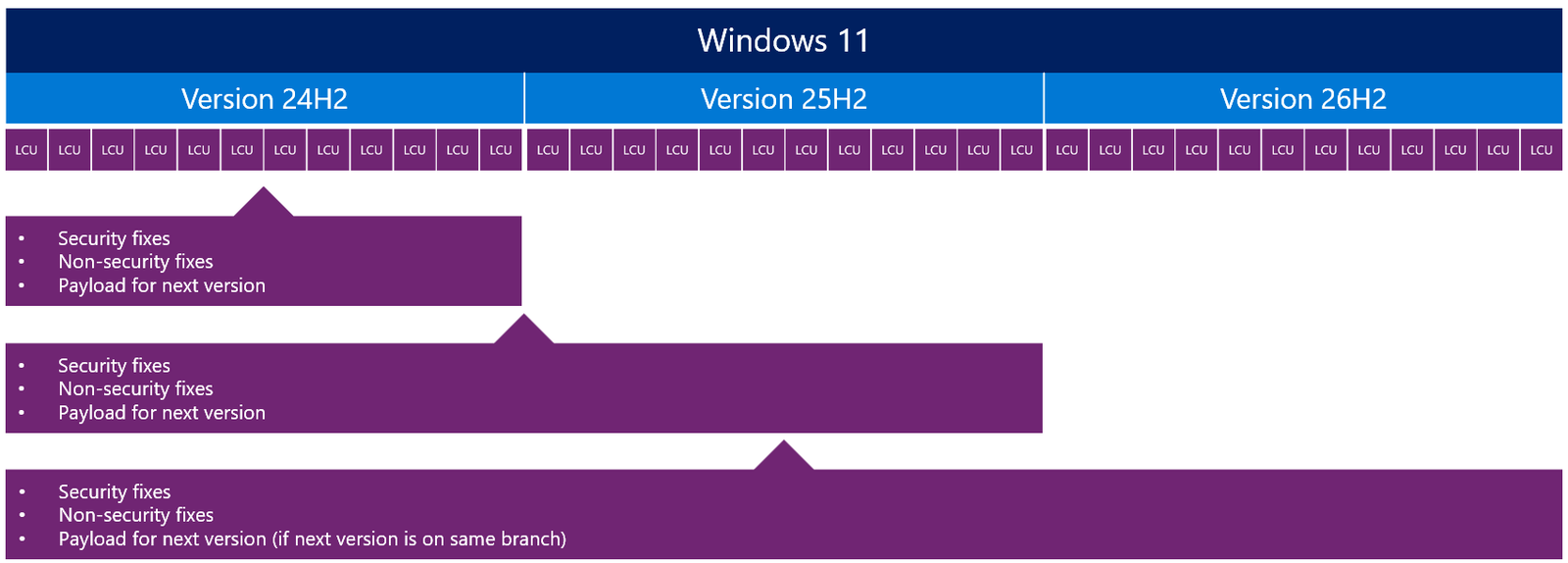
Source: Microsoft, Windows and the Shared Servicing Model, v1.3 (June 2026). Every monthly LCU on 24H2 and 25H2 already carries the next version's payload - disabled, waiting for the enablement package to flip it on.
The enablement package itself does exactly four things, in order, and nothing else - no new files, no image swap, no data migration:

Source: Microsoft, Windows and the Shared Servicing Model, v1.3. The exact 25H2-to-26H2 case this post is about.
Feature updates vs. LCUs: what's actually different
The whitepaper draws a direct line between what a monthly cumulative update (LCU) touches versus what a full annual feature update touches. It's worth having this side by side once, because it's the table most "why is this taking so long" tickets eventually come back to:
| Feature updates | Latest cumulative updates (LCUs) | |
|---|---|---|
| Frequency | Delivered once a year. | Delivered monthly. |
| Replacements | Replace the entire OS. | Replace only the binaries (components) that are serviced. |
| Windows 11 servicing | Deliver major OS releases. | Deliver monthly changes on top of the last major OS release. |
| Numbering changes | Change the build version number. | Change the revision number (the UBR). |
| Installation | Very noticeable to users - the "flashing colors" screen, laying down a pre-staged image, gathering settings and data, specializing the image, then reapplying settings. | Less intrusive to users, requiring a quick restart. |
| Delivered changes | Can deliver any changes shipped as part of major Windows releases. | Deliver more limited changes, consisting of improving security and functionality. |
Windows 11 branch and build number reference
Which versions actually share a branch - and which build number each one carries - is the single most-searched fact in this whole topic, and it's easy to get wrong because 26H1 breaks the pattern. Here is Microsoft's own branch table:
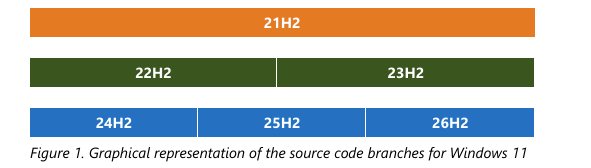
Source: Microsoft, Windows and the Shared Servicing Model, v1.3, Figure 1.
| Windows release | Build number | Same branch as |
|---|---|---|
| Windows 11, version 21H2 | 22000 | Standalone branch |
| Windows 11, version 22H2 | 22621 | 23H2 |
| Windows 11, version 23H2 | 22631 | 22H2 |
| Windows 11, version 24H2 | 26100 | 25H2, 26H2 |
| Windows 11, version 25H2 | 26200 | 24H2, 26H2 |
| Windows 11, version 26H2 | 26300 | 24H2, 25H2 |
Zooming out, this is the full picture of how Microsoft has moved devices between versions since Windows 10 - full "OS swap" arrows where branches change, and eKB arrows within a shared branch:
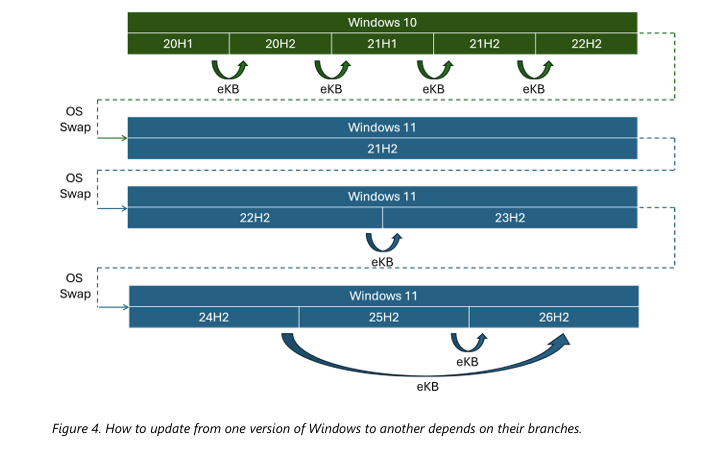
Source: Microsoft, Windows and the Shared Servicing Model, v1.3, Figure 4.
Three questions decide whether Microsoft can share a branch at all, straight from the whitepaper:
- Are both Windows client and Server editions being developed from the branch?
- Are there any discrepancies between short-term and long-term lifecycle editions?
- Are there specific new features or architecture changes that cannot be disabled by default?
A "yes" to that third question is exactly why 26H1 sits outside the 24H2/25H2/26H2 branch: a different core can't have its differences "turned off" the way a dormant feature can.
How to verify: where your fleet actually stands today
Before touching any rollout ring, find out where your devices actually sit. Three things matter: the exact version and build a device is running, whether any Windows Update for Business policy already targets or pins that device, and - if you are piloting now - whether the device is enrolled in the Windows Insider Program.
Registry: the version and build that decide everything
Every classification in this post starts from three registry values, all under one key:
| Value name | Type | What it tells you |
|---|---|---|
| DisplayVersion | REG_SZ | The marketing version, e.g. "24H2", "25H2", "26H1". This is the value this post's classification logic keys off. |
| CurrentBuildNumber | REG_SZ | The OS build number, e.g. "26200" for 25H2, "26100" for 24H2, "28000" for 26H1. |
| UBR | REG_DWORD | Update Build Revision - the number after the dot, e.g. the "9168" in 26200.9168. This changes with every monthly cumulative update. |
Here is a Registry Editor view of that key on a device currently running 25H2:
CurrentBuildNumber REG_SZ 26200
UBR REG_DWORD 0x000023d0 (9168)
You can read the same three values from PowerShell, which is what the companion script does across a whole fleet:
Translate that DisplayVersion into a plain answer with this table:
| DisplayVersion found | Where this device stands | What it needs |
|---|---|---|
| 24H2 or 25H2 | Eligible for the 26H2 enablement package once released | Nothing extra - stay current on monthly updates and let the normal ring process handle it |
| 26H1 | NOT on the path to 26H2 - different servicing core | Plan for whatever future release Microsoft eventually offers 26H1 devices instead |
| 23H2 or older | Needs a full feature update first | Move to 24H2 or 25H2 before 26H2 is even relevant to this device |
The Windows Update for Business policy mirror
If Intune or Group Policy has already targeted a device with Windows Update for Business settings, Microsoft mirrors the resulting Update CSP values into the registry. This is documented directly in Microsoft's own troubleshooting article for Intune Update rings, under one shared parent key:
| Policy (CSP name) | What it means if set | Where it comes from |
|---|---|---|
| TargetReleaseVersion | Device is pinned to move to, or stay on, a specific version | Intune Feature update policy, or GPO "Select the target Feature Update version" |
| ProductVersion | The Windows product ("Windows 11") that TargetReleaseVersion applies against - required alongside it | Same policy surface as TargetReleaseVersion |
| BranchReadinessLevel | Device is targeted at a preview/Insider servicing channel instead of General Availability | Intune Update ring "Enable pre-release builds", or GPO "Select when Preview Builds and feature updates are received" |
| DeferFeatureUpdatesPeriodInDays | Number of days a feature update is deferred after release, on top of any channel-level deferral | Intune Update ring "Feature update deferral period" |
Read the same key from PowerShell like this:
Event Viewer and log files: no dedicated Event IDs, but two channels that matter
Microsoft does not publish a dedicated set of Event IDs specifically for feature-update or 26H2 readiness - there is no "26H2 readiness" log source to search. What does exist, and is directly useful here, are two general-purpose channels that show whether a policy actually landed and whether Windows Update itself is behaving:
— shows whether Intune's CSP-delivered Update policy actually reached this device
Microsoft › Windows › WindowsUpdateClient › Operational
— shows Windows Update itself scanning, finding, and installing updates
For deeper troubleshooting, Windows Update also writes trace files that you merge into one readable log with a documented PowerShell cmdlet:
| Log file | Location | When to use it |
|---|---|---|
| WindowsUpdate.log (merged) | Generated on demand from ETL traces under C:\Windows\Logs\WindowsUpdate | General Windows Update troubleshooting - use Get-WindowsUpdateLog to generate it |
| CBS.log | %systemroot%\Logs\CBS | The servicing stack itself - useful if an enablement package install fails partway through |
If you are piloting now: Windows Insider Program enrollment
There is no Microsoft-documented registry path for reading raw Windows Insider Program enrollment state - community tools reference an undocumented key, but this post does not build detection logic on something Microsoft has not published. The verified way to check is the Settings UI itself:
- Open Settings, then go to Windows Update.
- Select Windows Insider Program.
- If enrolled, this page shows the linked account and the current channel. If not enrolled, it offers a Get started button instead.
The fix: Microsoft's four-step plan, in full
Microsoft's own preparation guidance for 26H2 has four steps. Here is each one expanded into a full console walkthrough, using the actual tools named in the announcement: Windows Autopatch, Microsoft Intune, and WSUS.
Step 1: Validate on a pilot ring first
Now that 26H2 is generally available, the Insider Program is no longer the route in — you pilot it the same way you pilot any feature update, through a small ring of real devices. Microsoft recommends targeted commercial pilots before a broad rollout. Do this on a small number of pilot devices, never on production hardware.
Intune walkthrough - target a pilot device group at a preview channel using an Update ring policy's "Enable pre-release builds" setting:
- In the Microsoft Intune admin center, go to Devices > Windows > Manage updates > Windows updates.
- Select the Update rings tab, then Create profile.
- Under Basics, name the profile something like Pilot - Insider preview channel.
- Under Update ring settings, turn on Enable pre-release builds and pick a channel. Microsoft's own reference documentation for this setting currently lists three named options: Windows Insider - Release Preview, Beta Channel, and Dev Channel.
- Continue through Scope tags and Assignments, and assign this profile only to a small pilot device group - never to a production group.
- Select Review + create, then Create.
The equivalent Group Policy path, if you manage devices without Intune:
- Open the Group Policy Management Editor and navigate to the path above.
- Enable Manage preview builds, and set it to Enable preview builds (this maps to the
Update/ManagePreviewBuildsCSP). - Enable Select when Preview Builds and feature updates are received and choose the desired channel (this maps to
Update/BranchReadinessLevel). - Link the GPO to an OU containing only pilot devices.
Step 2: Use your existing deployment tools
Microsoft names exactly three tools here. All three already understand feature update rollouts today - none of this requires new infrastructure.
Microsoft Intune - Feature update policies. This is the policy type that pins or targets a specific version, backed by the TargetReleaseVersion and ProductVersion CSPs:
- In the Microsoft Intune admin center, go to Devices > Windows > Manage updates > Windows updates.
- Select the Feature updates tab, then Create profile.
- Give the profile a name, then specify which feature update version devices assigned to it should move to and stay on. Once 26H2 is published, it appears here as a selectable target once it exists in the service.
- Assign the profile to a device group - start with the same pilot group used in Step 1.
- Review and create the profile.
Windows Autopatch - deployment rings. If your fleet is Autopatch-managed, the existing ring structure already carries feature updates - you don't build a parallel process:
- In the Microsoft Intune admin center, select Tenant administration, then under Windows Autopatch, select Autopatch groups.
- Open an existing Autopatch group, or select Create for a new one, and step through to Update types.
- Make sure Feature updates is one of the selected update types for this group.
- On the Deployment settings page, use the dropdown to set the target version for feature updates. This is the exact setting that will offer 26H2 once Microsoft makes it available through Autopatch.
- On Release schedules, review the deferral and deadline spacing already assigned across your existing deployment rings (for example Test, First, Fast, and Broad) - this is the ring structure that automatically staggers the 26H2 rollout once you set the target version above.
- Save the group. Autopatch's device-based Microsoft Entra groups for each ring do the rest.
WSUS. Feature updates are published to WSUS under the Upgrades classification. Once Microsoft ships 26H2, it appears in WSUS as a new entry once your existing Windows 11 product category is enabled - there is no separate "26H2 product" to hunt for ahead of time, because the product entry is "Windows 11," not one row per version:
- Open the WSUS Administration Console and go to Options > Products and Classifications.
- On the Products tab, confirm Windows 11 is checked (it's listed under All Products > Microsoft > Windows).
- On the Classifications tab, confirm Upgrades is checked - Microsoft's own documentation confirms feature updates are published under this classification, and leaving it unchecked is the most common reason feature updates never appear in a WSUS console at all.
- Synchronize the server. Once 26H2 exists as a published update, it appears automatically under this same configuration - nothing further to change ahead of time.
- To auto-approve it for a pilot ring once it appears, go to Options > Automatic Approvals, create a rule scoped to the Upgrades classification, the Windows 11 product, and your pilot computer group, with a short approval deadline.
- To approve it manually instead, go to Updates, create a new update view scoped to Upgrades and Windows 11, then approve the specific update for the ring you want first.
Step 3: Plan your rollout rings
Whichever tool you use, the underlying idea is identical: a small pilot group first, then wider rings based on what the pilot tells you. Microsoft's own Windows Update for Business documentation gives a concrete worked example using three rings with staggered deferral periods - pilot at 0 days, a fast ring at 1 day, and a slow ring at 2 days for quality updates, which is the same pattern Windows Autopatch uses by default for its own rings.
Step 4: Stay current on monthly updates
Because features ship dormant inside ordinary monthly cumulative updates and only switch on at the enablement package moment, a device that has fallen behind on monthly updates is missing the exact code that 26H2 needs to flip on. Staying current isn't a separate task from getting ready for 26H2 - it is the preparation.
AllowTemporaryEnterpriseFeatureControl policy to force on features that are currently shipped dormant, purely to "get ahead" of 26H2. Microsoft documents this setting as a way to opt in early, but doing so outside a controlled pilot means your production fleet is running features that haven't been through your own validation cycle - exactly the risk that dormant-by-default shipping was designed to avoid.Proof it worked: a real readiness report
The companion script for this post, Get-Windows26H2ReadinessReport.ps1, is read-only. It checks the current version and build against the classification table above, checks the Windows Update for Business policy mirror, and reports whether the raw Windows Insider enrollment check was skipped and why. Here is a genuine run, on a real Windows 11 device, with the hostname replaced:
This is a genuine run against a real corporate laptop, with the device name replaced and the last four digits of the build revision redacted. The result lines up exactly with the independently verified release-health data used throughout this post: this device is on 25H2, build 26200.9168, which is current as of the August 2026 cumulative update.
The same script also produces a CSV row when run with -ExportCsv, for fleet-wide reporting:
Two things are worth pointing out about this run. First, notice the empty PolicyValuesFound entries from the gotcha earlier in this post never appear here - the fixed version of the script only reports a policy as "set" when it actually has a non-empty value, which is exactly the kind of real bug that only shows up by running a script against a real device instead of trusting the documentation alone. Second, this device passed with exit code 0 precisely because it is on 25H2 with no overriding policy - a device on 26H1, or one with a stale TargetReleaseVersion pin, would exit with code 2 (informational) instead, and a genuinely failed registry read aborts loudly with exit code 1 rather than printing a false-clean summary.
What general availability changed
The mechanism did not change when 26H2 shipped. The enablement package, the shared servicing branch and the 26H1 exclusion all work exactly as described above. Three things are genuinely new, and two of them will change what you see in your reporting.
It is available through the channels you already use
Microsoft's wording is that 26H2 "is available now through the tools organizations use to manage Windows updates, including Windows Autopatch and the Microsoft 365 admin center", and that existing "update rings, policies, and deployment practices can continue to be used". There is no new console, no new policy surface, and nothing to migrate.
It is a controlled feature rollout, not a flat release
Microsoft is "releasing version 26H2 using a controlled feature rollout". Eligible devices are offered it in waves rather than all at once, which means two identical devices in the same Intune ring can legitimately be on different versions for a while.
Safeguard holds will keep some devices back deliberately
Microsoft applies "safeguard holds on devices where we detect a known compatibility issue". A held device is not broken and not misconfigured — Windows Update is deliberately withholding the upgrade because a known issue affects that hardware or driver combination.
The version numbers are still a trap
Worth restating now that both releases are out, because it breaks detection logic rather than just confusing people. 26H1 is OS build 28000. 26H2 is OS build 26300. The newer release has the lower build number, because 26H1 sits on a different Windows core.
Any script, compliance rule or report that decides "is this device up to date?" by comparing build numbers numerically will conclude a 26H1 device is ahead of 26H2 and quietly skip it. Compare against an explicit list of expected builds instead, never with a greater-than.
Frequently asked questions
Yes. Microsoft released Windows 11, version 26H2 — the Windows 11 2026 Update — on 29 September 2026, as OS build 26300. It is available now through Windows Autopatch, Microsoft Intune, WSUS and the Microsoft 365 admin center, and is being delivered as a controlled feature rollout rather than to every eligible device at once.
Build 26300, per Microsoft's own branch documentation. This sits on the same shared servicing branch as 24H2 (build 26100) and 25H2 (build 26200).
For a device already on 24H2 or 25H2, the enablement package is approximately 174 KB - about three-thousandths of one percent of a full feature update, which runs close to 6.5 GB for a device coming from a version outside the shared branch.
No. Microsoft states directly that devices on 26H1 "won't be able to update to version 26H2" and will instead have a path to a future release. 26H1 is built from a different Windows core and was never on the same servicing branch as 24H2, 25H2, or 26H2.
A small update that switches on features already installed - but dormant - on a device through its regular monthly cumulative updates. It doesn't install a new operating system; it flips a flag, restarts the device, and updates the build version number. This is only possible between versions that share the same underlying servicing branch.
Not from scratch. Because 24H2, 25H2, and 26H2 share source code, security fixes, and compatibility testing, the validation that matters is against newly-enabled features - not a full re-certification of the entire OS stack.
Read DisplayVersion, CurrentBuildNumber, and UBR from the registry on each device (or query the same values at scale through Intune, Autopatch, or WSUS), and check whether any Windows Update for Business policy has pinned a TargetReleaseVersion that would block the eKB. The read-only PowerShell script in this guide's "Proof it worked" section automates exactly that.
References
- Microsoft Learn — Windows 11 - release information
- Windows IT Pro Blog — Get ready for Windows 11, version 26H2
- Microsoft Learn — Configure Windows Update client policies by using CSPs and MDM
- Microsoft Learn — Update Policy CSP
- Microsoft Learn — Update Rings Policy Settings for Microsoft Intune
- Microsoft Learn — Manage Windows Update Ring Policies for Microsoft Intune
- Microsoft Learn — Manage Windows Feature Updates for Microsoft Intune
- Microsoft Learn — Manage Windows Autopatch groups
- Microsoft Learn — Troubleshoot Update ring policies for Windows devices
- Microsoft Learn — Deploy updates using Windows Server Update Services
- Microsoft Learn — Assign devices to servicing channels for updates
- Microsoft Learn — Windows Update log files
- Microsoft - Windows and the Shared Servicing Model, v1.3 (June 2026), whitepaper PDF
Download it from Imran76Awan/Windows-11-Scripts — no sign-in required. It is read-only: it never changes a device, a registry value, or anything in Intune. Validate it in your own environment before relying on the output.