On 27 August 2026, Microsoft moved Windows 11, version 26H2 into the Release Preview channel as build 26300.9278. That sounds like routine Insider chatter, but it is not. Every previous milestone for 26H2 - the Dev and Beta channel builds, the earlier Insider flights - was aimed at enthusiasts testing pre-release code on throwaway hardware. Release Preview is different: it is the channel Microsoft explicitly tells commercial customers to use for validating a build before it becomes generally available. The Windows Insider blog post announcing this says as much: organizations can now deploy 26H2 through Windows Update client policies or WSUS and validate it against their own environment ahead of GA.
That is a real change in what "prepare for 26H2" means this week. Until yesterday, an IT admin's options were either wait, or run 26H2 on a handful of Insider-enrolled test devices with no formal support path. From now until general availability - expected later in 2026 - there is a supported, low-effort way to validate 26H2 in your own environment before a single production device touches it: know which upgrade path actually applies to your fleet, pilot it safely, and understand your rollback window before you commit.
Watch on YouTube · Subscribe at @EndpointWeekly
Windows 11 26H2 (build 26300.9278) entered the Release Preview
channel on 27 August 2026, and Microsoft is explicitly inviting commercial validation ahead of general
availability. Which upgrade mechanism applies depends entirely on what a device is running today: 24H2/25H2
devices take a ~174 KB enablement package with one restart, 23H2-and-older Windows 11 devices take the full
~6.5 GB feature-update media, and Windows 10 devices need a full upgrade or replacement outright. Before GA,
you can pilot the eKB path safely by enrolling a small ring in the Release Preview branch
(BranchReadinessLevel) - and you should understand your rollback window before you widen the ring.
None of this requires new tooling - it uses the update-ring and Windows Update mechanisms you already run every
day.
The problem: Release Preview changes the calculus, and the seeker experience can act before you decide
Here is the specific situation as of 27 August 2026. Windows 11 26H2 build 26300.9278 (KB5120998) is live in the Release Preview channel. For devices already on 24H2 or 25H2, it installs as an enablement package: roughly 174 KB, one restart, no new files to copy down because the 26H2 code has already been sitting dormant inside your monthly cumulative updates for months. Microsoft's own framing is that this unlocks features that were already present but switched off for commercial devices - Windows Settings Backup, app-specific taskbar actions, and a set of File Explorer changes - rather than introducing a new codebase to test from scratch.
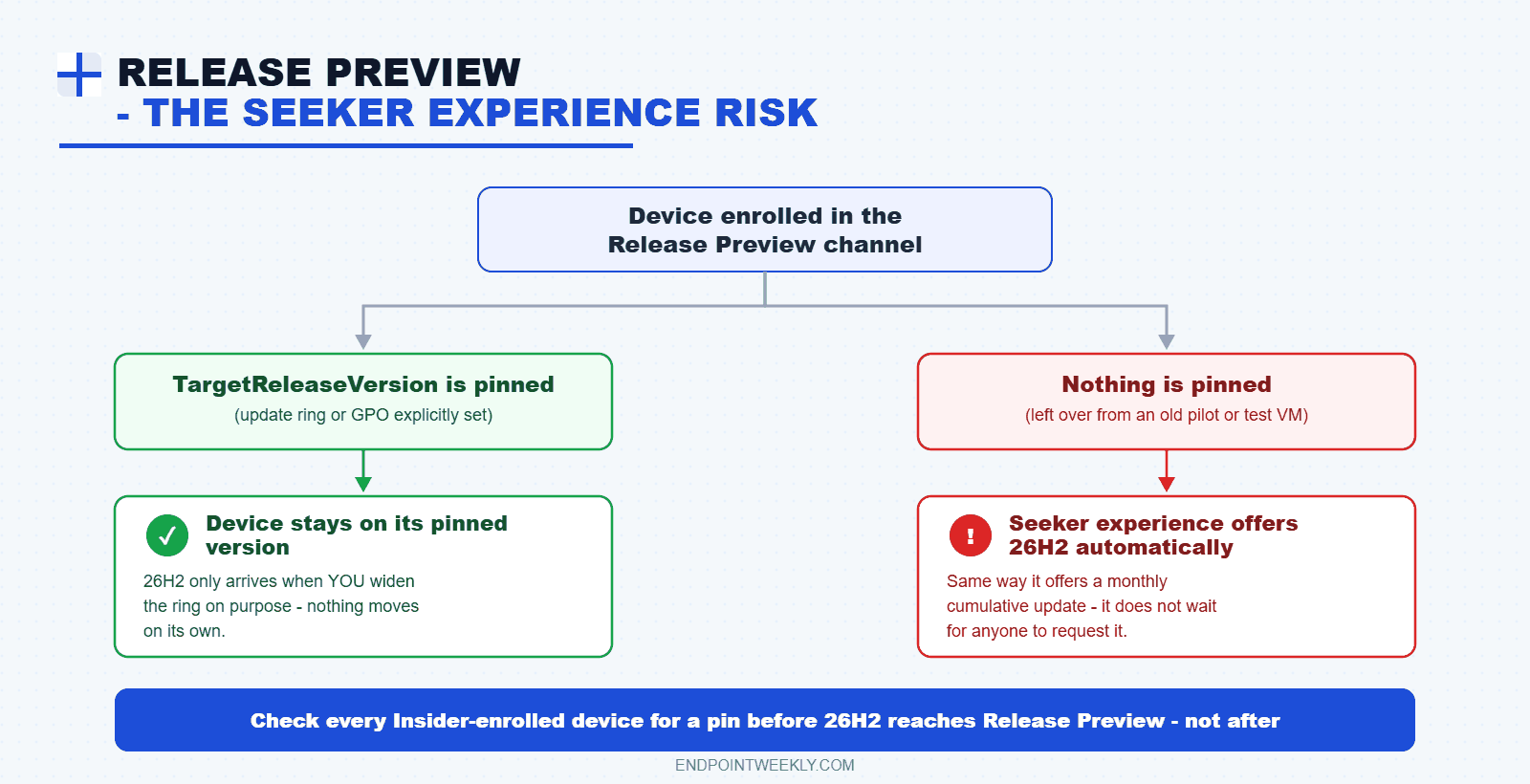
The part that catches admins out is the Release Preview channel's seeker experience. Any device enrolled in Release Preview that meets Windows 11 hardware requirements will now offer 26H2 through Windows Update of its own accord, the same way it offers a monthly cumulative update - it does not wait for you to request it. If you have Insider-enrolled devices in your estate (test VMs, a lab, a pilot group left over from an earlier Autopilot proof-of-concept) and you have not explicitly pinned their target feature-update version, some of them may already be sitting on 26H2 without anyone deciding that on purpose.
CBS pipeline, why the file payload is so small), the earlier post on
enablement package mechanics
covers that in full. This post assumes that background and focuses on the validation work in front of you right
now.Why it happens: the 24H2/25H2/26H2 shared servicing branch and the enablement package
The reason a feature update can arrive this small and this fast is the shared servicing branch. Microsoft's own whitepaper on the shared servicing model lays out the mechanism: 24H2 (build 26100), 25H2 (build 26200) and 26H2 (build 26300) are all developed from the same underlying branch. Rather than building three separate operating systems, Microsoft ships one shared code line and layers version-specific feature flags on top of it. A device running 24H2 or 25H2 already has almost everything 26H2 needs sitting inertly in its own installed binaries - delivered to it over the preceding months as ordinary cumulative updates. The eKB's only job is to flip those flags on and update the reported build number.
This is exactly why Release Preview validation is realistic to do properly in days, not weeks. You are not testing a new kernel, a new driver model, or a new update engine - you are testing whether a specific set of features your organization has never had turned on before behaves correctly against your existing environment. The risk surface is narrow and known. That is also why Microsoft is comfortable inviting commercial validation this early: the underlying OS has already been running in production, unchanged, for months.
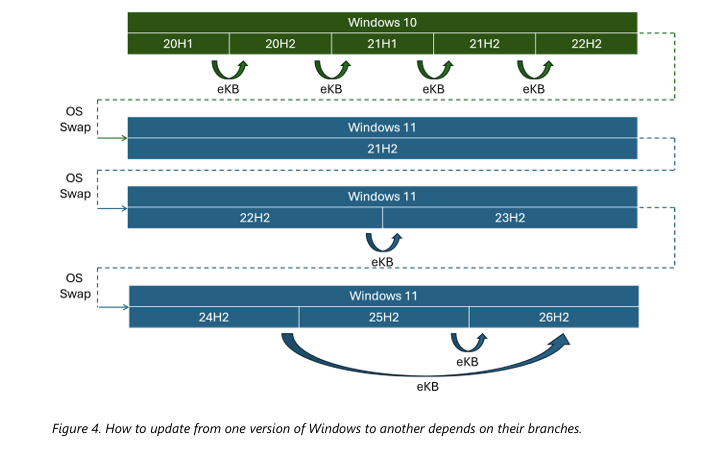
Put plainly, this determines which of four paths applies to a given device when 26H2 arrives:
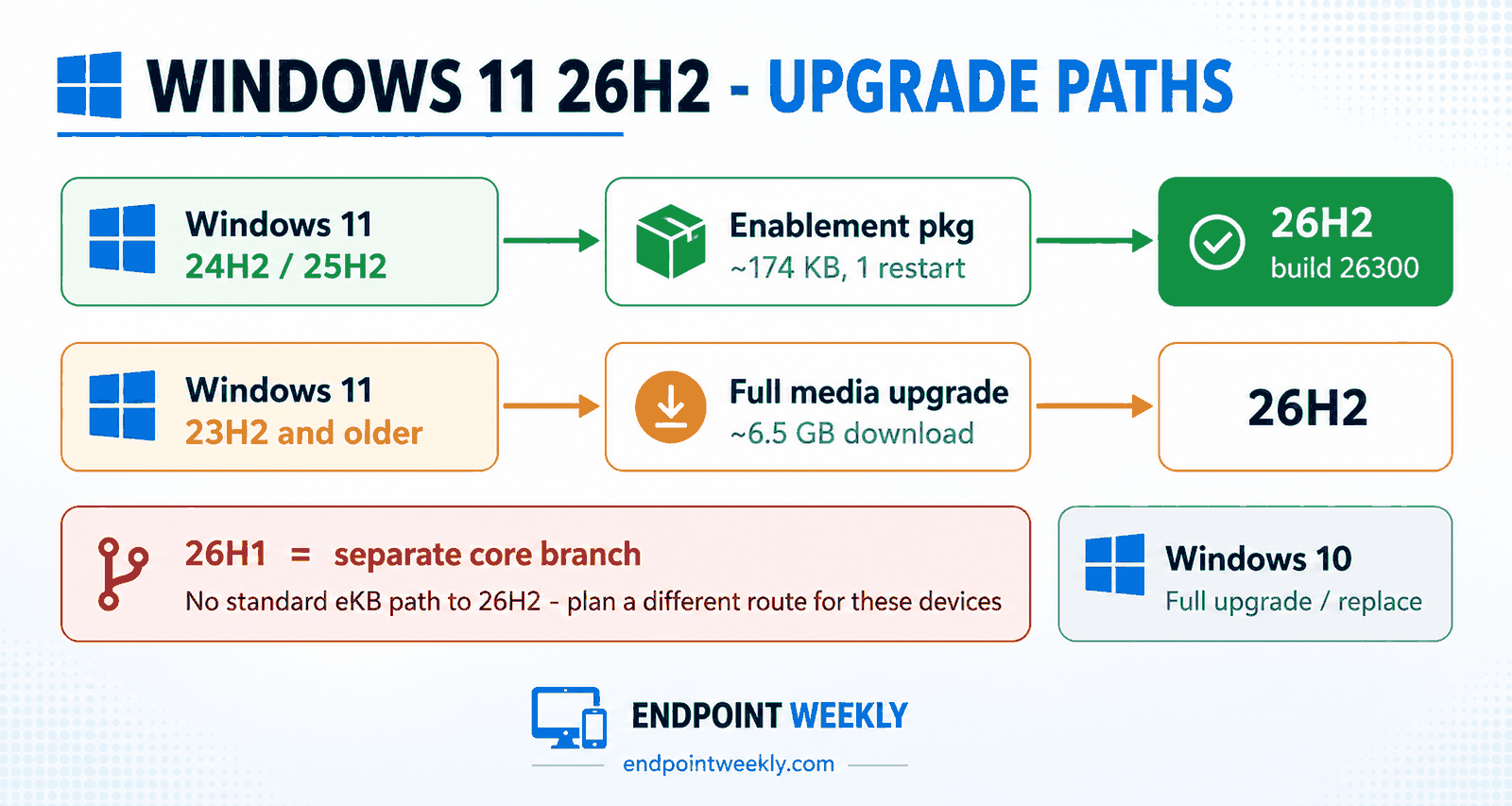
- Already on 24H2 or 25H2 - the ~174 KB enablement package this post is about. One restart, no meaningful download. This is the path worth piloting before GA, since it is what most managed fleets will actually take.
- Still on 23H2 or older Windows 11 - the full feature-update media path, roughly 6.5 GB. Same delivery mechanism Windows has used for every annual feature update; nothing about 26H2 changes it for these devices. Budget the download and install time accordingly, and expect the standard install/restart window rather than the eKB's near-instant flip.
- On 26H1, if your organization has already deployed it - a separate core branch with no standard eKB path to 26H2. Plan for a full upgrade on these devices, not a small package; do not assume the eKB behavior seen on 24H2/25H2 applies here.
- Windows 10 - not an in-place feature update at all. This is a full OS upgrade or a device replacement, independent of anything else in this post.
For the full mechanics of why the eKB path is so much smaller - the registry-backed feature staging, the
CBS servicing pipeline, the case study behind that 174 KB-vs-6.5 GB gap - see the companion
post on enablement packages and the shared servicing branch. This post assumes
that background and focuses on piloting the first path safely before GA.
How to verify: read your fleet's current feature-update posture before you pilot anything
Before you configure a single pilot ring, confirm what build a device is actually on right now - that alone tells you which of the four upgrade paths above applies to it. One command, readable with a tool you already have.

WindowsProductName reports "Windows 10 Enterprise" while OsBuildNumber is 26200 (a Windows 11 25H2 build) - WindowsProductName is a known-unreliable field on some builds and should never be trusted on its own. OsBuildNumber is the value that actually tells you the truth.If a device already shows build 26300 and you did not put it there on purpose, stop and treat that as a finding, not a formality - it means the Release Preview seeker experience got there before your policy did.
The fix: build the Release Preview pilot, ring by ring
This is the plan itself: build the pilot ring, understand your rollback window, then run the production readiness checklist before you widen anything.
Step 1 - Create the enterprise pilot ring
Two different settings are in play here, and conflating them is the most common mistake in a 26H2 pilot.
Getting a device onto the Release Preview build itself is controlled by the branch-readiness setting
(BranchReadinessLevel). Protecting your broad fleet from drifting onto 26H2 by accident is a separate
setting (TargetReleaseVersion). Both are also configurable via Group Policy for on-prem-managed
devices, under the same Windows Update for Business templates - see the CSP/GPO reference in References if that is
your management model. Once 26H2 itself reaches general availability, there is a third, newer mechanism - Intune's
dedicated Feature update policy - which is cloud-orchestrated and has no Group Policy equivalent at all.
Via Intune (Settings Catalog / Update rings):
- Sign in to the Intune admin center.
- Go to Devices › Windows › Update rings and select Create profile.
- Name it clearly, e.g. "26H2 Release Preview Pilot" - do not reuse an existing broad ring for this.
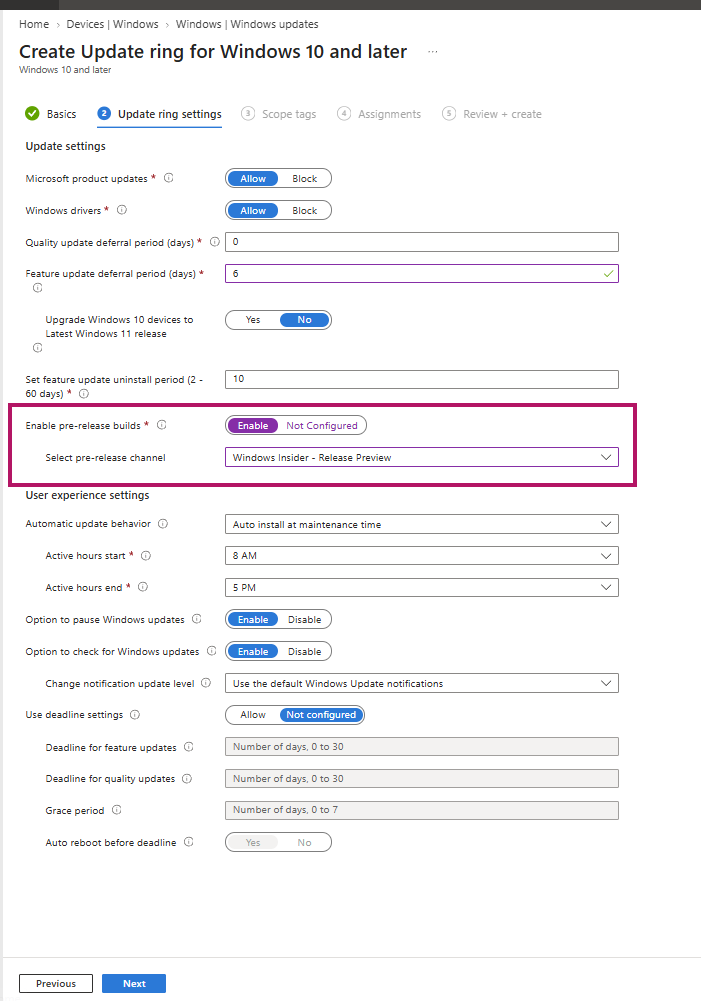
- Under Update settings, set Feature update deferral period (days) to 0 for this pilot ring only (you want it to take what the branch setting below offers, not defer it further).
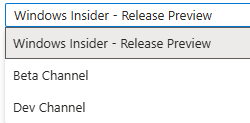
- Set Enable pre-release builds to Enable, then choose Windows Insider - Release Preview from the Select pre-release channel dropdown.
- Under Assignments, assign this ring to a small, deliberately chosen device group - ideally 5-20 devices covering your most common hardware and application profiles, not a random sample.
- Leave your existing broad rings on their current deferral and target version unchanged. They are your control group.
reg query "HKLM\SOFTWARE\Policies\Microsoft\Windows\WindowsUpdate" /v
BranchReadinessLevel
should return 8 - not just "policy applied" in the console. A policy that
reports success in Intune can still fail to write the registry value if a conflicting local GPO or a prior MDM
policy is still present on that device.When 26H2 reaches general availability, replace the pre-release branch pin with the dedicated
policy built for this: Devices › Windows › Windows updates › Feature updates ›
Create profile. Pick 26H2 from the Feature update to deploy dropdown,
assign it to the same pilot group, and wait for the devices to report OfferReady in the
Feature Updates (Organizational) report before you turn the pre-release branch setting off. This
policy is cloud-orchestrated through the Windows Update for Business deployment service - it has no Group Policy
equivalent, and unlike BranchReadinessLevel it writes nothing you can read back from the local
registry; the report is the only place to confirm it landed.
Step 2 - Update and rollback considerations
Every eKB-based feature update carries the same rollback mechanics as a full feature update: a default 10-day window during which the device can be reverted via Settings › System › Recovery › Go back, backed by the same rollback files Windows keeps after any feature update. Know this window before you need it, not after.
- On every pilot device, extend the rollback window to 30 days with
DISM /Online
/Set-OSUninstallWindow /Value:30
immediately after the upgrade completes, beforeWindows.oldand the rollback files have any chance of being cleaned up by disk-space pressure or a well-meaning cleanup script. - Document the exact date each pilot device took the eKB, so you know precisely when the rollback window closes for that device.
- Treat "Go back" as the pilot's actual exit-criteria backstop: if a pilot device shows a real regression you cannot fix quickly, roll it back and capture logs before you troubleshoot further, rather than leaving it broken while you investigate.
DISM /Online /Get-OSUninstallWindow
failing with error 1168 ("Element not found") means the window has already closed or the rollback data was already
removed - at that point "Go back" is no longer an option and any recovery requires a fresh reinstall or a proper
backup restore.Step 3 - Production readiness checklist
Do not widen the ring past the pilot group until every row below is genuinely green, not "green enough."
| Area | Check | Pass criteria |
|---|---|---|
| Update mechanics | Pilot devices took the eKB via the Release Preview branch, not the seeker experience | 100% of pilot devices show BranchReadinessLevel=8 and Event 19 for KB5120998; broad/control rings still show TargetReleaseVersionInfo pinned to your current GA version |
| Rollback | Rollback window understood and, for pilot devices, extended | Each pilot device's exact upgrade date logged; window extended to ≥30 days |
Proof it worked: what a clean pilot looks like before you widen the ring
Illustrative example of a pilot device that has cleared every gate above - reconstructed here rather than pulled from a live tenant, since a real capture would carry this organization's own device names and group tags:
A device in that state - correctly enrolled in the Release Preview branch and with its rollback window deliberately extended - is what "ready to widen the ring" actually looks like. Widening from there means moving the same pilot device group's ring assignment to your next-widest ring and repeating this same checklist against that larger group before you move again.
References
- Releasing Windows 11, version 26H2 to the Release Preview Channel — Windows Insider Blog, 27 August 2026
- Manage Windows feature updates in Microsoft Intune — Microsoft Learn
- Configure Windows feature update policies — Microsoft Learn
- Update ring policy settings reference — Microsoft Learn
- Configure Windows Update client policies by using CSPs and MDM — Microsoft Learn
- DISM operating system uninstall command-line options — Microsoft Learn
Microsoft MVP community deep-dives
| Author | Post | What it adds |
|---|---|---|
| Thomas Marcussen (MVP) | Getting Ready for Windows 11, version 26H2: Upgrade Paths, Autopatch, and Tracking Pilot to Production | Practical Autopatch deployment-ring staging (Test/First/Fast/Last) with soak periods and exit criteria for exactly this rollout |