One device in a ring of two thousand refuses to take the feature update. Every other machine moved to the new Windows release weeks ago. This one sits on the old build. Windows Update reports that the device is up to date. The update ring is correct. The device is compliant, healthy, and checking in. And yet the update is simply never offered.
That device is almost certainly under a safeguard hold. Microsoft found a known-bad combination of app, driver or hardware on machines like it, and told the Windows Update service to stop offering the new release to those machines until the issue is fixed. It is a deliberate protection. It looks exactly like a broken client.
This post explains the whole chain: what a safeguard hold is, how the Microsoft Compatibility Appraiser feeds it, why the whole mechanism silently dies if diagnostic data is turned off, where the eight-digit hold ID appears on the device and in the portal, and what the documented opt-out actually does. That last part matters, because the opt-out is not a fix, and deploying it fleet-wide is one of the worst things you can do to a Windows estate.
A safeguard hold is Microsoft withholding a feature update from devices with a known compatibility problem, applied service-side, with no client-side message that explains it. The Microsoft Compatibility Appraiser writes the evidence to the registry: GStatus of 0 means a hold is in effect, and GatedBlockId carries the eight-digit safeguard ID you look up on the Windows release health dashboard. None of this works if diagnostic data is below the documented Required level, because the appraiser has nothing to report and nothing to receive. There is a documented opt-out, DisableWUfBSafeguards, and Microsoft's own guidance is that it belongs in a validation ring and nowhere else.
The problem: the feature update is never offered, and nothing on the device says why
Start with what the help desk actually sees. A user reports that their machine is on an older Windows release than their colleagues. An engineer checks Windows Update. It says the device is up to date. The engineer clicks Check for updates. Quality updates and drivers arrive normally. The feature update does not.
Nothing is broken. The device asked the Windows Update service for the new release, and the service declined to offer it.
Here is the first thing to run. This reads the installed release and asks the Windows Update agent what it is currently being offered. It changes nothing.
On a device using plain Windows Update with no Windows Update client policies applied, Microsoft documents a user-facing message in the Settings app: it tells the user the update is on its way but not yet ready for their device, instead of offering a download button. That message is the only hint the platform gives, and most managed devices never show it, because Windows Update client policies suppress that experience entirely.
So on a managed fleet, the user-visible symptom is nothing at all. That is why these tickets get escalated as "Windows Update broken" and then bounced between the patching team and the platform team for a week.
Why it happens: safeguard holds, the compatibility appraiser, and the telemetry they ride on
Take the pieces one at a time, then put them in order.
What a safeguard hold is
Microsoft watches quality and compatibility signals from the Windows population. When it spots a pattern where a specific app, driver or hardware configuration causes a feature update to fail, roll back, lose connectivity, lose data or break something important, and there is no immediate workaround, it applies a hold on the updating service. Devices matching that pattern stop being offered the new release. The hold is released once a fix exists and has been verified in the field. Microsoft also applies holds when a customer, a partner or its own internal validation finds a severe issue.
Two things follow from that description, and both surprise people:
- The hold lives service-side. It is not a setting on your device that you can clear. The device is told nothing except "no update for you".
- The hold is targeted. It applies to devices that look like the broken pattern. That is why one device in a ring is stuck and the rest are fine.
The Microsoft Compatibility Appraiser: the thing that decides what your device looks like
The component that works out whether your device matches a hold pattern is the Microsoft Compatibility Appraiser. Spelled out: it is the inventory-and-assessment engine that Windows uses to judge whether this specific machine can safely move to a specific target release. Microsoft documents that it creates registry entries under the AppCompatFlags subkey and that it runs as a scheduled task under \Microsoft\Windows\Application Experience\.
Here is the chain, in order, from trigger to result:
- The Microsoft Compatibility Appraiser scheduled task fires, or the servicing stack runs the appraiser during an update scan.
CompatTelRunner.exehosts the run. It loadsappraiser.dll(the assessment logic) andaeinv.dll(the application inventory component).- The appraiser reads the local inventory of apps, drivers, devices and firmware, and compares it against a compatibility data baseline shipped in the OS and refreshed from Microsoft.
- It writes its verdict for each known target release into the registry under
AppCompatFlags, including a gated status and, if the device is held, a safeguard ID. - The Connected User Experiences and Telemetry service (short name
DiagTrack) uploads the diagnostic data that lets Microsoft see the pattern across the population and lets your tenant reports show it. - The Windows Update agent (
wuauserv) scans. The service applies any hold that matches, and the feature update is not offered.
Step 5 is where most real-world failures live, and it is the part people cut without realising what they cut.
The telemetry requirement: no diagnostic data, no safeguard story
This is the single most important prerequisite in the whole feature area, so be precise about it.
Microsoft documents that Windows Update for Business reports require devices to send diagnostic data at the Required level at minimum. Required was previously called Basic. Microsoft recommends Optional on Windows 11 and Enhanced on Windows 10, but only requires Required. Intune's feature update policies carry the same requirement: telemetry must be on, at a minimum of Required, and the Microsoft Account Sign-In Assistant service (wlidsvc) must be enabled and running.
Turn diagnostic data off and the consequences cascade. The appraiser still runs locally, but nothing is reported, so your tenant has no readiness or safeguard data, the device cannot be identified in the reports, and you lose the only supported way to find out which hold is in effect. Microsoft also notes that the reports depend on the services configuration mechanism, sometimes called OneSettings, and that blocking it can make client data in the reports wrong or missing.
adl.windows.com, settings-win.data.microsoft.com, and settings.data.microsoft.com. Your proxy or TLS-inspecting firewall is the prime suspect. If a device reports a hold whose issue is already resolved on the release health dashboard, check the inspection exclusions before you touch anything on the client.
The two look-alikes you must rule out first
Before you spend a day on holds, eliminate the two configurations that produce the exact same symptom.
A version pin. The TargetReleaseVersion policy pins a device to a named release. Set it, and the device will never be offered anything newer, regardless of holds. Microsoft's ADMX ships this as Select the target Feature Update version, and it writes a DWORD switch plus a string naming the release. A pin left behind from last year's migration project is the most common false positive in this whole area.
Feature update policy targeting. Microsoft documents that a device managed by Windows Autopatch which is no longer targeted by any feature update policy is not offered any feature update at all, until it is assigned to a new profile, unenrolled from Intune, or removed from feature update management through the Graph API. An empty group assignment produces a permanently stuck device that looks exactly like a hold.
System files and binaries in the flow
These are the binaries that actually do the work. Every one of these was read from a live Windows 11 25H2 device (build 26200.9168); the file descriptions are the ones Windows itself reports.
| File | Location | Role in the flow |
|---|---|---|
appraiser.dll | C:\Windows\System32\ | Compatibility Appraiser. The assessment logic that produces the gated status and the safeguard ID. |
aeinv.dll | C:\Windows\System32\ | Application Inventory Component. Builds the app and driver inventory the appraiser judges. |
aepic.dll | C:\Windows\System32\ | Application Experience Program Cache. Caches program identity data used by the inventory. |
acmigration.dll | C:\Windows\System32\ | Compatibility Upgrade Migration Host. Applies compatibility decisions during an in-place upgrade. |
CompatTelRunner.exe | C:\Windows\System32\ | Microsoft Compatibility Telemetry. The host process the appraiser task launches. |
APPRAISER_TelemetryBaseline_GE<target>.bin | C:\Windows\appcompat\appraiser\ | Per-target compatibility baseline the appraiser evaluates against. One file per known target release. |
Appraiser_AlternateData.cab | C:\Windows\appcompat\appraiser\ | Refreshable compatibility data. This is what the adl.windows.com endpoint feeds. |
Amcache.hve | C:\Windows\appcompat\Programs\ | Registry hive holding the appraiser's program and binary inventory. |
Microsoft Compatibility Appraiser Exp, not Microsoft Compatibility Appraiser. Microsoft's documentation names the latter. Any detection script that matches the task name exactly will silently find nothing on some builds. Match on a prefix, not on equality - and never treat "task not found" as "task healthy".
Services and scheduled tasks
Parent task folder, which is the same on every supported build:
| Service or task | Short name / display name | Expected state |
|---|---|---|
| Service | DiagTrack - Connected User Experiences and Telemetry | Running. If it is stopped or disabled, no diagnostic data leaves the device and no safeguard data reaches your tenant. |
| Service | wuauserv - Windows Update | Running or Manual (trigger start). This is the agent that receives the offer, or does not. |
| Service | wlidsvc - Microsoft Account Sign-In Assistant | Enabled and running. Microsoft lists this as a requirement for Intune feature update policies and for device identity in the reports. |
| Task | Microsoft Compatibility Appraiser (or ...Appraiser Exp) | Ready, with a recent Last Run Time. This is the task Microsoft names as the one that creates the AppCompatFlags entries. |
| Task | PcaPatchDbTask, SdbinstMergeDbTask, MareBackup, StartupAppTask | Ready. Siblings in the same folder that maintain the compatibility database and program cache. |
How to verify: GStatus, the hold ID, and the two reports that name it
There are exactly two supported ways to find out whether a device is held: the client-side registry evidence the appraiser writes, and the tenant-side reports. Use both. They answer different questions.
The client-side surface: the registry
Microsoft documents a value called GStatus - gated status - as the indicator of whether a safeguard hold is in effect. It lives in two places. There is a global one under the appraiser's GWX subkey, and a per-target-release one under TargetVersionUpgradeExperienceIndicators, where the subkey name encodes the target release, for example GE24H2 or GE25H2.
Shared parent key for the appraiser output:
| Subkey and value | Type | Meaning |
|---|---|---|
Appraiser\GWX → GStatus | REG_DWORD | Documented by Microsoft. 0 means a safeguard hold is in effect. 2 means it is not. |
TargetVersionUpgradeExperienceIndicators\GE<target> → GStatus | REG_DWORD | Same meaning, scoped to one target release. This is the value that tells you which upgrade is held. |
...\GE<target> → GatedBlockId | REG_MULTI_SZ | The safeguard ID. Documented by Microsoft as the value you take to the release health dashboard. |
...\GE<target> → GatedBlockReason | REG_MULTI_SZ | Documented. The reason category for the hold, for example Other. |
...\GE<target> → UpgEx, RedReason, DestBuildNum, DataVer, DataExpDate | REG_SZ / REG_MULTI_SZ | Observed on a live device and not documented by Microsoft. Useful for eyeballing a machine. Do not build detection logic on them - undocumented values can change in any update. |
Policy keys that produce the same symptom, or turn the mechanism off. Shared parent key:
| Subkey and value | Type | Meaning |
|---|---|---|
WindowsUpdate → DisableWUfBSafeguards | REG_DWORD | 0 (default) safeguards enabled. 1 safeguards not enabled, upgrades deploy without blocking on safeguards. |
WindowsUpdate → TargetReleaseVersion | REG_DWORD | 1 enables the version pin. On its own it does nothing useful. |
WindowsUpdate → TargetReleaseVersionInfo | REG_SZ | The release the device is pinned to, for example 24H2. A pin blocks newer releases whether or not a hold exists. |
WindowsUpdate → ProductVersion | REG_SZ | Companion value in the same ADMX policy, naming the product (for example Windows 11). Microsoft notes the product version must be configured alongside the target release version. |
DataCollection → AllowTelemetry | REG_DWORD | 0 off/security, 1 Required, 3 Optional. Below Required, the reporting side of safeguards stops working. |
DataCollection → AllowDeviceNameInTelemetry | REG_DWORD | 1 lets device names appear in the reports. Without it your held device shows up nameless. |
AllowTelemetry was absent and a value called AllowTelemetry_PolicyManager held the level instead. That name is observed and undocumented. Microsoft documents the CSP as System/AllowTelemetry and the GPO-backed value as AllowTelemetry. Read both, plus the MDM policy manager path, or you will report "diagnostic data not configured" on a device that is configured perfectly well.
Here is that read, done properly. This is the client-side check that answers "is this device held, and by what".
The same values in the graphical tool, for anyone who prefers to look before they script. Open Registry Editor (regedit.exe) and browse to the appraiser key.
The Event Viewer surface, and an honest answer about it
Microsoft publishes no event IDs for safeguard holds. Say that out loud rather than inventing some. There is no "hold applied" event to alert on. What does exist is a set of Event Viewer channels for the compatibility infrastructure, and the Windows Update client channel where scan activity lands. Use them for context, not for hold detection.
These channels were enumerated on a live Windows 11 25H2 device with wevtutil el. Channel paths as shown in Event Viewer under Applications and Services Logs:
| Channel | Backing .evtx | What it is good for |
|---|---|---|
Microsoft-Windows-Compat-Appraiser/Operational | %SystemRoot%\System32\Winevt\Logs\Microsoft-Windows-Compat-Appraiser%4Operational.evtx | Appraiser run activity. Enabled by default, and frequently completely empty - an empty channel is not proof the appraiser ran. |
Microsoft-Windows-Application-Experience/Program-Inventory | Same folder, matching name | Inventory collection activity, which is the input the appraiser judges. |
Microsoft-Windows-Application-Experience/Program-Telemetry | Same folder, matching name | Program telemetry activity from the Application Experience components. |
Microsoft-Windows-WindowsUpdateClient/Operational | Same folder, matching name | The scan and offer side. Where you confirm the device is talking to Windows Update at all. |
Microsoft-Windows-Program-Compatibility-Assistant/CompatAfterUpgrade | Same folder, matching name | Post-upgrade compatibility findings, useful after you force past a hold and regret it. |
The log-file surface
When a hold is caused by an app or driver, the same compatibility engine that feeds the hold also writes human-readable findings during a setup compatibility scan. Microsoft documents these paths and the exact strings to search for.
| Log file | Search string | How to read it |
|---|---|---|
C:\$WINDOWS.~BT\Sources\Panther\CompatData<date-time>.xml | BlockingType="Hard" | A hit names a program you must remove or mitigate before Windows will upgrade. Healthy: no hits, and setup returns 0xC1900210. Broken: a hit, and setup returns 0xC1900208. |
| Same file | //DriverPackages/DriverPackage[@BlockMigration="True"] | Names a driver that will not migrate. Upgrade or remove it. |
*_APPRAISER_HumanReadable.xml (search the OS drive) | DT_ANY_FMC_BlockingApplication=True | Then look nearby for LowerCaseLongPathUnexpanded, which gives the exact path of the blocking file - including leftovers from an app you already uninstalled. |
C:\Windows\Panther\ | - | Where setup stores the same logs after the out-of-box-experience stage. Both folders are hidden. |
You do not have to attempt a real upgrade to generate these. Microsoft documents a scan-only mode:
The tenant-side surface: the reports that name the hold
The registry tells you this device is held. The reports tell you how many devices are held and by what. Microsoft documents two report families.
Windows Update for Business reports present a list of active safeguard holds and identify each one by an eight-digit identifier. That identifier is what you search for on the Windows release health dashboard, under Known issues for the relevant release, to find out what the hold is actually about.
Intune's compatibility reports are the other route, and they are the faster one for most admins. There are two, and both are generated on demand.
- Sign in to the Microsoft Intune admin center.
- Go to Reports > Device management > Windows updates, then select the Reports tab.
- Select Windows Feature Update Device Readiness Report.
- Select Select Target OS and choose the exact release you plan to deploy. The insights are specific to that target, so a mismatch gives you a misleading answer.
- Select Select Scope (Tags) and pick the devices in scope. Optionally refine by Ownership and Readiness status.
- Select Generate report and wait. It can take several minutes and you are notified when it finishes.
- Find your device, select its name, and open the Other tab in the details flyout. Microsoft documents that compatibility risks tied to device configuration and settings - including some safeguard holds - land on that tab rather than under Applications or Drivers.
For the fleet-wide view, use the sibling report:
- From the same Reports tab, select Windows Feature Update Compatibility Risks Report.
- Select Select Target OS, optionally refine by Asset type and Risk status, then select Generate report.
- Look for rows with an Asset type of Other and a safeguard description in the Issue column. Microsoft is explicit that a safeguard entry is not a real installed asset - it is a placeholder that tags the apps or drivers in your environment carrying the safeguard.
- Select the number under Affected devices to see which machines are implicated.
Before either report will show anything, the tenant has to be allowed to see Windows diagnostic data at all:
A device that shows Unknown as its Readiness status is the tell. Microsoft's own guidance for that value is to check that the device is properly configured to send Windows diagnostic data.
The fix: clear the actual blocker, or opt out only inside a validation ring
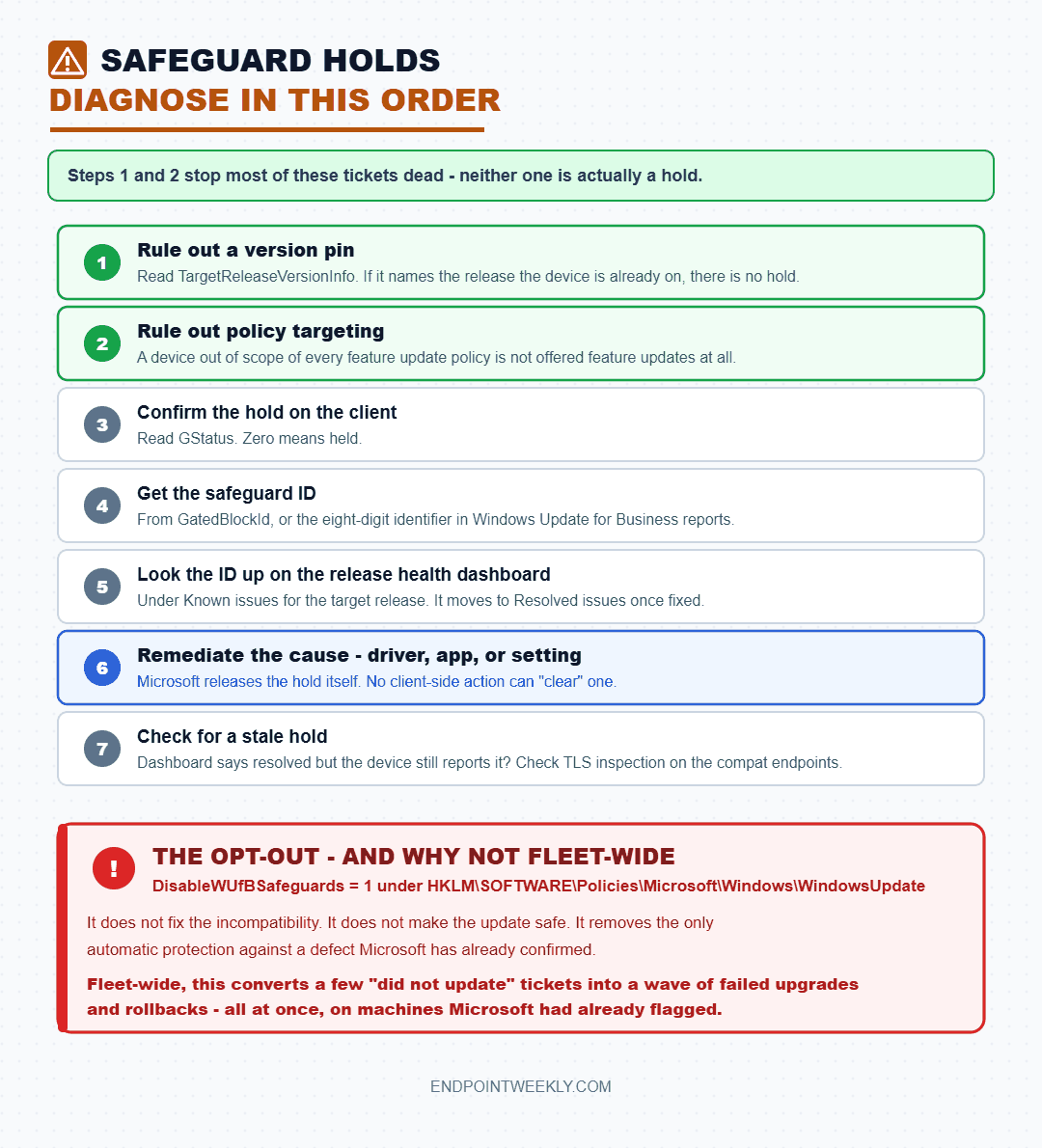
- Rule out a version pin. Read
TargetReleaseVersionInfo. If it names the release the device is already on, there is no mystery and no hold - remove or retarget the pin. - Rule out policy targeting. Confirm the device is actually in scope of a feature update policy. A device that has fallen out of every feature update profile is not offered feature updates at all.
- Confirm the hold on the client. Read
GStatus. Zero means held. - Get the safeguard ID from
GatedBlockId, or from the eight-digit identifier in Windows Update for Business reports. - Look the ID up on the Windows release health dashboard, under Known issues for the target release. That page tells you what the issue is and, once fixed, moves to Resolved issues.
- Remediate the cause - update the driver, update or remove the app, change the setting. When Microsoft verifies the fix, it releases the hold and the offer resumes on its own. No client-side action is needed to "clear" a hold.
- Check for a stale hold. If the dashboard says the issue is resolved but the device still reports the ID, treat it as a data-refresh problem and check TLS inspection on the compatibility endpoints.
The documented opt-out, and exactly what it is for
There is one supported way to make a device ignore safeguards: the disable-safeguards policy. Microsoft documents it as the Update/DisableWUfBSafeguards CSP for MDM, and Disable safeguards for Feature Updates in Group Policy. It applies to Windows Update client policies devices running Windows 11, or Windows 10 version 1809 or later with the October 2020 security update.
The exact registry surface, confirmed against the ADMX file Microsoft ships in C:\Windows\PolicyDefinitions\WindowsUpdate.admx:
Value name: DisableWUfBSafeguards Type: REG_DWORD Data: 0 = safeguards enabled (default), 1 = safeguards not enabled
Group Policy: the safeguard opt-out
The setting lives under the node that governs which updates Windows Update will offer. Full path, confirmed from the ADMX and its English-language strings:
- Open the Group Policy Management Editor against a GPO scoped to your validation ring only. Not to a production ring. Not to Authenticated Users.
- Expand Computer Configuration > Policies > Administrative Templates > Windows Components > Windows Update > Manage updates offered from Windows Update.
- Double-click Disable safeguards for Feature Updates.
- Select Enabled, then select OK. This writes
DisableWUfBSafeguards = 1. - On a target device, run
gpupdate /target:computer /force, then confirm the value landed in theWindowsUpdatepolicy key. - When validation is finished, set the policy back to Not Configured and confirm the value is gone. Disabled and Not Configured both restore safeguards, but Not Configured leaves the cleanest key.
While you are in the same editor, the diagnostic data level lives one node over. Without this at Required or above, none of the verification in this post works.
- Expand Computer Configuration > Policies > Administrative Templates > Windows Components > Data Collection and Preview Builds.
- Double-click Allow Diagnostic Data.
- Select Enabled, then choose at least Send required diagnostic data. Microsoft recommends Send optional diagnostic data on Windows 11.
- Optionally enable Allow device name to be sent in Windows diagnostic data in the same node, so held devices appear by name in the reports rather than anonymously.
- Select OK, then confirm
AllowTelemetryin theDataCollectionpolicy key.
Intune: the same two settings in the Settings Catalog
Both settings exist in the Settings Catalog, so there is no CSP-only or GPO-only trap here. The safeguard opt-out sits under the Windows Update for Business category.
- Go to Devices > Configuration and select Create > New Policy.
- Set Platform to Windows 10 and later and Profile type to Settings catalog, then select Create.
- Name the profile something that screams what it does - for example
WUfB - Safeguards DISABLED - validation ring only. Future you will thank present you. - On the Configuration settings tab, select Add settings.
- In the settings picker, browse to the Windows Update for Business category and select Disable WUFB Safeguards.
- Close the picker and set the toggle to Enabled. This maps to
./Device/Vendor/MSFT/Policy/Config/Update/DisableWUfBSafeguardswith a value of1. - Assign the profile to a small, named validation group. Never to All devices.
- Select Review + create, then Create.
- When validation is done, delete the profile. Do not leave it assigned to an empty group "in case".
The diagnostic data level is in the same catalog, under the System category:
- Create or edit a Settings catalog profile as above.
- Select Add settings, browse to the System category, and select Allow Telemetry.
- Choose at least Basic - the value Microsoft now calls Required, documented as
1. Choose Full (Optional, documented as3) if your privacy posture allows it, which is Microsoft's recommendation for Windows 11. - Optionally add Allow Device Name In Diagnostic Data from the same category and set it to Allowed.
- Assign, review and create. Then confirm on a device that the level is actually in force - remembering the MDM value-name gotcha above.
If you configure by OMA-URI instead of the catalog, the two paths are:
./Device/Vendor/MSFT/Policy/Config/System/AllowTelemetry (Integer, 0, 1 or 3)
Defender, ASR and endpoint security: honestly, not applicable
This topic does not touch Microsoft Defender Antivirus, attack surface reduction rules, exploit protection, Windows Defender Application Control or the firewall. There is no Endpoint Security profile that affects safeguard holds, and no ASR rule that blocks or unblocks one. If you came here looking for a Defender setting, there is not one, and any guide that offers you one is guessing.
There is one genuine security-tooling interaction, and it is the network kind rather than the endpoint kind. Microsoft documents that TLS inspection of adl.windows.com, settings-win.data.microsoft.com and settings.data.microsoft.com is the most common cause of a device carrying an outdated hold. If your organisation runs a TLS-inspecting proxy or next-generation firewall, those endpoints belong on the bypass list. That is a network security change, not an endpoint security one - but it is the security control most likely to cause this problem.
Proof it worked: reading a real device report
Reading eight registry locations by hand on every escalation gets old. The companion script for this post does the whole sweep read-only. It reports the diagnostic data level actually in force from both the Group Policy and MDM surfaces, every Application Experience task with its state and last run time, every appraiser gated status with its safeguard ID, both version-pin surfaces, whether the opt-out is set, the appraiser binaries on disk, and whether Windows Update is currently offering a feature update.
It sets nothing. It cannot set the opt-out and it cannot change the diagnostic data level, by construction - there is no write path in it at all.
Below is a genuine run on the Windows 11 25H2 reference device, elevated, with the user name replaced. Nothing else was edited.
Now the verdict block, which is the part you would collect at scale.
That last note is the real lesson of this whole post. The symptom was "feature update not offered". The cause was a version pin, not a safeguard hold. The two are indistinguishable from the user's chair and from the Windows Update page, and only distinguishable by reading the right registry values.
For a device that genuinely is held, "proof it worked" looks different, because you do not clear a hold from the client. You remediate the cause, wait for Microsoft to verify the fix and release the hold, and then confirm three things in order: GatedBlockId no longer names the ID, GStatus reads 2 on the target key, and the Windows Update search returns the feature update. If the first two flip but the third does not, you are back to version pins and policy targeting - not to safeguards.
References
Microsoft official
- Safeguard holds for Windows - the mechanism, the GStatus and GatedBlockId registry values, the eight-digit identifier, and the TLS-inspection cause of stale holds.
- Opt out of safeguard holds - the disable-safeguards policy, its supported operating systems, and Microsoft's cautions.
- Policy CSP - Update -
DisableWUfBSafeguardsandTargetReleaseVersion: OMA-URIs, allowed values, registry key and Group Policy mapping. - Policy CSP - System -
AllowTelemetryandAllowDeviceNameInDiagnosticData: values, registry key and Group Policy mapping. - Prerequisites for Windows Update for Business reports - the Required diagnostic data minimum, the device-name policy, and the endpoints devices must reach.
- Use compatibility reports for Windows updates in Intune - the device readiness and compatibility risks reports, the safeguard placeholder rows, and the reporting latency.
- Manage Windows feature updates in Intune - the telemetry and
wlidsvcrequirements, and why an untargeted device is offered nothing. - Use the Windows Setup compatibility scan logs to identify blocking issues - the CompatData and APPRAISER_HumanReadable log paths, the exact search strings, and the appraiser scheduled task.
- Windows release health - where you look up a safeguard ID under Known issues and Resolved issues for a release.
Community deep dives
Both of these were fetched and confirmed on topic while writing this post.
| Author | Article | Why it is worth reading |
|---|---|---|
| Anoop C Nair | Bypass Microsoft's Safeguard Protection for Feature Updates using Intune | Screenshot-level walkthrough of the Settings Catalog route to Disable WUFB Safeguards, in the Windows Update for Business category. |
| Benoit Lecours (System Center Dudes) | How to evaluate Windows 11 readiness with Intune | Practical tour of the feature update device readiness and compatibility risk reports, including the licensing and diagnostic data prerequisites. |
One closing thought. Safeguard holds are the only part of Windows Update that actively protects you from Microsoft's own release quality, and the opt-out is the only knob most admins ever learn about. Learn the other four - GStatus, GatedBlockId, the release health dashboard, and the readiness report - and you will almost never need the knob.
Download it from Imran76Awan/Windows-11-Scripts — no sign-in required. It is read-only: it reports and never changes a device or anything in Intune. Validate it in your own environment before relying on the output.