Microsoft Learn has a training module called Secure your Azure resources with Azure role-based access control (Azure RBAC). Eight short units: an introduction, one concept unit, two knowledge checks, three portal exercises and a summary. It teaches a skill every Azure admin needs on day one: deciding who can do what to which resources, and proving it afterwards.
I read all eight units and then checked every claim against Microsoft's current Azure RBAC documentation. The module teaches the right ideas, and it is a good place to start. But the unit pages carry 2024 publication dates (the final assessment was refreshed in June 2025), and the product has moved on. A few statements no longer match the docs, and a handful of things that matter in real tenants are not mentioned at all. This post teaches the module properly, and fills those gaps.
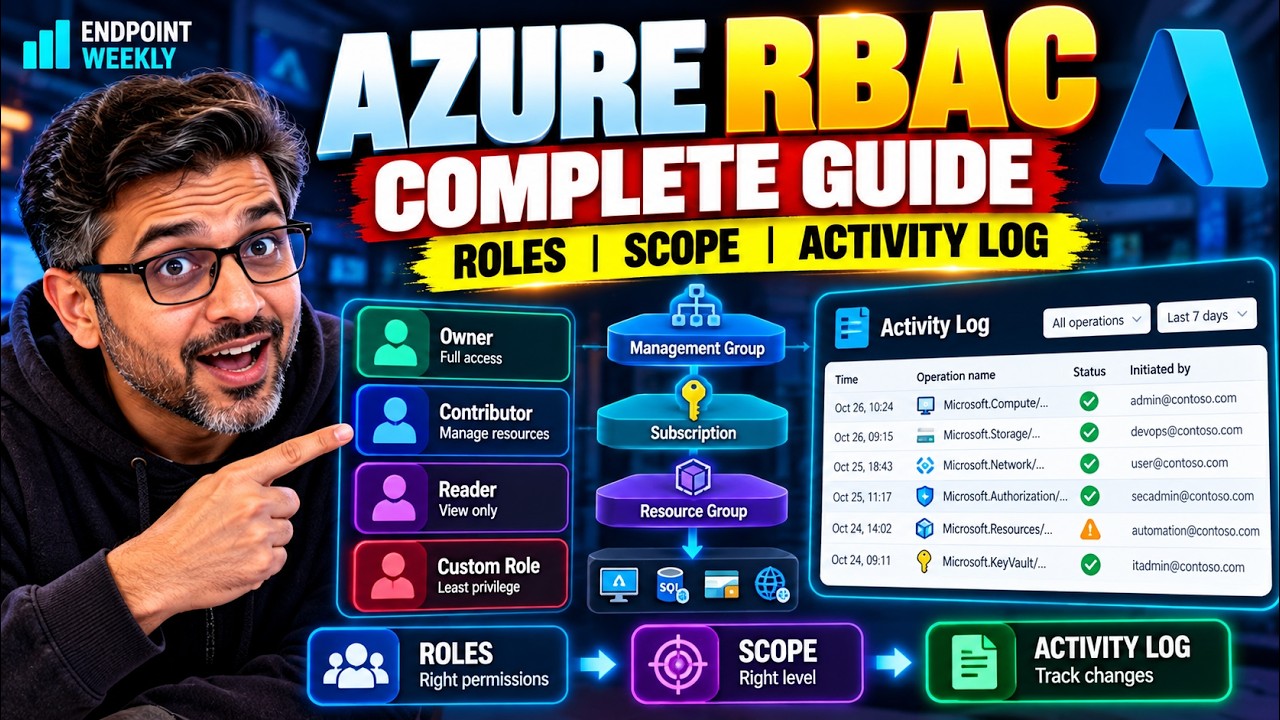
Azure RBAC is a sentence with three parts: a security principal (who), a role definition (what) and a scope (where). Bind them together and you have a role assignment. Permissions add up across assignments, and a role granted at a parent scope flows down to everything beneath it. That is the whole model. In practice you will check access with Access control (IAM) › Check access, grant it with Add role assignment at the narrowest scope that works, and audit changes in the Activity log, which only keeps 90 days. The module is right about all of that. What it does not say is that Microsoft's docs now call RBAC an additive model, that deny assignments are checked first, that classic administrators were converted to Owner, and that the assign wizard has gained steps for conditions and just-in-time access.
The problem: Alain needs to create VMs, and "make him Owner" is the wrong answer
The module's scenario is a good one, so we will keep it. You work in IT at an engineering firm called First Up Consultants. A colleague named Alain is starting a project and needs to create and manage virtual machines. Your manager hands you the request.
You have three ways to answer it, and two of them are mistakes. You could make Alain an Owner of the whole subscription, which works instantly and gives him the power to delete things and hand out access to anyone. You could tell him to raise a ticket every time he needs something, which does not scale. Or you could give him exactly the access the job needs, in exactly the place he needs it. That third answer is what Azure RBAC is for.
First, plain English on what we are talking about.
Azure role-based access control (Azure RBAC) is the authorization system built into Azure Resource Manager, the layer that every Azure portal click and every command goes through. It answers one question: is this person allowed to do this action on this resource? It is separate from Microsoft Entra ID, which answers a different question: who is this person? Entra proves identity. RBAC decides what that identity can do to Azure resources. Entra also has its own roles, which manage things like users, licences and password resets. Those are not the same as Azure roles, and the two sets do not overlap.
- List who has access to a resource group, and tell inherited access from direct access.
- Check what one specific person can do, and spot a deny assignment if one applies.
- Grant Alain the right role at the right scope, and remove it again.
- Work out why a person can or cannot do something, using four checks in order.
- Pull a report of who changed access, and know how far back it reaches.
Seven places the module and the current docs part ways
The concepts in the module hold up. These are the details that have changed, or that the module never mentions. Each one is explained in the sections that follow.
| The module says | The current docs say | Why it matters |
|---|---|---|
| "Azure RBAC is an allow model." | Microsoft's overview now calls it an additive model, and says Azure Resource Manager checks deny assignments first. Azure creates deny assignments itself, for example for deployment stacks. Customer-managed ones are in private preview. | A missing permission can be a deny, not a missing role. Two roles never cancel each other out. |
| Contributor's NotActions are five plain-English bullets, ending in blueprint artifacts. | The Contributor definition lists eight NotActions, including Microsoft.Authorization/elevateAccess/Action, a galleries share action and two Purview consent actions. | The real list decides what Contributor cannot do. The summary is only an approximation. |
| The overview diagram shows classic subscription administrator roles. | Classic administrator roles retired on 31 August 2024. From December 2025 Azure automatically assigned Owner at subscription scope to anyone still holding Co-Administrator or Service Administrator. The Classic Administrators tab was removed in May 2026. | Your subscriptions may contain Owner assignments nobody chose. |
| Unit 4: "more than 70 built-in roles". The summary: "more than 200". | Another Learn page says "over 100". The built-in roles reference lists about 500 role IDs. I counted 505 on 12 October 2026. | Do not memorise a number. Filter the Roles tab by type and category instead. |
| Assign steps: Role, Members, Review + assign. | The Role tab now splits job function roles from privileged administrator roles. There is an optional Description, a Conditions step for some roles, and an Assignment type step for tenants with Microsoft Entra ID P2 or Governance. | You can grant just-in-time access instead of permanent access. |
| Unit 6: filter the activity log to "Last month". | The activity log keeps Azure RBAC changes for 90 days. Azure Monitor logs keep them longer. | A quarterly audit outruns the log's memory. |
| Unit 4 starts at Profile menu › My permissions. | The current RBAC articles document Access control (IAM) › Check access › View my access. I could not find "My permissions" in them. | Use View my access at the scope you are debugging. It also lists deny assignments. |
Why it happens: the who, what and where model, and how Azure decides
Almost every RBAC problem you will meet comes from one of five places: the wrong person, the wrong role, the wrong scope, a second assignment you forgot about, or a delay. This section gives you the model that lets you reason about all five.
Three questions that make a role assignment
To grant access you create a role assignment. It needs exactly three things. Think of it as a sentence.
You grant access by creating an assignment and you revoke it by deleting that assignment. Nothing else is involved. When the module says a role assignment is "binding a role to a security principal at a particular scope", this is what it means.
Scope and inheritance: access flows down, never up
The four scopes form a hierarchy: management group, then subscription, then resource group, then resource. A role assigned at one level applies to everything beneath it. That is called inheritance, and it is why the scope you pick matters more than the role you pick.
Two things follow. If you assign Contributor at the subscription scope, the person can manage every resource group in it, including ones that did not exist yet. And there is no way to take away a parent's access at a child scope. You would have to change the assignment where it was made.
The five fundamental roles
Azure has hundreds of built-in roles, but five are the ones to know by heart. The module lists four. Current Microsoft documentation lists five, adding Role Based Access Control Administrator.
| Role | What it can do | The trap |
|---|---|---|
| Owner | Full access to all resources, including assigning roles in Azure RBAC. | Subscription-wide Owner is the most common over-grant. Microsoft recommends a maximum of three subscription owners. |
| Contributor | Full access to manage all resources, but cannot assign roles or manage Blueprint assignments or share image galleries. | "Cannot grant access" does not mean harmless. It can still create, change and delete almost everything. |
| Reader | View resources, change nothing. | It still shows every configuration setting to whoever holds it. |
| Role Based Access Control Administrator | Manage access by assigning roles in Azure RBAC. Cannot manage access in other ways, such as Azure Policy. | It can assign itself or others Owner, so constrain it with a condition. |
| User Access Administrator | Manage user access to Azure resources and assign roles in Azure RBAC. | Same reach as the row above. Treat it as a privileged role. |
Everything else is a more specific role, such as Virtual Machine Contributor, which is the one Alain needs. Its documented description says it creates and manages virtual machines and disks, installs and runs software, and manages local users through VM extensions. It then adds a sentence the module never mentions: the role "does not grant you management access to the virtual network or storage account the virtual machines are connected to". Hold on to that. It comes back in the verify section.
Effective permissions: Actions minus NotActions
A role is a list of allowed operations (Actions) and a list of operations to remove from that list (NotActions). What the role actually lets you do is the first list minus the second. This is easiest to see on the most-used role in Azure.
Now test it by hand. Can a Contributor create a virtual machine? The action Microsoft.Compute/virtualMachines/write matches the * and appears nowhere in NotActions, so yes. Can a Contributor create a role assignment? That action is Microsoft.Authorization/roleAssignments/write, which matches Microsoft.Authorization/*/Write and is therefore subtracted, so no. That one rule is why Contributor cannot make itself Owner.
The module summarises these exclusions as five bullets, ending with blueprint artifacts. Compare that with the published definition above: the blueprint entries are for blueprint assignments, and there are galleries and Purview entries the summary omits. The module's third bullet, granting User Access Administrator at tenant scope, appears to correspond to the elevateAccess action. Use the definition, not the summary, when you need to know.
Additive, with deny checked first
The module says Azure RBAC is an "allow model". Microsoft's overview page now uses a more precise word: additive. If one assignment gives you read and another gives you write on the same scope, you have both. Your effective permissions are the sum of all your assignments.
A worked example from the community makes it concrete. Andreas Baumgarten, a Microsoft MVP, answered a Microsoft Q&A question like this: if a user holds Reader at the management group and Owner on one subscription inside it, they get Reader on all the subscriptions and Owner on that one. Nothing cancels anything. The Reader assignment simply adds nothing where Owner already covers it.
There is one exception, and it is the part the module leaves out. A deny assignment blocks specific actions even when a role assignment allows them. Azure checks deny assignments before it looks at roles. Today, Azure creates and manages them for you in supported scenarios, such as deployment stacks with deny settings. Microsoft states that customer-managed deny assignments are in private preview, so you cannot write your own yet. What you can do is see them: the Check access pane lists them next to role assignments.
Here is the sequence Azure Resource Manager follows every time someone attempts an action. Knowing it turns "why can't they?" into a checklist.
- The person's token arrives with their group memberships, including nested groups.
- Azure Resource Manager collects every role assignment and deny assignment that applies to the resource.
- If a deny assignment applies, access is blocked and evaluation stops.
- Otherwise it works out which roles the person holds on this resource.
- It subtracts NotActions from Actions and checks whether the requested action is left.
- If the assignment carries a condition, the condition is evaluated. Access is allowed only if it is met.
One consequence worth remembering: role assignments are transitive for groups. If Alain is in a group, and that group is a member of another group that holds a role, Alain has the role.
Timing and limits that surprise people
| Behaviour | What the docs say | What to do |
|---|---|---|
| Changes are not instant | Adding or removing a role assignment can take up to 10 minutes to take effect. | Sign out and sign in to force a refresh. For REST calls, refresh the access token. |
| Managed identities cache for longer | Back-end services keep a cache per resource for around 24 hours, so group or role changes for a managed identity can take several hours. | Do not test a managed identity change in the first hour and conclude it failed. |
| Role assignment limit | 5000 per subscription, fixed and not increasable. Management group scope has its own limit of 500. | Assign to groups, not users, to stay far from the ceiling. |
| Custom role limit | 5000 custom roles per directory. | Delete custom roles with no assignments. |
How to verify: Lab 1, see who has access before you change anything
The first rule of access management is to look before you touch. Unit 4 of the module walks you through this. Here it is again, with the current portal names and the commands that do the same thing.
Step 1: open the scope you care about
Everything starts by choosing a scope. Search for Resource groups, open rg-marketing-web, then open the access page.
Step 2: read the Role assignments tab
Select Role assignments. This tab shows everyone who has access here, and it separates assignments made on this resource from ones inherited from above.
If your tenant has Microsoft Entra ID P2 or Governance, a State column appears with four possible values: Active permanent, Active time-bound, Eligible permanent and Eligible time-bound. Eligible means the person must activate the role first, for example with MFA or an approval. Use Edit columns to add Start time, End time and Description.
Step 3: check one person with Check access
This is the fastest way to answer "what can this person do here?". On the same page, open the Check access tab. Select View my access to see your own, or Check access and pick a user, group, service principal or managed identity.
The pane that opens shows the role assignments for that person at this scope and inherited into it. It also lists any deny assignments. It does not show assignments made at child scopes, so it will not tell you what Alain can do inside a different resource group. That is the single most common misreading of this screen.
Step 4: browse the roles themselves
Select the Roles tab for the list of built-in and custom roles. Use the Type and Category filters to narrow it. In the Details column, select View to see a role's permissions, and open its Assignments tab to see how many users and groups hold it.
Step 5: use the Privileged tab to find the risky ones
Back on Role assignments, the Privileged tab lists privileged administrator role assignments at this scope, and a card shows the count. From here you can add a condition to constrain an assignment or remove it. On a subscription, this is the quickest audit you can run.
Step 6: see one person across every scope
Check access is per scope. To see everything one person holds, go to All services › Microsoft Entra ID › Users, pick the user, and select Azure role assignments. You get the roles assigned to them at management group, subscription, resource group and resource scope, limited to what you have permission to read.
Step 7: take an inventory with Download role assignments
On the Access control (IAM) page you can select Download role assignments to export everything at a scope as CSV or JSON. Three limits to know: the display name, sign-in name and object type columns are blank if you lack permission to read the directory; assignments whose principal was deleted are left out; and classic administrators are not included. It is a snapshot of now. It cannot tell you who changed what last week. That is a job for the activity log, in Lab 3.
The same checks from the command line
Everything above can be scripted. These commands come straight from Microsoft's documentation. I have not run them against a tenant for this post, so the output below is illustrative, built from the documented output shape with made-up names.
When someone says "I can't do it": four checks, in order
This is the part no training module gives you, because it is the part you learn by getting paged. Work down the list and stop at the first yes.
rg-marketing-web and tries to create a VM. It fails if the virtual network lives in a different resource group. The role's documented description is explicit that it does not grant management access to the virtual network or storage account the VMs connect to. The access he needs may be a second assignment, such as a network role on the network's resource group, or the network moved into the same group.The fix: Lab 2, grant and remove access with least privilege
Least privilege means giving the smallest set of permissions, at the smallest scope, for the shortest time that gets the work done. Microsoft's best-practice page puts it plainly: avoid assigning broader roles at broader scopes even if it seems more convenient. Alain needs to manage VMs in one project. So the answer is a VM-specific role, on one resource group.
Step 1: choose the scope and open Add role assignment
You must be signed in as someone who can write role assignments, such as a Role Based Access Control Administrator or a User Access Administrator. If you cannot, the Add role assignment option is greyed out. The Microsoft permission behind it is Microsoft.Authorization/roleAssignments/write.
Step 2: pick the role
- On the Role tab, stay on Job function roles. The other tab, Privileged administrator roles, holds Owner, Contributor and the access-management roles. If you find yourself reaching for that tab, ask whether a job function role would do.
- Search for Virtual Machine Contributor and select it. Select View in the Details column first if you want to read what it grants.
- Select Next.
Step 3: choose who
- On the Members tab, select User, group, or service principal, then Select members.
- Search for the person or, better, the group, and choose Select.
- Type a short Description saying why, such as "Marketing web project VM operations". It is optional, and it is the cheapest audit trail you will ever create.
- Select Next.
Step 4: the two steps the module skips
- Conditions appears only for roles that support one. For Owner, Role Based Access Control Administrator and User Access Administrator, you can restrict which roles and principals the person is allowed to assign. Use it whenever you hand out an access-management role.
- Assignment type appears if your tenant has Microsoft Entra ID P2 or Governance. Eligible means the person must activate the role, for example with MFA or an approval, which gives you just-in-time access. Active means they can use it without doing anything. Choose Active with Permanent to get the classic behaviour. Eligible assignments cannot be given to applications, service principals or managed identities, because they cannot perform the activation steps.
Microsoft notes this capability is being deployed in stages, so you may not see it yet, or your screen may look different.
Step 5: review and assign
On Review + assign, check the role, the member and the scope, then select Review + assign. After a few moments the assignment appears in the list. Remember the 10-minute allowance before you test it.
The same grant from the command line
Microsoft's best-practice page recommends using the unique role ID rather than the role name in scripts, because names can change. A custom role can be renamed, and a preview role loses its "(Preview)" tag on release, but the ID stays put. Virtual Machine Contributor's ID is 9980e02c-c2be-4d73-94e8-173b1dc7cf3c, as listed in Microsoft's built-in roles reference.
Removing access
Revoking access means deleting the assignment. In the portal: open Access control (IAM) at the scope, select Role assignments, tick the principal's row, select Remove, then Yes. Microsoft's remove page gives the command-line equivalents too, for example Remove-AzRoleAssignment in PowerShell and az role assignment delete in the CLI.
The habits that keep it tidy
These come from Microsoft's own best-practices page. None of them is exotic, and every one is easy to skip under pressure.
| Habit | Why it matters | How to check it |
|---|---|---|
| Assign roles to groups, not people | Fewer assignments to manage, and you stay far below the 5000 limit. | Role assignments tab: look for rows with a user's name rather than a group. |
| Limit subscription owners to three | Fewer compromised accounts can take over the subscription. | Subscription › Access control (IAM) › Role assignments, then count the Owners. |
| Use the narrowest scope | A smaller scope limits what is at risk if the account is compromised. | The Scope column. Subscription-level Contributor deserves a justification. |
| Use PIM for privileged access | Just-in-time access lowers the time a privilege is exposed. | The State column. Active permanent on a privileged role is the thing to question. |
| Add conditions to access-management roles | Stops a delegate from handing out Owner. | The Privileged tab on the Role assignments page. |
| No wildcards in custom roles | A wildcard also grants every operation Azure adds in future. | Read the Actions list of each custom role. |
Proof it worked: Lab 3, the activity log, plus a self-test
You have granted access. Now prove two things: that it landed, and that the change was recorded. The first is Check access again. Open Access control (IAM) on rg-marketing-web, select Check access, and search for the group or person. You should see Virtual Machine Contributor at This resource. If you see nothing, wait up to 10 minutes and refresh the token.
The second is the Azure Activity Log. Every time anyone changes a role assignment or a role definition in your subscriptions, Azure records it. This is the answer to "who gave that person access, and when?"
Step 1: open the activity log and filter it
- Select All services, search for Activity log and open it.
- Set the Timespan. Pick a range inside the last 90 days, because that is how far back RBAC changes are kept.
- Add an Operation filter. Typing "role" narrows the list.
- Select the four RBAC operations: Create role assignment, Delete role assignment, Create or update custom role definition and Delete custom role definition.
- Select an entry to see the summary. The JSON tab has the full detail, and a button at the top downloads the list as CSV.
Here is what the entries tell you. A Succeeded row for Create role assignment, with the right caller, is your proof that the grant happened. The pair of rows with Started then Failed is a change that did not land, for example a pipeline that lacked permission. The status shows in the status:value property.
Reading one entry
Open the JSON tab and look for these properties. They are the ones Microsoft documents for RBAC entries.
| Property | Example value | What it tells you |
|---|---|---|
authorization:action | Microsoft.Authorization/roleAssignments/write | What happened. write is a create, delete is a removal. roleDefinitions is for custom roles. |
authorization:scope | A subscription or resource group path ending in the role assignment ID | Where the change was made. |
caller | A user principal name or an object ID | Who did it. An object ID usually means a service principal. |
eventTimestamp | An ISO date and time | When it happened. |
status:value | Started, Succeeded or Failed | Whether it worked. |
The same report from the command line
These commands are taken from Microsoft's activity log page. Again, I have not run them against a tenant for this post, so treat the text around them as the documented behaviour and the output as the shape you should expect.
For longer than 90 days: send the log to Azure Monitor
Quarterly access reviews are common. The module's own scenario has First Up Consultants reviewing RBAC changes quarterly, and a quarter is about 90 days. A change made on day one of a review period is at the very edge of what the portal can show on the last day. Azure Monitor logs solve this. Create a Log Analytics workspace, send the Activity Log to it, and you can keep the data longer, run complex queries and connect alerts and Power BI. This query, from Microsoft's documentation, counts successful role assignment creations by target resource provider over 60 days:
Self-test
Answer these before you open the explanations. I wrote them from the current docs, so they test the corrected understanding, not just the module's.
- What three things make up a role assignment?
Answer
A security principal (who), a role definition (what) and a scope (where). Remove any one and there is nothing to assign. - Alain holds Reader at the management group and Virtual Machine Contributor on one resource group. What can he do in that resource group?
Answer
Both apply. Permissions add up across assignments, so he can view everything and manage VMs. Nothing cancels the Reader assignment. - A person must create and manage Azure resources but must not be able to grant access to others. Which fundamental role fits?
Answer
Contributor. Owner can assign roles. Contributor has the role-assignment write action removed through NotActions. - You delete Alain's assignment, yet he can still reach the resource group. Name two reasons.
Answer
He may hold the same or a wider role through a group, including a nested group. Or the role is inherited from a parent scope. A third reason is timing: the change can take up to 10 minutes to take effect. - Which report shows who changed access last week, and how far back can it reach?
Answer
The Azure Activity Log, filtered to the four RBAC operations. The portal keeps 90 days. For longer, send the log to Azure Monitor logs. - Why should a script use a role ID rather than a role name?
Answer
Names can change, for example when you rename a custom role or when a preview role is released. The ID does not change, so the script keeps working.
One-page cheat sheet
| Task | Azure portal | Command line |
|---|---|---|
| List access at a scope | Access control (IAM) › Role assignments | az role assignment list --scope ... or Get-AzRoleAssignment -Scope ... |
| Check one person | Access control (IAM) › Check access | Get-AzRoleAssignment -SignInName ... -ExpandPrincipalGroups |
| Read a role's permissions | Roles tab › View | Get-AzRoleDefinition -Name ... or az role definition list --name ... |
| Grant access | Add › Add role assignment | az role assignment create or New-AzRoleAssignment |
| Remove access | Role assignments › tick › Remove | az role assignment delete or Remove-AzRoleAssignment |
| Inventory right now | Download role assignments | Export the list commands above to a file |
| Who changed access | Activity log, Operation filter on role | Get-AzLog or az monitor activity-log list |
What I would take away
If you remember only five things: access is a sentence of who, what and where; permissions add up and flow down, never up or sideways; a deny, a condition or a ten-minute delay can all look like a missing role; give groups the narrowest role at the narrowest scope; and the activity log is short-lived, so export it if you audit on a longer cycle.
References
Microsoft documentation (all fetched 12 October 2026)
- What is Azure role-based access control (Azure RBAC)? - the model, multiple assignments, and the evaluation steps.
- Best practices for Azure RBAC - least privilege, three owners, PIM, groups, role IDs, wildcards.
- Assign Azure roles using the Azure portal - the current assign wizard, conditions and assignment type.
- List Azure role assignments using the Azure portal - Check access, the Privileged tab, states, limits and Download role assignments.
- Check access for a user to a single Azure resource - View my access and Check access.
- View activity logs for Azure RBAC changes - the 90-day window, the four operations and the KQL queries.
- Understand Azure role definitions - the published Contributor definition.
- Azure built-in roles - role IDs and the full list.
- Azure roles, Microsoft Entra roles and classic administrator roles - the five fundamental roles.
- Azure classic subscription administrators - the retirement and the automatic Owner assignment.
- List Azure deny assignments - how deny assignments are created today.
- Troubleshoot Azure RBAC - the 10-minute delay and the managed identity cache.
- Troubleshoot Azure RBAC limits - 5000 and 500 role assignment limits.
The Microsoft Learn training module this post follows
- Secure your Azure resources with Azure role-based access control (Azure RBAC) - eight units, with portal exercises. Learning objectives: verify access, grant access, view activity logs.
Microsoft MVP community deep-dives
| Author | Post | What it adds |
|---|---|---|
| Andreas Baumgarten (Microsoft MVP, Microsoft Q&A volunteer moderator) | RBAC Inheritance - Microsoft Q&A answer | A short worked example of the additive model: Reader at a management group plus Owner on one subscription adds up, and nothing cancels out. This is a Q&A answer rather than a blog post. |
Related on EndpointWeekly
- Find every privileged role, permission and assignment in Entra ID - the Entra side: roles that manage the directory rather than Azure resources.
- How many of your Global Admins are permanently Global Admins? - the same just-in-time idea, applied to Entra roles.
- You scoped that admin to one scope tag, and they can still see every untagged object - a scoping surprise in Intune's own role-based model.