On 8 October 2026, Microsoft published Prepare for Windows Update certificate rotation in 2027 on the Windows IT Pro Blog. The headline is short: a set of the certificates Windows Update uses expires on 17 May 2027 and 19 June 2027, and devices that are not patched to a certain level by then stop getting updates.
Microsoft's own framing is reassuring, and mostly correct: "In most cases, no action is required." But the action table underneath that sentence has a row that catches people out, and the post gives you months rather than build numbers. This article turns that table into exact builds and KB numbers you can test against today, explains the one row that reads backwards, and gives you a read-only script to classify a device in a second.
Windows Update checks a certificate to confirm it is talking to a genuine Windows Update server. Some of those certificates expire in May and June 2027. Any supported device that keeps taking monthly quality updates is already fine. The devices at risk are the ones sitting on old builds, plus anything out of support. Windows 11 25H2 and later need nothing. Windows 11 24H2 and Server 2025 need the September 2025 update or later, which is an older update than every other supported version needs. LTSC 2019, Server 2019 and Server 2016 have the earlier deadline of 17 May 2027. WSUS-serviced devices are not affected.
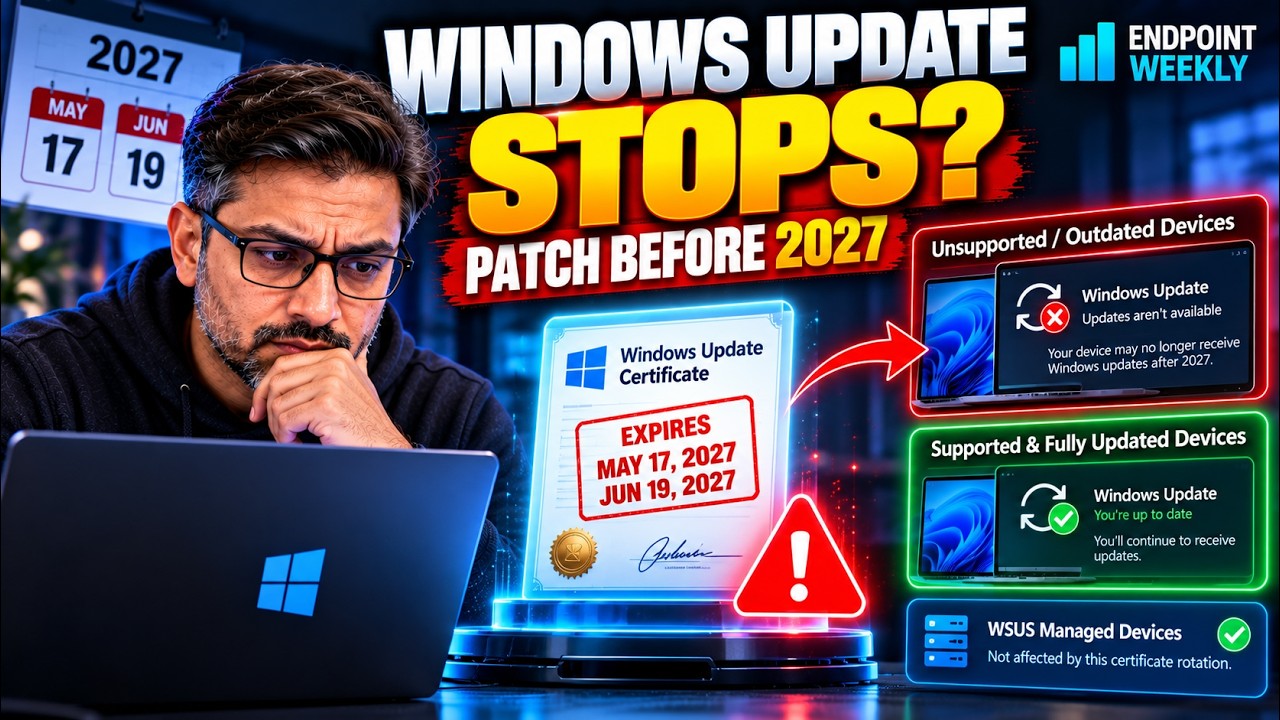
The problem: devices go quiet rather than throwing an error
Here is Microsoft's description of the consequence, quoted exactly: "If unaddressed, affected devices will stop connecting and receiving all types of updates from Windows Update."
Read "all types". Not just feature updates. Quality updates, driver updates, definition updates delivered through Windows Update: all of it.
The failure mode is what makes this worth planning for now. A device that cannot establish trust with Windows Update does not pop a dialog at the user. It just stops reporting new updates. On a dashboard it looks like a device with nothing to install, which is indistinguishable at a glance from a device that is fully patched. If you are not watching last-scan timestamps, a fleet can drift for months.
Why it happens: Windows Update checks who it is talking to
In plain English: before your device accepts update content, it wants proof that the server handing it that content really is Microsoft's. Microsoft describes the mechanism as follows: "Windows Update uses certificate-based trust to confirm that your devices are connecting to authoritative Windows Update servers, so that you can have confidence in the update content delivered to your devices."
That is a sensible design. If anyone could stand up something that looked like Windows Update, they could feed your fleet whatever they liked. The certificate is what stops that.
Certificates expire on purpose. A certificate that never expired would be a permanent liability if its private key were ever compromised. So Microsoft rotates them, exactly as Microsoft puts it: "As a standard security practice, these certificates have an expiration date. This means that they eventually need to be rotated (that is, replaced by new certificates)."
The part that explains the whole action table is this: the new certificates are shipped inside cumulative updates. A device learns to trust the new certificates by installing a Windows update that contains them. Which produces a slightly circular risk, and the reason the deadline matters:
- A device that keeps patching receives the new certificates long before the old ones expire. Nothing happens on the expiry date.
- A device that stopped patching never receives them. When the old certificates expire, it can no longer talk to Windows Update, and so it can no longer pull the very update that would have fixed it.
That is why Microsoft's advice is "the key to getting updates from Windows Update beyond 2027 is to keep your devices up to date today", and why the recovery path after the deadline is the Microsoft Update Catalog rather than Windows Update itself.
How to verify: your build, and the build you actually need
Two numbers settle this for any device: the build it is on, and the build its Windows version needs. Microsoft's table gives you the second one as a month, so the first job is translating months into builds.
Step 1: read the build on a device
The version string you want has four parts, for example 10.0.26200.9457. The third part is the OS build and tells you which Windows version you are on. The fourth part is the Update Build Revision, or UBR, and tells you how far through that version's monthly updates you are. The UBR is the number that decides whether this device is safe.
This one-liner prints both, with no admin rights needed:
winver shows the same thing in a dialog if you prefer, and so does Settings › System › About.
Step 2: know the build your version needs
Microsoft's table, quoted directly, is organised by month:
| Windows version | Action required (Microsoft's wording) | Deadline |
|---|---|---|
| Windows 11, version 25H2 and later | "None." | n/a |
| Windows 11, version 24H2 and Windows Server 2025 | "Install the September 2025 Windows security update or later" | 19 June 2027 |
| Other Windows 11 versions in support and Windows Server 2022 | "Install the July 2026 Windows security update or later" | 19 June 2027 |
| Windows 10 versions in support | "Install the July 2026 Windows security update or later" | 19 June 2027 |
| Windows 10 Enterprise 2019 LTSC, Windows Server 2019, Windows Server 2016 | "Install the July 2026 Windows security update or later" | 17 May 2027 |
| Other Windows versions | "Upgrade these devices to a supported version of Windows" | Before both dates |
The fix: the table decoded into builds, plus a script and a fleet view
The month-to-build translation
Microsoft names months. Your devices report builds. Here is the translation, taken from Microsoft's own release-information tables. Each row is the "B" release, which is the Patch Tuesday security update for that month, because that is what Microsoft's wording means by "the Windows security update".
| Windows version (OS build) | Minimum build and KB | Deadline |
|---|---|---|
| Windows 11, version 26H2 (26300), 26H1 (28000), 25H2 (26200) | No action required | n/a |
| Windows 11, version 24H2 / Windows Server 2025 (26100) | 26100.6584 - KB5065426, 9 Sep 2025 | 19 June 2027 |
| Windows 11, version 23H2 (22631) | 22631.7376 - KB5099414, 14 Jul 2026 | 19 June 2027 |
| Windows Server 2022 (20348) | 20348.5386 - KB5099540, 14 Jul 2026 | 19 June 2027 |
| Windows 10, version 22H2 (19045) | 19045.7548 - KB5099539, 14 Jul 2026 | 19 June 2027 |
| Windows 10 Enterprise LTSC 2021 (19044) | 19044.7548 - KB5099539, 14 Jul 2026 | 19 June 2027 |
| Windows 10 Enterprise LTSC 2019 / Windows Server 2019 (17763) | 17763.9020 - KB5099538, 14 Jul 2026 | 17 May 2027 |
| Windows Server 2016 (14393) | 14393.9339 - KB5099535, 14 Jul 2026 | 17 May 2027 |
Any build at or above the number in the middle column satisfies the requirement, because every later cumulative update includes everything before it. That is why a plain numeric comparison of the UBR is enough.
Classify a device with the script
I wrote a read-only script that does the lookup for you. It reads the build from the registry, matches it to the right row, compares the UBR, and tells you the status, the deadline and the exact KB. It writes nothing, installs nothing and makes no network calls.
Run it with no parameters to assess the machine you are on:
It exits 0 when no action is needed, 1 when the device needs an update or an upgrade, and 2 when it could not assess the device, for example an unrecognised build. Those exit codes make it usable as an Intune Remediations detection script, where exit 1 is what flags a device.
Two switches are worth knowing. -ShowMatrix prints every threshold it knows about, which is the fastest way to answer "what does version X need?" without reading a table in a browser. -TestBuild 19045.6000 evaluates a build you type instead of reading the device, so you can confirm how a build will be classified before you meet one in the field.
Find the devices at fleet scale
You do not need a new tool for this. Intune already knows every device's OS version.
- Sign in to the Microsoft Intune admin center.
- Go to Devices › All devices.
- Add the OS version column, then export the list.
- Sort by OS version and compare each group against the table above. The full version string Intune reports includes the UBR, so the comparison is direct.
Prioritise in the order Microsoft suggests, which matches the risk: the out-of-support devices first, because those need an OS upgrade rather than a patch and that takes planning; then the 17 May 2027 population; then everything else.
| Priority | Population | Why first |
|---|---|---|
| 1 | Anything out of support, or on a build not in the table | Needs an OS upgrade, which is a project, not a patch. It also loses Windows Update access regardless. |
| 2 | LTSC 2019, Server 2019, Server 2016 below the July 2026 build | Earliest deadline at 17 May 2027, and these estates usually patch on the slowest cadence. |
| 3 | Windows 10 22H2, LTSC 2021, Server 2022, Windows 11 23H2 below their July 2026 build | 19 June 2027, and normal monthly servicing fixes them on its own. |
| 4 | Windows 11 24H2 and Server 2025 below 26100.6584 | Rare in practice. A device this far behind on 24H2 has a separate servicing problem worth investigating. |
What to do if a device has already missed the date
This is the scenario to rehearse, because the usual reflex does not work. The device cannot fetch the fix from Windows Update. Your options are the ones Microsoft names:
- Download the required KB from the Microsoft Update Catalog and install it directly on the device.
- Push the same package through your management tooling, for example a Win32 app or a ConfigMgr deployment, so it does not depend on the Windows Update channel.
- For out-of-support devices, upgrade the OS. There is no patch that restores Windows Update access to a version Microsoft no longer serves.
Proof it worked: real output from both paths
Everything below is genuine output from running the script, not a mock-up. The only edit is the device name, which has been replaced with a placeholder.
A compliant device. This is a Windows 11 25H2 machine, which Microsoft lists as needing no action:
This is what good looks like: a matched row, a clear status, and an exit code of 0. Note the last line. The script repeats the WSUS carve-out every time, so nobody acts on a result that does not apply to their servicing model.
A device that needs work. My own machines are all current, so rather than fabricate a screenshot I used the script's -TestBuild switch, which runs the same decision logic against a build you supply and labels the output as a test:
That run exits 1. The device is on 19045.6000, below the required 19045.7548, so it is flagged with the KB to install and the date to beat.
The whole matrix. Useful when someone asks what a particular version needs and you want the answer without opening a browser:
Edge cases I checked
Results of running the script against specific builds, so you know where the boundaries are:
| Build tested | Result | What it confirms |
|---|---|---|
17763.9020 | No action needed, exit 0 | A device exactly on the threshold passes. The comparison is "at or above", not "above". |
17763.8000 | Action required, 2027-05-17, exit 1 | LTSC 2019 and Server 2019 correctly get the earlier May deadline. |
26100.33158 | No action needed, exit 0 | Windows Server 2025 runs a much higher revision range than Windows 11 24H2 on the same 26100 build. The numeric comparison handles both. |
22000.3000 | Unknown, exit 2 | An out-of-support build is not silently passed. It is flagged for a human to check against release health. |
That third row is the one I would have got wrong by assumption. Windows Server 2025 and Windows 11 24H2 share the 26100 build number but their revision numbers have diverged a long way, so anything that hard-coded a single expected revision range for 26100 would misreport one of them.
What this does not tell you
- It reads one device. For a fleet answer, export from Intune and compare against the same table, or run the script through Intune Remediations and use the exit code.
- It does not inspect certificates. It checks the patch level Microsoft says is required. It does not open the certificate store and verify the new roots are present, because Microsoft's guidance is expressed as an update baseline, not a certificate thumbprint.
- Builds not in the table return Unknown, on purpose. Rather than guess at a SKU I have not verified, it points you at Windows release health.
- WSUS. The script prints the carve-out but cannot tell whether a given device is WSUS-serviced, so read that line and apply judgement.
References
- Prepare for Windows Update certificate rotation in 2027 - the source announcement, Windows IT Pro Blog, 8 October 2026. The expiry dates, the action table, the WSUS carve-out and the post-expiry guidance all come from here.
- Windows 11 release information - source for the 24H2 September 2025 build (26100.6584, KB5065426) and the 23H2 July 2026 build (22631.7376, KB5099414).
- Windows 10 release information - source for the Windows 10 22H2, LTSC 2021 and LTSC 2019 July 2026 builds.
- Windows Server release information - source for the Server 2022, Server 2019 and Server 2016 July 2026 builds, and the Server 2025 September 2025 build.
- Windows release health - where to check any version this article does not cover.
- Microsoft Update Catalog - where to get the package for a device that has already lost Windows Update access.
Related on EndpointWeekly
- Windows Update fails signature validation - the other trust chain, on the device side: what happens when an update downloads but refuses to install.
- Secure Boot certificate remediation with Intune - the 2026 Secure Boot rotation, which is a different set of certificates and a different fix.
- Windows 11 23H2 Enterprise end of support - for the devices this article says to upgrade rather than patch.
Download it from Imran76Awan/Windows-Patching-Scripts — public, no sign-in required. It is read-only: it reads the registry and CIM, makes no network calls, and changes nothing. The only file it ever writes is the CSV you ask for with -ExportCsv. Validate it in your own environment before fleet use.