Microsoft Intune can now require users on corporate-owned Android Enterprise devices to sign in with their organisation's managed Google Workspace account. It is generally available and is turned on with one settings catalog policy. Before you use it, your Managed Google Play enterprise must be upgraded to a managed Google domain enterprise, your Google Workspace domain must be verified, and your users must already have managed Google accounts. Until a user signs in, the setting reports an Error and Gmail is disabled, but the device's compliance state does not change.
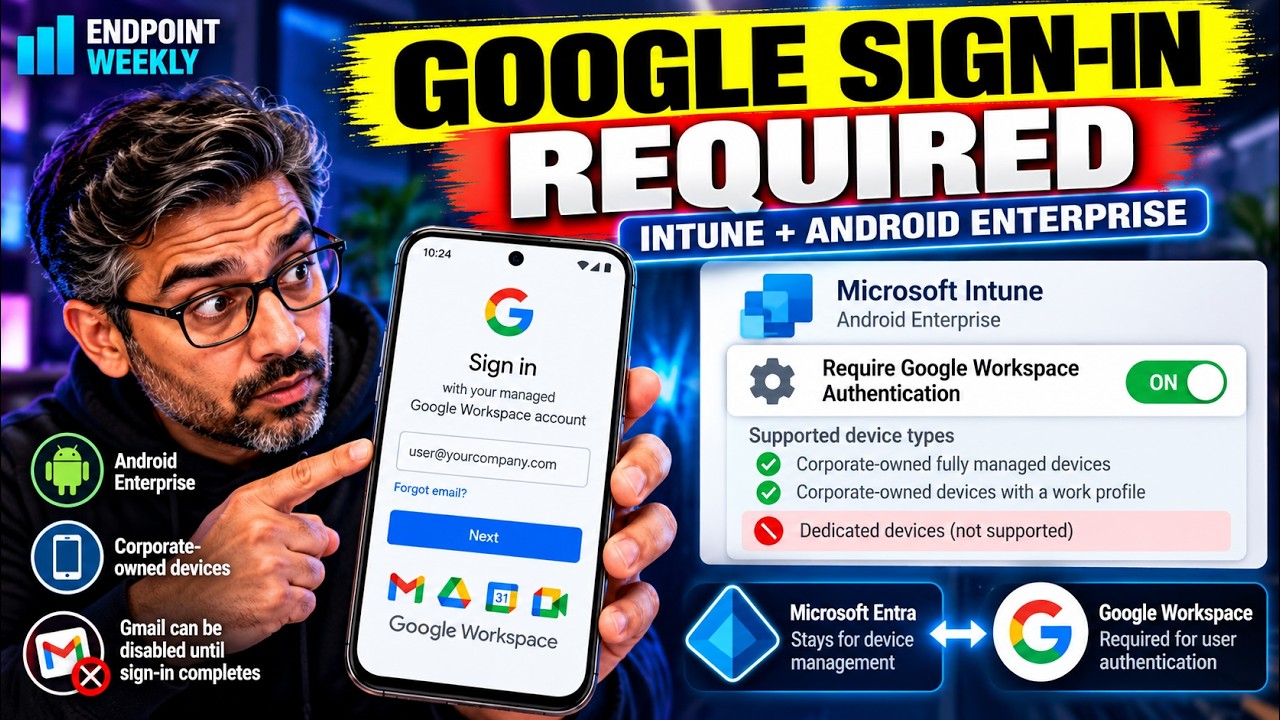
On 19 October 2026 Microsoft announced a new Intune policy for Android Enterprise. You can now require users to authenticate with a managed Google Account. The feature is generally available.
If your company runs Google Workspace and your Android phones are corporate-owned, this is the policy that puts your users' work Google identity on the device. This post follows Microsoft's announcement and its Learn documentation, step by step.
The problem: a managed Android phone with no Google Workspace identity
An Android Enterprise device that Intune manages already has an account on it. It is called the managed Google Play account. Microsoft says it has traditionally been used only to enrol and manage devices and to hand out corporate apps.
It is not a person's identity. So it does not give a user their own organisational login for Google apps and services.
The new policy changes that. It lets you require the user's own managed Google Account on the device instead. Here is the before and after.
The picture above is drawn from Microsoft's description. Now the question of which devices it covers.
| Device type | Supported? | What Microsoft says |
|---|---|---|
| Corporate-owned, fully managed | Yes | Listed as supported |
| Corporate-owned with a work profile | Yes | Listed as supported |
| Corporate-owned dedicated | No | They are not associated with an individual user |
| Personally owned work profile | Not listed | Microsoft names only the two corporate-owned types above |
Why it happens: two accounts, two jobs
Android Enterprise is Google's framework, and Intune manages it. That means two companies' identities are involved. Each has its own job.
Microsoft Entra stays the management identity for the device. Google provides the user's Google identity. This policy changes only the Google side. Microsoft is clear that it does not touch the Entra account on the device.
Three terms get mixed up, so here they are in plain English.
| Term | Plain English | Where it comes from |
|---|---|---|
| Managed Google Play account | The account that enrols and manages the device and distributes corporate apps | Announcement |
| Managed Google Account | The user's own account in your organisation's Google Workspace domain | Announcement |
| Managed Google domain enterprise | Your Intune-to-Google connection, linked to a managed Google domain and managed with your Microsoft Entra work account instead of a Gmail account | Learn |
That last row is the prerequisite that catches people. Microsoft says the new policy supports organisations that have upgraded their Managed Google Play enterprise to a managed Google domain enterprise.
How to verify: are you ready?
Check these five things before you create the policy. Each is quick, and each one stops a rollout that looks fine in Intune but never works for users.
| Check | Where | What good looks like |
|---|---|---|
| Device types | Your Android fleet | Fully managed or corporate-owned work profile. Dedicated devices are out |
| Managed Google domain | Devices > Enrollment > Android > Prerequisites > Managed Google Play | The upgrade is done. See the note below the table |
| Domain verified | Google Admin console | Your Google Workspace domain is verified |
| User accounts | Google Admin console | Each user already has a managed Google Account in that domain |
| Admin roles | Google and Intune | See the roles table below |
On the Managed Google Play page, Learn says the Upgrade button appears greyed out after a successful upgrade, because no more upgrades are available. Learn also says that a greyed-out button when you have not upgraded means you should check your RBAC permissions. So a greyed-out button alone does not prove you are ready. Microsoft does not publish a separate test for this.
For the two Google steps, Microsoft's announcement links Google's own guides: verify your domain and add an account for a new user (see its "Domain verified" section). The roles are where Microsoft's two pages differ.
| Where | Role Microsoft names | Source |
|---|---|---|
| Google Workspace, during the upgrade | Super Admin | Announcement |
| Intune admin center, for the operations in the announcement | At least Policy and Profile Manager | Announcement |
| Intune admin center, for the upgrade steps | An Intune Administrator account | Learn |
The fix: turn the policy on
There are two parts. Part A is only needed if you have not upgraded yet. Part B is the policy itself.
Part A: upgrade to a managed Google domain (only if needed)
These are Learn's steps. Run them with the Google Super Admin on hand, because the Google pop-up needs it.
- Sign in to the Microsoft Intune admin center with an Intune Administrator account.
- Go to Devices > Enrollment.
- Select the Android tab.
- Under Prerequisites, choose Managed Google Play.
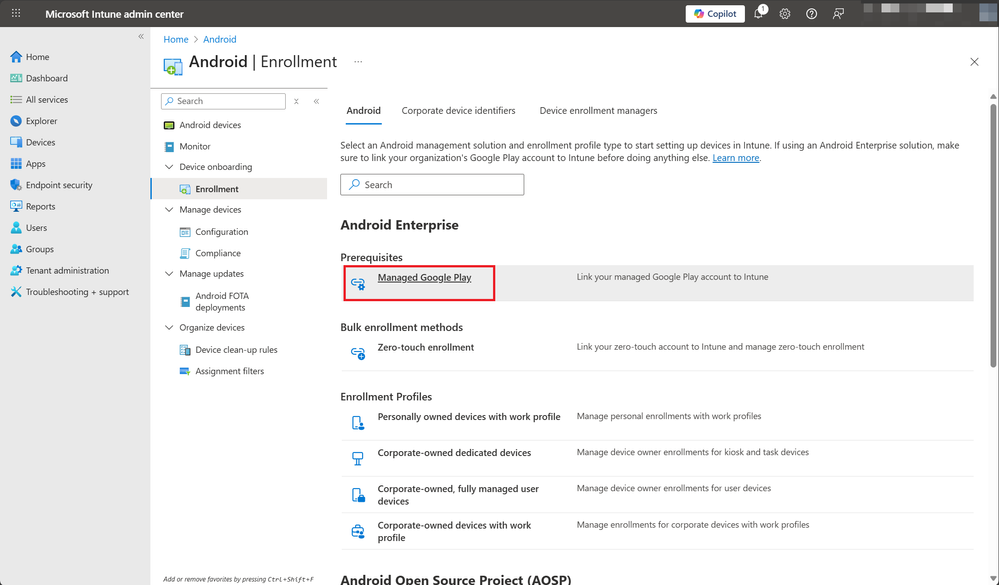
Microsoft's screenshot, from New onboarding flow to managing Android Enterprise devices with Microsoft Intune (first published July 2024). Your console may look slightly different today. - Select Upgrade, then select Upgrade again to confirm.
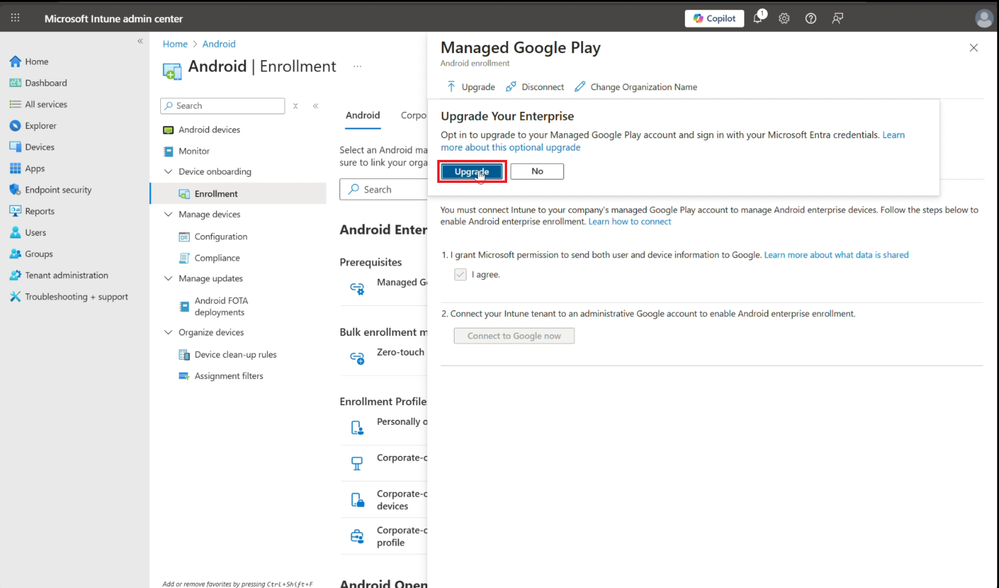
Microsoft's screenshot, from the same onboarding blog. The dialog describes the upgrade as an optional upgrade to your Managed Google Play account, signing in with your Microsoft Entra credentials. - In the Google pop-up, follow the steps. When you are given the option, select Sign in with Microsoft.
- Select Upgrade and wait. A message confirms it is done, and you also get a notification in the admin center.
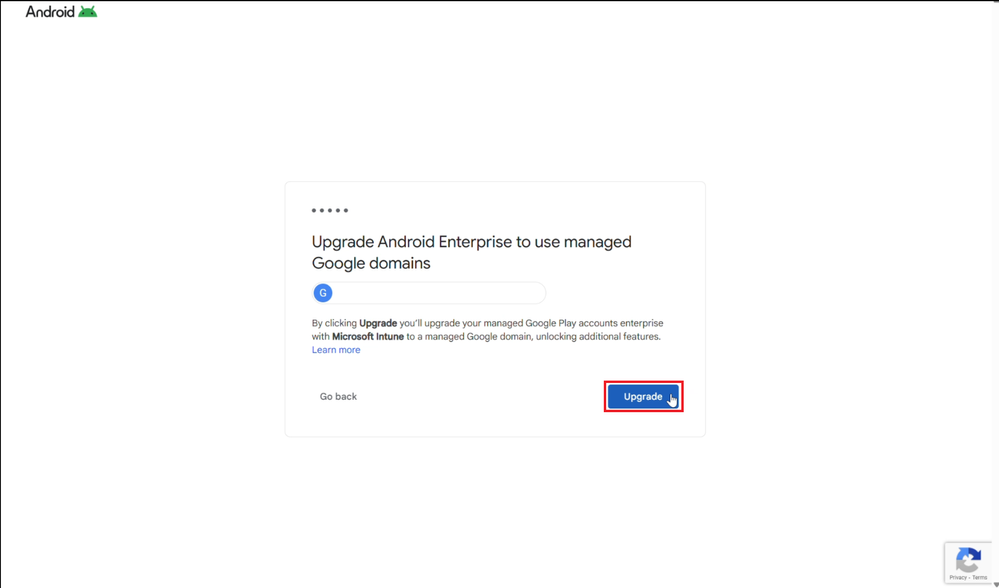
Microsoft's screenshot of Google's confirmation page, from the same onboarding blog.
If Google reports that the domain is already in use, Learn points to Google's support article "Can't sign up my domain for a Google service".
Part B: create the settings catalog policy
Here is the path to follow. It is Microsoft's own, from the announcement.
- In the Intune admin center, go to Devices > Manage devices > Configuration > Create > New policy.
- For Platform, select Android Enterprise. For Profile type, select Settings catalog. Select Create.
- On Basics, give the policy a name. Learn says the description is optional.
- On Configuration settings, select Add settings. In the settings picker, open Device restrictions > Users and Accounts.
- Add Require users to authenticate with a Google Workspace account and set it to True.
- On Assignments, select the groups that contain the users who will use managed Google accounts. Learn adds that Android Enterprise settings catalog policies can use Edit filter to include or exclude specific devices.
- Review and create the policy.
This is what the setting looks like in the policy. The layout is illustrative. The category and setting name are Microsoft's.
Microsoft's announcement does not list an OMA-URI or other path for this setting, and a search of Learn found none. The settings catalog is the documented way to set it.
Proof it worked: what you should see
Here is what a user goes through, in Microsoft's words. After the policy reaches the device, the user gets a notification that asks them to sign in with their work account.
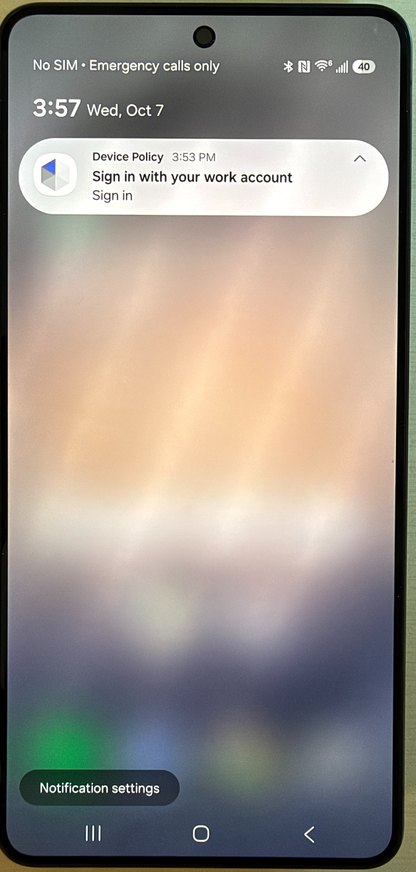
In that screenshot the notification comes from Device Policy, reads Sign in with your work account, and has a Sign in action. Microsoft's figure caption words it slightly differently ("Sign in with a work account"), but the screenshot shows the real text.
The user taps it, adds a managed Google Account from your organisation's domain, and completes authentication. The managed Google Play account is then replaced on the device by the account they chose.
Built from Microsoft's description of the user experience. Now where an admin checks it.
| Where to look | What Microsoft says you will see | When |
|---|---|---|
| Devices > Manage devices > Configuration > Policies, then select the policy | Device and user check-in status, device assignment status, and per-setting status | Any time after assigning |
| The policy's per-setting status | An "Error" state | Until the user signs in |
| The device itself | The managed Google Account is available on the device | After the user signs in |
References
Microsoft sources used for this post
- Require Google Workspace authentication on Android Enterprise devices with Microsoft Intune - the 19 October 2026 announcement. Source for the policy, the supported device types, the prerequisites, the steps and the user experience.
- Connect Intune account to managed Google Play account - the upgrade to a managed Google domain, step by step.
- Create a policy using settings catalog in Microsoft Intune - the policy wizard pages.
- What's new in Microsoft Intune - the upgrade entry sits under the week of 28 September 2026 (service release 2609).
- New onboarding flow to managing Android Enterprise devices with Microsoft Intune - the 2024 background on Entra-based onboarding and the optional upgrade.
- Role-based access control (RBAC) with Microsoft Intune - what the Policy and Profile Manager role covers.
- Device restriction settings for Android in Microsoft Intune - the existing Android restrictions reference. It does not list the new setting yet.
Enrolment guides for the two supported device types
- Set up enrollment for Android Enterprise fully managed devices
- Set up Android Enterprise work profile for corporate owned devices
Google's own steps, as linked from Microsoft's announcement